What do you need help with?
-
Overview and settings
-
Forms
- Manuals will be coming soon.
-
Management of applications
-
Evaluation and approval
-
Contracts and other documents
-
Exports
-
Participatory budget
In the table with a list of all applications you can label individual applications with your own tags (labels) for quicker orientation and clarity. You can also filter the displayed applications by these tags filter the displayed applications.
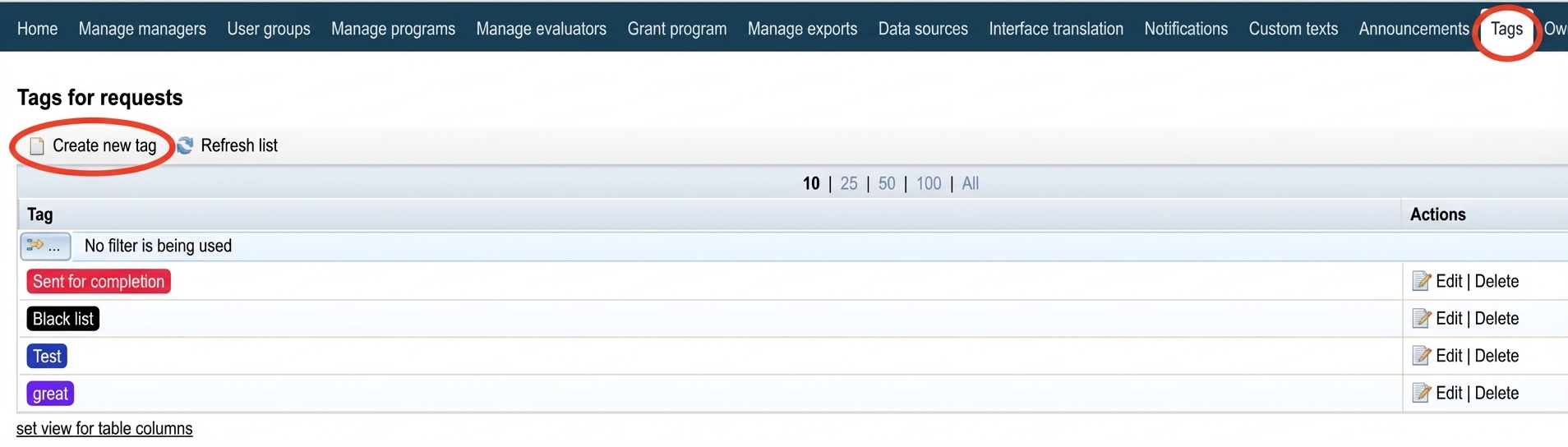
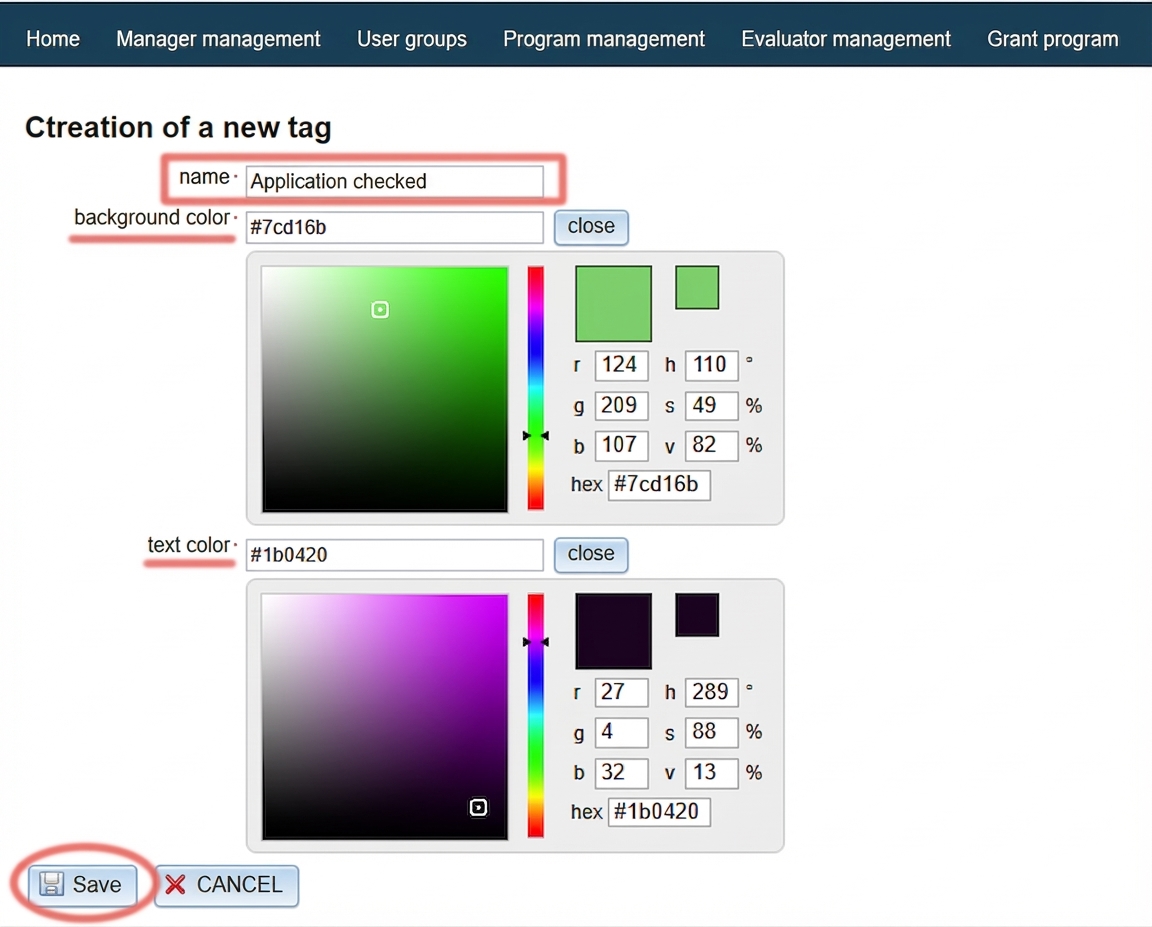
These tags must first be created in the „Tags“ tab in the menu at the organization level.
Creating a tag (label)
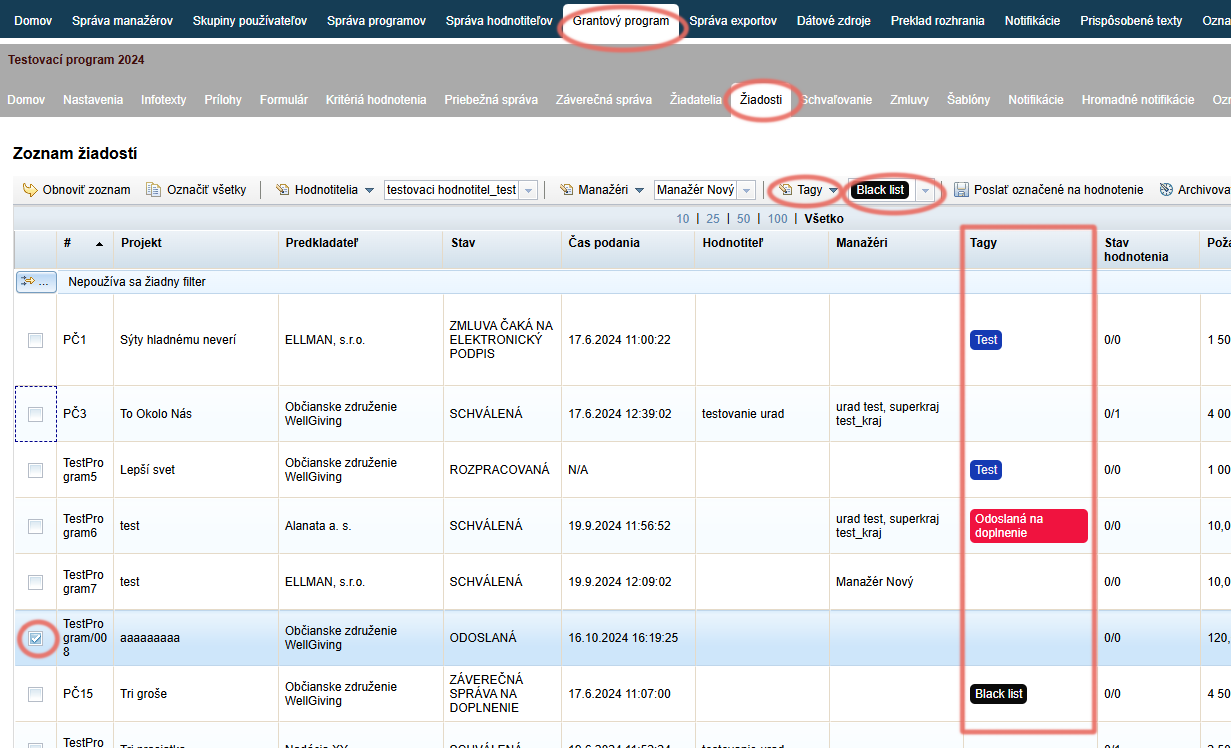
Labeling an application with a tag (label)
-
In the „Applications“ tab of the specific program, select the applications to which you want to add a tag (label).
-
From the dropdown menu above the table select the tag you want to use.
-
Click on the „Tags“ link (above the table, to the left of the tag list) and from the dropdown menu select „Add tag“.
-
The assigned tag will appear in the „Tags“.
If you want to label applications with multiple tags, repeat the process.
If you want to remove an assigned tag, repeat steps 1 and 2, but in step 3 from the menu select „Remove tag“.