Print

Generating and sending contracts

General settings

To generate contracts you first need to configure the following items in the „Settings ” tab at the programme level:

Contract template

First of all, you need to upload a contract template (a Word document containing specific codes in the places where data is automatically pulled from eGRANT).

If you use multiple templates – different sample contracts for different applications – upload one template in the programme settings, and the others in the „Templates“ tab.

Choose the numbering format for contracts (e.g. Contract/2024/#, which means the first generated contract will be numbered „Contract/2024/1“).

    • If you want the number to always be 3 digits, enter the hash sign 3 times (e.g. Contract/2024/###).
    • If you want to start numbering from a specific number (not from 1), choose the format XY{sum(counter,37)} (e.g. Contract/2024/{sum(counter,37)} will generate the first contract as “Contract/2024/38).
    • If you do not specify a numbering format, contracts will be numbered automatically in the format „1“.

If you have paid for the electronic signing feature, do not forget to enable electronic signing in the programme settings.

If you want contracts to be signed electronically, the format of generated contracts must bePDF.

    • If you want to make additional edits to individual contracts after generation, choose the Word format for contract generation, but then upload the individually edited contracts to eGRANT in PDF format.

Generating contracts

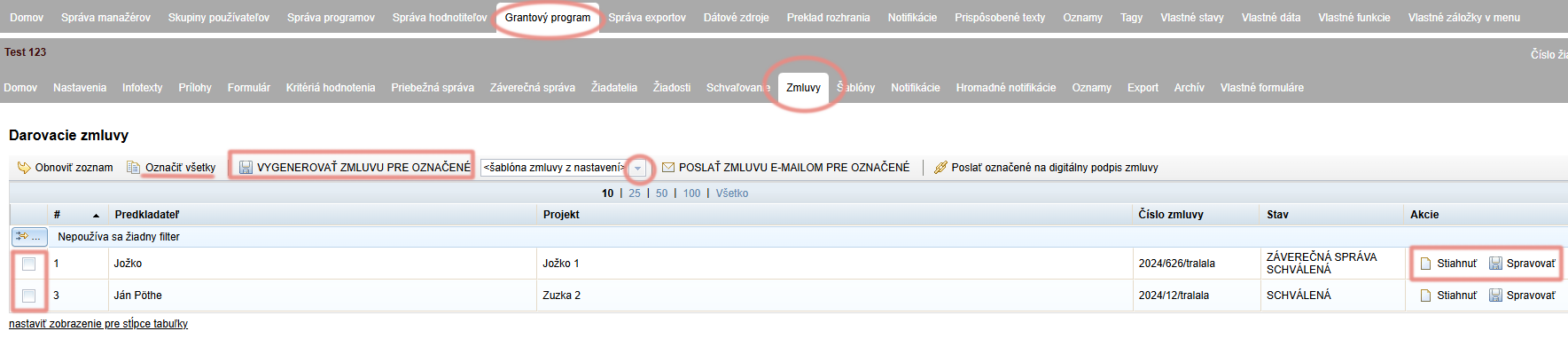
In the „Contracts ” tab at the programme level you will find a list of all approved applications for which you can generate contracts. (If no application has been approved yet, the list will be empty.)

Generovanie zmlúv
  • Select the applications for which you want to generate contracts (or click „Select all ”).

  • Check that the contract is generated from the correct document template.
    The default is always „contract template from settings„.
    If you use a different document template for the selected application (from the „Templates“ tab), select it from the drop-down menu.

  • Then click on „GENERATE CONTRACT FOR SELECTED“.

  • For the applications in the list for which you have generated a contract, a link „Download ” in the column „Actions“.
    If you want to the generated contracts can still be individually edited:

    • click on the link „Download ” – the contract will be downloaded to your computer where you can edit it,
    • upload the edited contract by clicking on the link „Manage ” in the „Actions“ column (if you use electronic signing, the uploaded document must be in PDF format).
Applicant’s access to the contract

The applicant can access their contract in their account in the „Contract ” tab next to the „My application“ tab.

Sending contracts

Odosielanie zmlúv
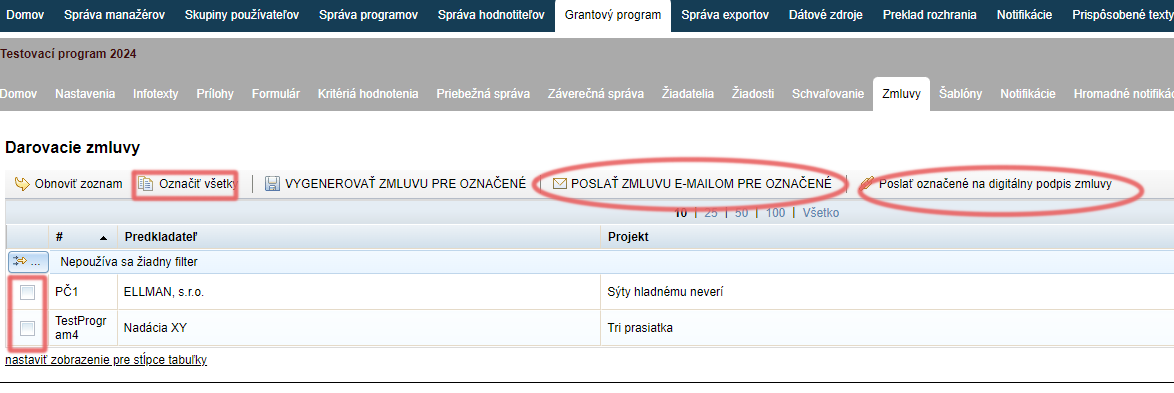
  • In the „Contractsselect the applications to which you want to send the contract (or click „Select all“).

  • Click on „SEND CONTRACT BY EMAIL FOR SELECTED ” (if you do not use electronic signing of contracts).

  • If you use electronic signing of contracts, click on „Send selected for digital contract signing“.
    Application status will change to „CONTRACT AWAITING ELECTRONIC SIGNATURE“.

Notifications

When sending contracts, the following notification emails are sent automatically:

Admin notification about digital contract signing

The manager receives a notification when the applicant has successfully signed the contract electronically.
This notification is sent to managers whose email addresses are listed in the „Settings“ tab at the programme level (field „notification email for submitted applications and final reports“).

Electronic signing of forms/contracts is a paid feature. If you are interested, please contact us.

The notification contains the contract document as an attachment and a link that opens the applicant’s account where they can sign the contract electronically.

  • This notification is sent if you use the electronic signing feature and after generating the contracts, you send them for signing by clicking on „Send selected for digital contract signing“.

Electronic signing of forms/contracts is a paid feature. If you are interested, please contact us.

The applicant will receive an email with the contract document attached.

  • This notification is sent after you send the contracts by clicking on „SEND CONTRACT BY EMAIL FOR SELECTED“.
Attention!

You can find these notifications in the list of all notifications in the „Notifications ” tab both at the organisation level and at the programme level, where you can edit them.
If you edit a notification in the „Notifications“ tab at the organisation level, the changes will apply to all programmes.
If you edit a notification in the „Notifications“ tab at the programme level, the changes will apply only to that programme.

Table of Contents
×