
What do you need help with?
Overview Tables
-
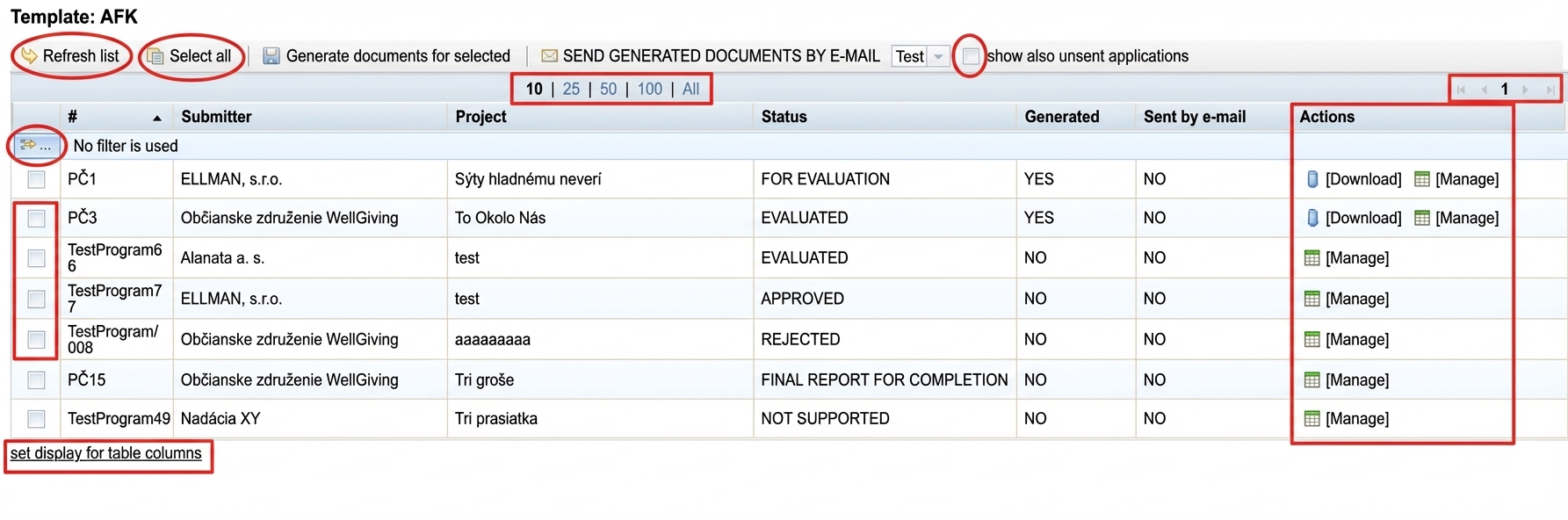
The default number of displayed rows is 10. You can change this number at the top of the table (10/25/50/100/All).
-
If you have fewer rows displayed than the full list contains, you can navigate between pages in the upper right corner of the table.
-
In the upper left corner of the table there is a button with a small yellow arrow. Clicking it opens the filtering options in the table.
Using the filter you can search for a specific item in the list or display only a portion of the list based on a certain rule. -
Above the table on the left there is a link „Refresh List ”, which loads the current list (if you have had a list open for a long time and changes have occurred in the meantime that could affect this list, this button works the same as a page „refresh”).
-
In overview tables where you can perform bulk actions, you will also find the button „Select All“.
Clicking it will select all currently displayed items in the first column.
If you want to select all items in the list, make sure you have „All ” selected above the table in the center (see point 1). -
In overview tables where you can perform bulk actions, you can in the first column individually select items.
-
In overview tables that contain lists of applications, you have the option to also display unsubmitted applications.
Enabling this option will also display applications with the status „IN PROGRESS”. -
In the „Actions ” column you will find a list of actions you can perform for an individual item in the list by clicking the respective buttons.
Most commonly you will encounter the buttons „Edit ” or „Manage ” (usually leads to further options for working with the list item). -
Below the table you will find the link „set column display for the table“.
Here you can set which table columns you want to have displayed or hidden.