What do you need help with?
Search and filtering
Search
For quick navigation in the system, you can use the search bar, which is always located in the upper part of the screen to the right of the organisation logo.
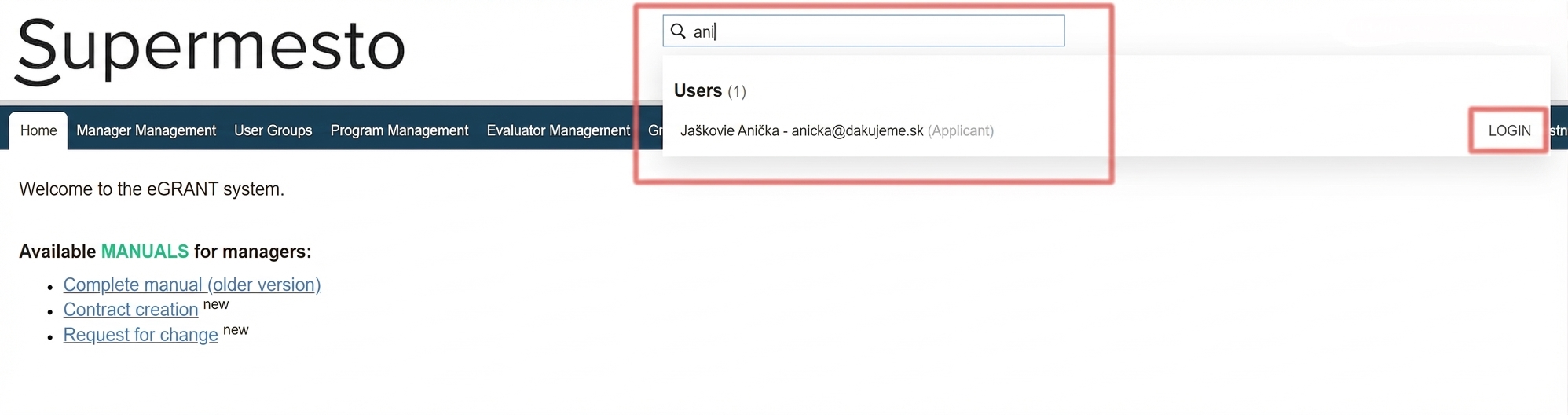 Regardless of where you currently are in eGRANT, you can search by name or email for a user, application, programme, notification, custom form or customised texts, across all programmes.
Filtering
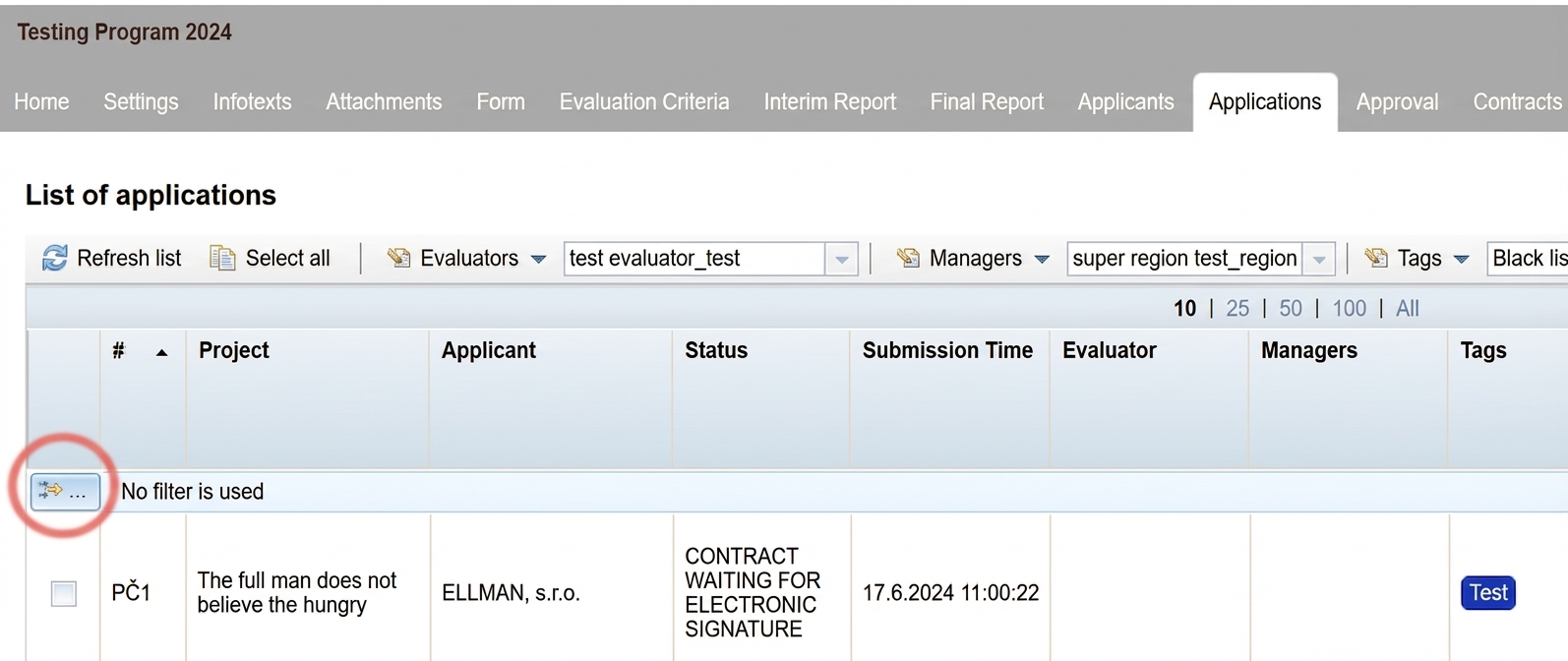
For every overview table (e.g. list of applications, list of notifications, etc.) you can use a filter. You will always find it in the top left corner of the table (yellow arrow icon on a light blue background).
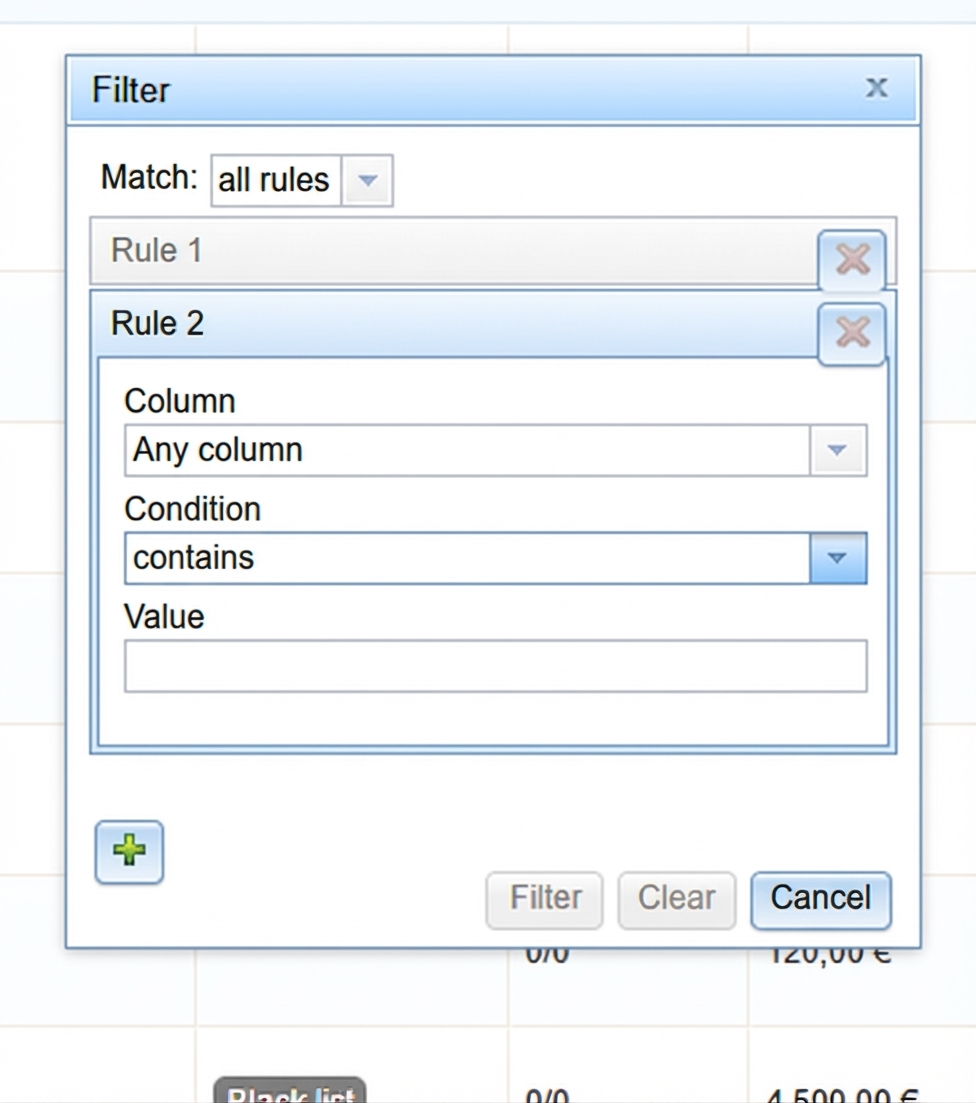
For a basic search in the table, simply start typing the searched term in the „Value“ row and press „Enter“ on the keyboard or click the „Filter“ button in the pop-up window.
You can also further specify the filter:
- You can specify that the searched term should only search in a specific column of the table (select the column in the „Column“ row in the pop-up window).
- You can also further specify the condition based on which the filter should search for the term (the „Condition“ row in the pop-up window).
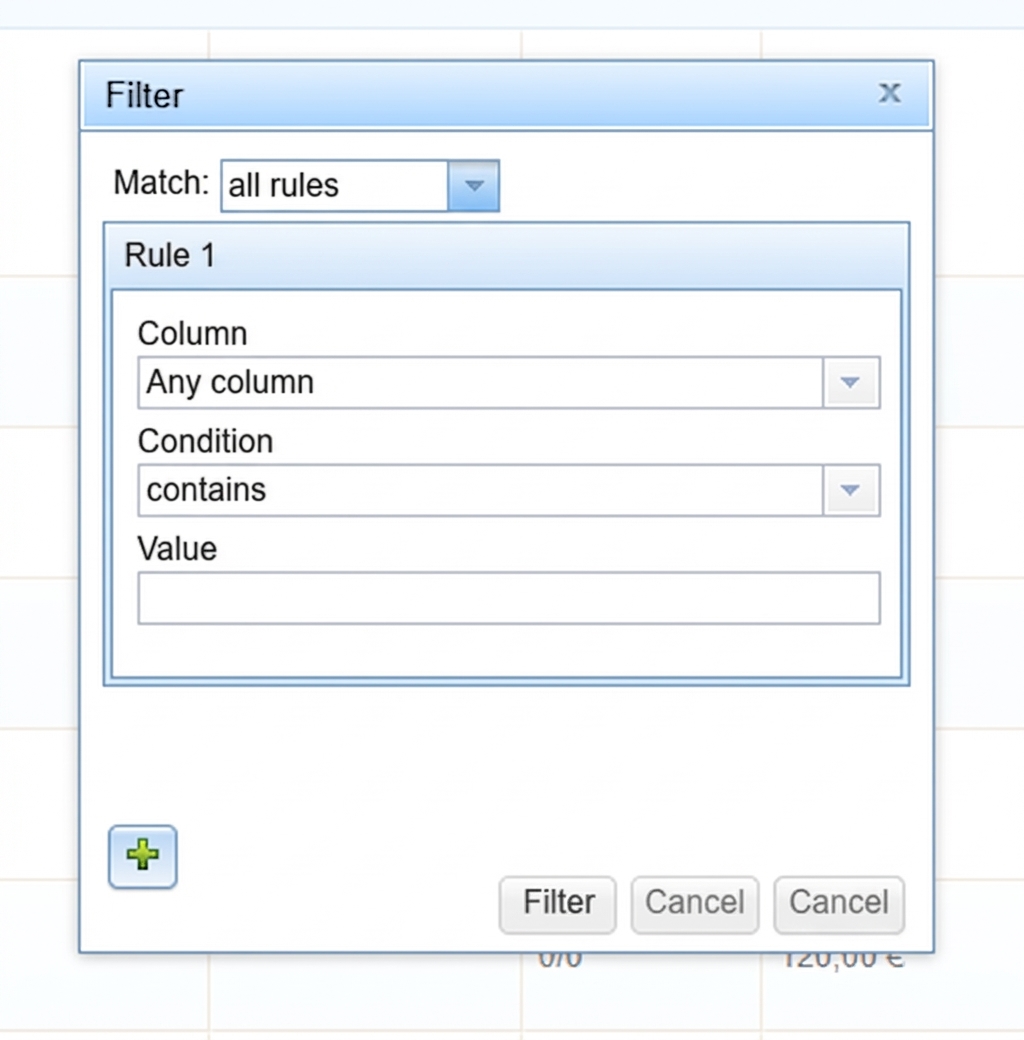
You can also set several search rules simultaneously, if you need to display results in the table based on multiple specifications at once.
Each additional rule can be added via the „+“ button in the pop-up window.
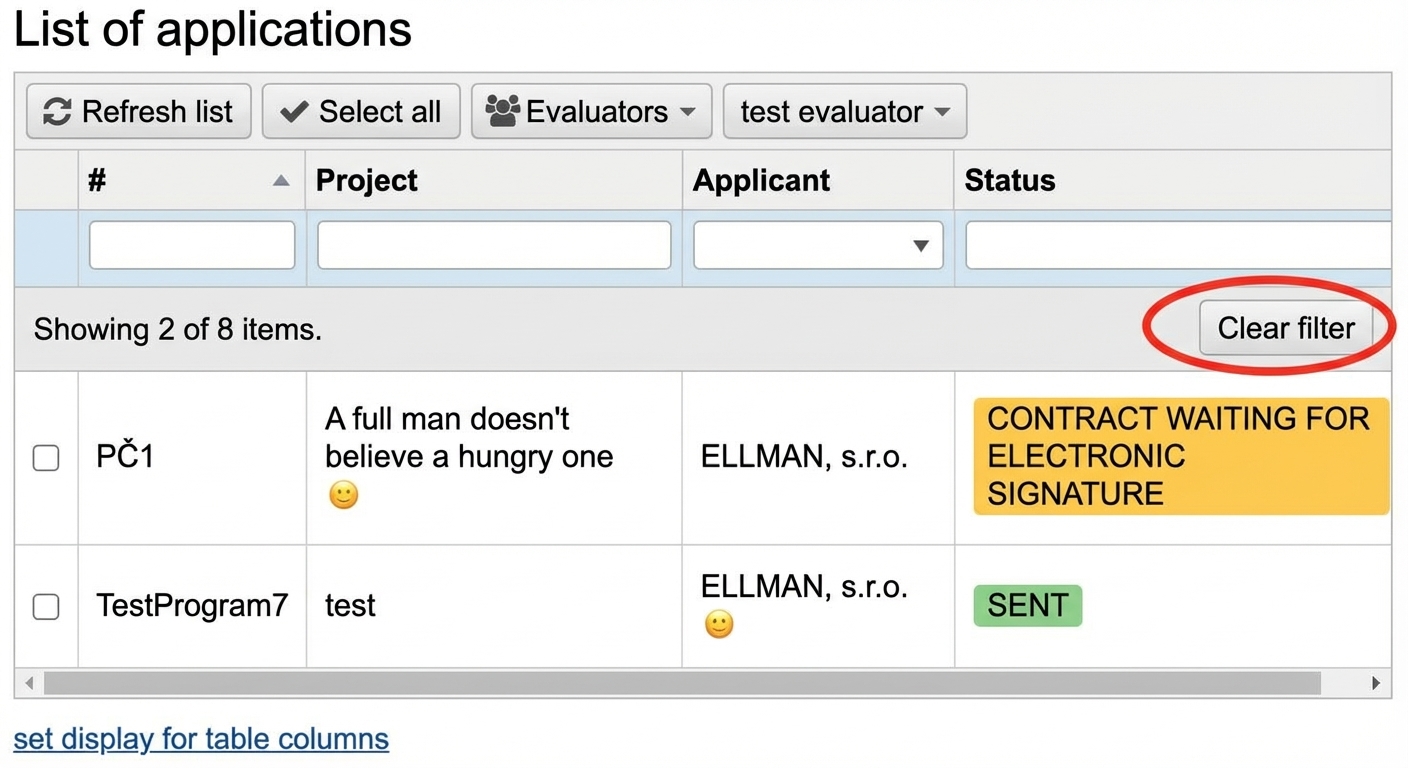
If you want to return to displaying all items in the table, clear the filter by clicking the „Clear filter“ button in the top left corner of the table.