
Print

How to export data from eGRANT

If you want to export data in the form of an Excel document, you have two options in eGRANT:

  1. Overview table export,
  2. Export by template.

1. Overview table export

In most lists in eGRANT (overview tables) you will find the Excel icon of the document.
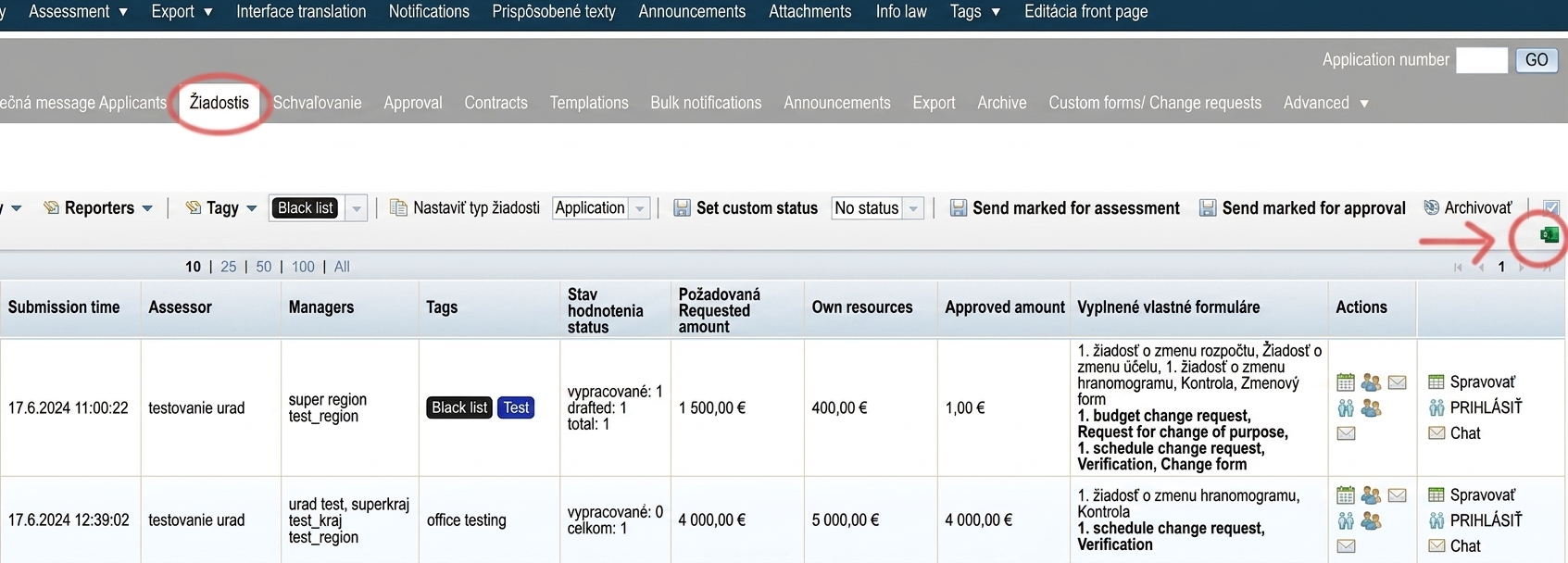
Export prehľadovej tabuľky

By clicking on this icon, you will download an Excel document that contains data from the table as displayed (e.g. if you have a filter enabled – the export will only contain the filtered list, or if you have hidden some table columns – the export will not contain the hidden columns, etc.).
2. Export by template

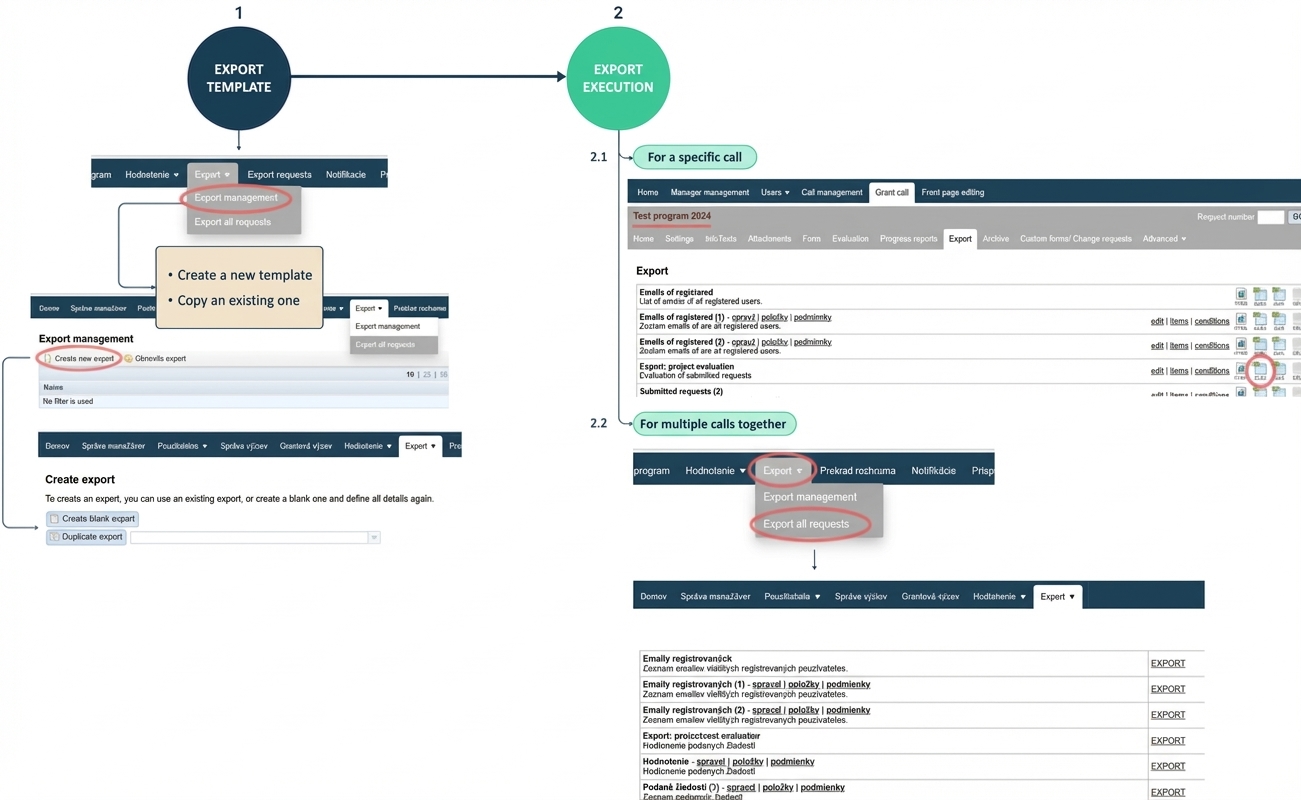
In this case, you first need to create an export template export template where you define which data will be displayed in which column of the Excel document. Only after creating such a template can you then run the export either for a specific call, or for all calls.

You can export:
  • all data that is contained in any form (application, final report, etc.) as a simple field;
  • for data that is in the form of a table in the form, you need to consider the Excel document format – you can export the entire table data into one cell, or split it into Excel columns;
  • system data that is not contained in any form but is recorded by the system (e.g. application number, approved amount, etc.).
Think about exports when creating forms

Think about which data you will later need to process for various internal purposes and make sure that the applicant provides them in one of the forms, or that you can derive them in the Excel document based on other available data, or that this data is recorded by the system in eGRANT.

In the „Export“ in the main menu you create export templates and can also run an export for multiple calls.Záložka "Exporty" v hlavnom menu

To run an export for a specific call, go to the „Export“ in the menu at the call level.Záložka "Export" v menu na úrovni výzvy

Export template

Without a created export template, it is not possible to export data.

Principles for creating an export template:

You define which data item to export using a tag.

Each form field has its corresponding tag, and each system data item also has its default tag.
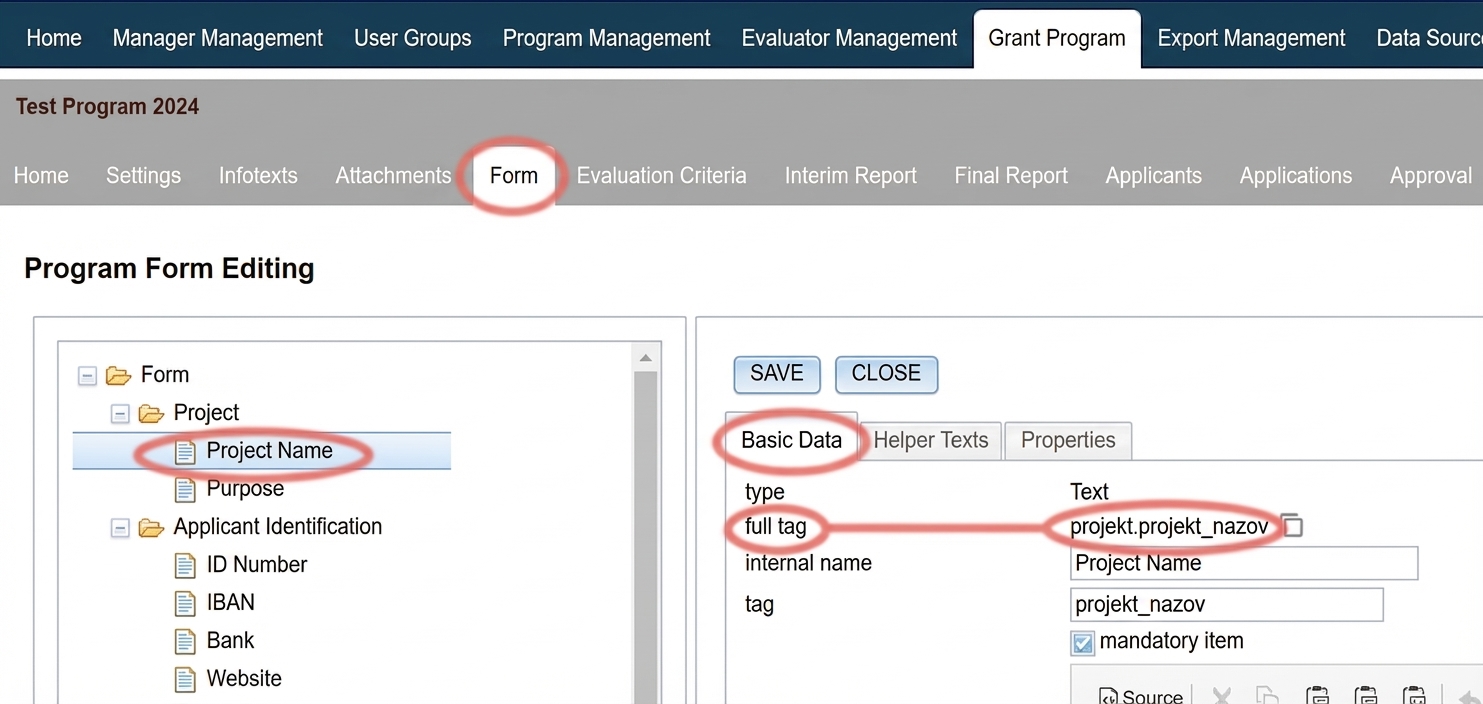
Ukážka tagu formulárovej položky

This means that all these templates can then be used in any call.
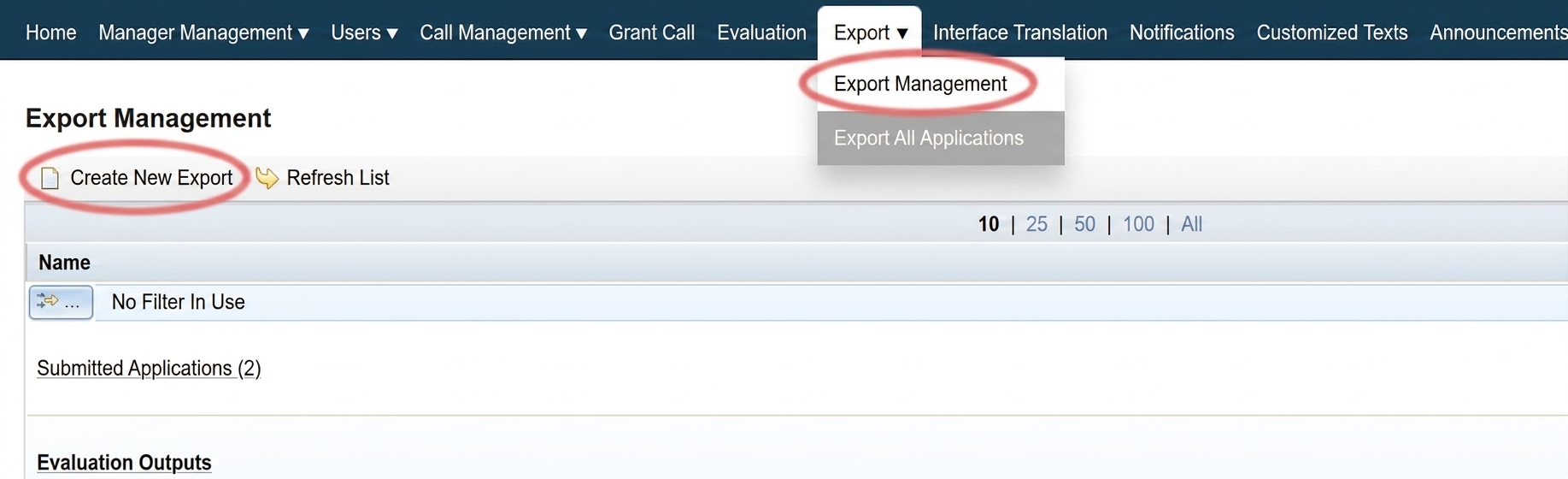
Vytvorenie šablóny exportu

This applies if the data tags you want to include in the export are identical across calls.

E.g.: You have two calls „First Call“ and „Second Call“. You want to create an export that contains the applicant’s address and bank account. If the fields where the applicant enters their address and bank account have the same tag in the form in „First Call“ and „Second Call“, it is sufficient to create one export template. However, if e.g. the bank account field in the „Second Call“ form has a different tag, you need to create two templates (one template for „First Call“ and another template for „Second Call“).

When running an export, the complete list of all created templates opens, and using a distinctive name/description will make it easier for you to navigate the list.

This means which applications the export should cover (if you do not define any condition, the Excel document will contain data from all applications, including those in progress).

E.g. if you want the export to contain data only from approved applications, or only from applications with a requested amount higher than €1,000, you can define this in the export template conditions.

The system already includes three predefined export templates:
  1. Registered emails – a list of email addresses of all registered users
  2. Export: project evaluation – the export contains: application number, applicant name, application name, requested amount, own resources, application status, total score (depending on the evaluation settings, either sum or average), the number of points for individual evaluation criteria for each evaluator, and the proposed amount for each evaluator (if part of the evaluation criteria).
  3. Registry verification results (available when using the registry verification service) – the export contains: application number, applicant, project name, verification status, verification date, overall verification result (OK = all registries OK, NOK = a problem was found in one of the registries), and the verification result for individual registries (1 = OK, 0 = problem).

These templates cannot be edited, but you can duplicate them into new export templates.

For participation managers

In addition to the above, a predefined template is available for participatory budget managers:

Vote export – contains data from the voting form (depending on the form type): name, phone number, city, street, postal code, email, age category, source, date and time, project(s) the voter voted for.

Running an export

If you already have a created export template, you can export data based on it.

1. For a specific call

After selecting this call in the „Export“ in the menu at the call level, by clicking on the „XLSX“.
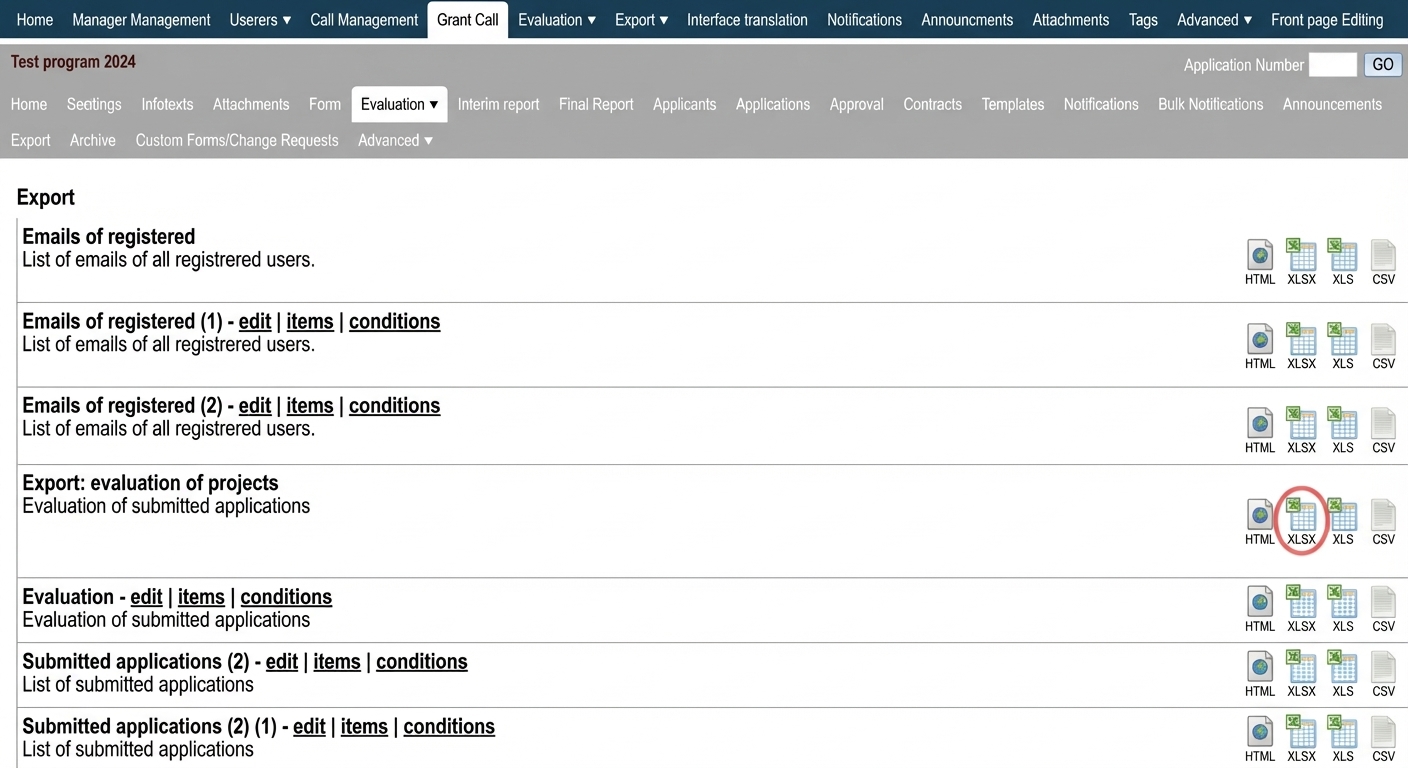
Spustenie exportu za konkrétnu výzvu

In the „Export: Export of all applications“ in the main menu, by clicking on the „EXPORT“ link.

Export údajov za všetky výzvy

In order to export data for multiple calls, tags of this data must match across calls.
The advantage is system data, which has fixed, default tags (e.g. application number – „application_number“).

For form data, however, you manually enter the tag when creating a form item, and there is a higher probability that they will not match.

Table of Contents
×