What do you need help with?
-
Overview and settings
-
Forms
- Manuals will be coming soon.
-
Management of applications
-
Evaluation and approval
-
Contracts and other documents
-
Exports
-
Participatory budget
If you export data using a prepared template, the data export consists of two steps:
1. creating this template, 2. running the export.
- Emails of registered users – a list of email addresses of all registered users
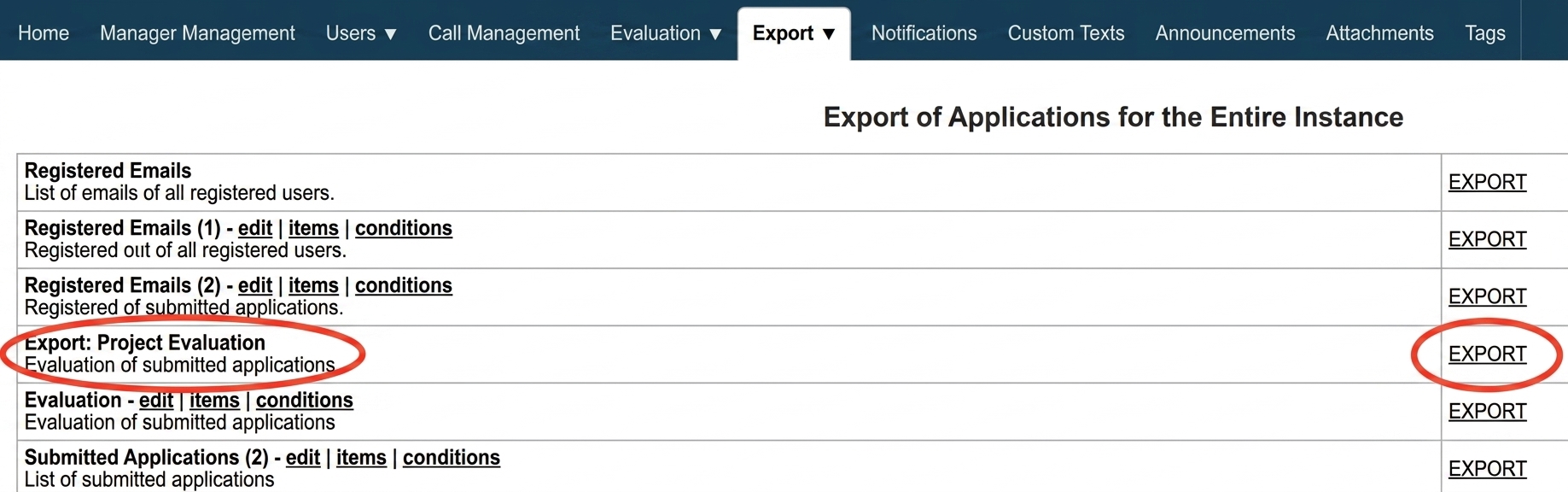
- Export: project evaluation – the export contains: application number, applicant name, application name, requested amount, own resources, application status, final score (depending on the evaluation settings, either the sum or the average), points for individual evaluation criteria for each evaluator, and the amount proposed by each evaluator (if it is part of the evaluation criteria).
- Register verification results (available when using the register verification service) – the export contains: application number, applicant, project name, check status, check date, overall check result (OK = all registers OK, NOK = an issue was found in one of the registers), and the check result for each register (1 = OK, 0 = issue).
These templates cannot be edited, you can only run an export based on them. However, you can duplicate them and then edit the created copy.
In addition to the above, a predefined template is available for participatory budget managers:
Vote export - contains data from the voting form (depending on the form type): name, phone number, city, street, postal code, email, age category, source, date and time, project(s) the voter voted for.
You can run an export:
- for a specific call,
- or for multiple calls (all) together.
1. For a specific call
-
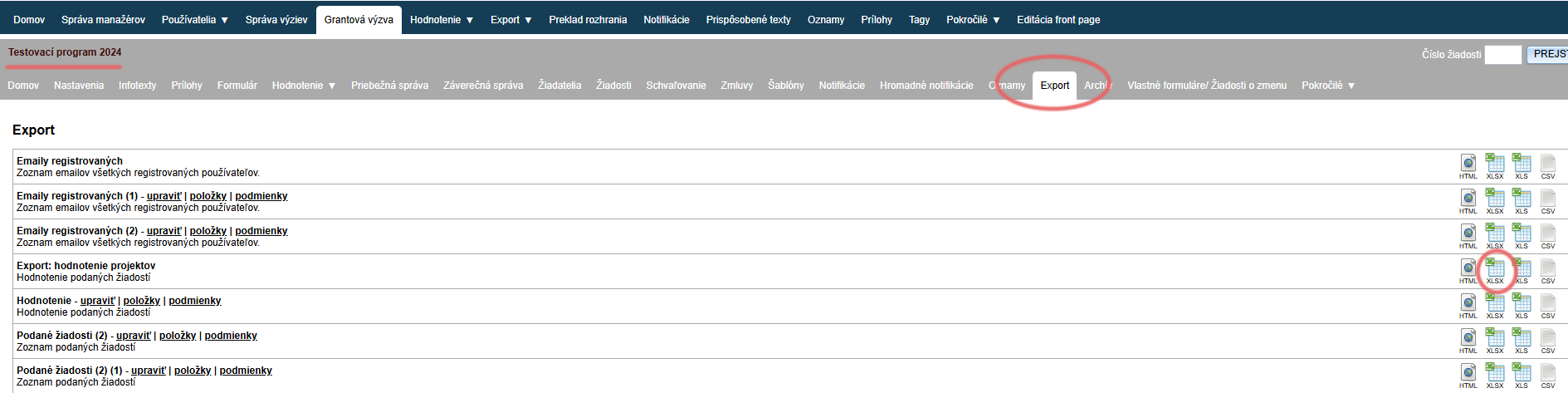
In the menu at the call level open the „Export“.
-
Find the export template in the list that you want to use to run the export.
-
Click on the „XLSX“ icon next to the selected export template (on the right side of the table).
An Excel document containing the data as defined in the export template will then be downloaded.
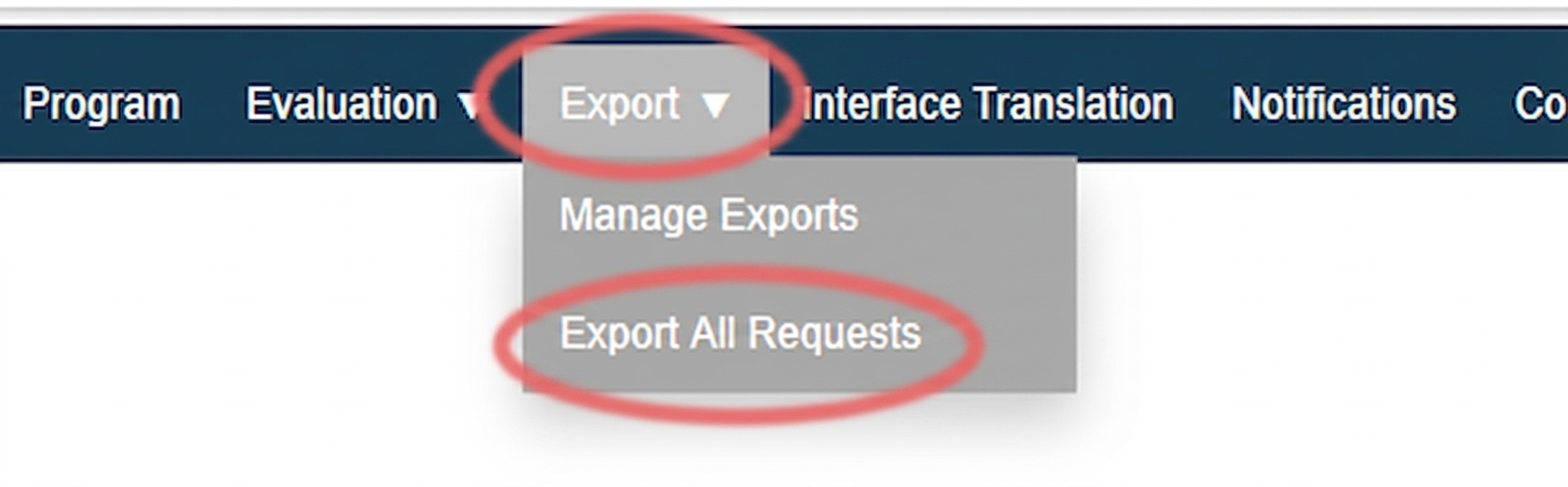
2. For multiple calls together
If you export data for multiple calls (all) together - tags of this data must match across calls.
E.g.: You have two calls „Prvá výzva“ and „Druhá výzva“. You want to create an export that will contain the applicant's address and their bank account. If the fields where the applicant enters their address and bank account have the same tag in the form in „Prvá výzva“ and „Druhá výzva“, it is sufficient to create one export template. However, if the bank account field in the „Druhá výzva“ form has a different tag, you must create two templates (one template for „Prvá výzva“ and another template for „Druhá výzva“). Otherwise, the bank account data will only be pulled for applications of one call.
1 "Export" tab
2 Find the export template
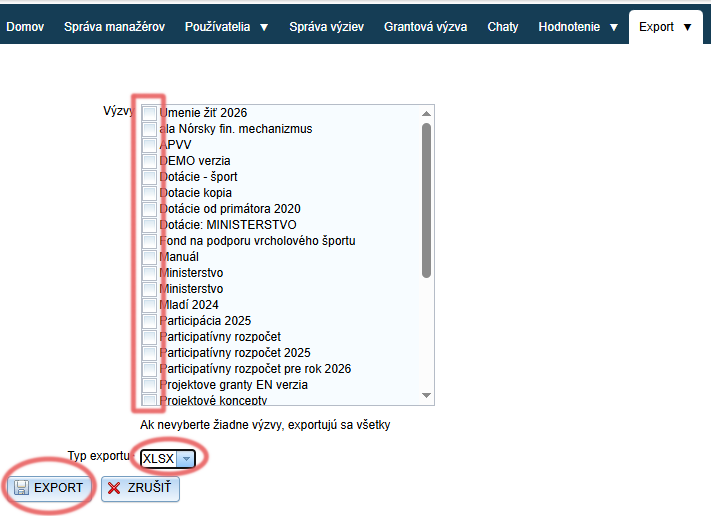
3 Select calls and run the export
- Select calls that you want to include in the export by ticking the corresponding checkboxes.
If you do not tick any, all calls in the list will be exported. - Select export type – for an Excel document, select „XLSX“.
- Click the „EXPORT“ button and an Excel document will then be downloaded.