
What do you need help with?
Evaluation Criteria
In the tab „Evaluation Criteria“ you will create a simple type of form for evaluators who fill it in for each application they evaluate.
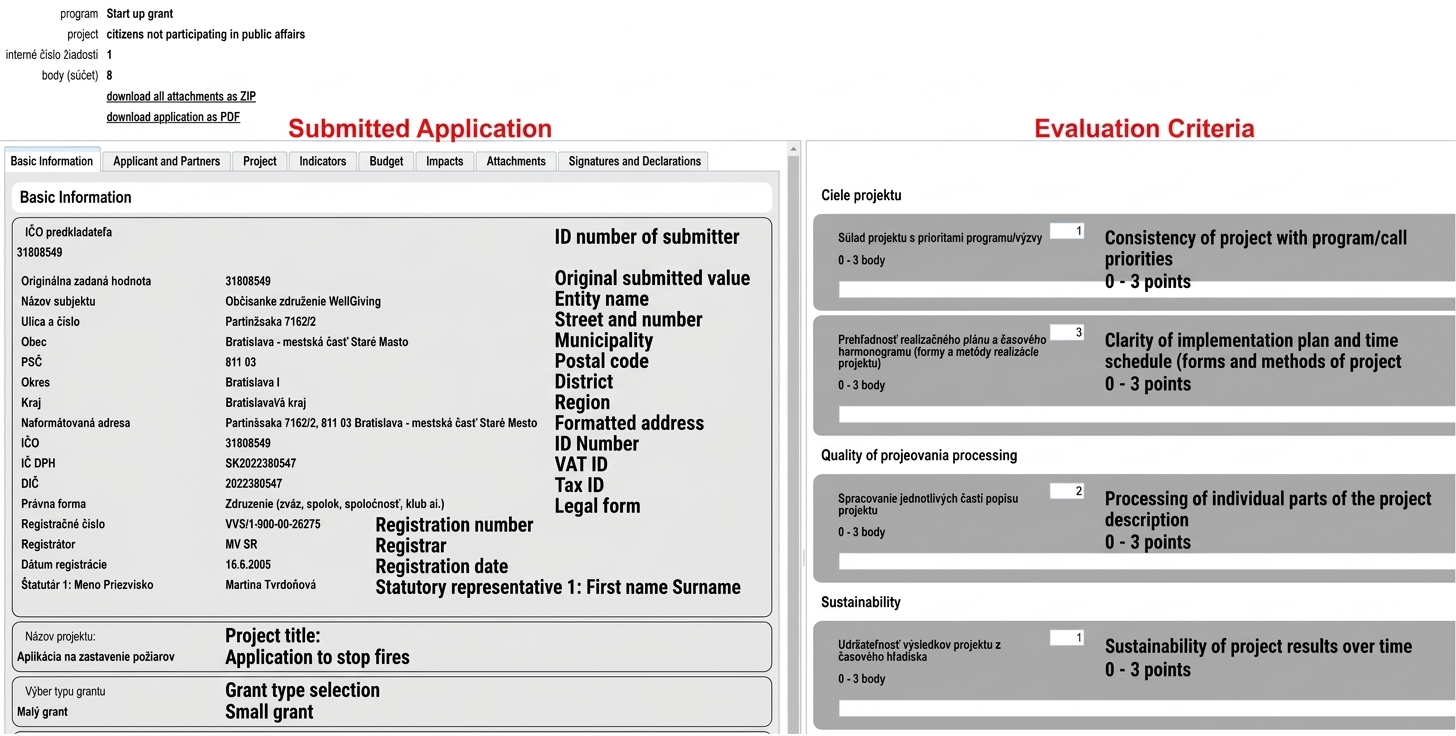
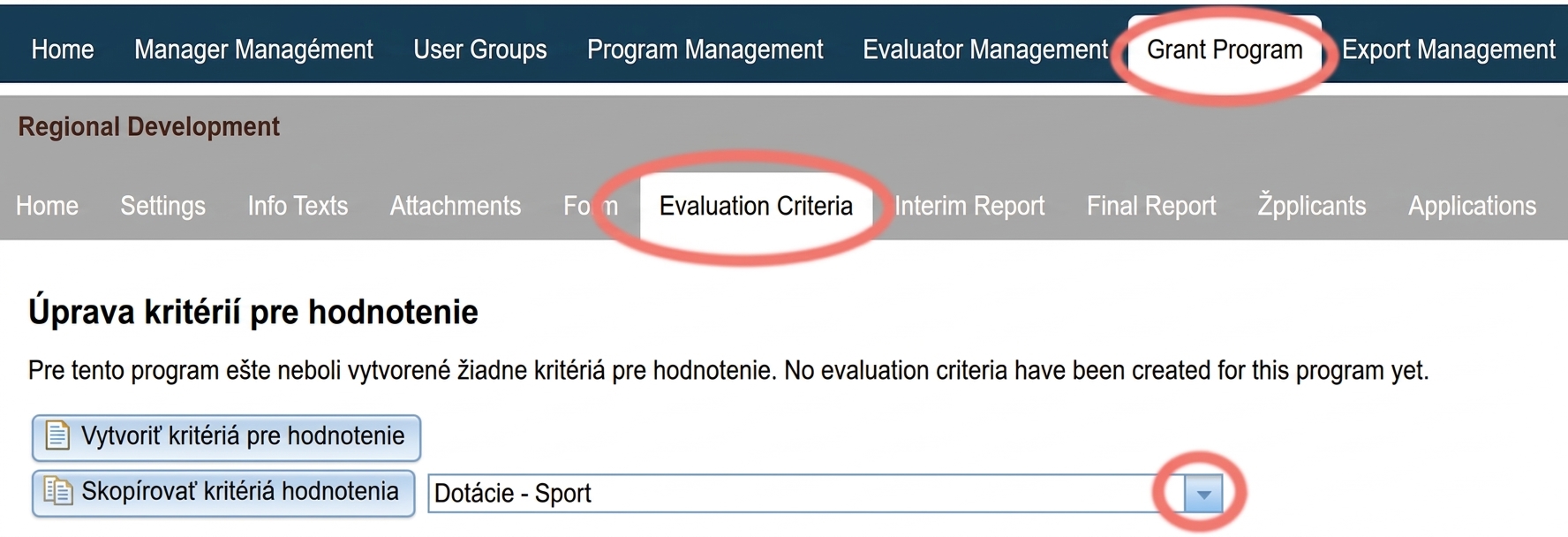
-
If you want to create criteria from scratch, click on „Create evaluation criteria“.
-
If you want to copy criteria from another programme, select the programme whose criteria you want to copy from the drop-down menu.
-
Click on „Copy evaluation criteria“.
-
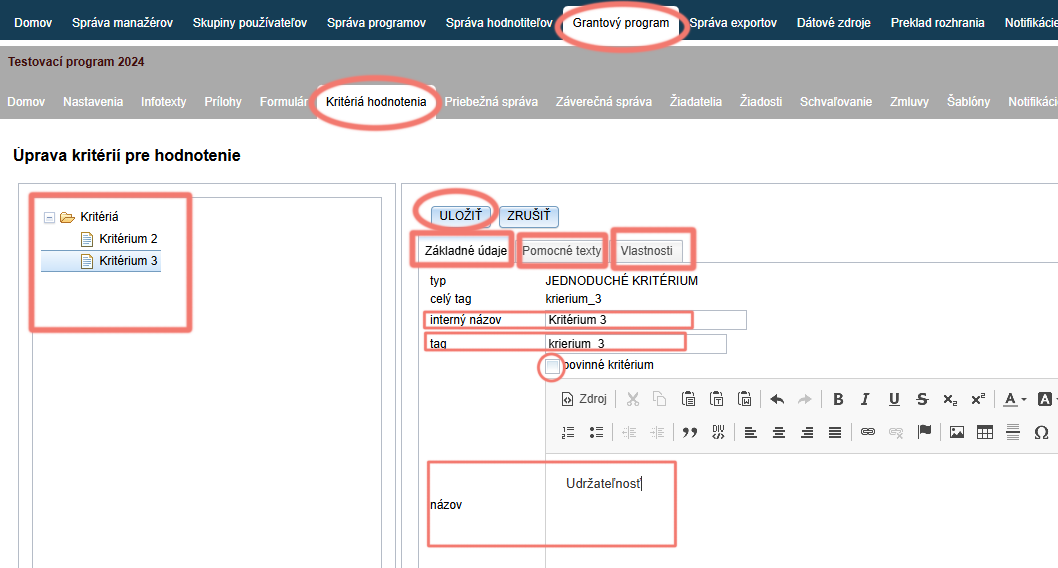
On the left you can see the form structure – by clicking on an item you can further edit.
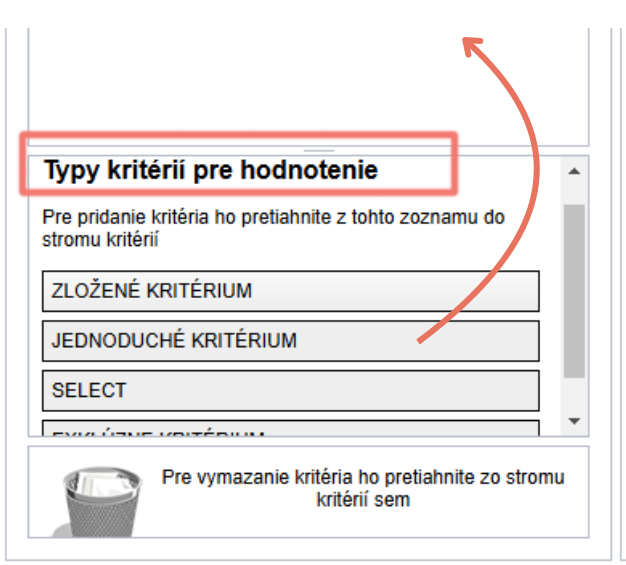
Move individual criteria (form items) by grabbing the item in the form tree and moving it up or down, or move it to the bin at the bottom of the screen. -
Tab „Basic details“
In this tab you can see the criterion type , you can give it an internal name (by which you can easily recognise it in the tree structure on the left), tag of the criterion (the system identifies it by this tag – without diacritics, without spaces, and always lowercase), whether the evaluator is required to fill in this criterion („mandatory criterion“), and the name that the evaluator sees. -
Tab „Help texts“
In this tab you can add a description (explanatory text displayed below the criterion name), tooltip (explanatory text that appears when clicking the „i“ icon next to the criterion), and a placeholder value (pre-filled value in the field that the evaluator is to fill in). -
Tab „Properties“
In this tab you can set additional parameters of the selected criterion (e.g. minimum and maximum number of points, weight of this criterion, option for the evaluator to write a comment on this criterion, etc.) -
Do not forget to save all changes by clicking the button „SAVE“.
Add new criterion
If you want to add another criterion, grab an item from the list „Evaluation criteria types“ in the left panel at the bottom and drag it up into the tree structure.
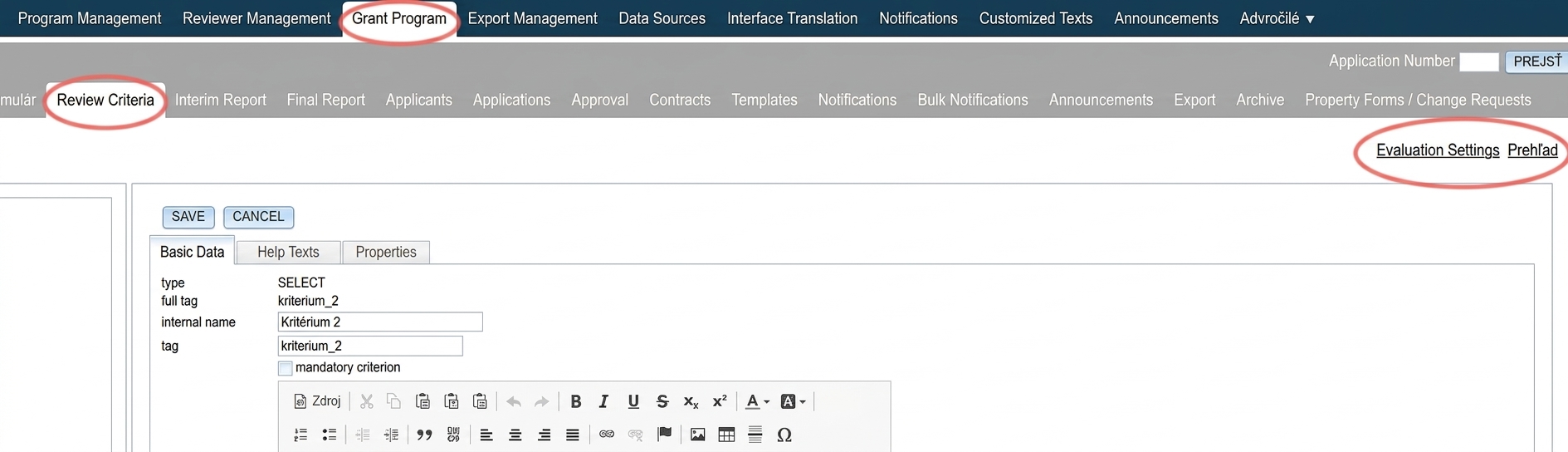
If you want to check how the criteria are displayed to evaluators, click on the link „Preview“ in the upper right corner of the tab „Evaluation Criteria“. 
Compound criterion
It serves as a subsection into which you can group multiple individual criteria.
In the tab „Basic details“ you can give this subsection a name, in the tab „Help texts“ optionally add explanatory text, and in the tab „Properties“ you can add a comment field to this subsection and set whether this comment is mandatory.
Below you can see an example of a compound criterion under which we moved Criterion 3 and Criterion 4: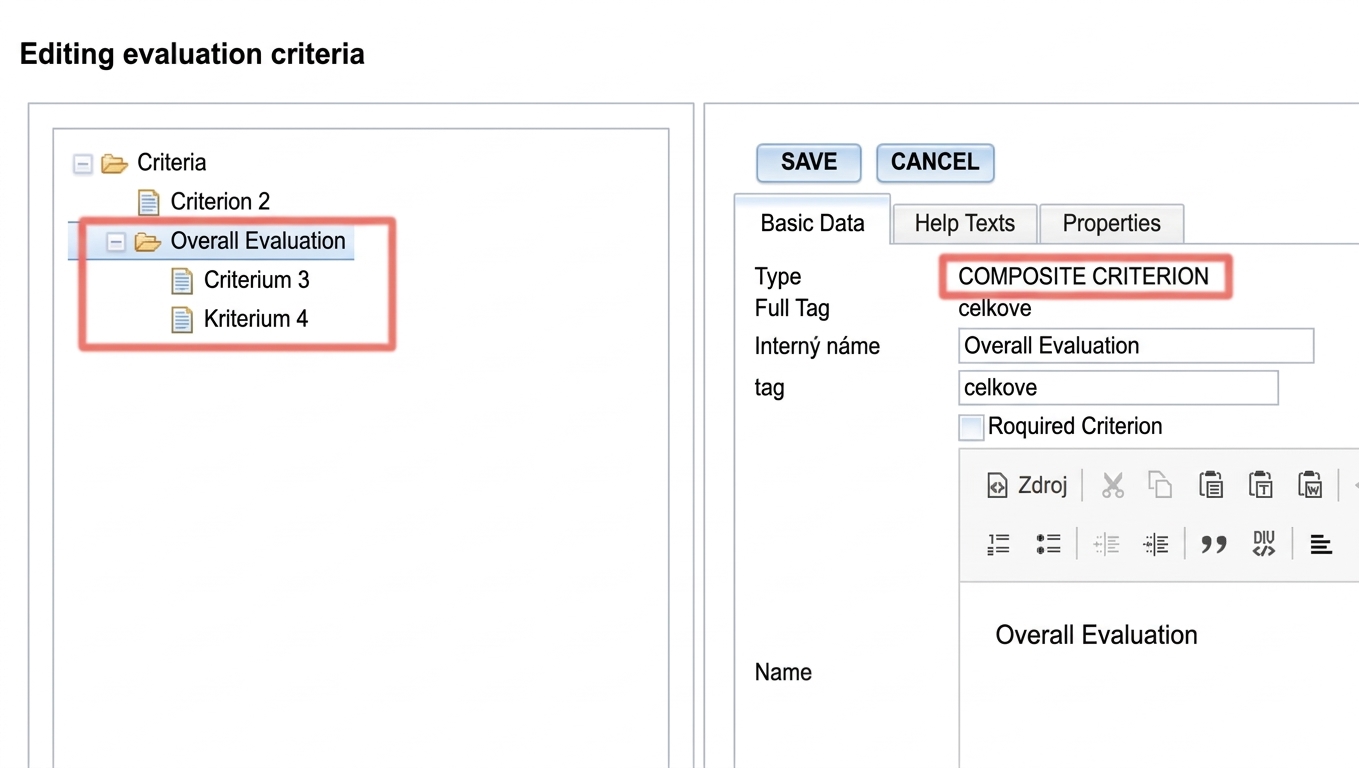
This is how the evaluator sees the compound criterion: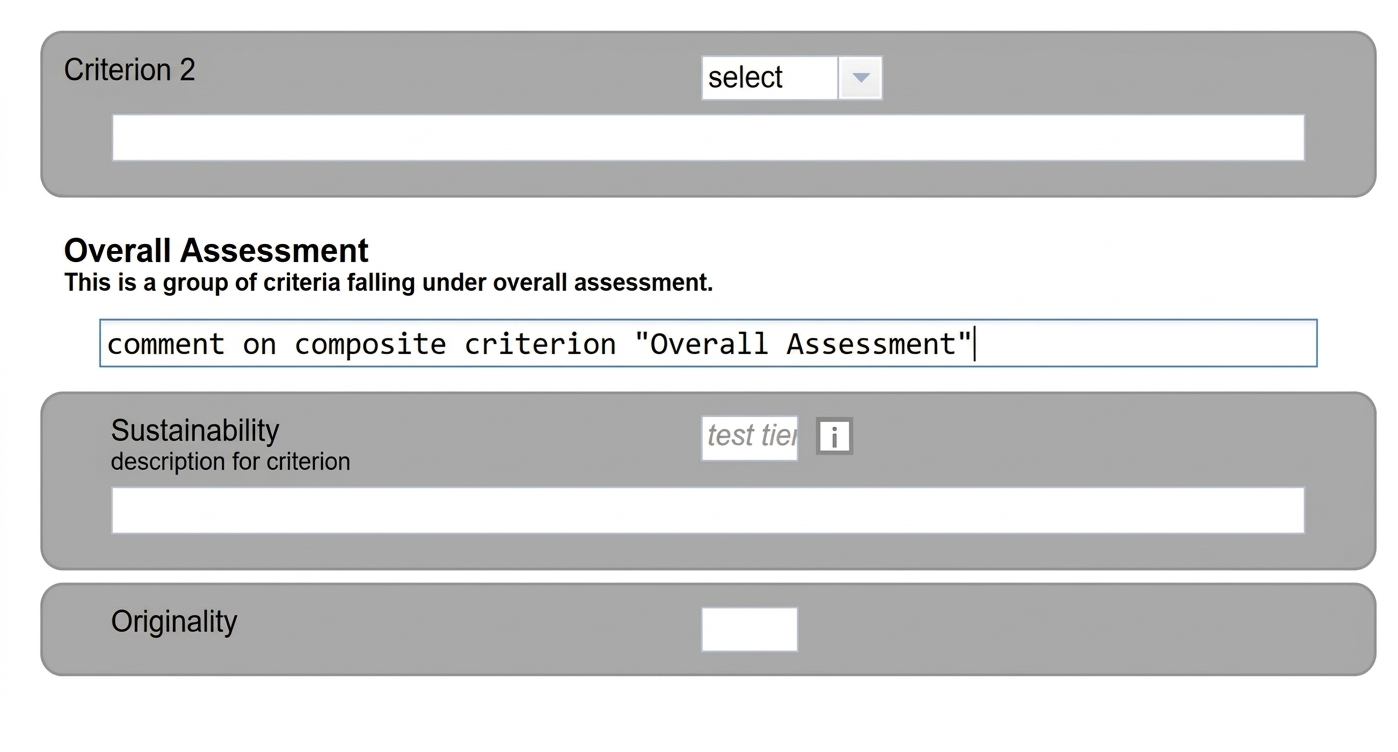
Simple criterion
This is a classic point-based criterion where the evaluator evaluates by entering the number of points.
In the tab „Help texts“ you can add explanatory text, and in the tab „Properties“ you can set:
- minimum and maximum number of points,
- weight of this criterion in the overall evaluation,
- you can add a field for a comment
- and set whether this comment is mandatory.
This is how a simple criterion with a description and tooltip („Help texts“) and an allowed comment („Properties“) looks.
Below it is a simple criterion without help texts and without a comment.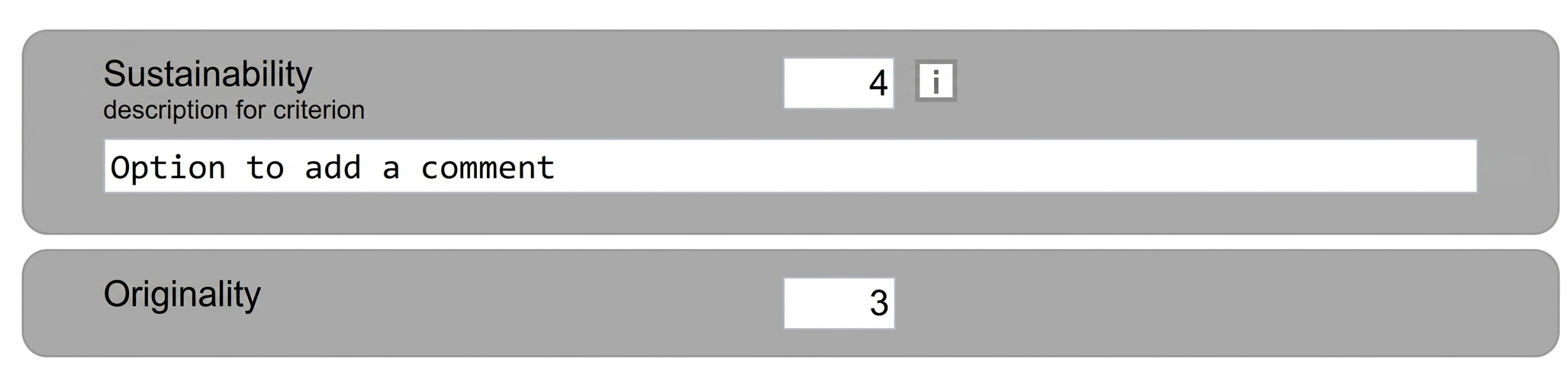
Select
This criterion is displayed to the evaluator as a drop-down menu from which they select one option as their evaluation.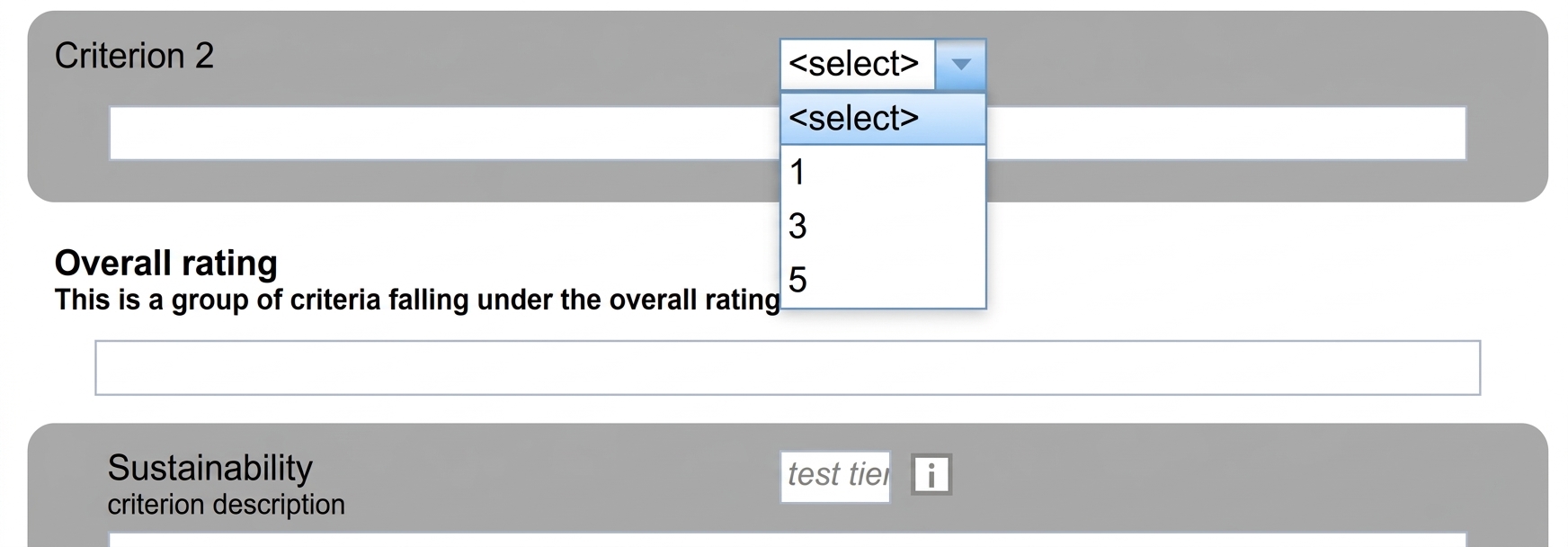
In the tab „Properties“ you can set:
- options from which the evaluator selects (in the column „value“ is what the evaluator sees, in the column „key“ is what the system works with“),
- you can also add an empty option („select“) which will be displayed as the first item in the list,
- option „include in evaluation“ – if you use points as options and want the selected value to be included in the total number of points,
- option to specify an exclusive value – if the evaluator selects an option in this criterion that is also listed as exclusive, the evaluations in all criteria will be reset to zero,
- weight points of this criterion in the overall evaluation,
- add a field for a comment
- and specify whether the comment required.
Exclusive criterion
This criterion is displayed to the evaluator as a checkbox which, if checked, the evaluation in all criteria will be reset to zero.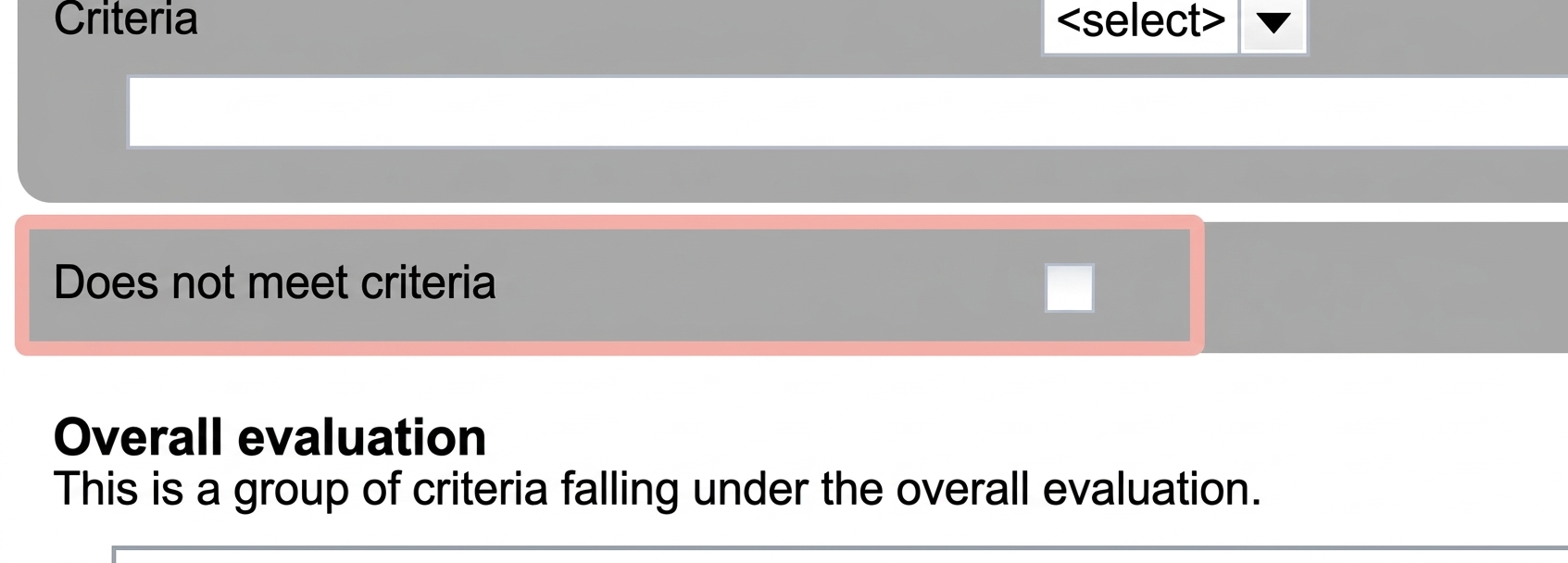
In the tab „Properties“ you can add a comment field and specify whether the comment is mandatory.
Proposed amount
This is a field in which the evaluator can enter the amount they propose for approval.
In the tab „Help texts“ you can add explanatory text, and in the tab „Properties“ you can set:
- minimum and maximum value,
- number of decimal places,
- menu,
- you can add a field for a comment,
- and set whether this comment is mandatory.
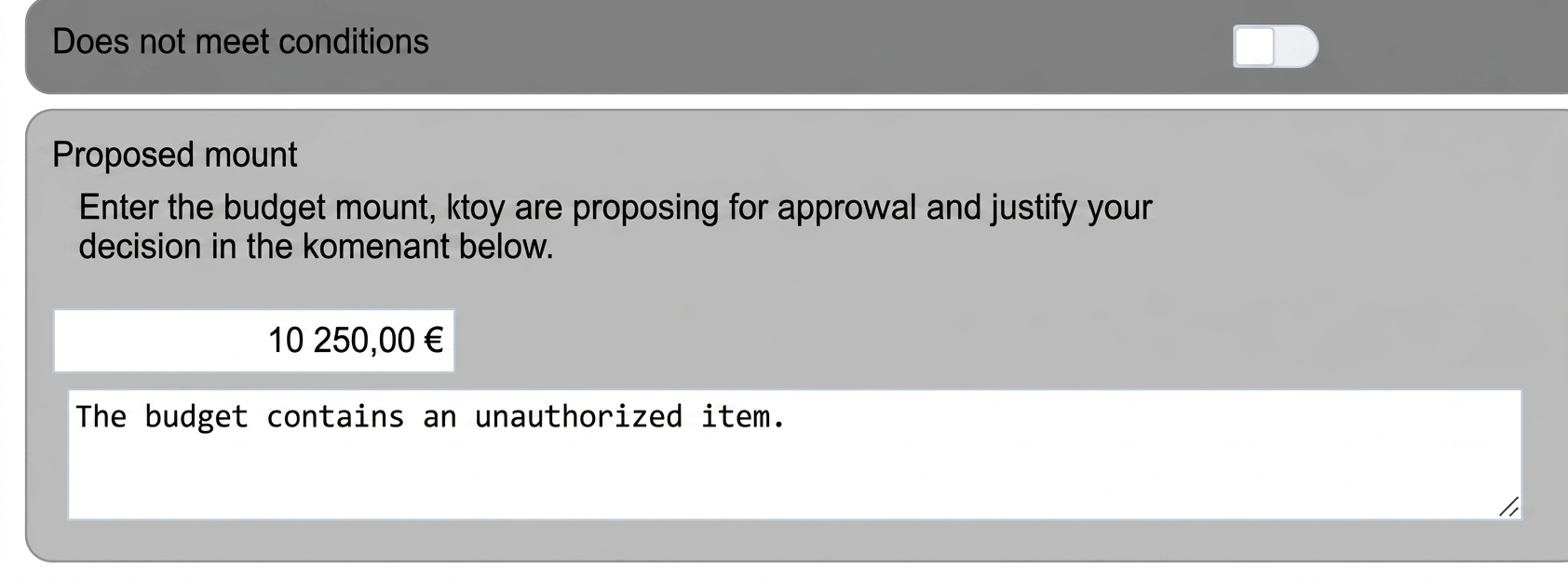
This is how the proposed amount with a description („Help texts“) and an allowed comment („Properties“) looks.
Evaluation settings
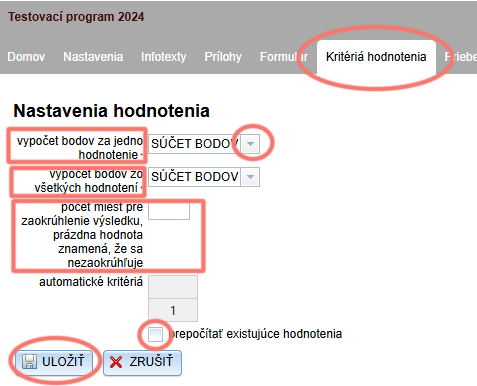
By clicking on the link „Evaluation settings“ in the tab „Evaluation Criteria“ you can determine whether the points from evaluations are summed or averaged.
-
You can set the method of calculating points per evaluator.
-
You can also set the method of calculating points overall for all evaluators.
-
You also have the option to set whether the result is rounded, and to how many decimal places.
-
If you change the method of calculating points during the evaluation process, check „recalculate existing evaluations“ if you want already completed evaluations to be recalculated.
-
Do not forget to save changes by clicking the button „SAVE“.