What do you need help with?
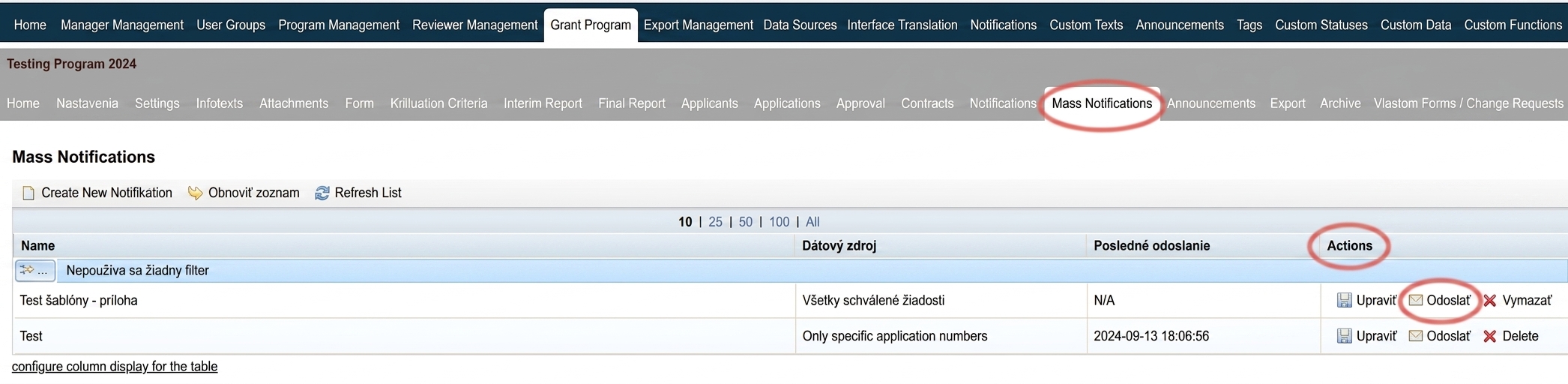
Bulk Notifications
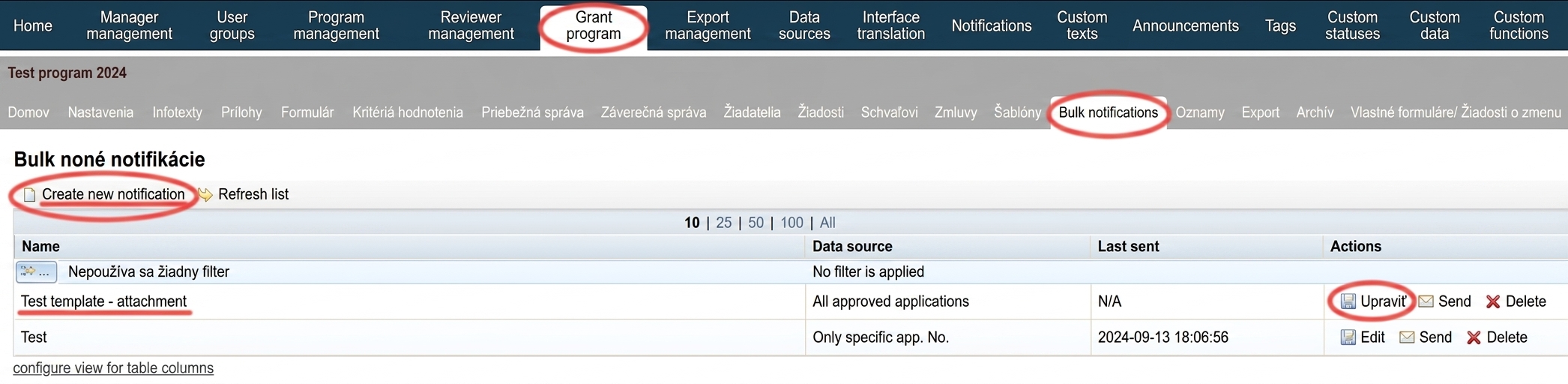
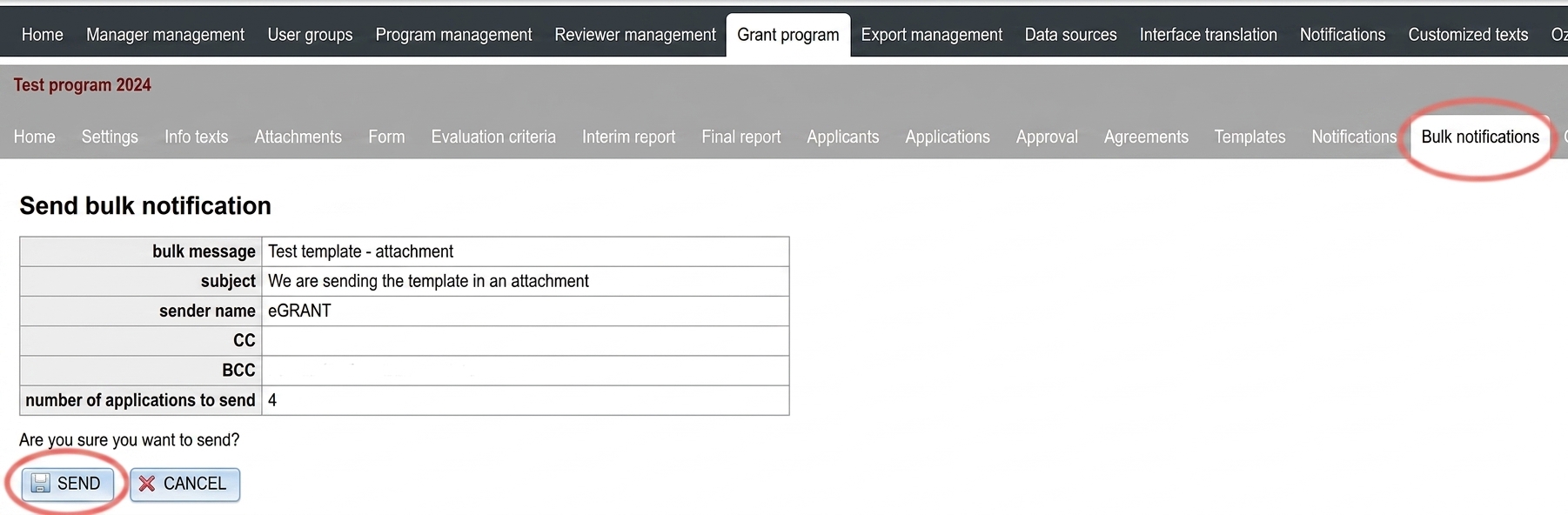
-
To edit an existing bulk notification, click on the „Edit ” in column „Actions ” in the overview table.
-
To create a new bulk notification, click on the „Create new notification ” above the overview table on the left.
-
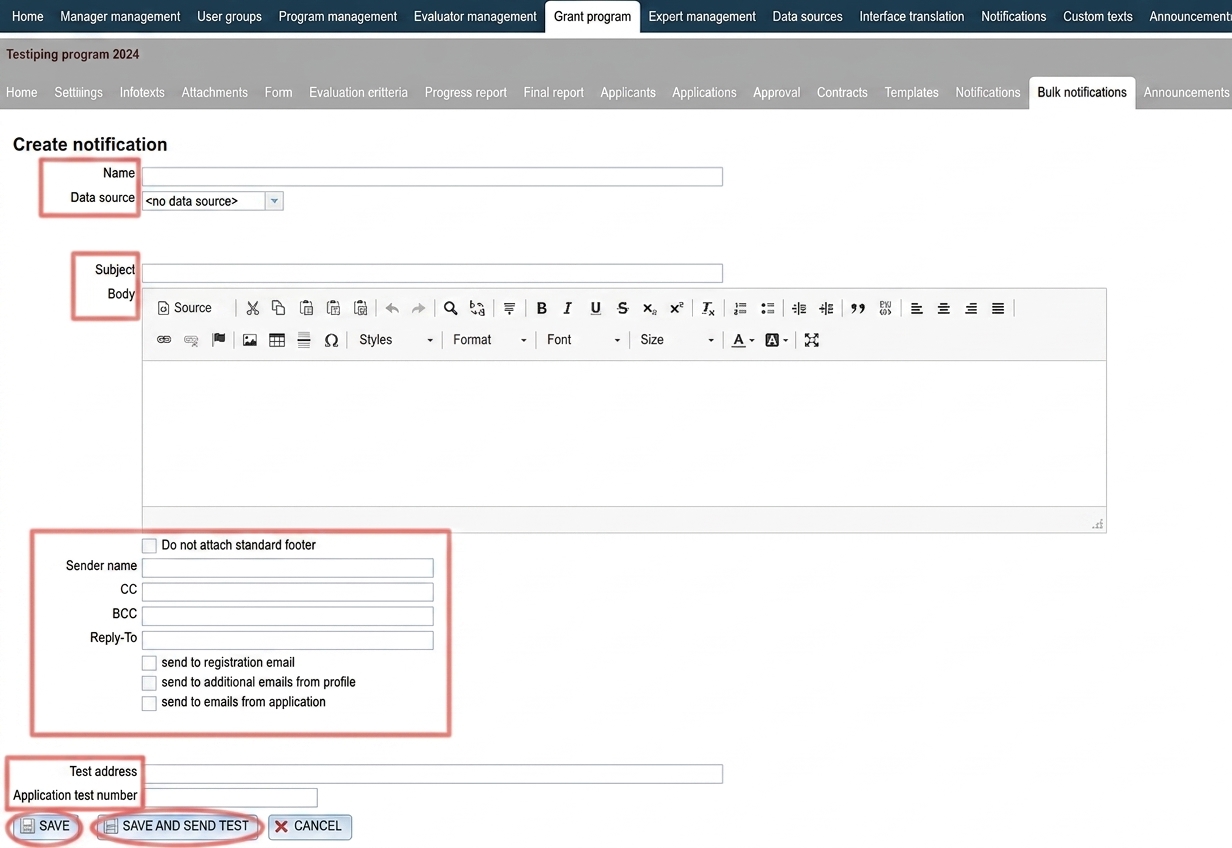
Enter a name by which you can easily find this notification in the list of bulk notifications.
-
In the field „Data Source ” select which group of applicants this notification email should be sent to:
- Registered applicants without a submitted application – applicants who registered for the programme but did not submit an application.
- All registered applicants – all applicants registered in the programme (regardless of whether they submitted an application or not).
- All submitted applications – all applicants who submitted an application in the given programme.
- All approved applications – all applicants whose applications were approved in the given programme.
-
Enter a subject – the applicant will see it as the email subject, and create the text in the email body.
-
Then proceed similarly as when editing an automatic notification:
- Do not attach the standard footer – by checking this option, the standard signature you set up in the „Custom Texts” tab will not be appended at the end of the email text.
- Sender name – enter your name or the name of your organisation.
- CC – enter an email address if you want a copy to also be delivered to another person/persons (this address will be visible to the primary notification recipient).
- BCC – enter an email address if you want a copy to also be delivered to another person/persons (this address will not be visible to the primary notification recipient).
- Reply-To – enter an email address here that applicants can reply to after receiving the notification (also reduces the likelihood of the email ending up in spam).
- Send to registration email – the notification will be sent to the email address the applicant provided during registration.
- Send to additional emails from profile – the notification will be sent to additional email addresses listed in the applicant’s profile.
- Send to emails from the application – the notification will be sent to the email addresses listed in the application.
-
In the field Test address enter the email address to which the notification should be sent after clicking „SAVE AND SEND TEST”.
Test application number – when sending a test notification email, data from the application whose number you enter in this field will be used (if the notification email text pulls any application-related data). -
Click the button „SAVE ” or „SAVE AND SEND TEST“.