
What do you need help with?
Assigning an application to an evaluator and sending it for evaluation
-
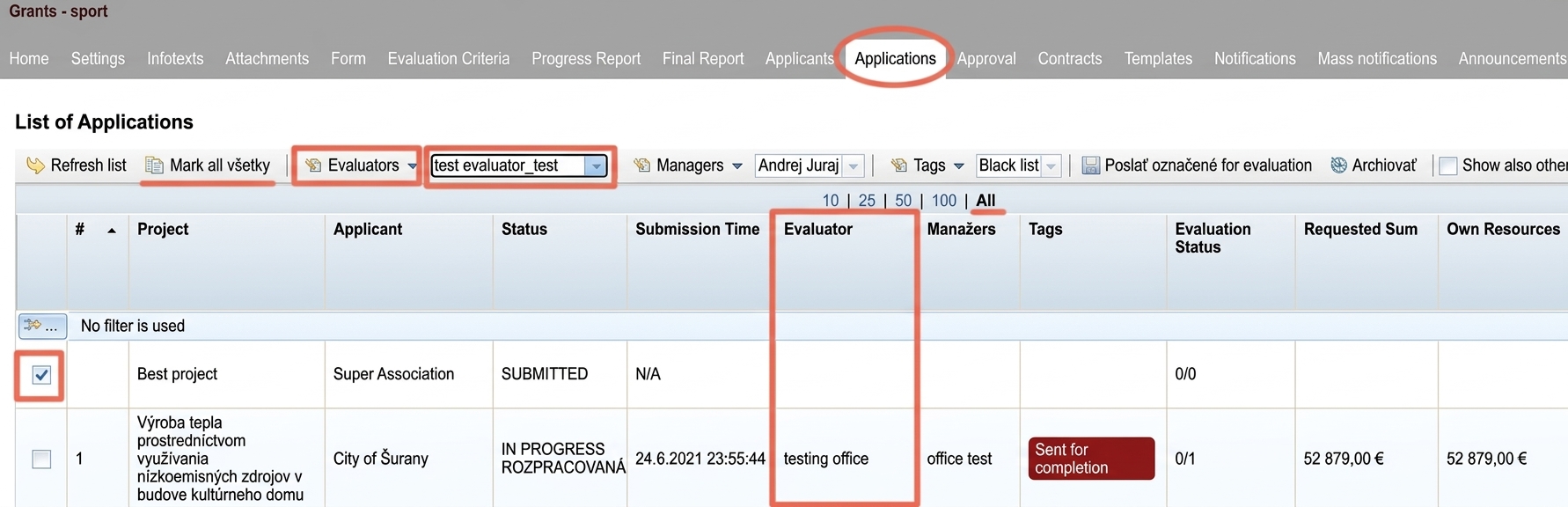
In the „Applications“ select the applications that you want to assign to a specific evaluator.
If you want to assign all applications to an evaluator, click „Select all“ on the left above the table. Make sure that in the centre above the table you have selected the option „All“ (otherwise you will only select all currently displayed applications). -
From the dropdown menu above the table select the evaluator from the list to whom you want to assign the selected applications.
-
Click the „Evaluators“ (above the table, to the left of the evaluator list) and from the dropdown menu select „Assign evaluator“.
-
The name of the assigned evaluator will appear in the „Evaluator“.
-
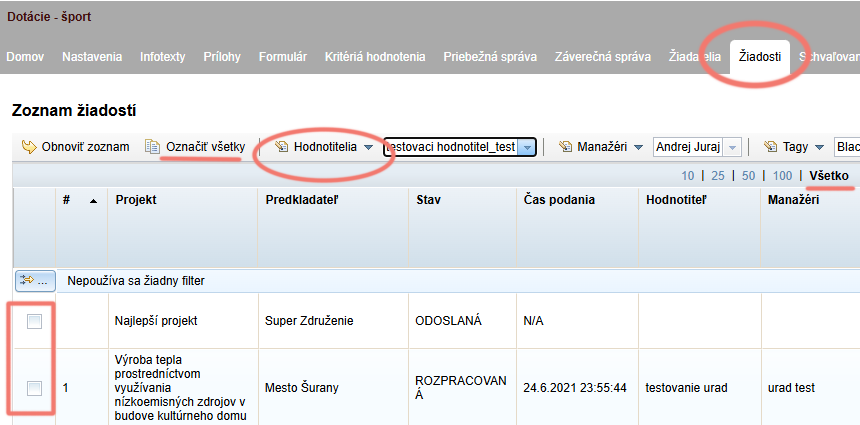
Select the applications to which you want to randomly assign an evaluator, or select all applications by clicking the „Select all“ above the table (make sure that all applications are displayed – the option „All“ is selected in the centre above the table).
-
Click the „Evaluators“ above the table and from the menu select „Random assignment of evaluators“.
-
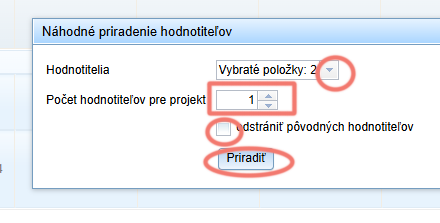
In the pop-up window select the evaluators to whom you want to randomly distribute the applications and select the number of evaluators per application.
-
If some evaluators are already assigned to the applications and you want them to be removed after this random distribution, check the option „remove original evaluators“.
-
Click the „Assign“.
-
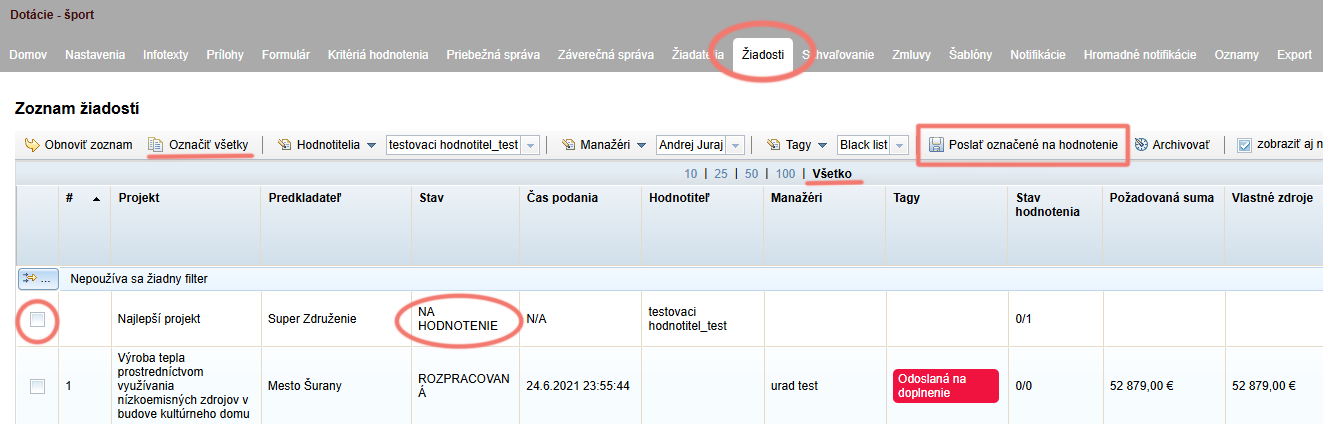
In the „Applications“ select the applications that you want to send for evaluation.
If you want to send all applications for evaluation, click „Select all“ on the left above the table. Make sure that in the centre above the table you have selected the option „All“ (otherwise you will only select all currently displayed applications). -
Click the „Send selected for evaluation“.
-
Status of these applications will change to „FOR EVALUATION“.