
What do you need help with?
-
Overview and settings
-
Forms
- Manuals will be coming soon.
-
Management of applications
-
Evaluation and approval
-
Contracts and other documents
-
Exports
-
Participatory budget
Edit notification
You can edit notifications in the „Notifications“ tab, either in the main menu at the organisation level or in the menu at the programme level.
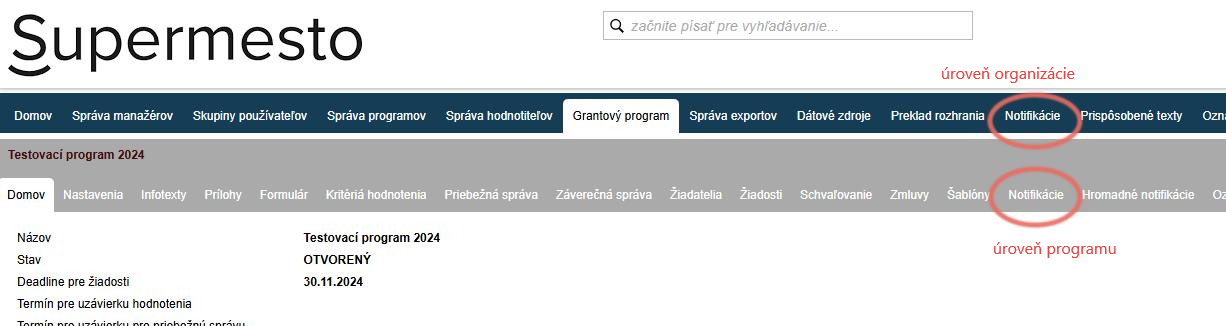
All changes you make to notifications in the tab at the organisation level will be applied to all programmes.
Changes you make to notifications in the tab at the programme level will be applied only to the specific programme.
1 Select a notification
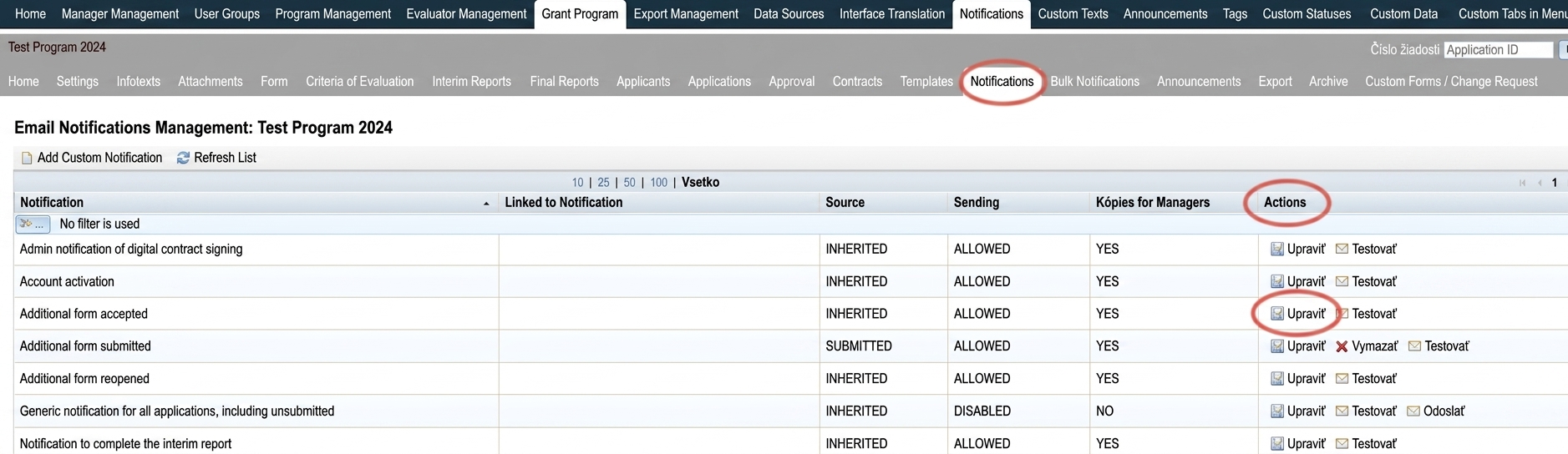
In the table with the list of all notifications, find the one you want to edit.
In the „Actions“ column, click the „Edit“.
2 Edit in the editor
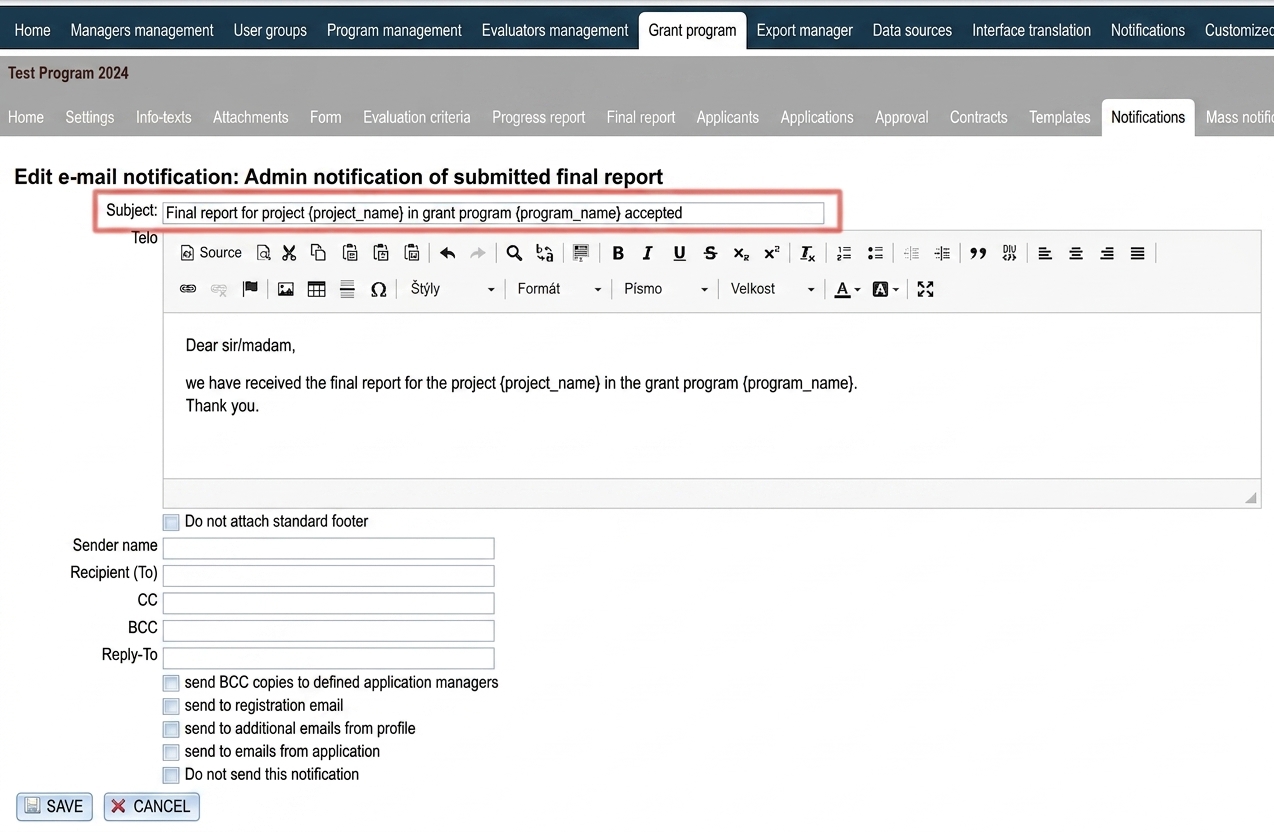
An editor where you can edit:
- Subject – the applicant will see this as the email subject.
- Body – edit the text in the email body.
- Do not append standard footer – by checking this option, the standard signature you have set in the „Custom Texts“.
- Sender name – enter your name or the name of your organisation
- Recipient – enter an email address if this is a notification sent to managers and you want it delivered to a specific person/persons.
- CC – enter an email address if you want a copy also delivered to another person/persons (this address will also be visible to the primary notification recipient).
- BCC – enter an email address if you want a copy also delivered to another person/persons (this address will not be visible to the primary notification recipient).
- Reply-To – important for notifications sent to applicants. Enter the email address to which applicants can reply after receiving the notification (this also reduces the likelihood of the email ending up in spam).
- Send BCC copies to assigned application managers – this means that whenever this notification is sent, it will also be delivered to the mailbox of the manager assigned to the application the notification relates to (if a manager has been assigned to the application). This option is checked by default for all notifications.
- Send to registration email – the notification intended for applicants will be sent to the email address provided during registration. This option is checked by default for all notifications.
- Send to additional emails from profile – the notification intended for applicants will be sent to additional email addresses listed in the applicant’s profile. This option is checked by default for all notifications.
- Send to emails from the application – the notification intended for applicants will be sent to email addresses listed in the application. This option is checked by default for all notifications.
- Do not send this notification – by checking this option, you will disable automatic sending of this notification. If you want to re-enable automatic sending of the notification, uncheck this option again (the checkbox will remain empty).
Create a new notification
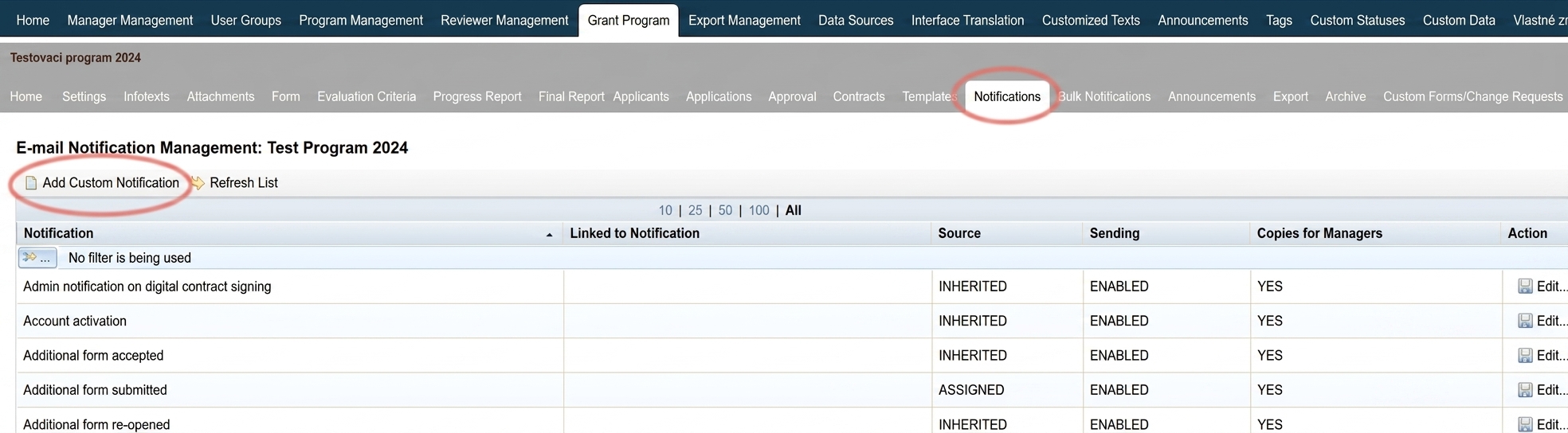
In the „Notifications“ tab, you can also create your own notification email.
However, it must be linked to an existing automatic notification and will be sent automatically whenever the linked notification is sent.
1 Add a notification
Above the table with the list of all notifications, click the „Add custom notification“.
2 Edit in the editor
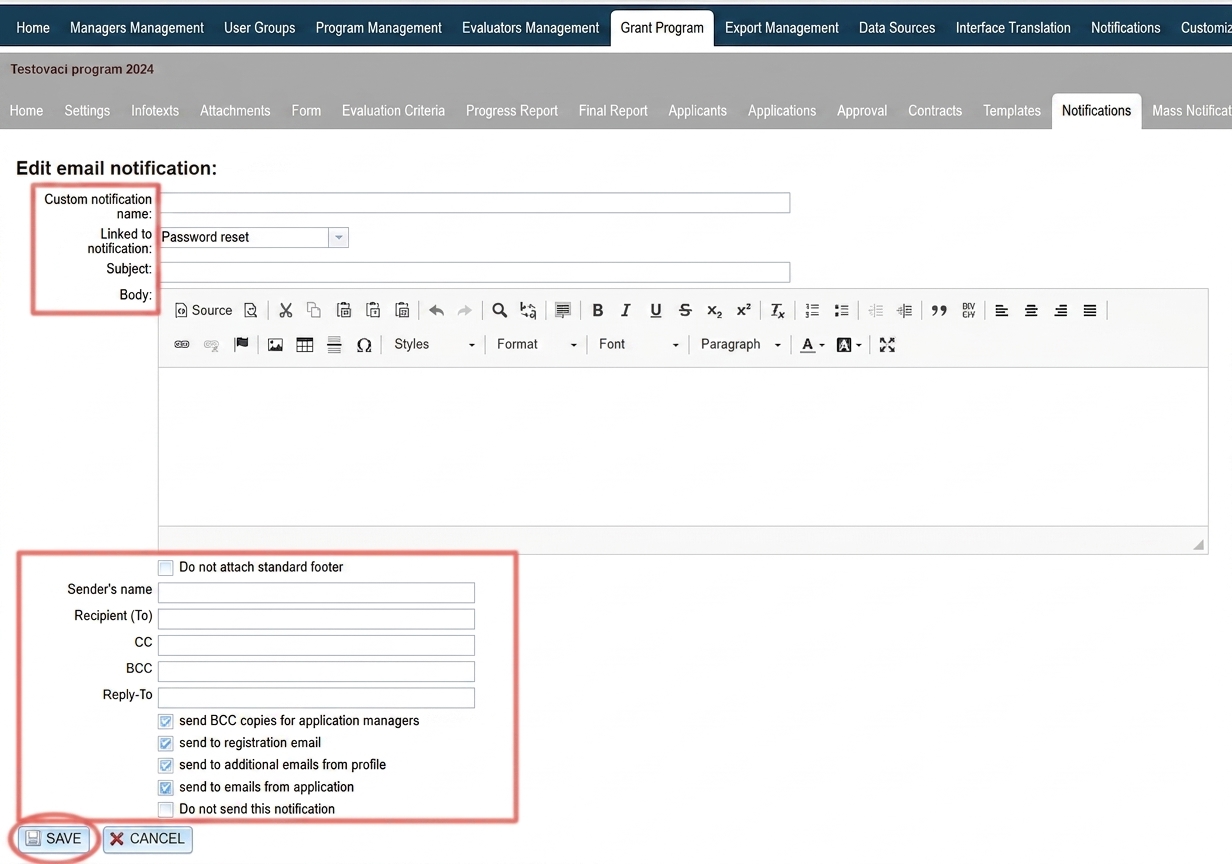
A similar editor will appear, as when editing pre-configured notifications.
- Enter a name by which you can easily find this notification in the list of all notifications.
- In the „Linked to notification“ field, select which notification this email should be linked to.
- Follow the same steps as when editing a pre-configured notification (see step 2 in the „Edit notification“ section above).
Click the „SAVE“.