What do you need help with?
Creating a document template
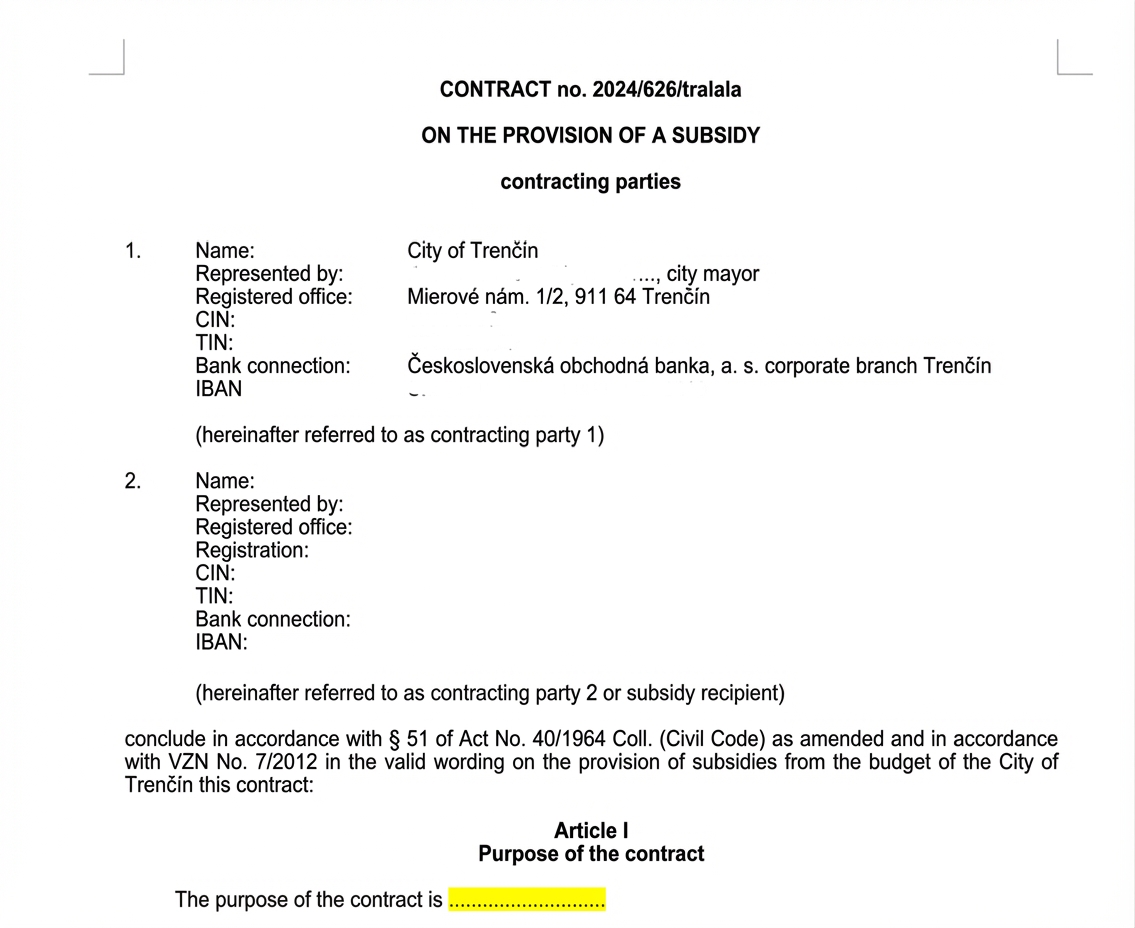
Loading data from the form
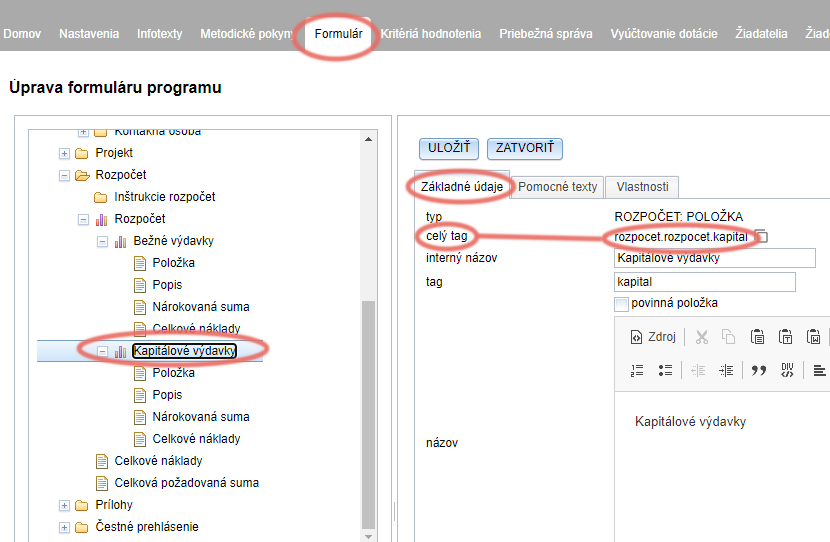
- In the form from which you want to retrieve data, click on the item in the structured tree whose data you want to load into the document (e.g. project name).
- In the „Basic information“ section of this form item, copy the text in the „full tag“.
- Insert this „full tag“ text into curly brackets {} and insert this code at the place in the document where you want to pull the data.
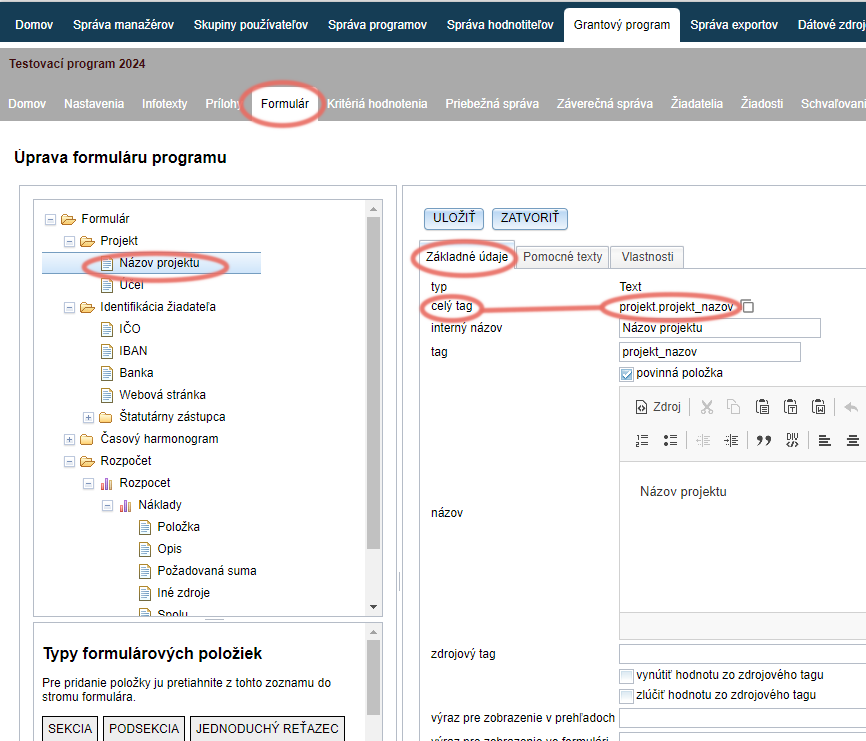
- Example code for loading the project name: {projekt.projekt_nazov}
- You create tags in the form at the time you build it, so always check the wording of the tag you want to place in the document (e.g. if you copy a contract template with tags from previous years – the current application form may have different tags).
Form data in table format
If you need to load data that the applicant filled in the form as a table (e.g. budget items or a list of activities), proceed as follows:
- At the place in the document where you want to load the data, insert a table (1 column, 1 row) and enter the code according to the examples below.
- Remove the table border if needed.
- You can also include some default text in the table (e.g. a row name such as: activity, From, To, etc.)
If it is a simple table where each record represents one row:
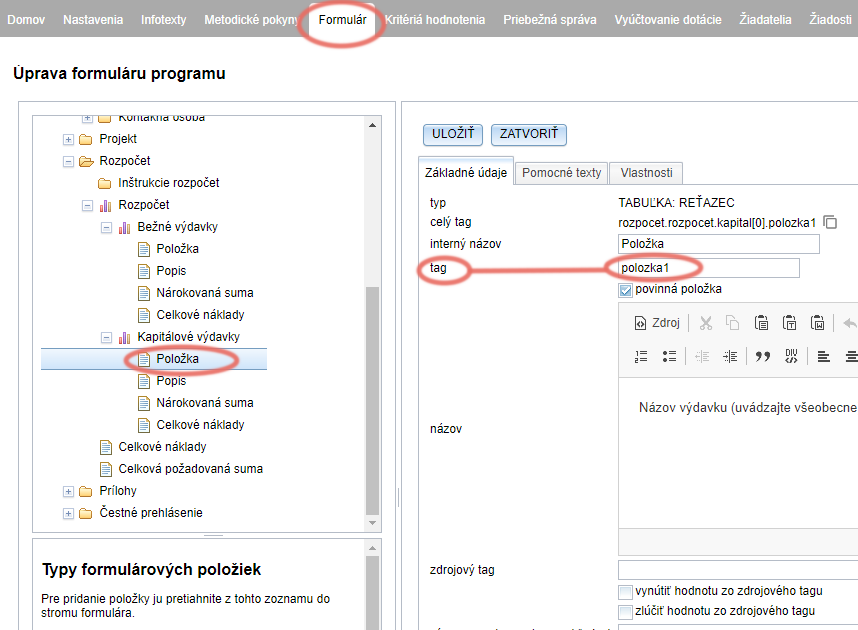
example: {TABLE:rozpocet.rozpocet.kapital} {polozka1}
{TABLE:rozpocet.rozpocet.kapital} = full tag of the table in the form from which we want to load data
{polozka1} = tag of the specific column of the table in the form from which we want to load data
If it is a table where each record represents multiple rows (e.g. activity name and start and end date of the activity):
After the text „TABLE“ add a dot and a number (number of rows), in our example 3, i.e. „TABLE.3:“
example {TABLE.3:harmonogram.aktivity}activity {aktivita} From {od.year} – {od.month} To {do.year} – {do.month}
{TABLE.3:harmonogram.aktivity} = full tag of the table in the form
activity = the standalone word „activity“ will always appear before each item pulled from the table
{aktivita} = tag of the table column in the form from which we want to load data (here it is the activity name)
From = the standalone word „From“ will always appear before each item pulled from the table
{od.year} = tag of the table column in the form from which we want to load data (here it is the year of the activity start)
Data from the IČO SEARCH form item
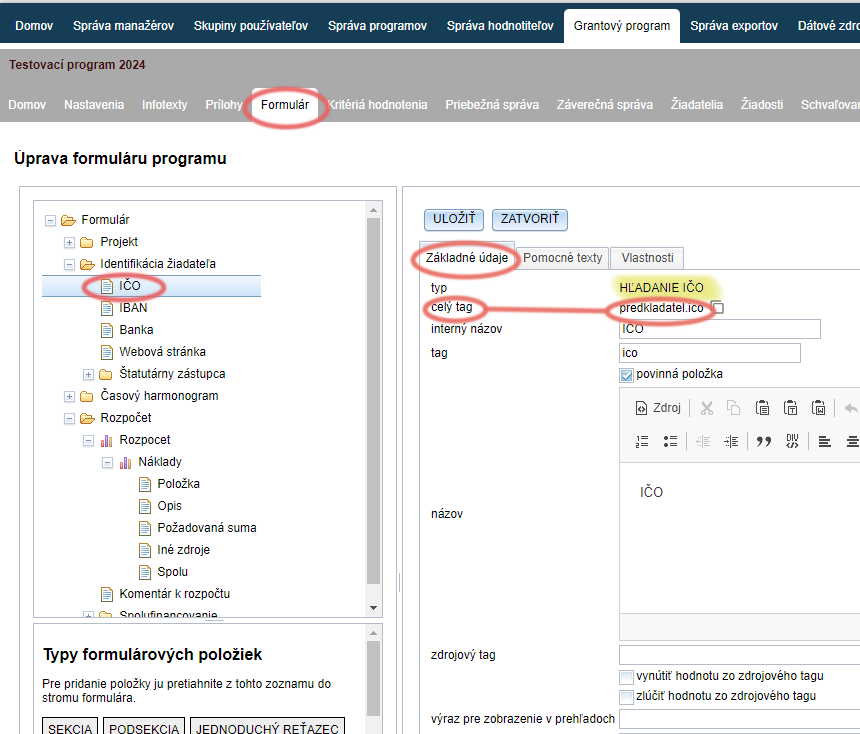
- In the form from which you want to retrieve data, click on the item “HĽADANIE IČO“.
- In the „Basic information“ section of this form item, copy the text in the „full tag“.
- After the copied “full tag“ we add . (a dot) and a suffix from the list „Overview of codes for generating data“ (depending on which data we want to retrieve from the register – name, address, name of the statutory representative, etc.)
- Do not forget to add curly brackets {}.
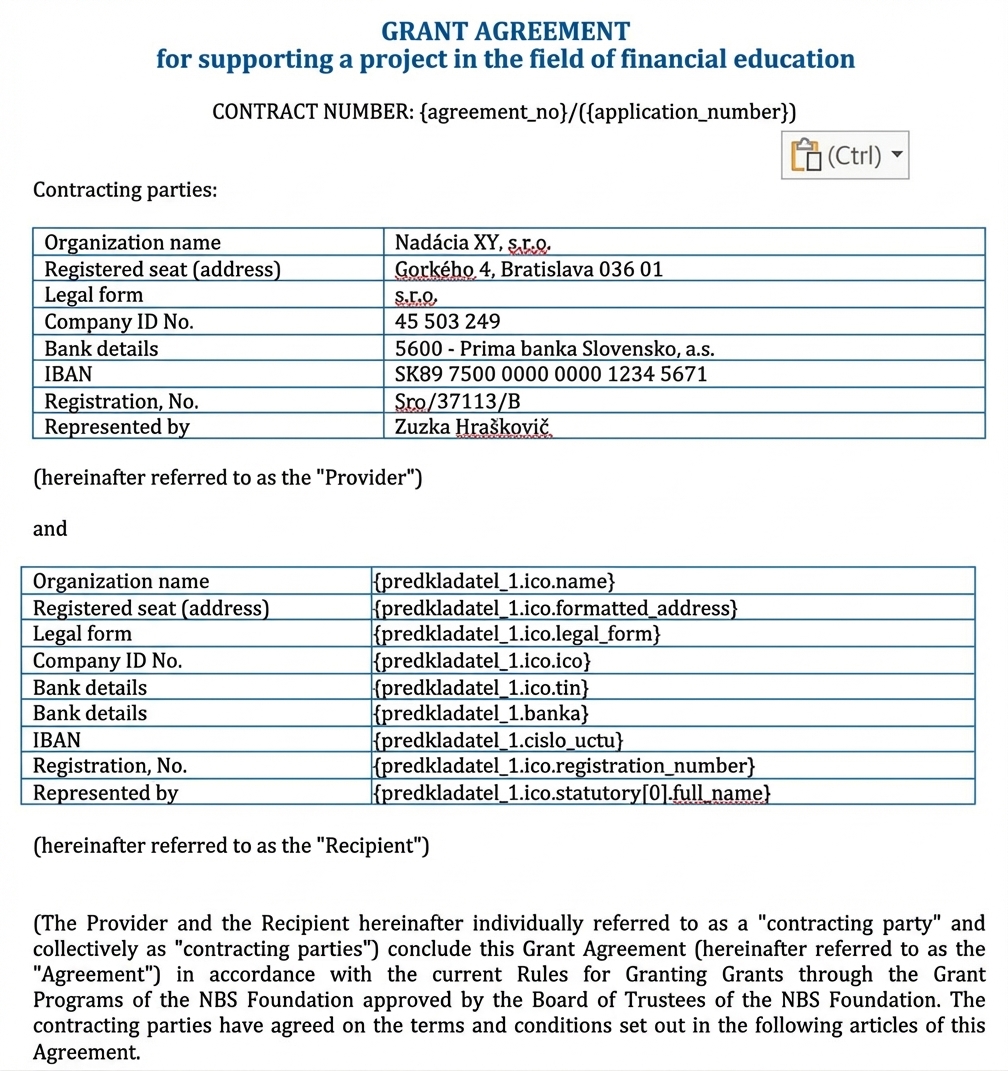
- example code for loading the entity name: {predkladatel.ico.name}
- example code for loading the statutory representative’s name: {predkladatel.ico.statutory[0].full_name}