
What do you need help with?
Generating and sending documents
-
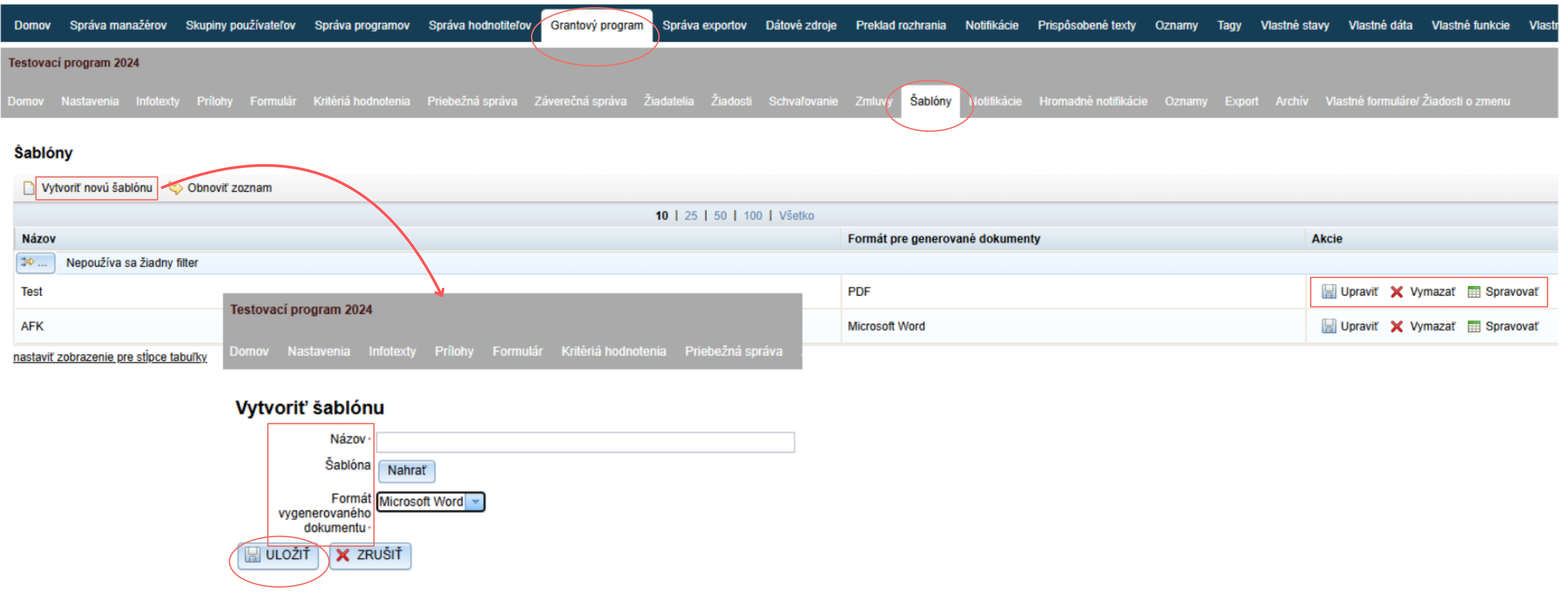
Click on the „Create new template“ link in the upper left above the table.
-
The „Create template„.
-
Enter the name template name by which you can easily recognise it.
-
Click the „Upload“ and upload a template document (a Word document containing specific codes in places where data is automatically pulled from eGRANT).
-
Select the format of the generated document.
If you want to individually edit the generated documents afterwards, select Microsoft Word, otherwise select PDF. -
Click the „SAVE“.
-
If you need to edit something in the template, click the „Edit“ button in the template list, and then re-upload a new version. Do not forget to save.
If any documents were generated using an older version, generate them again.

-
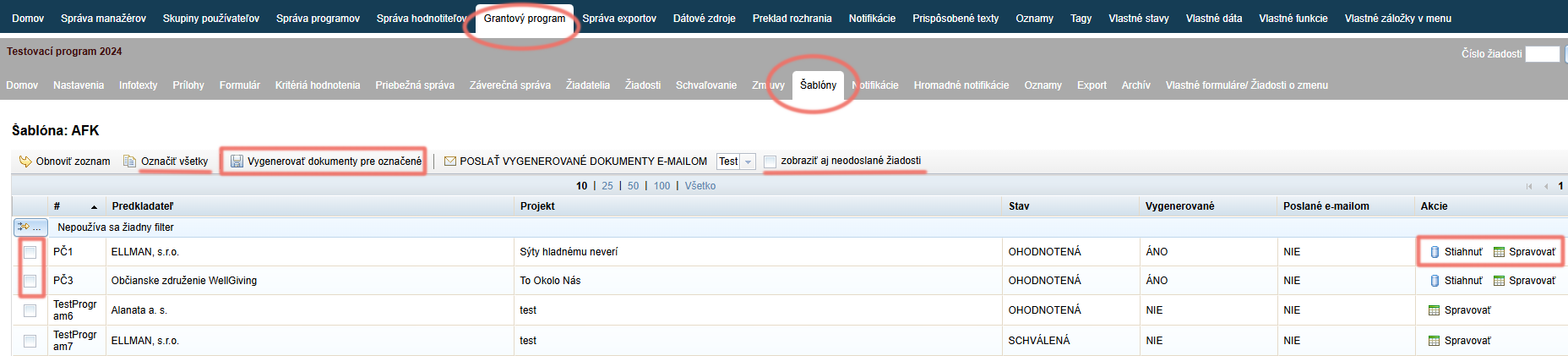
Open the „Templates“ tab in the programme-level menu.
A list of uploaded templates will open. -
For the template you want to generate, click the „Manage“ link in the „Actions“ column.Manage„.
-
If you want unsubmitted applications to also be displayed in the list, check „show unsubmitted applications too“.
-
Select the applications for which you want to generate documents (or click „Select all“).
-
Click „Generate documents for selected“.
-
For those applications in the list for which you generated a document, a „Actions“ Download“ link appeared in the Actions column.
If you want individually edit the generated documents:
4.1 click the „Download“ link – the document will be downloaded to your computer, where you can edit it,
4.2 by clicking the „Manage“ link, the option to upload an edited document for a specific application will become available.
-
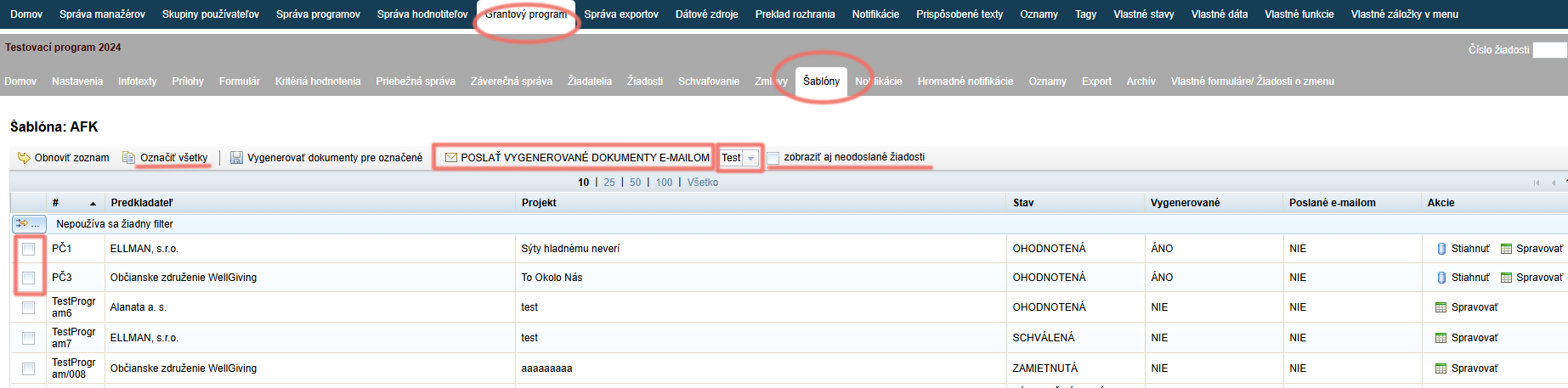
If you want unsubmitted applications to also be displayed in the list, check „show unsubmitted applications too“.
-
Select the applications for which you want to send the generated documents (or click „Select all“).
-
Select the cover email that should be sent to the selected applications with the generated document as an attachment.
By clicking the arrow, a list of created bulk notifications will open, from which you can choose. -
Click „SEND GENERATED DOCUMENTS BY EMAIL“.