What do you need help with?
-
Overview and settings
-
Forms
- Manuals will be coming soon.
-
Management of applications
-
Evaluation and approval
-
Contracts and other documents
-
Exports
-
Participatory budget
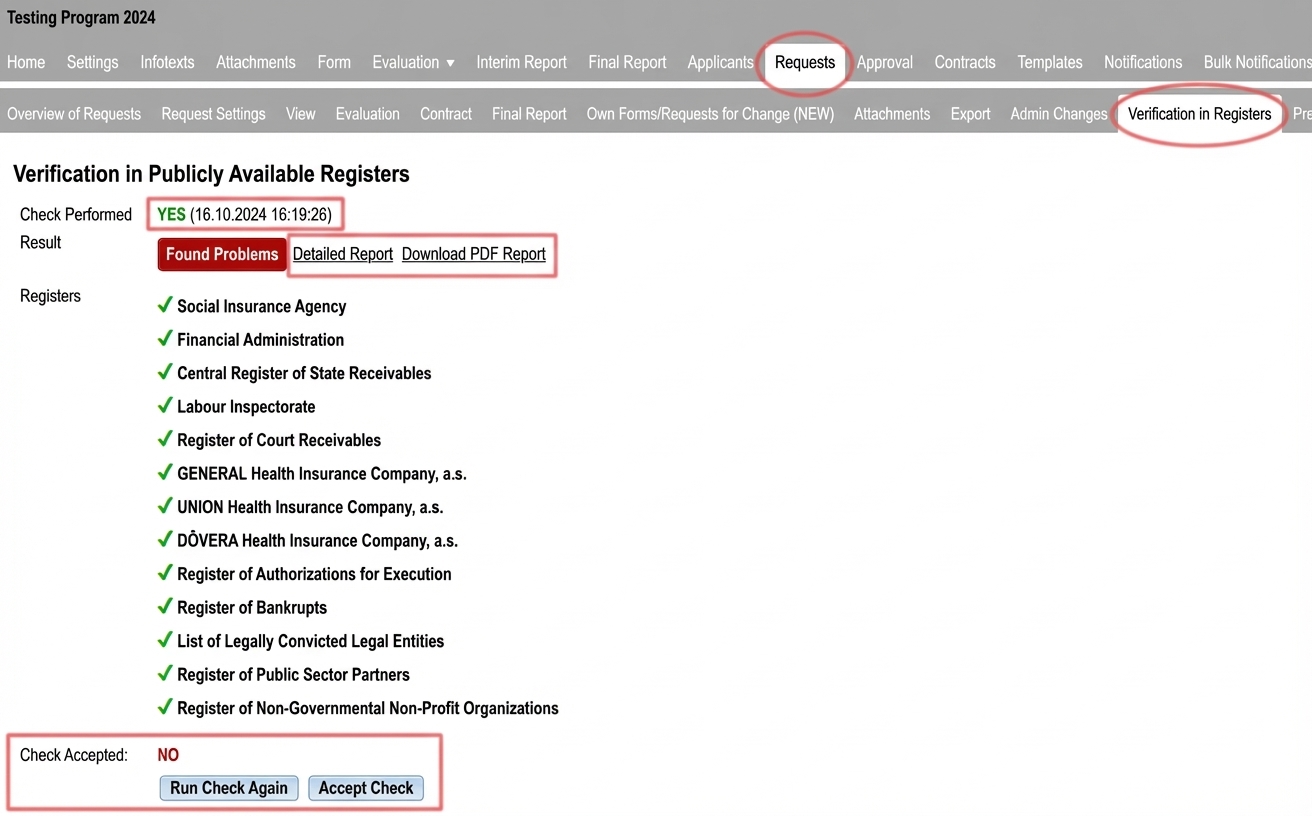
Directly in the eGRANT system you can verify the applicant in the following registers:
➤ Social Insurance Agency
➤ Financial Administration
➤ Central Register of Outstanding Receivables of the State
➤ Labour Inspectorate
➤ Register of Judicial Receivables
➤ General Health Insurance Company
➤ Union Health Insurance
➤ Dôvera Health Insurance
➤ Register of Public Sector Partners
➤ Register of Non-Governmental Non-Profit Organisations
➤ Register of Issued Authorizations to Perform Execution
➤ Insolvency Register
➤ List of Convicted Legal Entities
This feature is paid. If you are interested, contact us.
To perform the applicant verification the manager must have the “Register verification“.
If you have this feature paid for, you can grant this privilege to a specific manager in the “Manager Administration ” in the main menu via the “Edit ” button for the specific manager.
If you use user groups for assigning privileges, you can grant this privilege to an entire group of managers in the “Users: User Groups ” in the main menu via the “Edit ” for the specific group.
Required settings
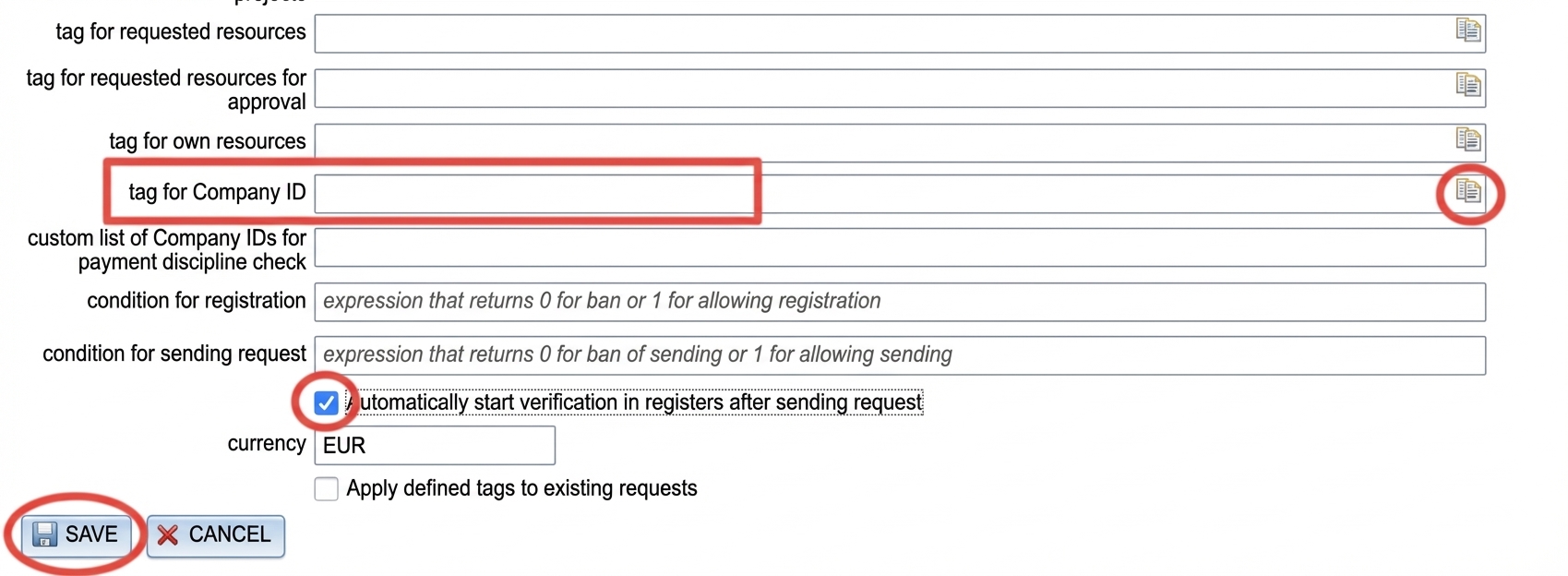
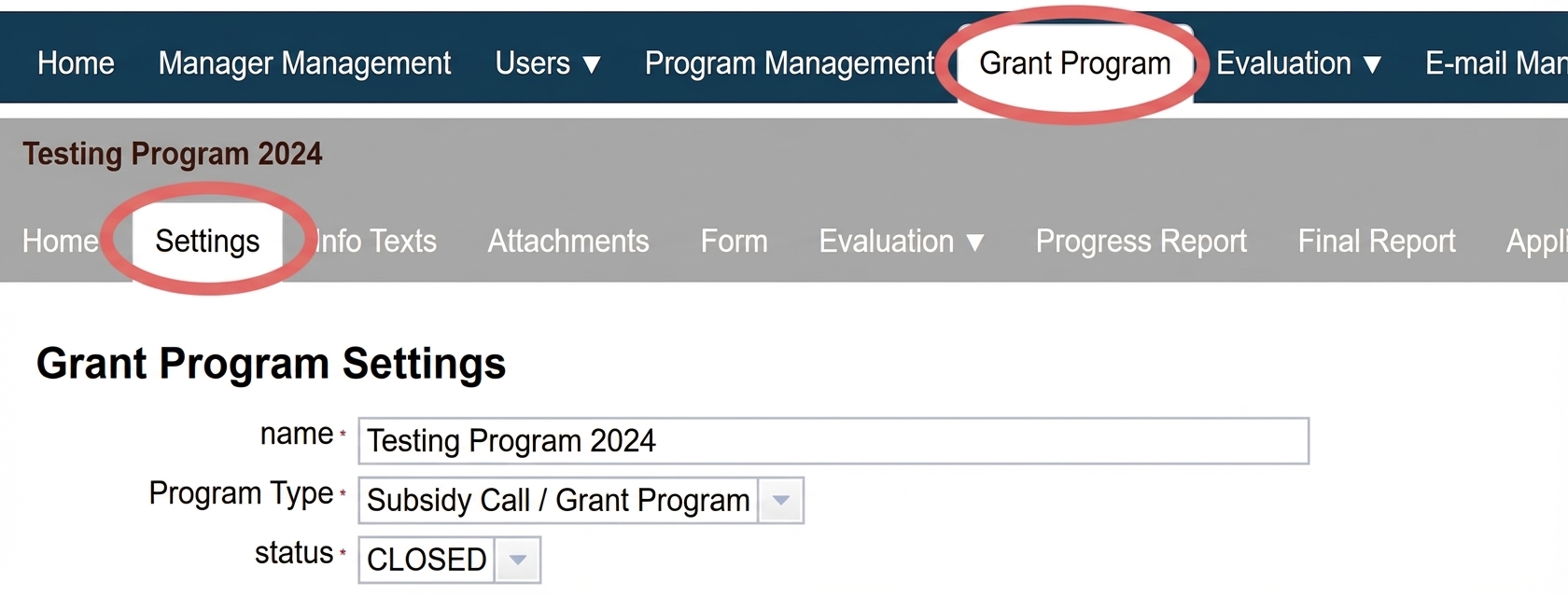
For register verification to run, the applicant must enter their IČO in the application form, and in the “Settings ” in the menu at the programme level you need to enter the tag of the field in the form where you ask for the IČO.
You can run the register verification manually for individual applications, or you can set up automatic verification when an application is submitted.
2 Tag for IČO
Manual verification launch
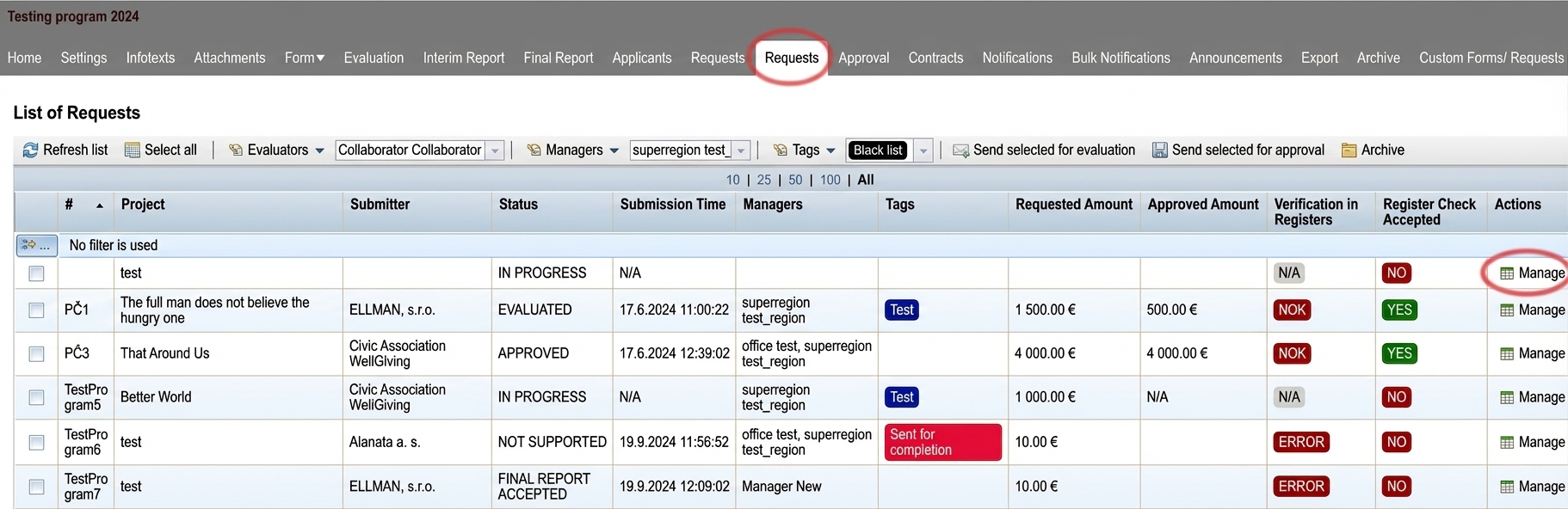
1 Tab "Applications"
Verification results
1 Results overview (tab "Applications")
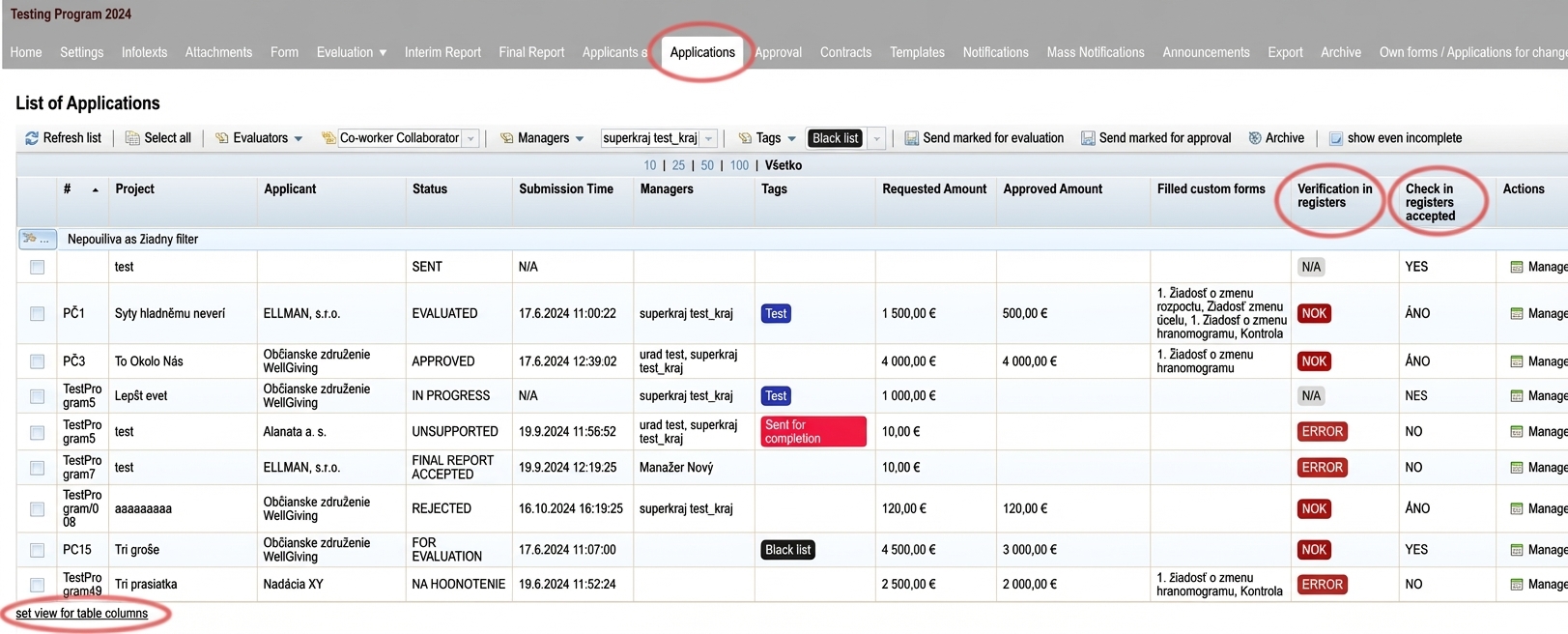
You can see the verification results right in the “Applications ” in the menu at the programme level, in the “Register verification ”:
OK = everything is in order
NOK = there is an issue in one of the registers
N/A = verification is still in progress
CHYBA = verification could not be started
In the “Register verification accepted ” you can see whether the verification results have been accepted by a manager (in that case it will no longer be possible to run the verification again).
You can set the table column display by clicking the “set column display for the table ” link below the list of applications.
2 Detailed results (tab "Register verification")
Detailed verification results can be viewed for individual applications by clicking the “Manage ” in the “Actions ”. The menu with tabs at the level of the specific application will then open.
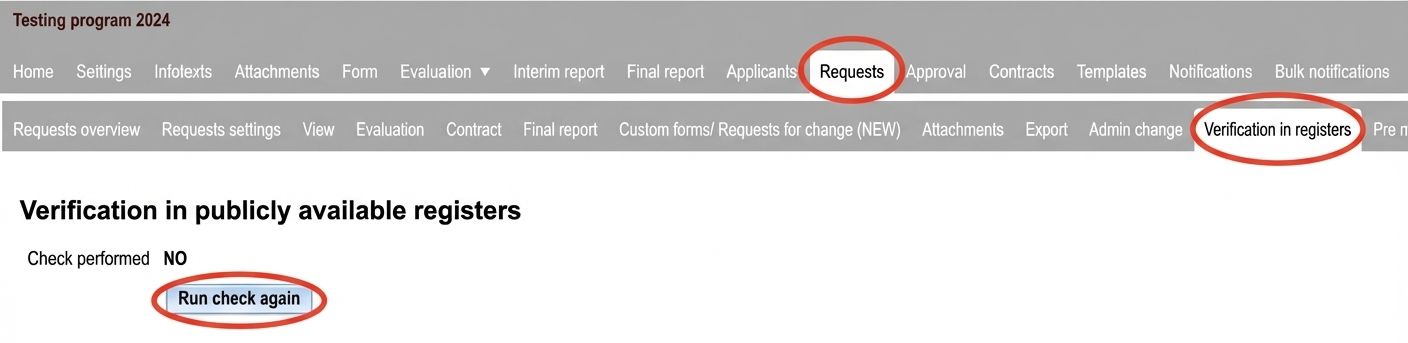
Click the “Register verification“.
The verification result will be displayed.
- If you want to repeat the verification, click the “Run verification again“.
- If you want to close the results of the verification, click the “Accept verification."
- After accepting the verification, it will no longer be possible to run the verification again.
The system will record the verification output, the manager’s name, and the date when the verification was accepted.