What do you need help with?
-
Overview and settings
-
Forms
- Manuals will be coming soon.
-
Management of applications
-
Evaluation and approval
-
Contracts and other documents
-
Exports
-
Participatory budget
If you want to export data in the form of an Excel document, you must first create an export template where you define which data will be displayed in which column of the Excel document.
- Registered emails – a list of email addresses of all registered users
- Export: project evaluation – the export contains: application number, applicant name, application name, requested amount, own resources, application status, final score (depending on the evaluation settings either the sum or average), scores for individual evaluation criteria for each evaluator, and the proposed amount for each evaluator (if it is part of the evaluation criteria).
- Results of verification in registers (available if the register verification service is used) – the export contains: application number, applicant, project name, verification status, date of verification, overall verification result (OK = all registers OK, NOK = a problem was found in one of the registers), and the verification result for individual registers (1 = OK, 0 = problem).
These templates cannot be edited, but you can duplicate them into new export templates and then modify them.
In addition to the above, a predefined template is available for participatory budget managers:
Vote export – contains data from the voting form (depending on the form type): name, phone number, city, street, postal code, email, age category, source, date and time, project(s) the voter voted for.
Creating / copying an export template
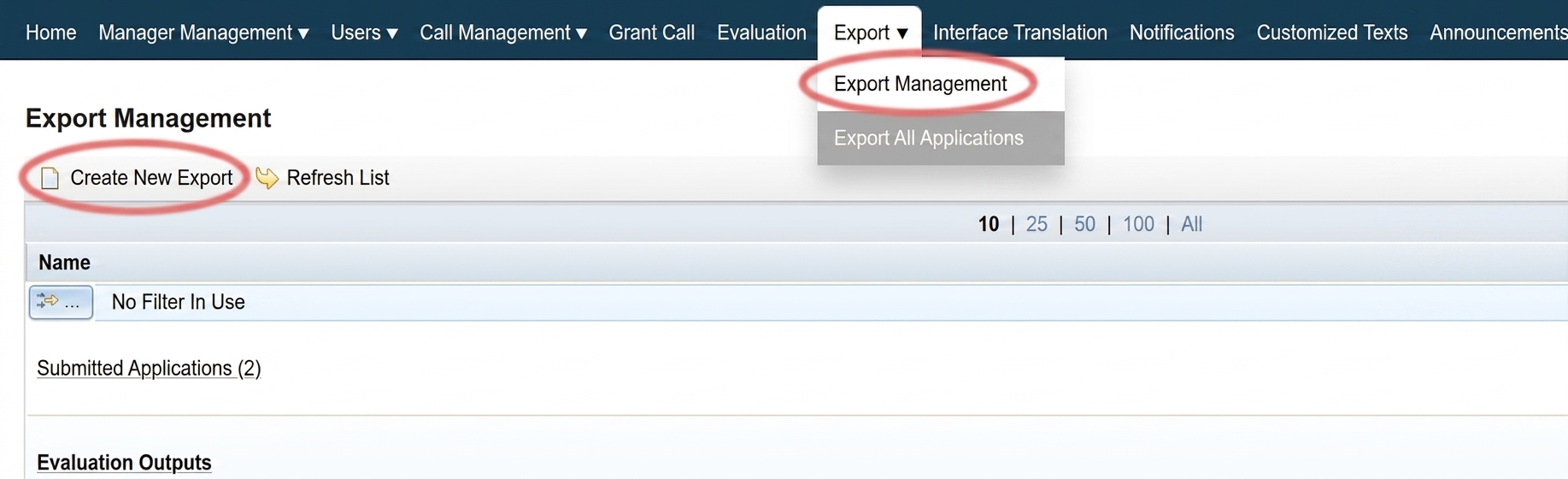
1 Export management
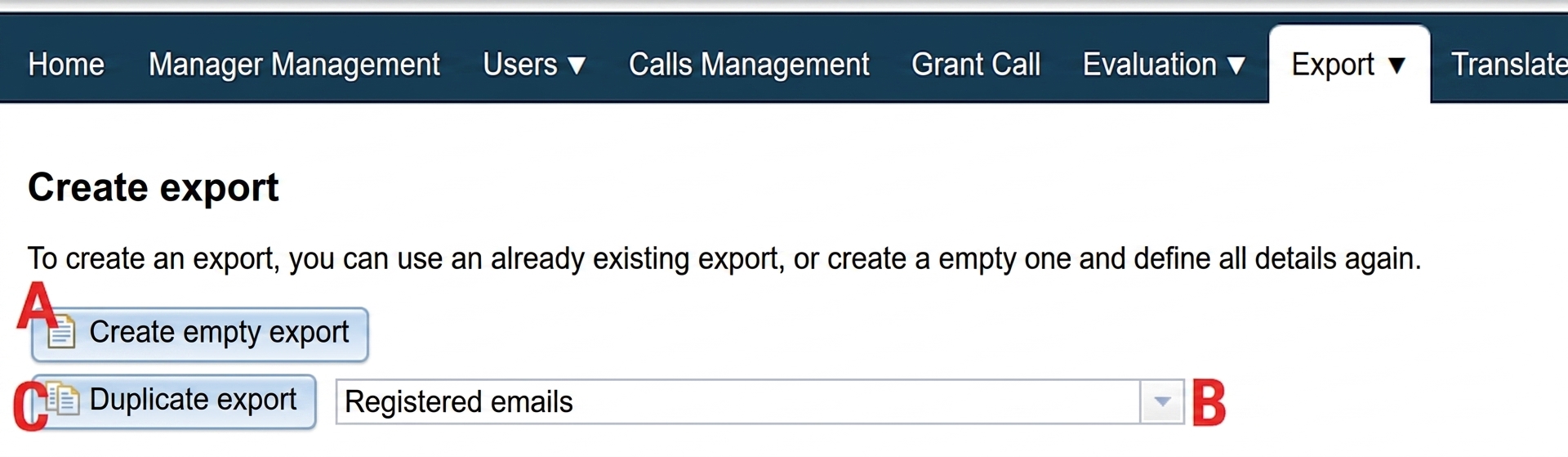
2 Create/copy export
Then you have the option to:
Create a new blank export template (in which you will then define the individual items).
- A – Click the „Create blank export“.
Copy an existing export template (which you will then modify as needed).
- B – From the dropdown menu select the export templatethat you want to copy.
- C – Click the „Duplicate export“.
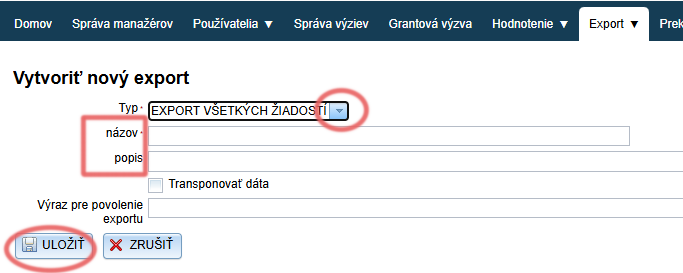
3 Describe the newly created export template
- Selectwhether you are creating a template for all applications in the programme or only for an individual application.
EXPORT ALL APPLICATIONS = all applications in the programme
EXPORT ONE APPLICATION = a template only for an individual application. This template can only be used for a specific application.
If you are copying a template, this selection option will not be displayed – the type of export you are duplicating is automatically selected. - Enter a nameby which you can easily recognise it in the list of all export templates.
- Optionally also add a description.
- Save the template by clicking the „Save“.
4 Export conditions and items
Then you can define the conditions and items of the export.
- Conditions of the export = which applications should end up in the export. If you do not define any conditions, all applications will be in the export (including those in progress).
- Items of the export = the content of the export. Each export item represents a column in the Excel document.
Export conditions and items
In conditions you can define which applications the export should contain. If you do not define any conditions, all applications will be in the export (including those in progress).
Items of the export are the specific data you want the export to contain.
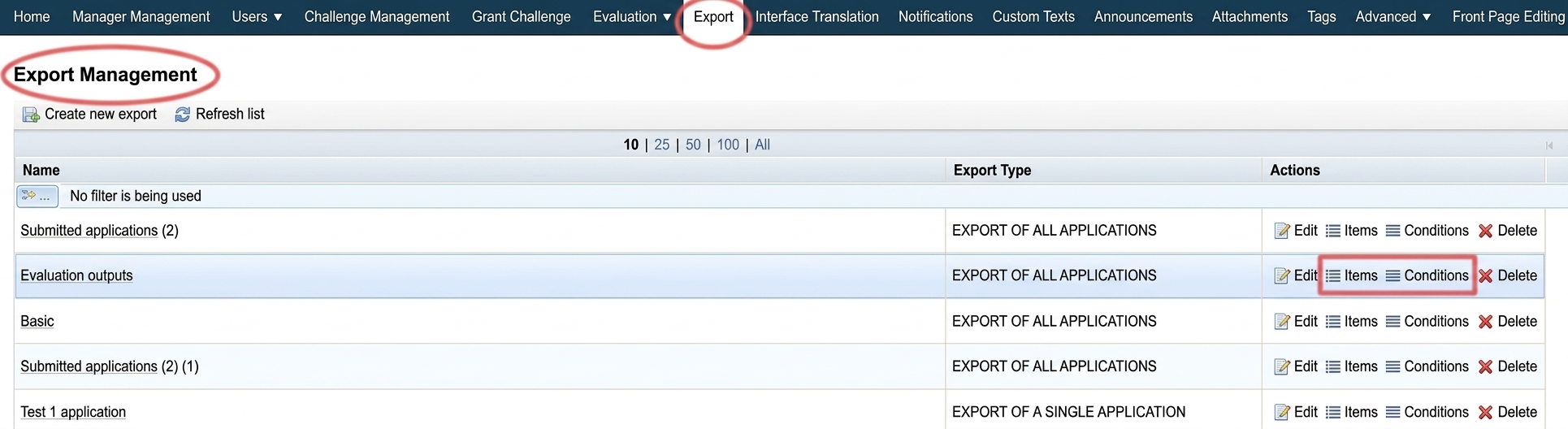
You can edit both export conditions and items from edit the the main menu in the „Export: Export management, or from the menu at the call level in the „Export“.

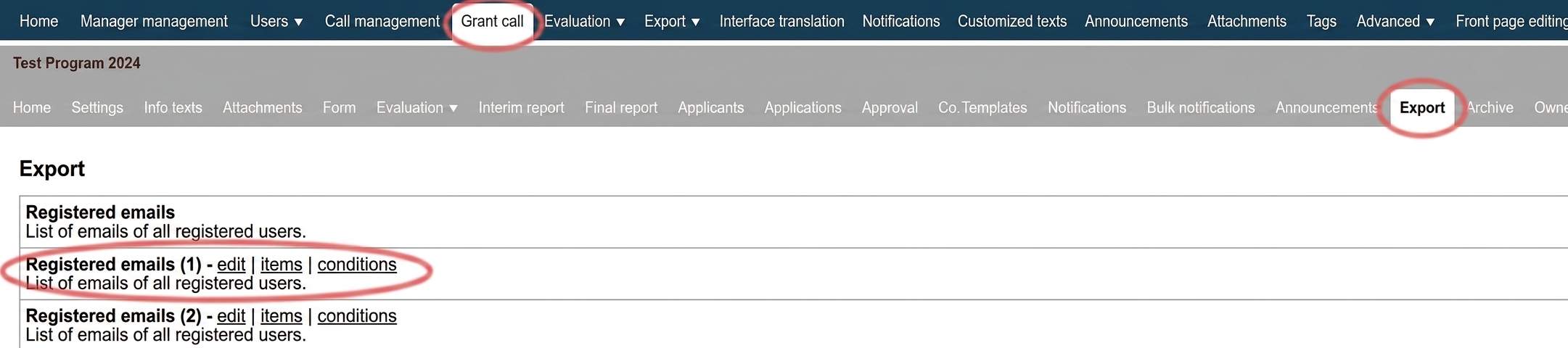
Regardless of which menu level you are at, you are editing the export template – each export template is available in all calls.
If you want to make changes only for a specific call, create a copy of the template and indicate in the name or description which call the template is intended for.
Export conditions
-
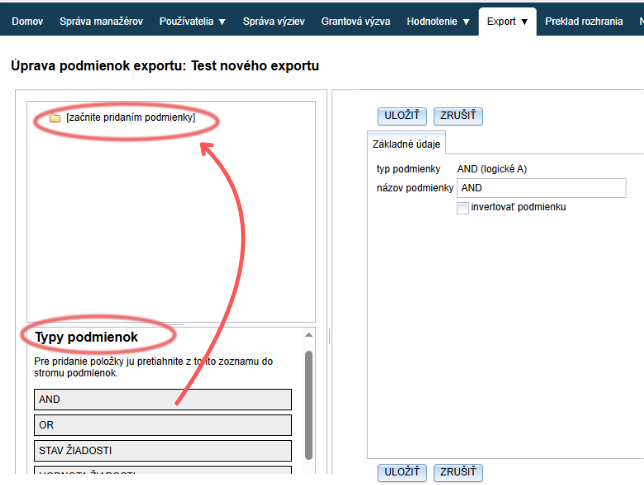
If you want to define multiple conditions, start by adding the logical function „AND“ or „OR“.
AND = if you want the applications in the export to meet all the conditions you add.
OR = if the applications in the export should meet only one of the specified conditions.
You can combine the AND and OR functions in various ways. -
If you need to define only one condition, start directly by adding the specific condition type.
-
Save the changes by clicking the „SAVE“.
Condition types
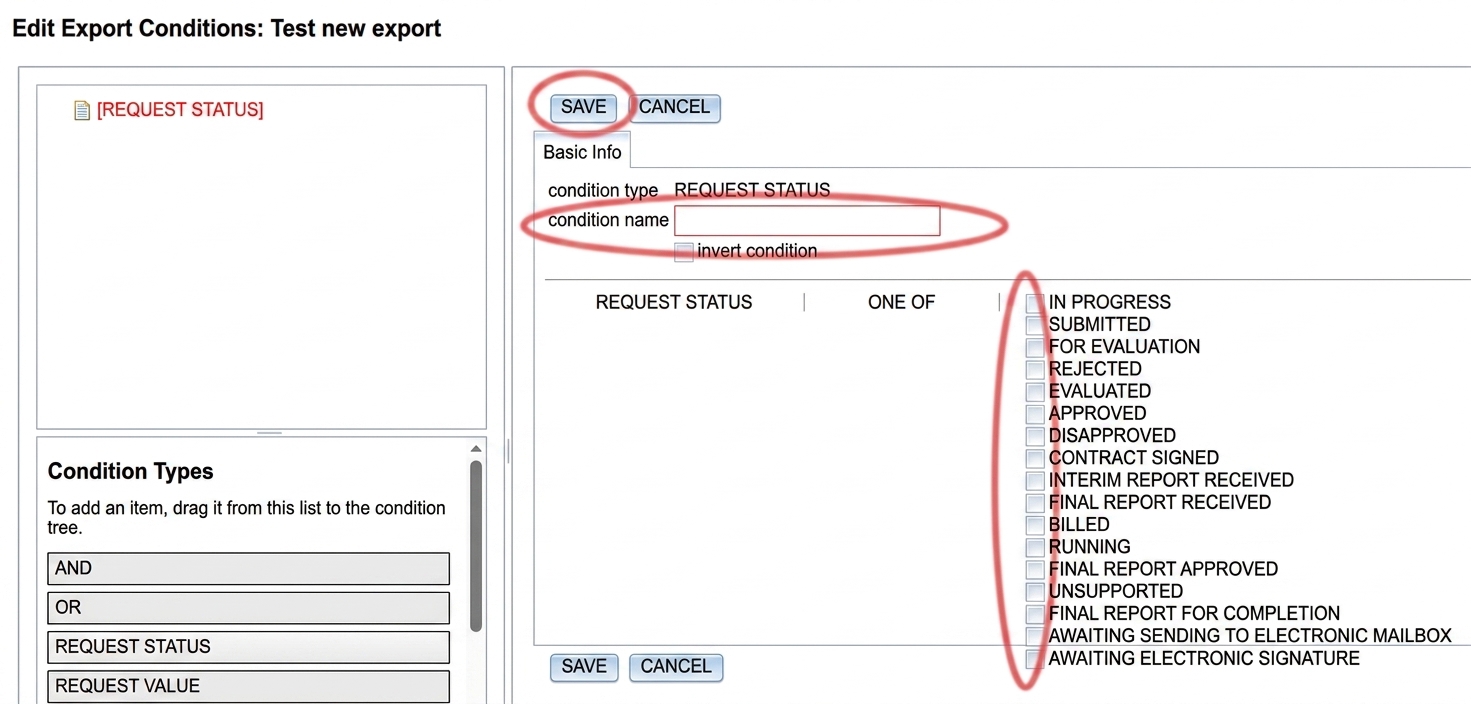
APPLICATION STATUS
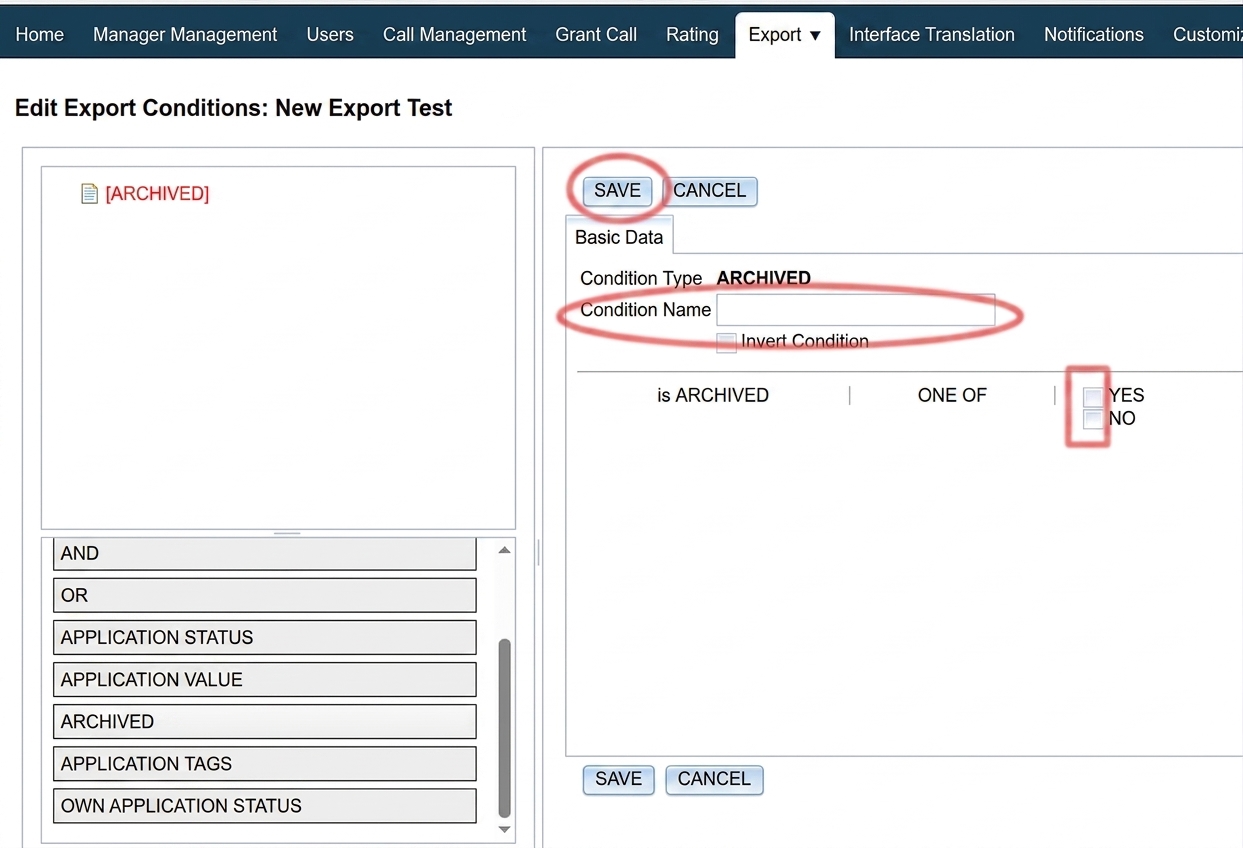
ARCHIVED
APPLICATION LABELS
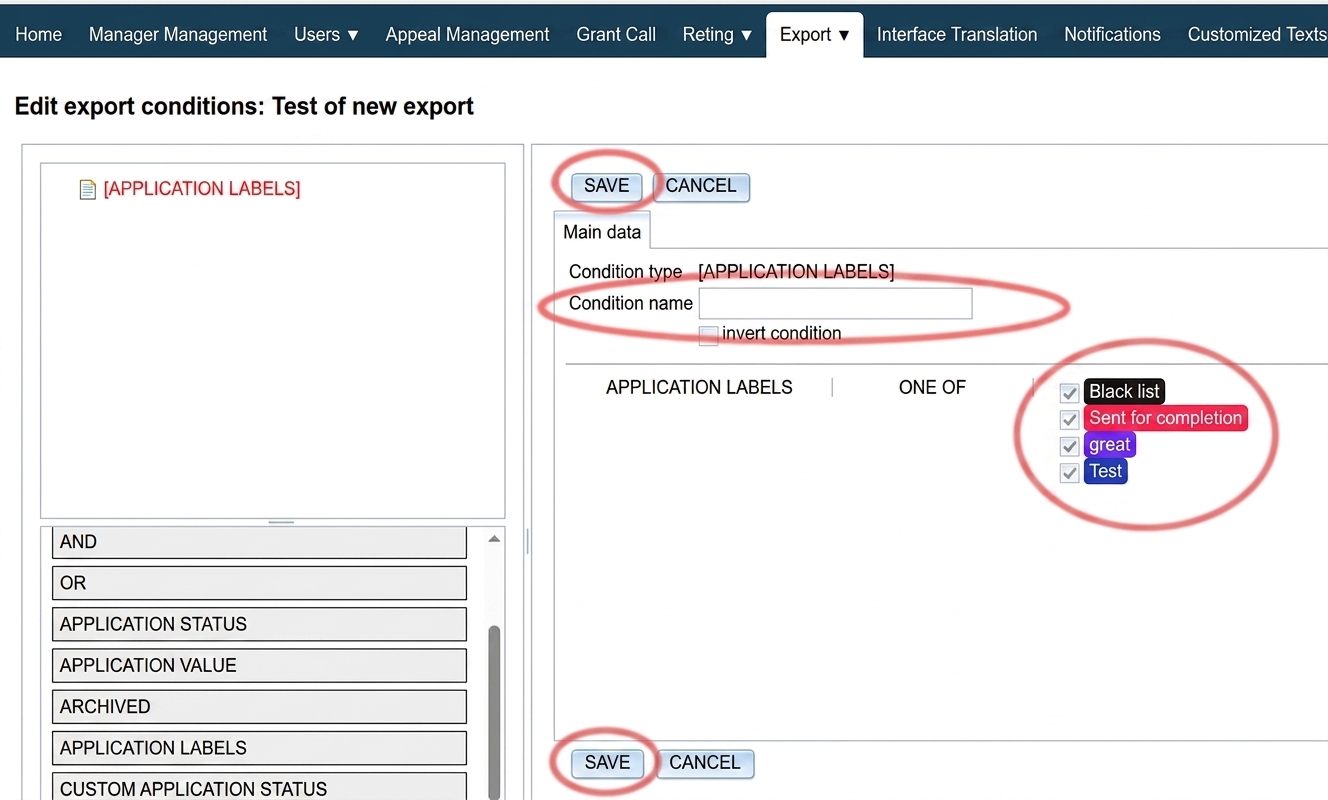
Here you can set that the export will contain only applications that have one of the labelsthat you check. (You can label individual applications in the „Applications“ tab. More about labels here.)
- Enter name the condition name.
- Check the required application labels from the list. (If you have not created any labels, the list will be empty.)
- Save the changes.