Print

Information texts for applicants

In the eGRANT system, you have several options for providing information to applicants.

At the organisation level you can, for example, add text to the login page, text to the page after login, or create an email signature for all notification emails sent to applicants. You can find these options in the „Custom texts“ tab in the main menu.

At the programme level you can, for example, create text for the page after login that is specific to a particular programme, in the „Infotexts“ tab (in the programme-level menu). At the programme level, you can also upload various documents for applicants in the „Attachments“.

For participation managers

This information is intended for participatory budget coordinators.
If you are interested in using the eGRANT system to manage a participatory budget, please contact us.

For the purposes of a participatory budget in addition to the ones mentioned here, the "Voting rules" in the "Custom texts" tab in the main menu are also important.
(For more information, see the category "Participatory budget")

Custom texts

In the „Custom texts“ tab in the organisation-level menu, you can create:

Email: General footer for all messages

An email signature that is appended at the end of every notification email for applicants.
If you do not create an email signature, notification emails will be sent without a signature.

Text for the applicant on the login page.

Here you can include, for example, the steps for registration in the system, contacts for persons authorised to provide information about programmes/calls, a technical support contact, etc.

Text for the applicant on the homepage after login.

Here you can edit the text that is displayed to applicants in the „Home“ tab after logging into their account. It will be the same for all programmes/calls. If you want to include text specific to a particular programme, you can do so in the „Infotexts“ tab in the programme-level menu (more info below).

Text intended for evaluators (user type evaluator).
Displayed to evaluators after logging into their account above the table with the list of applications assigned for evaluation.

Text in the pop-up message displayed on the screen to applicants after successful submission of an application.

The text you enter here will be displayed on the page with information about personal data processing.
This page opens for applicants during registration after clicking the link in the GDPR consent (in the registration form).

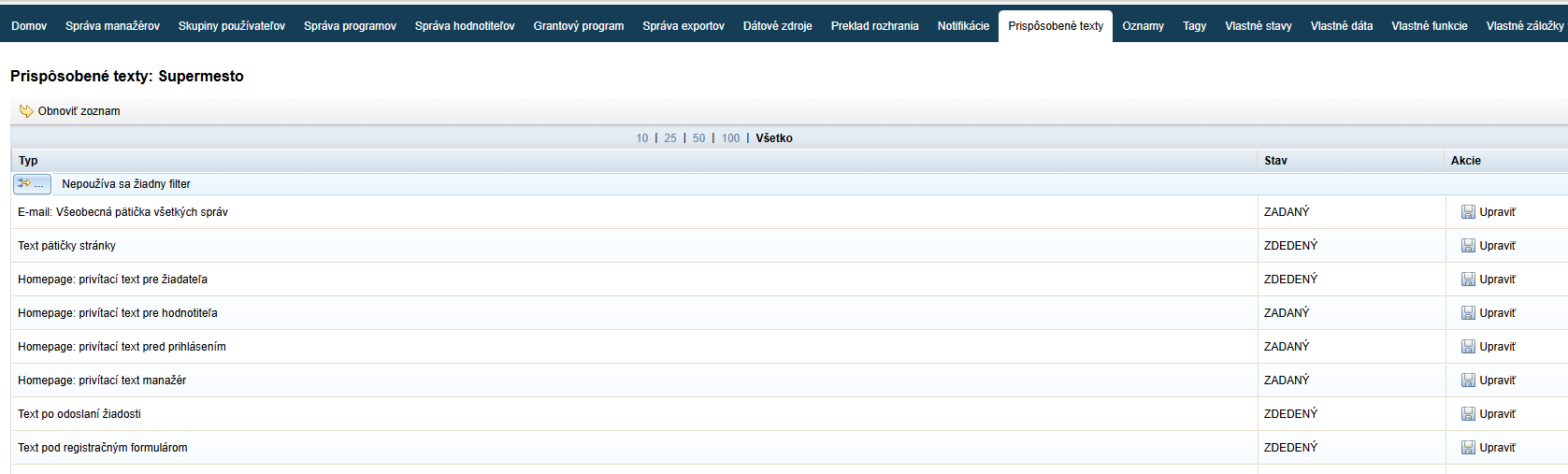
Individual „custom texts“ can be edited as follows:

Prispôsobené texty
  • Click on the „Custom texts“ tab in the main menu.

  • In the list find the text that you want to edit.

  • Click the „Edit“ button in the „Actions„.
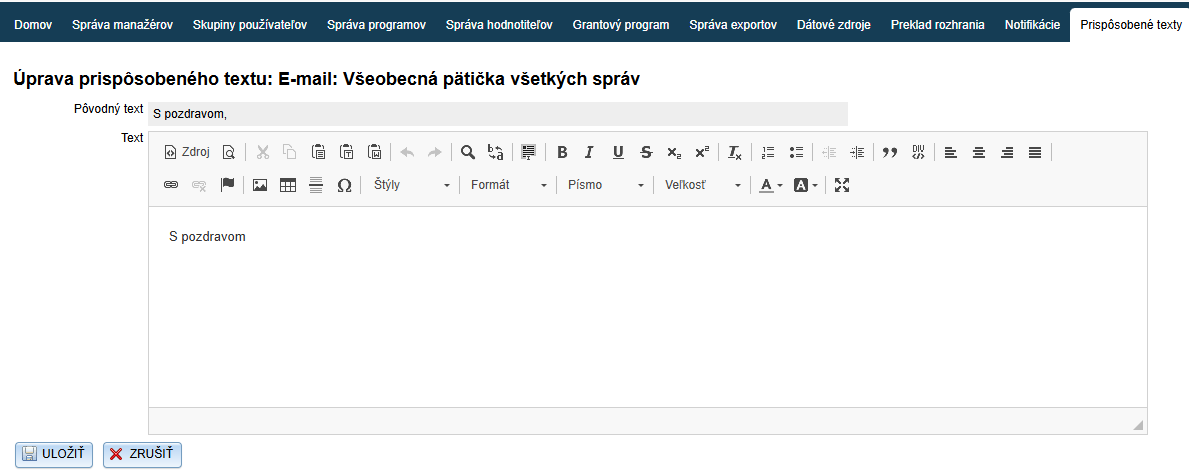
After clicking the „Edit“ button on the selected item in the list of custom texts an editor will open where you can make changes.

  • In the text editor create/edit the text.

  • Save changes by clicking the „SAVE„.

Infotexts

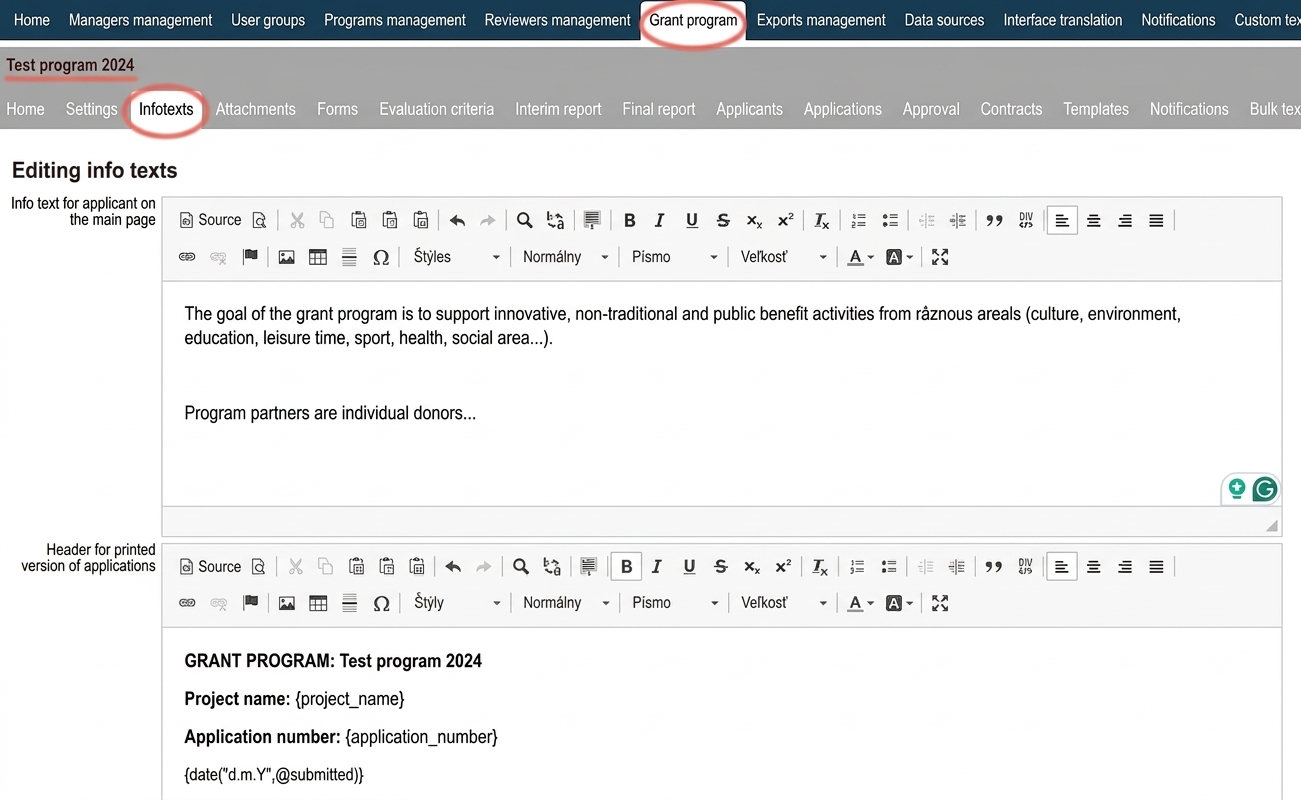
In the „Infotexts“ tab in the programme-level menu, you can create:

Infotext for the applicant on the homepage

Text for the applicant with information about the programme. The applicant can see this information in the „Home“ tab after logging into the programme.

(If you also manage a participatory budget in the eGRANT system, the applicant can see this information already on the login page in the „Programme information“ section.)

Here you can insert text/information/a logo, etc. that you want to be displayed in the header of printed application forms (or in the header of applications downloaded in PDF format).

You can also insert codes for data retrieval, e.g. the application number (see Overview of codes for data generation).

similar to the header

Here you can insert text/information/a logo, etc. that you want to be displayed in the header of printed evaluations (or in the header of evaluations downloaded in PDF format).

similar to the header

Here you can insert text/information/a logo, etc. that you want to be displayed in the header of printed final reports (or in the header of final reports downloaded in PDF format).

similar to the header

The checkbox for this option can always be found below the footer editor.
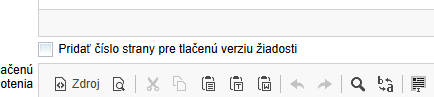
Číslovanie strán tlačenej verzie formuláru

Infotexty

After creating either an infotext for the applicant or a header/footer in the displayed text editor, do not forget to save changes by clicking the „SAVE“ button at the bottom of the page.
Attachments for applicants

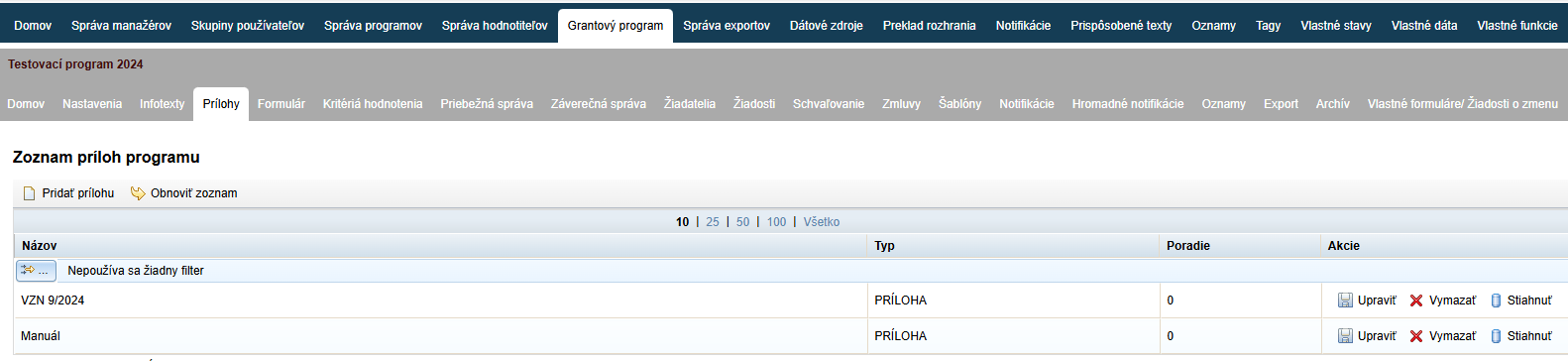
In the „Attachments“ tab in the programme-level menu, you can upload various documents for applicants. Applicants can find these documents in the „Attachments“ tab after logging into the programme.

If you already have some attachments created, a list of already uploaded documents will be displayed, which you can edit here.

Vytvorenie prílohy pre žiadateľa
  • Click on the „Attachments“ in the programme-level menu.

  • A list will be displayed of already uploaded documents. of already uploaded documents.
    If you have not yet created any attachments for applicants, the list will be empty.

  • In the „Actions“ column in the displayed table, you can edit their name, delete them, or download.

  • If you want to create a new attachment, click the „Add attachment“ link above the table on the left.
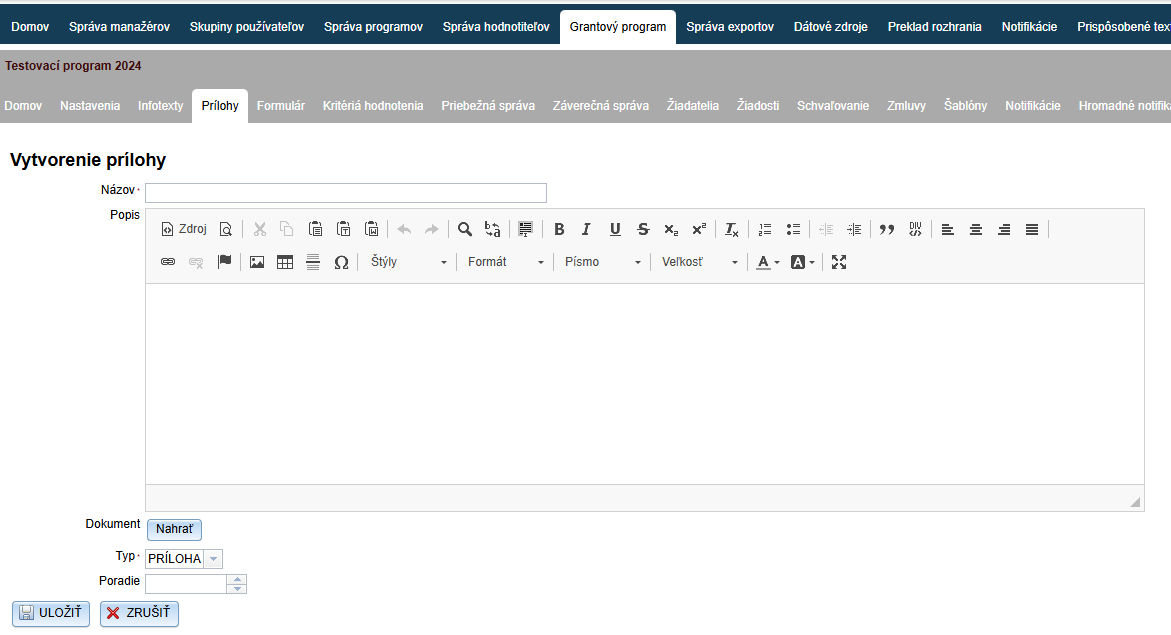
Po kliknutí na odkaz „Add attachment“ link (in the „Attachments“ tab in the programme-level menu), the „Create attachment“.

Vytvorenie novej prílohy
  • Enter the name of this document, and optionally a description in the text editor.

  • Click the „Upload“ and upload the document from your computer.

  • If you already have some documents uploaded but did not upload them in the order in which you want them to be displayed to applicants, you can set the order specifically for each document.

  • Click the „SAVE„.

Table of Contents
×