What do you need help with?
-
Overview and settings
-
Forms
- Manuals will be coming soon.
-
Management of applications
-
Evaluation and approval
-
Contracts and other documents
-
Exports
-
Participatory budget
Creating a New Programme (Call)
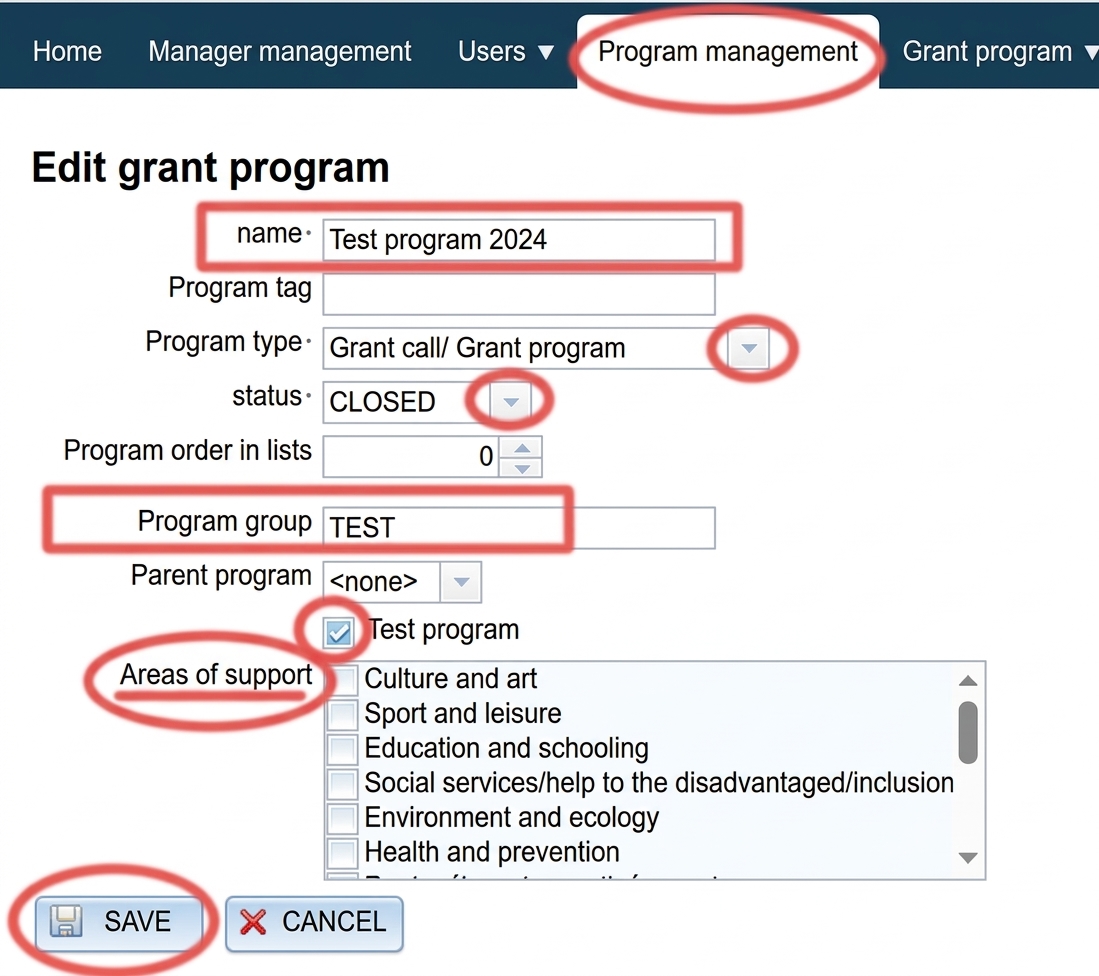
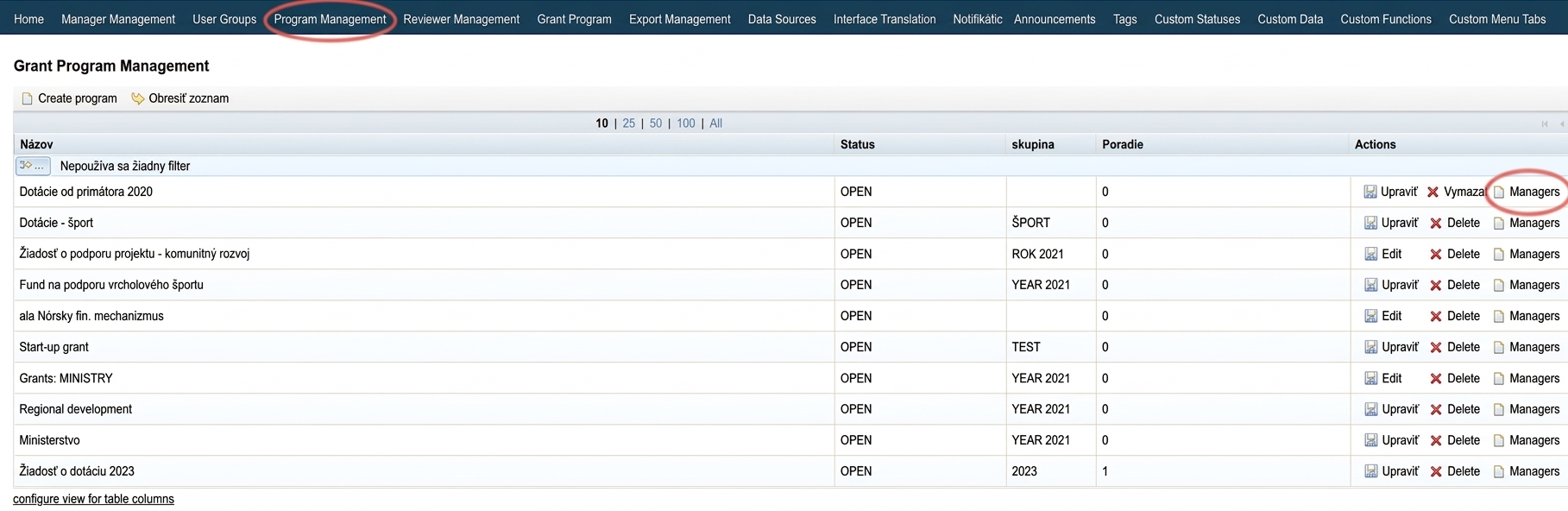
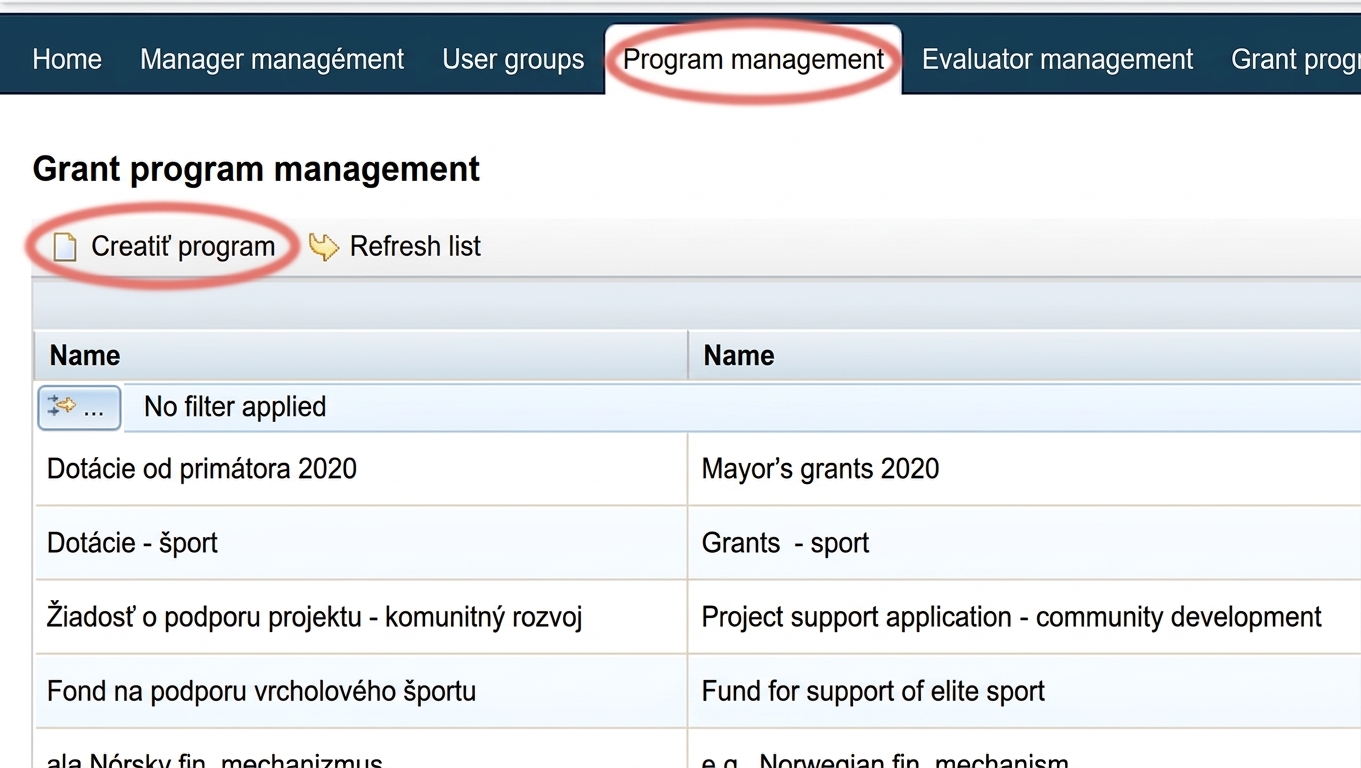
You can create a new programme (call) or edit existing ones in the “Programme Management ” (calls) tab in the main menu at the organisation level. You can also copy calls here.
2 Programme Editor
Fill in the name the programme name.
If you want to internally group programmes by certain categories, also fill in the programme group.
Select the programme type:
- "Grant Call / Grant Programme" = for grant management purposes
- "Participatory Budget" = for participatory budget management purposes
Select status:
- CLOSED = registration for the programme is closed, the programme will not appear in the list of open calls
- OPEN = registration for the programme is open, applicants can register and start filling in their application
Checking the option "Test Programme" means that this programme will not appear on the egrant.sk website in the list of open calls.
By checking one or more options in the "Support Areas" list, this programme will be displayed under the selected categories on the egrant.sk website in the list of open calls.
Click the “SAVE“.
An already created programme can be deleted in the “Programme Management“.
However, if applicants are already registered for this programme, deleting it will remove the entire programme, including all applications that belong to it.
Manager Access to a Programme (Call)
For a manager to have access to a specific programme, you must assign them to the programme.
1 Programme Management
2 Assigning Managers
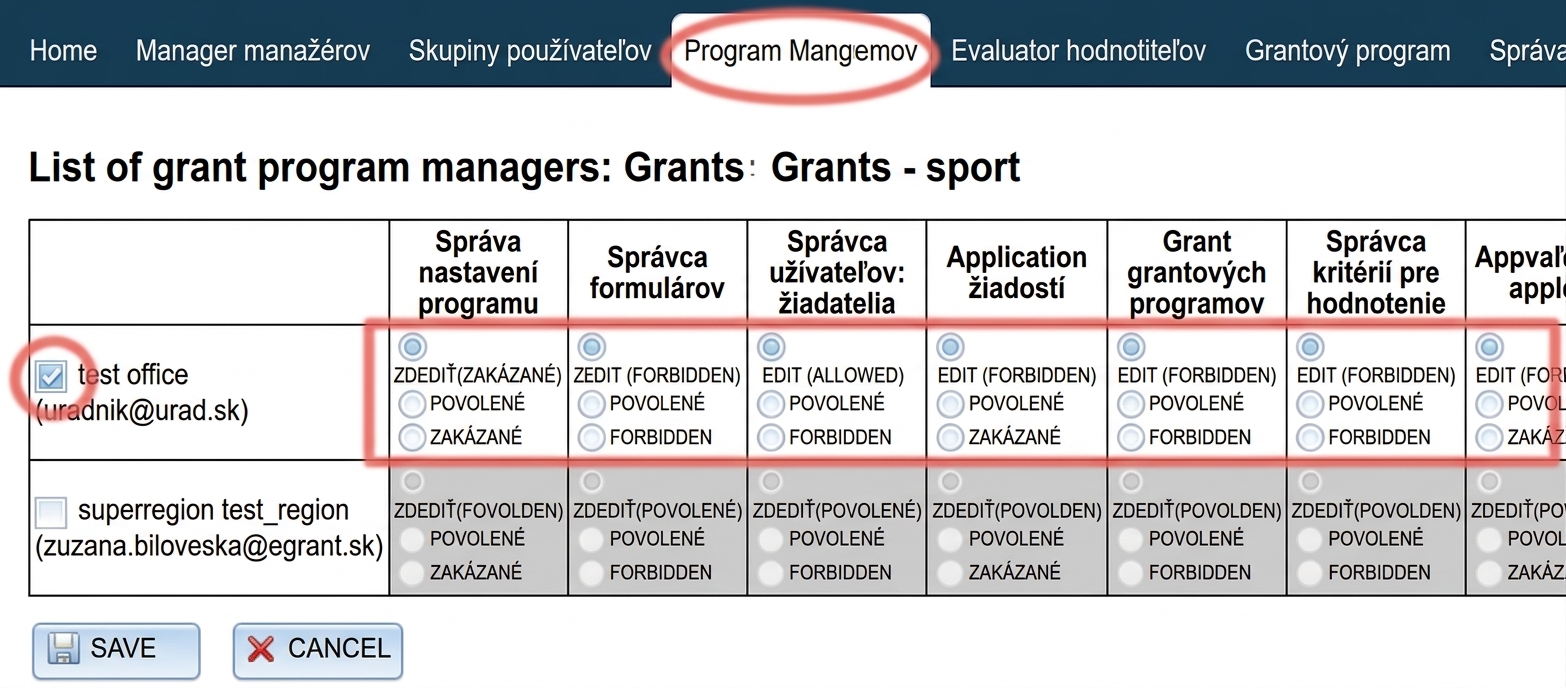
A list of existing managers will be displayed. Check the manager who should have access to this programme.
You can also change the privileges of this manager for this selected programme. The default setting is that the manager has the same privileges in this programme as those set when the account was created (or those set for the manager group, if the manager belongs to one).
- INHERIT = the same as what was set when the account was created (or what is set for the manager group, if they belong to one). It is always shown in parentheses whether this privilege is currently “allowed” or “denied”.
- ALLOWED = the privilege will be allowed within this programme (regardless of what was set when the account or manager group was created).
- DENIED = the privilege will be denied within this programme (regardless of what was set when the account or manager group was created).
Click the “SAVE“.
Copying a Programme (Call)
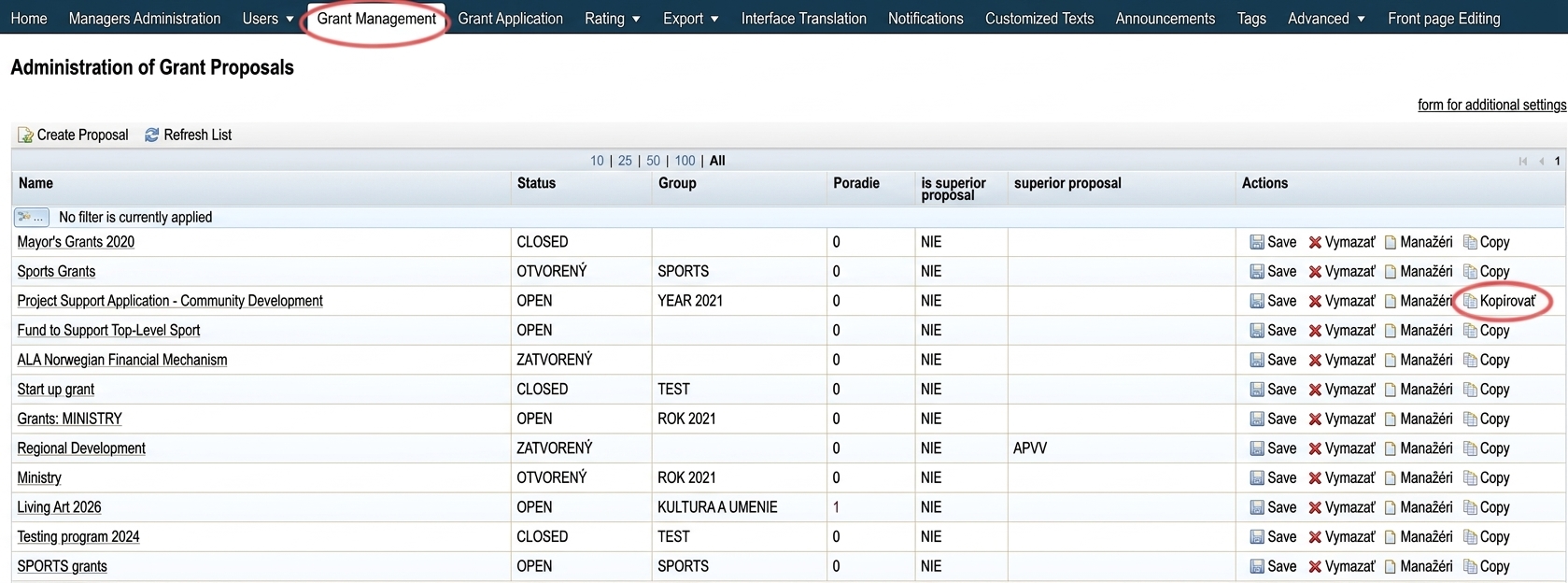
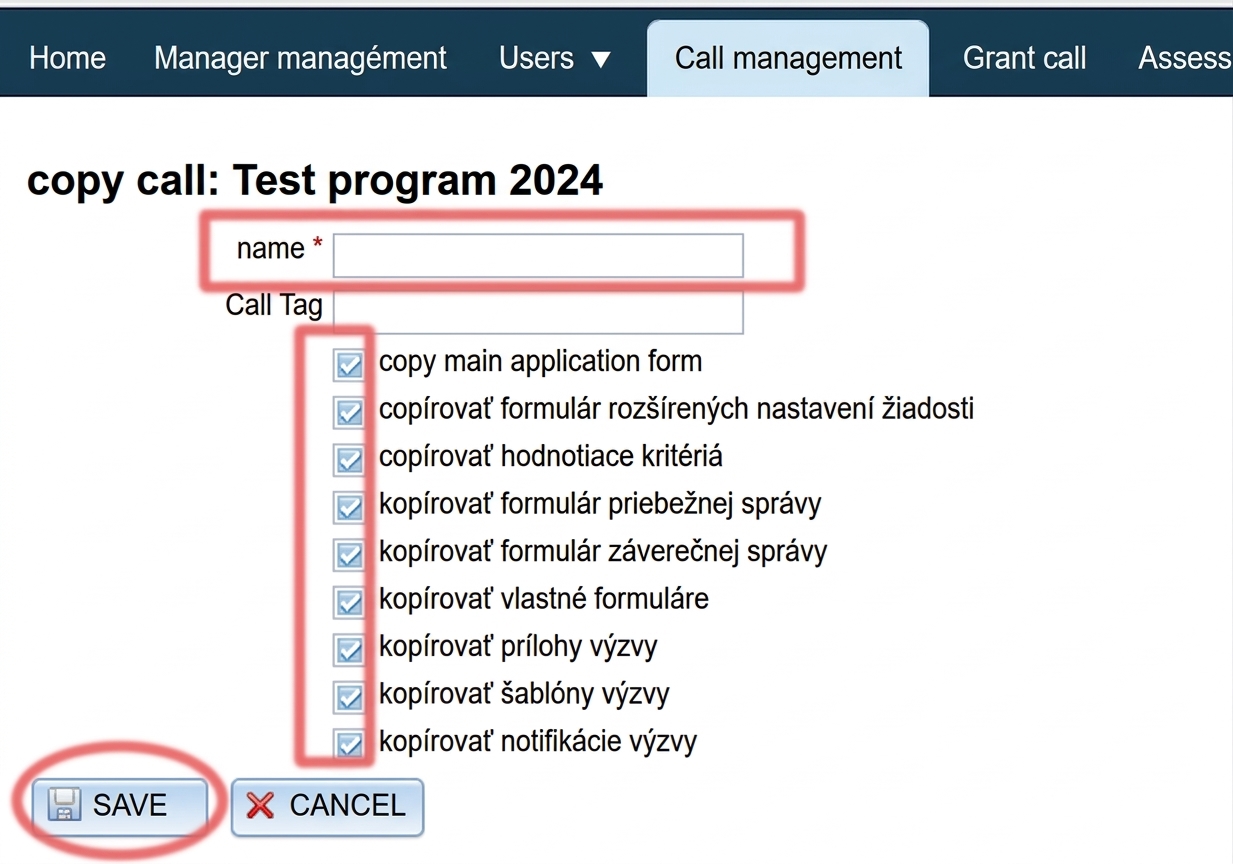
A programme (call) that you have already created in the past can also be copied in the „Call Management“ (programmes) tab.
- Programme Settings (call)
- Programme Group
- Managers assigned to the programme (call)
- Info texts (text on the landing page for applicants, header/footer for printed versions of forms)
You can subsequently edit these details.
You also have the option to check whether you want to automatically copy forms, evaluation criteria, templates, attachments and notifications.
1 Call Management (Programmes)
2 Call Copy
A copy of the selected call will then be created.
Enter the name for this created call and check, everything you want to copy from the call.
Note: settings of the call, programme group, info texts, and managers assigned to the call are copied automatically — however, you can subsequently edit them.
Click the button "SAVE".
3 Call Editor (Programme)
You then have the option to edit the basic details of the call (similarly to when creating a new one):
- the name
- group (if you internally group calls by certain categories)
- the programme type: "Grant Call / Grant Programme" = for grant management purposes
"Participatory Budget" = for participatory budget management purposes - status:
CLOSED = registration for the programme is closed, the programme will not appear in the list of open calls
OPEN = registration for the programme is open, applicants can register and start filling in their application
Checking the option "Test Programme" means that this programme will not appear on the egrant.sk website in the list of open calls.
By checking one or more options in the "Support Areas" list, this programme will be displayed under the selected categories on the egrant.sk website in the list of open calls.
Click the “SAVE“.