
What do you need help with?
Evaluation of applications
-
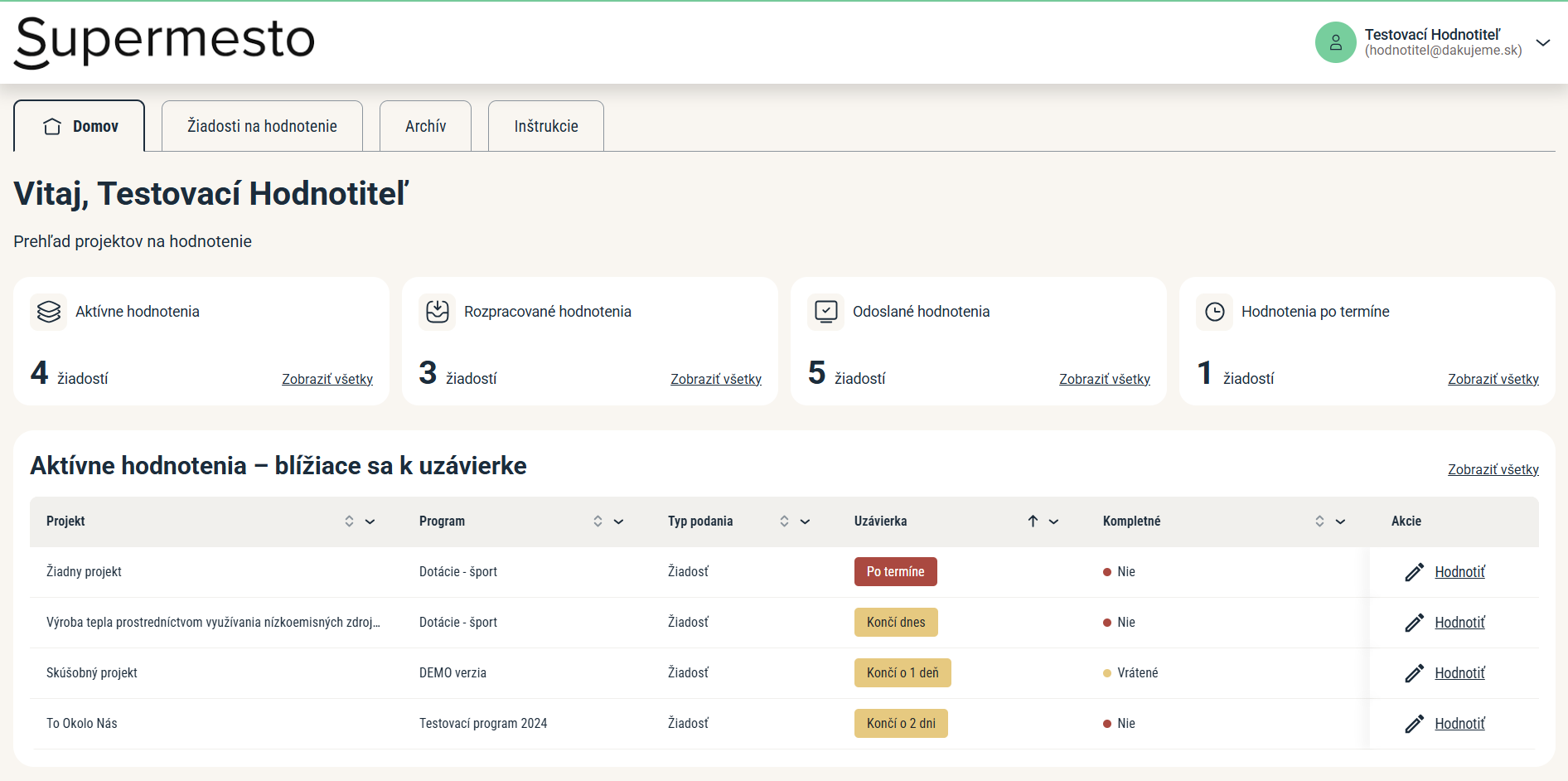
V hornej časti obrazovky nájde číselný prehľad pridelených hodnotení.
Aktívne hodnotenia = počet všetkých pridelených hodnotení.
Rozpracované hodnotenia = počet hodnotení, na ktorých hodnotiteľ začal pracovať, ale ešte neodoslal.
Odoslané hodnotenia = počet všetkých dokončených hodnotení, ktoré hodnotiteľ odoslal. (Ich kompletný zoznam tvorí záložku Archív.)
Hodnotenia po termíne = počet hodnotení, ktorým už vypršala uzávierka. (Tieto hodnotenia je stále možné vypracovať a odoslať, termín uzávierky je informačný, neblokuje odoslanie hodnotenia.) -
V spodnej časti obrazovky nájde výber hodnotení, ktorých uzávierka je o 7 dní alebo skôr.
-
Kliknutím na odkaz Evaluate môže začať vypracovávať hodnotenie konkrétneho projektu.

-
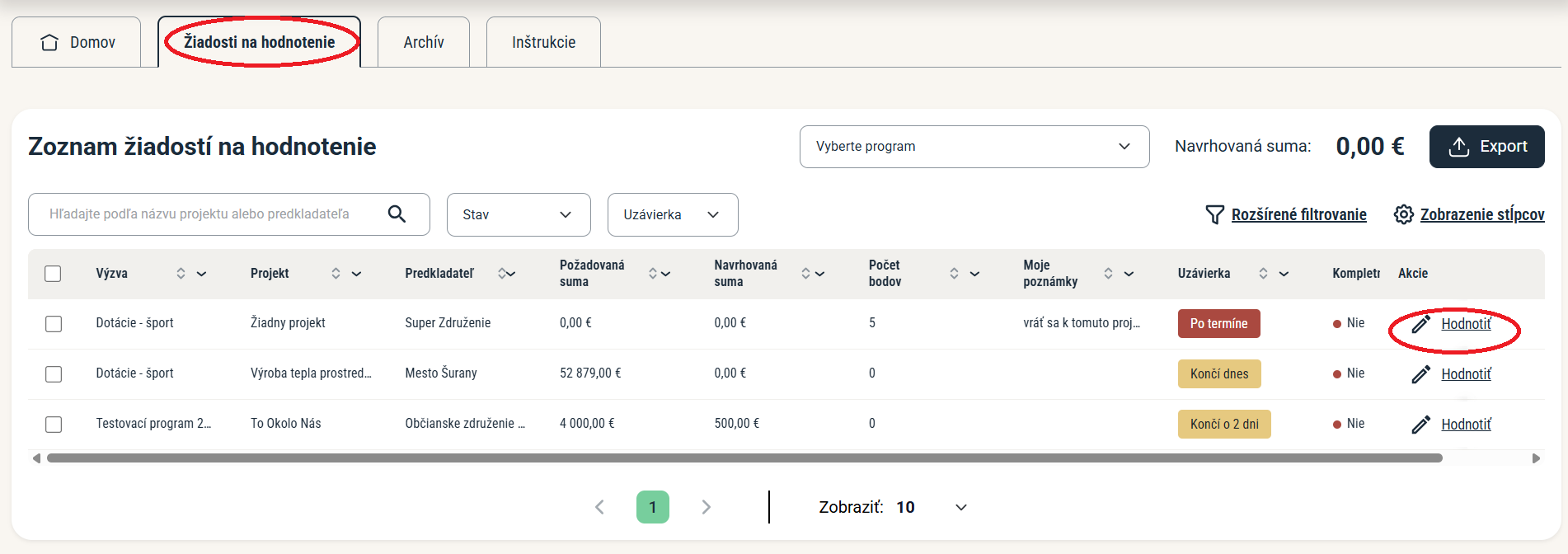
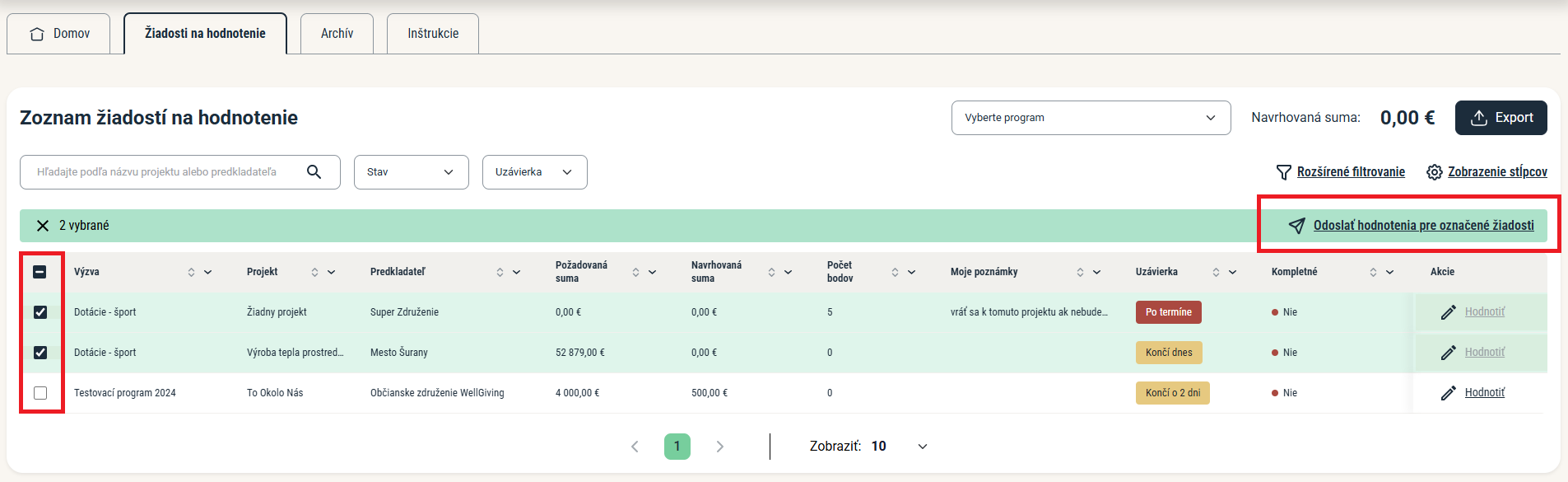
Tabuľka so zoznamom projektov obsahuje základné informácie o projekte: v prvom stĺpci názov výzvy, do ktorej žiadosť patrí, ďalej číslo žiadosti, názov projektu a predkladateľa, požadovanú sumu aj vlastné zdroje.
V tejto tabuľke sa mu tiež zobrazuje the running score, ktorý už projektu udelil.
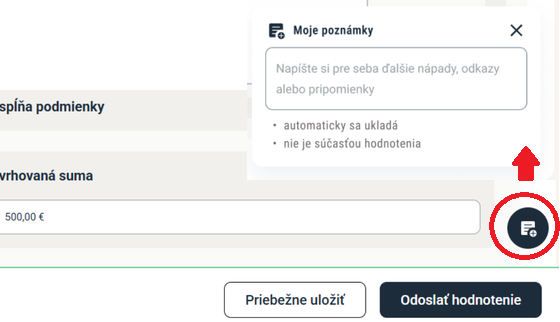
Ak ste v rámci kritérií hodnotenia pridali aj navrhovanú sumu, hodnotiteľovi sa v tabuľke zobrazí ďalší stĺpec Navrhovaná suma, v ktorom vidí, akú sumu navrhol pre daný projekt.V stĺpci Moje poznámky nájde svoje poznámky, ktoré si zapísal pri hodnotení konkrétneho projektu. Tieto poznámky nie sú súčasťou hodnotenia, slúžia len hodnotiteľovi pre ľahšiu orientáciu v projektoch.
Zároveň tiež v tejto tabuľke vidí, či je jeho hodnotenie pre daný projekt complete or not. (The evaluation is complete if the evaluator has filled in all mandatory criteria.)
-
V stĺpci Uzávierka vidí, koľko času mu ostáva na vypracovanie hodnotenia.
Tento termín je informačný – hodnotenie je možné vypracovať a odoslať aj po termíne.Termín pre hodnotenie viete nastaviť:
a) v základných nastaveniach výzvy pre všetky hodnotenia,
b) v nastaveniach žiadosti pre individuálnu žiadosť,
c) v záložke „Hodnotenie“ na úrovni konkrétnej žiadosti pre individuálneho hodnotiteľa. -
Ak ste v rámci kritérií hodnotenia pridali aj navrhovanú sumu, súčet všetkých navrhovaných súm nájde vpravo hore nad tabuľkou. Po zvolení výzvy v rozbaľovacej ponuke vľavo sa sčítajú všetky navrhované sumy, ktoré hodnotiteľ uviedol pri projektoch zvolenej výzvy.
-
Jednotlivé projekty môže začať hodnotiť po kliknutí na tlačidlo Evaluate v stĺpci Actions.

-
Nad tabuľkou nájde vyhľadávač, pomocou ktorého môže vyhľadať konkrétny projekt podľa názvu, a tiež rýchle filtre, pomocou ktorých si môže vyfiltrovať tabuľku podľa stavu hodnotenia alebo podľa termínu uzávierky.
-
Kliknutím na Rozšírené filtrovanie si môže hodnotiteľ vyfiltrovať tabuľku na základe viacerých filtrov naraz.
-
Kliknutím na Zobrazenie stĺpcov si vie hodnotiteľ zmeniť, ktoré stĺpce sú zobrazené a tiež zmeniť ich poradie.
-
Pri každom stĺpci má tiež možnosť otvoriť rozbaľovacie menu a stĺpec skryť, presunúť doľava/doprava, alebo zoradiť tabuľku podľa tohto stĺpca.
-
Túto tabuľku si môže hodnotiteľ vyexportovať do Excel súboru. Ak si ju tu zoradí, vyfiltruje, alebo skryje nejaké stĺpce, vyexportuje sa tabuľka v upravenom stave.

-
Keď si v rozbaľovacom zozname vyberie výzvu, v ľavej časti obrazovky sa mu zobrazia informácie, ktoré ste pre hodnotiteľov pripravili.
Tento text zadáte na úrovni výzvy v záložke Settings > Infotexty > Inštrukcie pre hodnotiteľa.
Šírku ľavého bloku si môže hodnotiteľ upraviť potiahnutím myšou. -
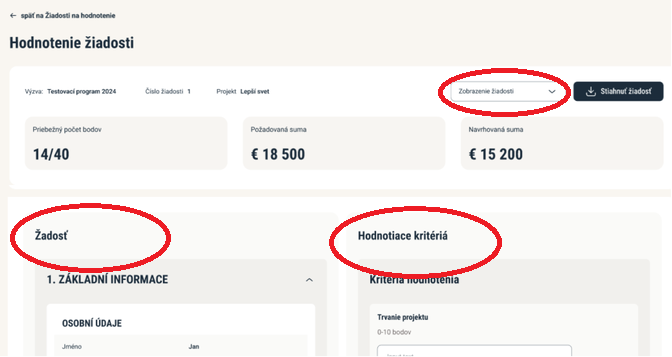
V pravej časti obrazovky nájde štandardný postup hodnotenia v systéme eGrant.
-
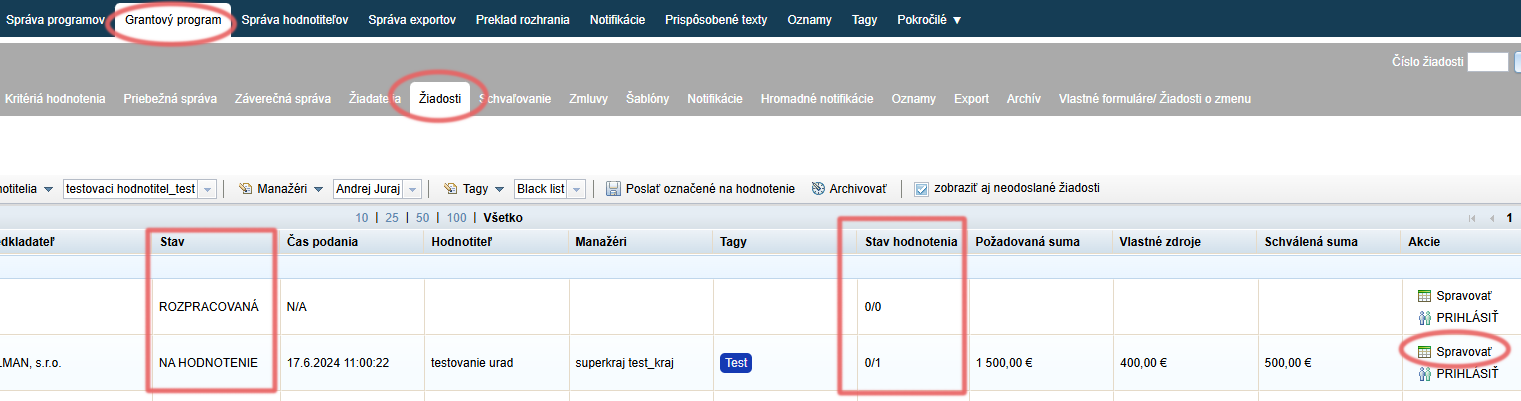
In the „Status“ tab and see the current status of applications.
If an application has been fully evaluated (all assigned evaluators have filled in all mandatory criteria), its status changes to „EVALUATED“.
If the evaluation of an application is still in progress, the status remains „FOR EVALUATION“. -
In the „Evaluation status“ they can see the evaluation progress (e.g. 2/5, 0/2, etc.).
– The number before the slash represents the number of evaluators who have already evaluated the application,
– the number after the slash represents the total number of evaluators who are to evaluate the application. -
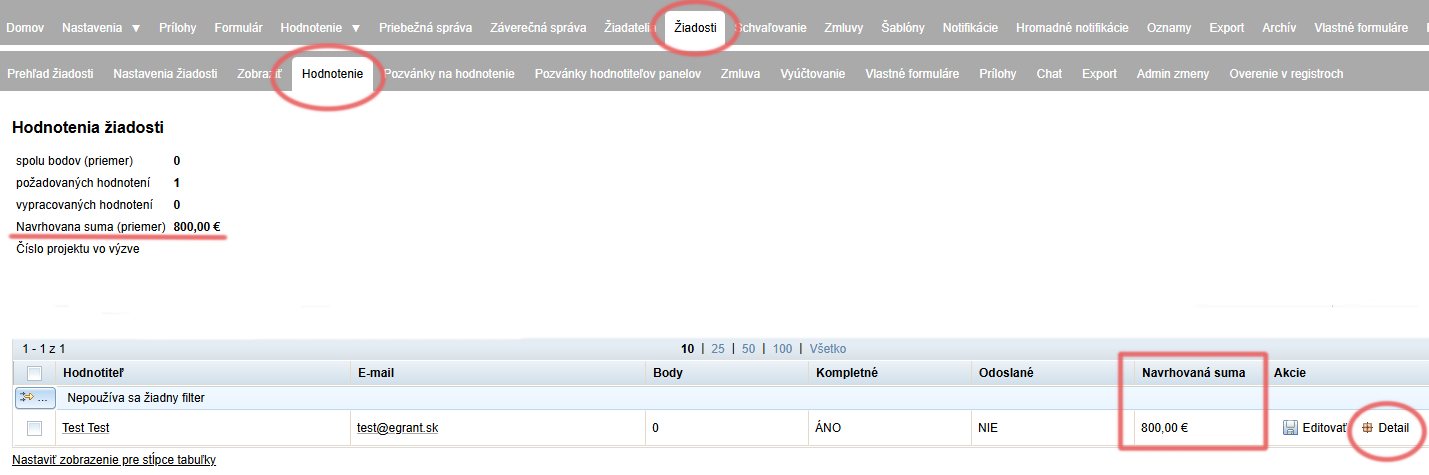
Evaluation details of an application can be viewed by the manager by clicking on the „Manage“ link for the specific application and then opening the „Evaluation“.
-
After clicking on the link „Manage“ for the specific application, the manager will open the „Evaluation„.
An overview of evaluations from all evaluators assigned to the application will be displayed. -
By clicking on „Detail“ the manager can view the evaluation details for a specific evaluator.
-
If you also require evaluators to propose an amount for approval, you can find this information in the „Proposed amount„.
Average of proposed amounts from all evaluators is displayed above the table on the left in the row „Navrhovaná suma (priemer)“.