
Print

Navigating the eGRANT application

Users

The eGRANT system supports three types of users: manager, evaluator and applicant.

Manager is a person responsible for the administration of subsidies/grants. This can be an employee of a local government/foundation or an external person authorised to work with the system. Within the eGRANT system, this person can have various levels of permissions.

This manual is intended for managers and describes the work in the system from the manager’s perspective.

Evaluator is a person responsible for evaluating subsidy/grant applications based on criteria set by the manager. For some subsidy/grant providers, this person may also be a manager or an applicant. However, after logging into the system, the evaluator sees a different interface than the manager. This interface is limited to viewing completed subsidy/grant applications and their evaluation (scoring, verbal assessment, etc.).

Applicant is a person who has registered in the system for one or more of your subsidy/grant programmes. This person logs into the system with their login credentials (email and password) and, after logging in, can fill in a subsidy application, a final report or other forms created and made available by the manager.


If one user within one entity has multiple roles (has under the same email an account as a manager/evaluator/applicant), they use one set of login credentials (email and password) to log in, and they switch between these roles after logging in in the upper right corner of the screen.
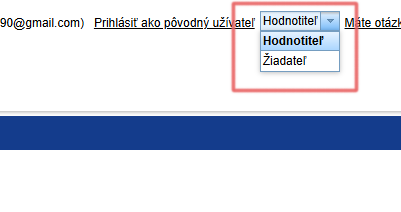
Prepínanie medzi rolami jedného používateľa po prihlásení sa do účtu

Manager interface

The manager has access to 3 menu levels with tabs: organisation level, programme level, application level.
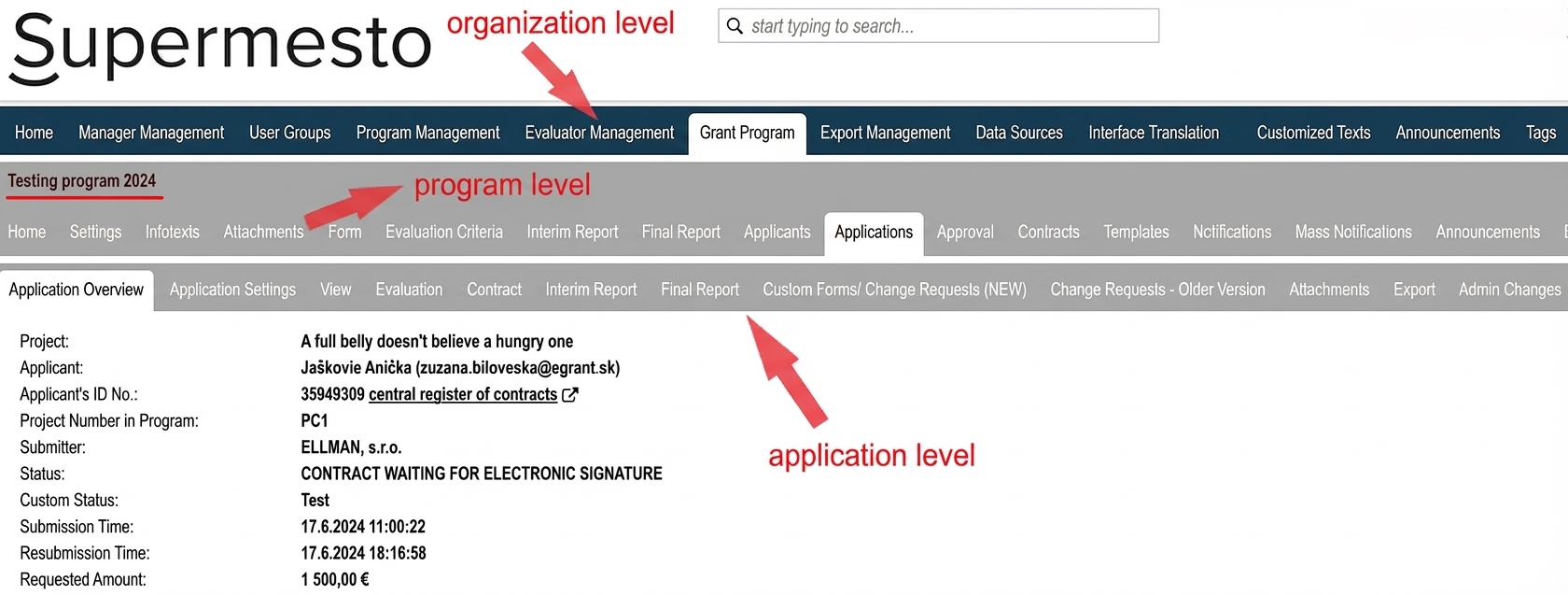
Manažérske rozhranie

Organisation level

After logging into the system, the manager will see the main menu (a horizontal bar at the top of the screen) containing “tabs”. Within this main menu, the manager can make changes applicable to the entire organisation (all programmes), so let us call it the “organisation level”.
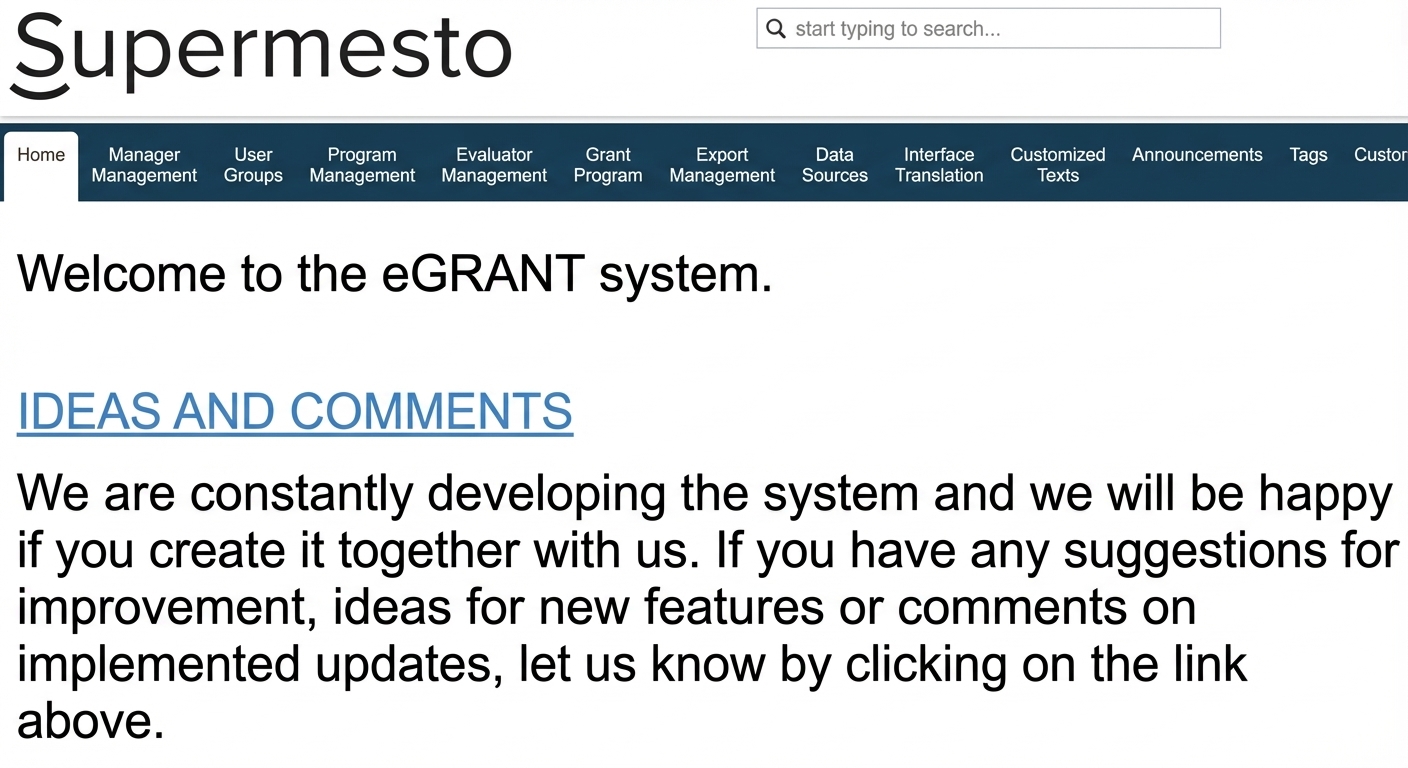
Menu na úrovni organizácie

Home – this is always the first tab the manager sees after logging into the system. Here you will find useful links and information about eGRANT.

Manager management – in this tab you will find a list of all managers who have an account in eGRANT, and you can also create access for another manager.

Users: All applicants – here you will find a list of all registered applicants (across all programmes).

Users: User groups – here you can create and later edit groups of managers with specific permissions. When creating access for a manager, you can assign them to one of these groups and grant them permissions with a single click.

Programme management – in this tab you can create, edit, or delete a programme and make it available to specific managers.

Evaluation: Evaluator management – here you create access for evaluators, and you will also find a list of all evaluators to whom you have already granted access.

Grant programme – in this tab you will find a list of all created programmes. At the same time, clicking this tab will display an additional menu (a horizontal bar) with tabs related to a specific programme.

Export management – here you can create and configure various exports (what the export should contain, where it should pull data from, etc.).

Notifications – here you will find a list of all notifications that are automatically sent from the system (to applicants, evaluators, or managers). You can edit them as needed, and all changes you make to notifications at this level (organisation level) will be applied to all programmes.

Custom texts – in this tab you can edit various informational texts intended primarily for applicants that are the same for all programmes (e.g. the text on the registration page, the signature/business card of notification emails, etc.).

Announcements – here you can create announcements (for various users) that are displayed as static text at the top of the screen. Announcements created in this tab (at the organisation level) will be displayed across all programmes.

Tags – in this tab you can create a tag (label) that you can then use to mark applications in the overview table (the “Applications” tab at the programme level).

Advanced: Data sources – in this tab you can define a set of applicants to whom you want to send a bulk notification – the “Bulk notifications” tab in the menu at the programme level (when creating a bulk notification, you then select this set of applicants in the “data source” field).

Advanced: Custom menu tabs – here you can create a tab with a custom name for various users, into which you can insert either a simple text or a custom form. A tab intended for managers will appear in the menu at the application level. A tab intended for applicants or evaluators will appear next to the default tabs after logging in.

Advanced: Code lists – in this tab you can create a code list (a list of values – e.g. a list of districts) that you can use, for example, when creating forms (e.g. a field in the form where the applicant should select a district from a list of all districts).

Voting settings – this is displayed only if the entity uses participatory budgeting management features (please contact us if you are interested). In this tab you can set the deadlines for launching and closing the public voting for ideas/projects and other voting parameters.

Programme level

After clicking the “Grant programme” tab in the main menu at the organisation level, the menu with tabs at the programme level is displayed (a horizontal bar directly below the main menu bar). Here the manager can make changes applicable only to the specifically selected programme.
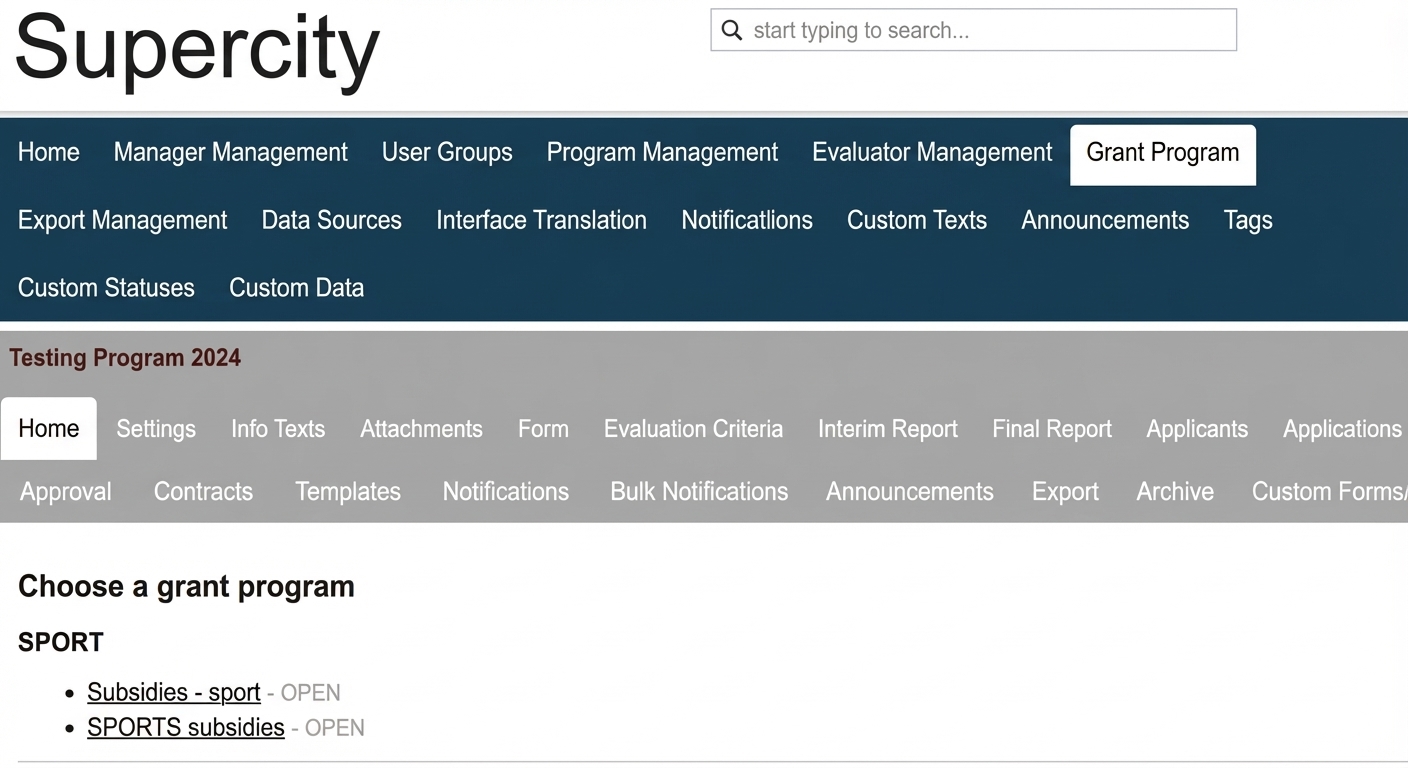
Menu na úrovni programu

Home – this tab provides a basic overview of the programme (number of submitted applications, deadlines, etc.) and also allows you to download all applications or final reports within the programme in PDF.

Settings – here you will find all settings related to the programme.

Info texts – in this tab you can create a text for the applicant with information about the programme, as well as a custom header/footer for the printed version of the application/final report.

Attachments – here you can upload various documents for applicants.

Form – in this tab you create and subsequently edit the application form.

Evaluation: Evaluation criteria – here you set the criteria by which applications will be evaluated by evaluators.

Interim report – here you can create and subsequently edit the interim report form.

Final report – in this tab you create and subsequently edit the final report form.

Applicants – here you will find a list of all registered applicants within the selected programme.

Applications – this tab contains a list of all applications (submitted and in progress). You can view them in detail and work with them further.

Approval – here you will find a list of all applications that have been evaluated (passed through the evaluation process in the eGRANT system) or moved to approval. You also enter the approved amounts here and confirm the approval or rejection of an application.

Contracts – in this tab you will find a list of all approved applications for which you can generate and send contracts.

Templates – in this tab you can upload any Word document template that you can then generate for selected applications and automatically send to applicants by email.

Notifications – as in the menu at the organisation level, here you will find a list of all notifications that are automatically sent from the system. However, all changes you make to notifications at this level (programme level) will only be applied to the currently selected programme.

Bulk Notifications – in this tab you can create a custom notification email to send to applicants in bulk. You also create here the email to be sent with the document created in the Templates tab.

Announcements – as in the menu at the organisation level, you can create announcements here (for various users) that are displayed as static text at the top of the screen. However, announcements created at this level (programme level) will only be displayed in the currently selected programme.

Export – in this tab you will find a list of all sample exports that you have preconfigured in the “Export management” tab (organisation level). By clicking the “XLSX” icon next to a specific sample, you will download an Excel document containing data for the currently selected programme in the format you configured in the sample export.

Custom forms – here you can create additional forms if needed, which can be intended for the applicant to fill in (e.g. a change request form) or for the manager (e.g. a checklist).

Application level

After clicking the “Applications” tab in the menu at the programme level, a table will be displayed with an overview of submitted (and possibly also in-progress) applications in the selected programme. By clicking the “Manage” button next to any application in the table, the menu with tabs at the application level is displayed (a horizontal bar directly below the programme level bar). Here the manager can make changes applicable only to a specific application.
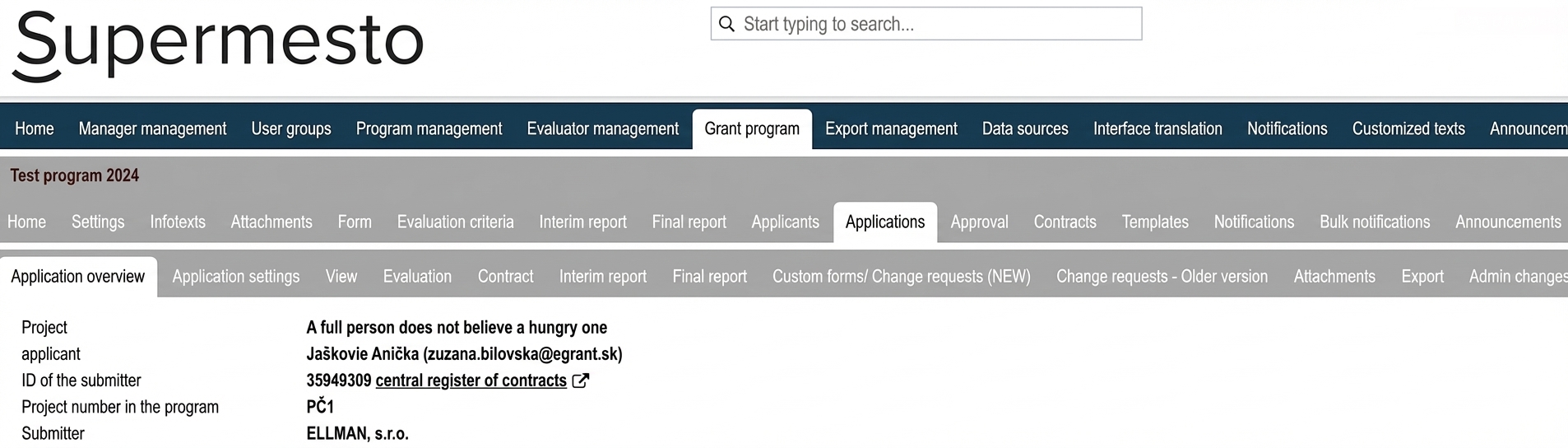
Menu na úrovni žiadosti

Application overview – here you will find basic details and deadlines related to the application. You also have the option to log into the system as this applicant and to open this application for completion.

Application settings – in this tab you can individually change the application or contract number, write your own notes related to this application, record individual deadlines related to this application, etc.

View – here you can view the application.

Evaluation – in this tab you will find the evaluation results for a specific application.

Contract – here you will find the contract that was generated for this application. You can also individually generate, download, upload, or send it by email.

Interim report – here you can view the interim report associated with this application (if you require interim reports).

Final report – here you can view the final report associated with this application (if you have created a final report form).

Custom forms – in this tab you will find a list of additional forms that you have created for applicants (these are created in the “Custom forms” tab at the programme level). You can view them here completed and either approve them or return them for completion.

Change requests – if you use change requests in the form of a simple notification, the texts of these notifications can be found in this tab, along with the date of submission.

Attachments – here you can upload various documents (as in the tab of the same name at the programme level) intended only for this specific applicant.

Export – in this tab you will find a list of all sample exports that you have preconfigured in the “Export management” tab (organisation level) and for which you have set the type “SINGLE APPLICATION EXPORT”. By clicking the “XLSX” icon next to a specific sample, you will download an Excel document containing data from the currently selected application in the format you configured in the sample export.

Admin changes – here you can manually change the current status of the application.

Table of Contents
×