What do you need help with?
-
Overview and settings
-
Forms
- Manuals will be coming soon.
-
Management of applications
-
Evaluation and approval
-
Contracts and other documents
-
Exports
-
Participatory budget
Basic Programme Settings
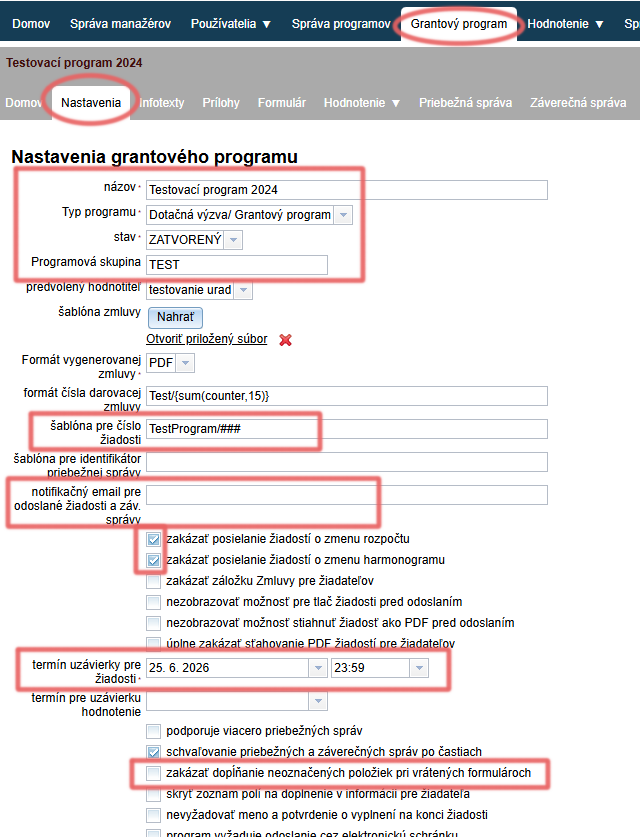
All settings related to a specific programme can be found in the „Settings“ tab in the menu at the programme level. You can also edit the name and type of the programme, status of registration for the programme, and its programme group.
For optimal use of the eGRANT system:
1. Application Number Template
If left blank, applications will be automatically numbered in the format „1“, „2“, etc. When entering a custom application numbering format, use „#“ as the number indicator (e.g. „Kultúra2024/#“ will assign numbers to applications: Kultúra2024/1, Kultúra2024/2, etc.).
If you want this number to always be 2-digit or 3-digit, use „##“ or „###“ (e.g. „Kultúra2024/###“ will assign numbers to applications: Kultúra2024/001, Kultúra2024/002, … , Kultúra2024/015, etc.).
2. Notification Email for Submitted Applications and Final Reports
Enter the email addresses of persons (separated by commas) who should receive these notifications:
„Notification for admin about submitted application“
„Notification for admin about submitted evaluation“
„Admin notification about digital contract signing“
„Notification for admin about submitted final report“
3. Disable Sending Budget/Schedule Change Requests
In eGRANT, applicants have the option to request a budget/schedule change in an already submitted application via a notification text.
They can do so after logging into their account in the „Budget Change Request“ and „Schedule Change Request“ tabs. If sending budget or schedule change requests is disabled in the settings, this tab will not be displayed in the applicant’s account at all.
By default, both of these options are checked as disabled.
4. Application Submission Deadline
After this deadline, it will no longer be possible to submit applications.
Set the deadline day and exact time – if you want to end application submission e.g. on 25 June at midnight, set the deadline day to 25/6 and the time to 23:59.
5. Disable Editing Unmarked Items in Returned Forms
If you open an already submitted application/settlement for editing and ask the applicant to correct/supplement information in the form, this setting will only allow them to edit the items that you marked when opening the application/settlement.
If this option is unchecked, the applicant can edit everything in the reopened form.
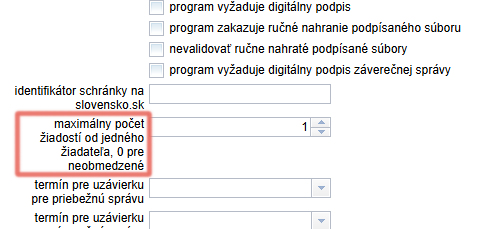
6. Maximum Number of Applications per Applicant
If set to 0, every registered applicant can submit an unlimited number of applications in this programme.
For contract generation purposes:
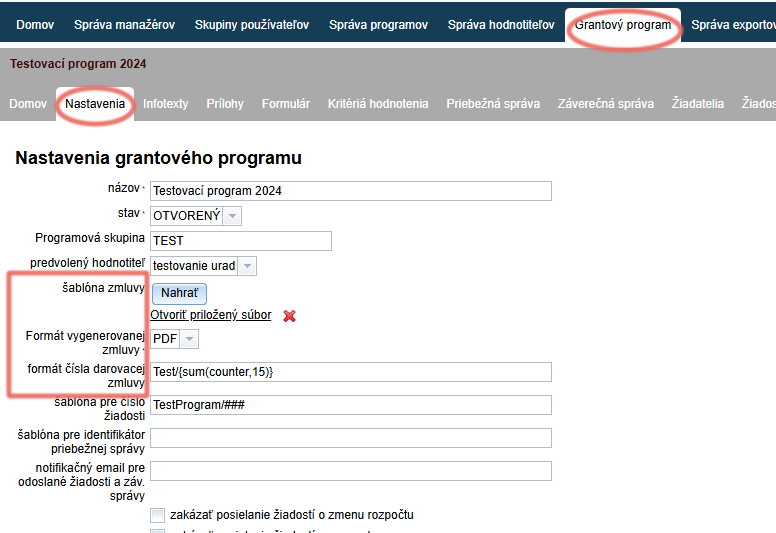
1. Contract Template
By clicking the „Upload“ button, you will upload a sample document for contracts that you can later automatically generate and send to applicants.
If you use multiple templates – for different applications different sample contracts – upload one template in the programme settings, and the rest in the „Templates“ tab.
2. Generated Contract Format
Here you set the format of the contract that you will send to applicants.
If you choose Word or Open Office Text, you can still manually edit the generated contracts afterwards.
If you want contracts to be signed electronically, the generated contract format must be PDF.
If you want to additionally edit individual contracts after generation but require an electronic signature, choose Word as the contract generation format, but then upload the individually edited contracts to eGRANT in PDF format.
3. Donation Contract Number Format
If left blank, contracts will be automatically numbered in the format „1“, „2“, etc.
When entering a custom contract numbering format, use „#“ as the number indicator (e.g. „Kultúra2024/#“ will assign numbers to contracts: Kultúra2024/1, Kultúra2024/2, etc.).
If you want this number to always be 2-digit or 3-digit, use „##“ or „###“ (e.g. „Kultúra2024/###“ will assign numbers to contracts: Kultúra2024/001, Kultúra2024/002, … , Kultúra2024/015, etc.).
If you want to start numbering from a specific number, choose the format XY/{sum(counter,35)} (e.g. „Kultúra2024/{sum(counter,35)}“ will generate the number Kultúra2024/36 for the first contract).
If you want the contract number to include the application number, use the code {application_number}.
For correct display of data in the application list:
In the case of a participatory budget, these data are also displayed on the voting page.
More information can be found under the category "Participatory Budget".
-
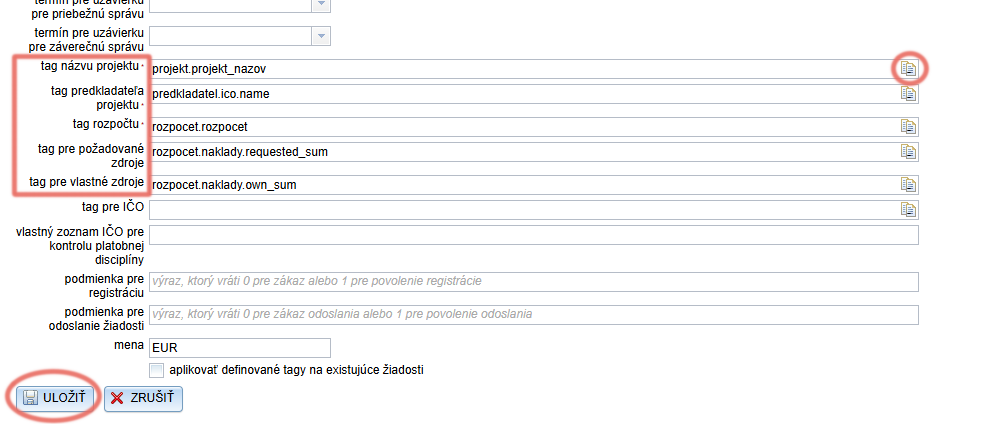
Project name tag – for correct display of project names in the „Project“ column.
-
Project submitter tag – for correct display of the submitter name in the „Submitter“ column.
-
Requested resources tag – for correct display of the amount in the „Requested Amount“ column.
-
Own resources tag – for correct display of the amount in the „Own Resources“ column.
-
These items have an icon at the end of the row. Clicking it will expand the entire tree structure of the application form – find the desired field and click it to insert the tag into the row.
-
Whenever you edit any of these tags, before saving your changes make sure that the „apply defined tags to existing applications„.
If the checkbox is not checked, changes will only be applied to newly created applications. Data from already received applications will continue to be displayed in the table according to the previous settings.
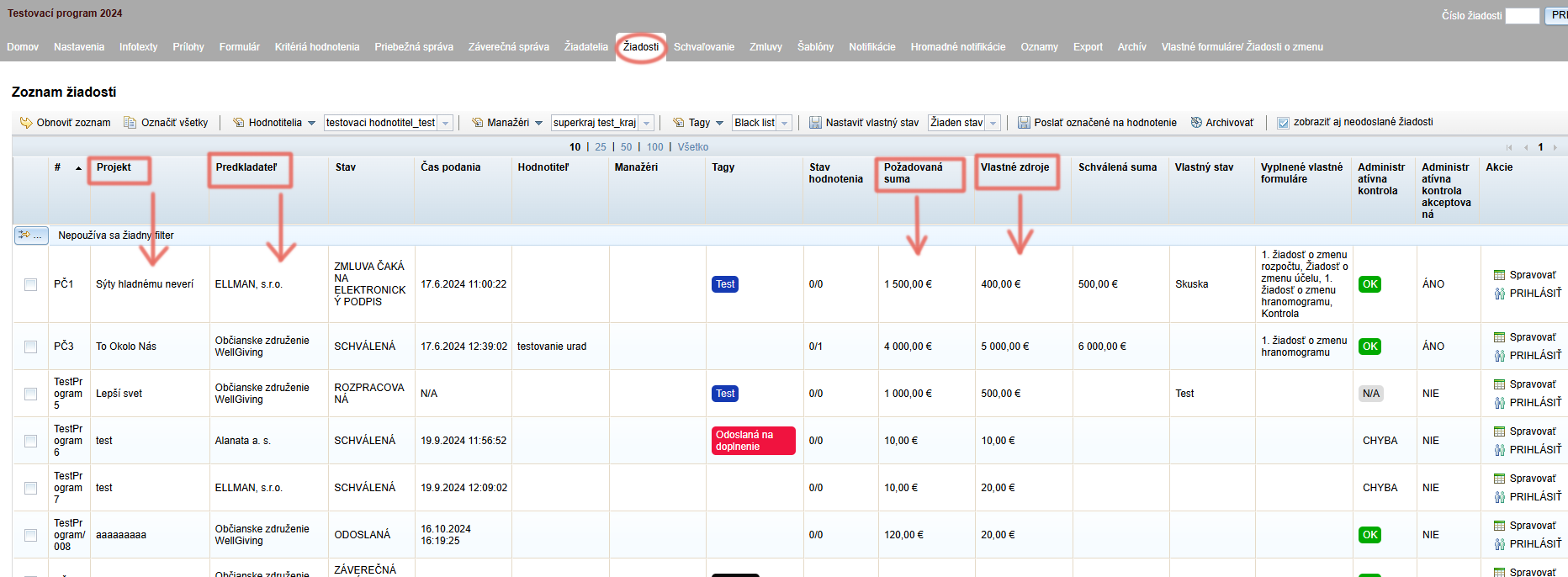
If you want these data to be displayed in the overview table in the „Applications“ tab (at the programme level), you need to specify in the settings the tag of the form field where each of these data items is located.
If any of these data items is not part of the application form, it will not be possible to display it in the overview table.
For correct display of data on the voting page:
This information pertains exclusively to participatory budget management.
If you are interested in using the eGRANT system for participatory budget management, please contact us.
-
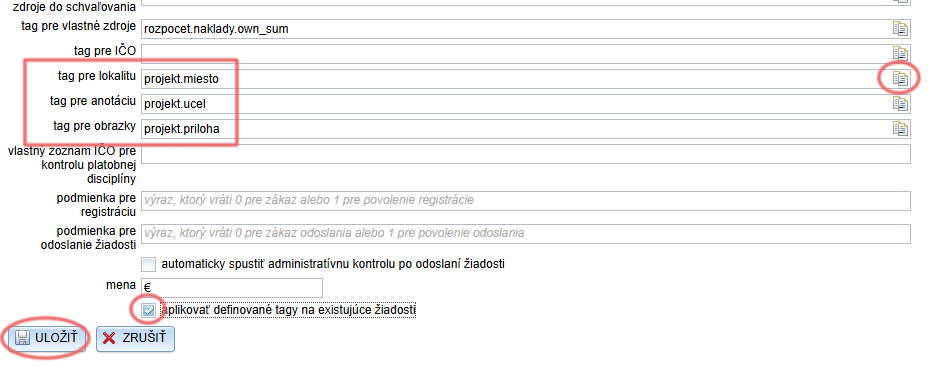
Location tag – for correct display of the project location on the voting page.
If this field is filled in, the project location will also be displayed on the voting page for each project that the public can vote for. -
Annotation tag – for correct display of a brief project description on the voting page.
-
Image tag – for correct display of images/photos illustrating the project on the voting page.
If this field is not filled in, no illustrative image/photo will be displayed for projects on the voting page. -
These items have an icon at the end of the row. Clicking it will expand the entire tree structure of the application form – find the desired field and click it to insert the tag into the row.
-
Whenever you edit any of these tags, before saving your changes make sure that the „apply defined tags to existing applications„.
If you want these data to be displayed for projects on the voting page, you need to specify in the settings the tag of the form field where each of these data items is located.
If any of these data items is not part of the application form, it will not be possible to display it on the voting page either.
Electronic Signature Settings
Settings related to electronic signatures can also be found in the „Settings“ in the menu at the programme level.
This feature is paid. If you are interested, please contact us.
When using electronic signatures the following settings are important:
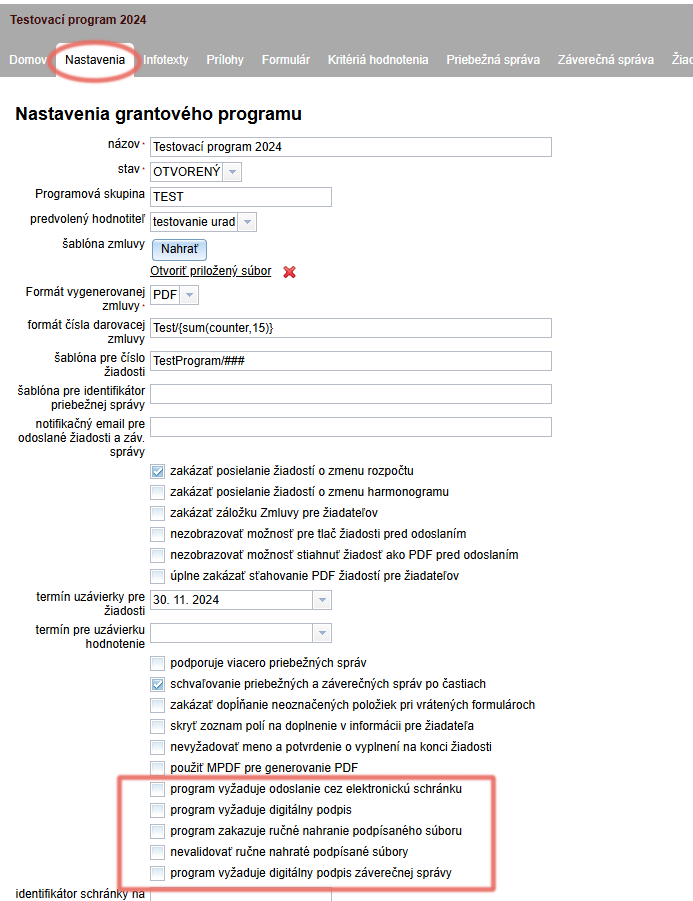
a) programme requires submission via electronic mailbox
- The form/contract will be signed via slovensko.sk and will also be automatically delivered to the registry.
- For this option, you also need to enter the mailbox identifier on slovensko.sk in the format: ico://sk/enter the IČO of the entity (e.g. the identifier of the municipality of Lozorno is ico://sk/00304905).
- The identifier can be looked up at this link.
b) programme requires a digital signature
- The form/contract can be signed with a qualified electronic signature (KEP), but not via slovensko.sk, so it will not be automatically delivered to the registry.
(This checkbox is also automatically checked when using signing via slovensko.sk.)
c) programme prohibits manual upload of a signed file
- The form/contract cannot be signed in other software (only in the eID application directly from eGRANT).
d) do not validate manually uploaded signed files
- Forms/contracts signed in other software will not be validated by eGRANT.
e) programme requires a digital signature for the final report
- The settlement form cannot be submitted without an electronic signature.