
Evaluation of applications
For evaluators to be able to evaluate applications, you must first assign the applications to them and then send them for evaluation.
Assigning applications to an evaluator
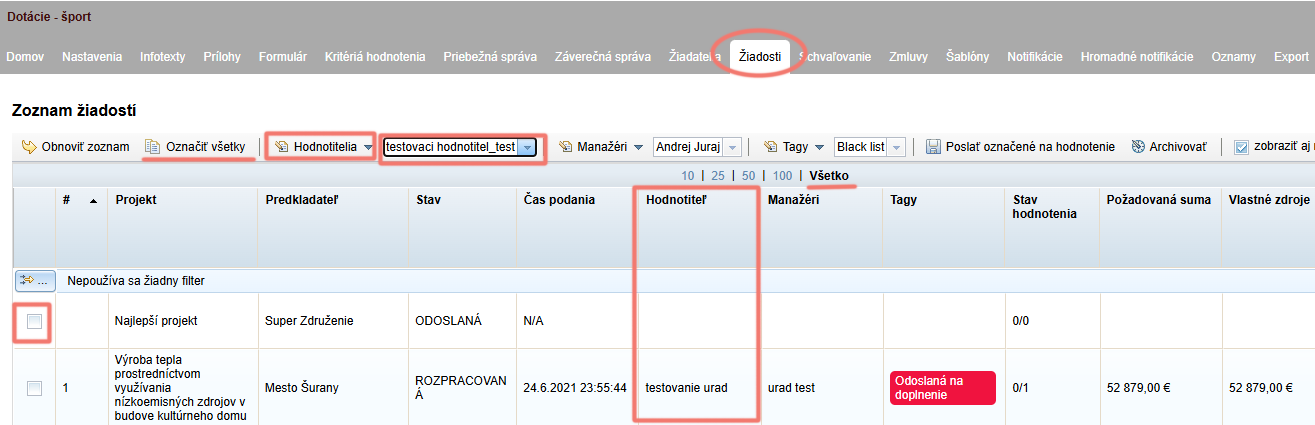
In the “Žiadosti” tab, select the applications you want to assign to a particular evaluator.
If you want to assign all applications to the evaluator, click “Označiť všetky” at the top left above the table. However, make sure that you have selected the “Všetko” option in the middle above the table (otherwise you will only select all currently displayed applications).From the drop-down menu above the table, select the evaluator from the list to whom you want to assign the selected applications.
Click the “Hodnotitelia” link (above the table, to the left of the list of evaluators) and select “Priradiť hodnotiteľa” from the drop-down menu.
The name of the assigned evaluator is displayed in the “Hodnotiteľ” column.
If you want to assign further evaluators to the selected applications, repeat the procedure.
If you want to remove an assigned evaluator, repeat steps 1 and 2, but in step 3 select “Odobrať hodnotiteľa” from the menu.
Random assignment of evaluators
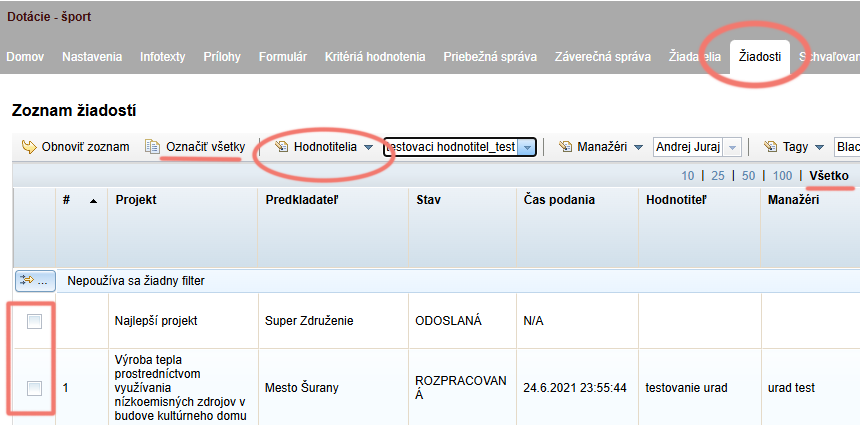
Select the applications to which you want to randomly assign an evaluator, or select all applications by clicking the “Označiť všetky” link above the table (make sure that all applications are displayed – the “Všetko” option selected in the middle above the table).
Click the “Hodnotitelia” link above the table and select “Náhodné priradenie hodnotiteľov” from the menu.
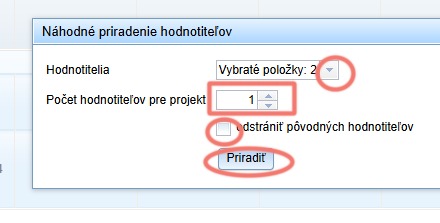
In the pop-up window, select the evaluators among whom you want to randomly distribute the applications and choose the number of evaluators per application.
If some evaluators are already assigned to the applications and you want them to be removed after this random distribution, tick the “odstrániť pôvodných hodnotiteľov” option.
Click the “Priradiť” button.
Sending applications for evaluation
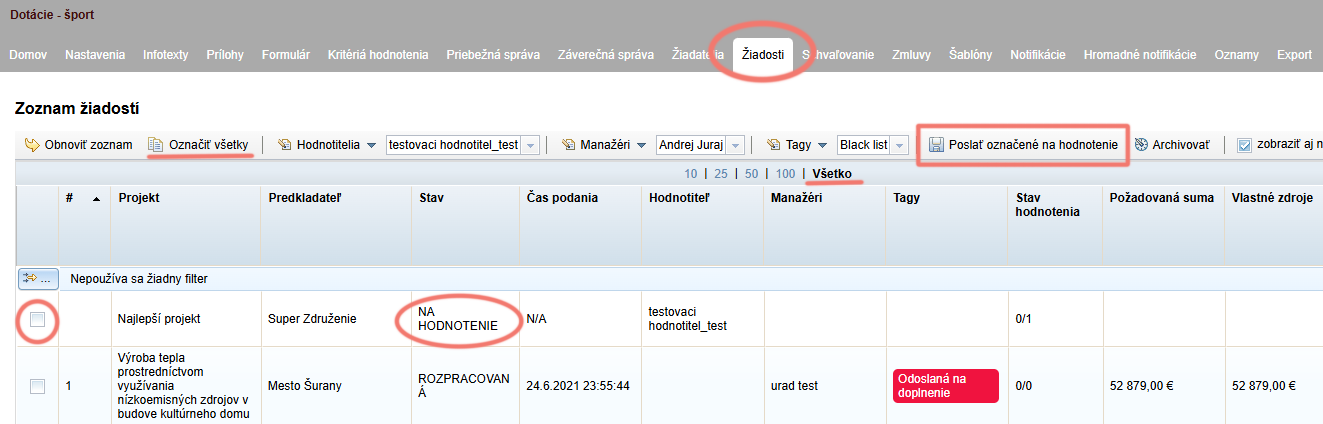
In the “Žiadosti” tab, select the applications you want to send for evaluation.
If you want to send all applications for evaluation, click “Označiť všetky” at the top left above the table. However, make sure that you have selected the “Všetko” option in the middle above the table (otherwise you will only select all currently displayed applications).Click the “Poslať označené na hodnotenie” link.
The status of these applications changes to “NA HODNOTENIE”.
Notifications
Evaluators to whom these applications have been assigned receive a notification email informing them that applications have been assigned to them for evaluation, and from this moment they can evaluate the applications.
Applicants receive a notification email informing them that their application has moved on to evaluation.