
General settings
To generate contracts, you must first set the following items in the “Nastavenia” tab at programme level:
First of all, you must upload a contract template (a Word document containing specific codes in the places where data are automatically pulled from eGRANT).
If you use multiple templates – different model contracts for different applications – upload one template in the programme settings and the others in the “Šablóny” tab.
Choose the numbering format for contracts (e.g. Zmluva/2024/#, which means that the first generated contract will receive the number “Zmluva/2024/1”).
- If you want the number to always have e.g. 3 digits, insert the hash sign 3 times (e.g. Zmluva/2024/###).
- If you want to start numbering from a specific number (not from 1), choose the format XY{sum(counter,37)} (e.g. Zmluva/2024/{sum(counter,37)} will give the first contract the number “Zmluva/2024/38”).
- If you do not specify a numbering format, contracts will be numbered automatically in the format “1”.
- If you want the number to always have e.g. 3 digits, insert the hash sign 3 times (e.g. Zmluva/2024/###).
- If you want to start numbering from a specific number (not from 1), choose the format XY{sum(counter,37)} (e.g. Zmluva/2024/{sum(counter,37)} will give the first contract the number “Zmluva/2024/38”).
- If you do not specify a numbering format, contracts will be numbered automatically in the format “1”.
If you have paid for the electronic signing feature, remember to set up electronic signing in the programme settings.
If you want contracts to be signed electronically, the generated contracts must be in PDF format.
- If you want to make further changes to individual contracts after they have been generated, choose Word as the contract generation format, but then upload the individually edited contracts to eGRANT in PDF format.
- If you want to make further changes to individual contracts after they have been generated, choose Word as the contract generation format, but then upload the individually edited contracts to eGRANT in PDF format.
Generating contracts
In the “Zmluvy” tab at programme level, you will find a list of all approved applications for which you can generate contracts. (If no application has been approved yet, the list will be empty.)
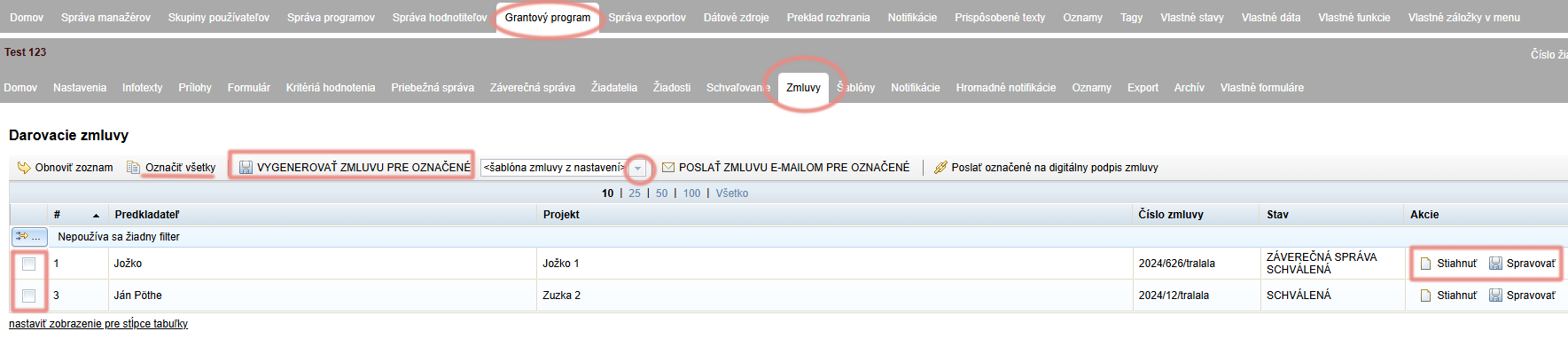
Select the applications for which you want to generate contracts (or click “Označiť všetky”).
Check that the contract is generated from the correct template document.
The “šablóna zmluvy z nastavení” option is always preselected.
If you use a different template document for the selected application (from the “Šablóny” tab), select it from the drop-down menu.Then click “VYGENEROVAŤ ZMLUVU PRE OZNAČENÉ”.
For the applications in the list for which you have generated a contract, a “Stiahnuť” link has been added in the “Akcie” column.
If you want to make further individual changes to the generated contracts:- click the “Stiahnuť” link – the contract will be downloaded to your computer, where you can edit it,
- upload the edited contract by clicking the “Spravovať” link in the “Akcie” column (if you use electronic signing, the document uploaded in this way must be in PDF format).
Applicant’s access to the contract
The applicant can access their contract in their account in the “Zmluva” tab next to the “Moja žiadosť” tab.
Sending contracts
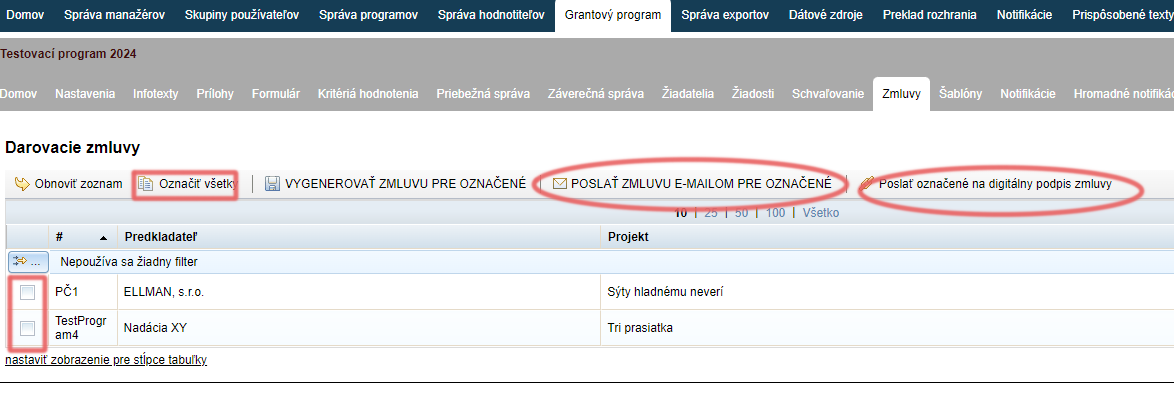
In the “Zmluvy” tab, select the applications to which you want to send the contract (or click “Označiť všetky”).
Click “POSLAŤ ZMLUVU E-MAILOM PRE OZNAČENÉ” (if you do not use electronic signing of contracts).
If you use electronic signing of contracts, click “Poslať označené na digitálny podpis zmluvy”.
The application status will change to “ZMLUVA ČAKÁ NA ELEKTRONICKÝ PODPIS”.
Notifications
When contracts are sent, the following notification emails are sent automatically:
The notification is sent to the manager at the moment when the applicant has successfully signed the contract electronically.
This notification is sent to the managers whose emails are specified in the “Nastavenia” tab at programme level (the “notifikačný email pre odoslané žiadosti a záv. správy” field).
Electronic signing of forms/contracts is a paid feature. If you are interested in it, please contact us.
The notification contains the contract document as an attachment and a link which, when clicked, opens the applicant’s account, where they can sign the contract electronically.
- This notification is sent if you use the electronic signing feature and, after generating the contracts, you send them for signing by clicking “Poslať označené na digitálny podpis zmluvy”.
Electronic signing of forms/contracts is a paid feature. If you are interested in it, please contact us.
The applicant receives an email with the contract document as an attachment.
- This notification is sent after you send the contracts by clicking “POSLAŤ ZMLUVU E-MAILOM PRE OZNAČENÉ”.
Attention!
You can find these notifications in the list of all notifications in the “Notifikácie” tab, both at organisation level and at programme level, where you can edit them.
If you edit a notification in the “Notifikácie” tab at organisation level, the changes will apply to all programmes.
If you edit a notification in the “Notifikácie” tab at programme level, the changes will apply only to the given programme.