
Edit a notification
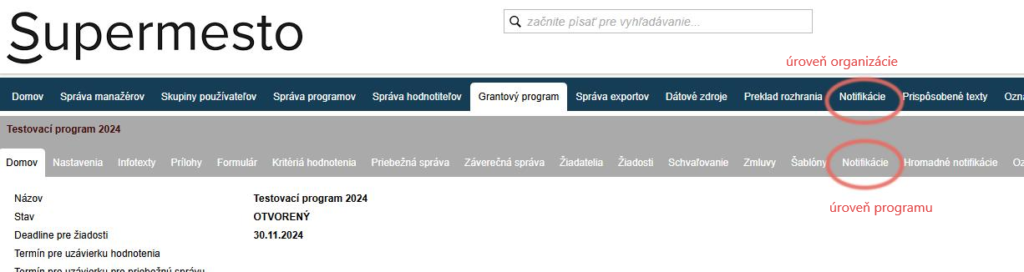
You can edit notifications in the “Notifikácie” tab either in the main menu at organisation level or in the programme-level menu.
Attention!
All changes to notifications that you make in the tab at organisation level will be applied to all programmes.
Changes to notifications that you make in the tab at programme level will only be applied to the specific programme.
Select a notification
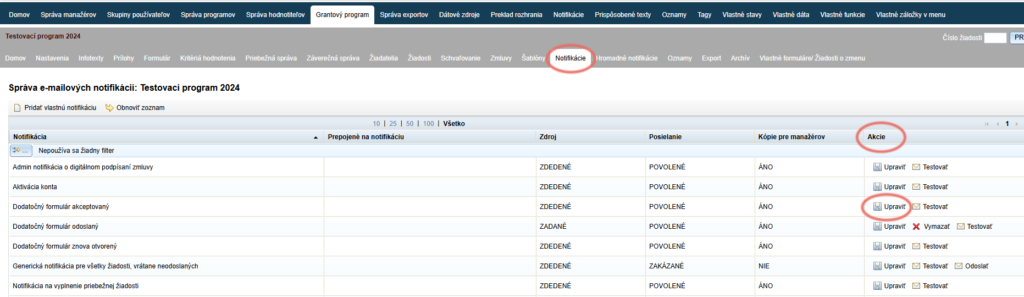
In the table with the list of all notifications, find the one you want to edit.
In the “Akcie” column, click the “Upraviť” link.
Edit in the editor
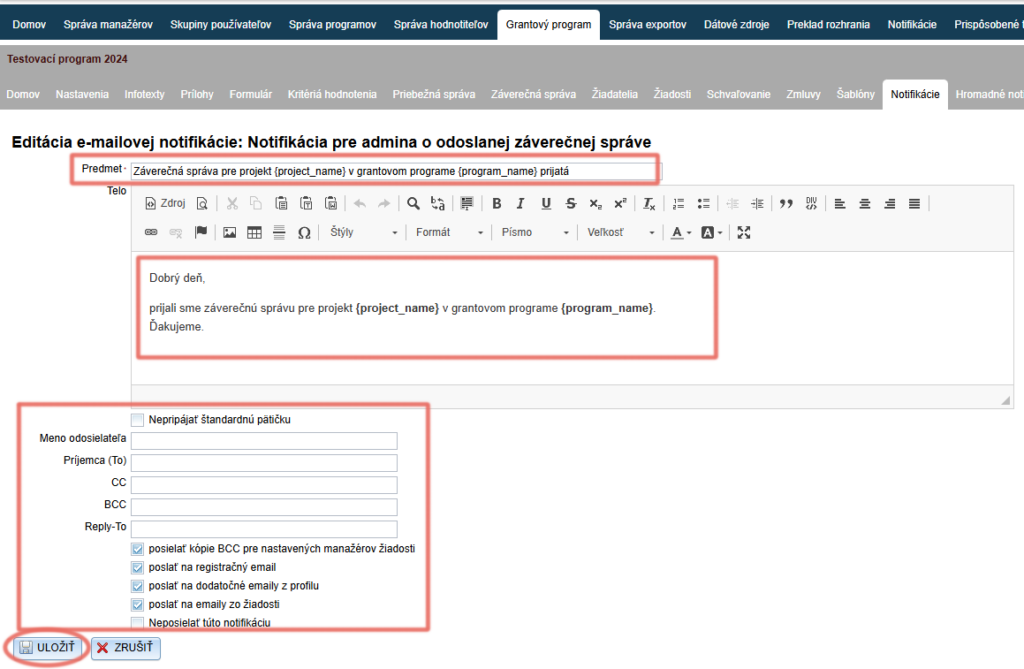
An editor is displayed in which you can edit:
- Subject – the applicant will see this as the subject of the email.
- Body – edit the text in the body of the email.
- Do not attach the standard footer – ticking this option means that the standard signature you have set in the “Prispôsobené texty” tab will not be attached at the end of the email text.
- Sender name – enter your name or the name of your organisation
- Recipient – enter an email address if the notification is sent to managers and you want it to be delivered to a specific person/persons.
- CC – enter an email address if you want a copy to also be delivered to another person/persons at the same time (the primary recipient of the notification will also see this address).
- BCC – enter an email address if you want a copy to also be delivered to another person/persons at the same time (the primary recipient of the notification will not see this address).
- Reply-To – important for notifications sent to applicants. Enter the email address to which applicants can reply after receiving the notification (this also reduces the likelihood of the email ending up in spam).
- Send BCC copies to the assigned application managers – this means that whenever this notification is sent, it will also arrive in the mailbox of the manager assigned to the application the notification concerns (if a manager has been assigned to the application). This option is ticked by default for all notifications.
- Send to the registration email – the notification intended for applicants will be sent to the email address provided during registration. This option is ticked by default for all notifications.
- Send to additional emails from the profile – the notification intended for applicants will be sent to the other email addresses listed in the applicant’s profile. This option is ticked by default for all notifications.
- Send to emails from the application – the notification intended for applicants will be sent to the email addresses listed in the application. This option is ticked by default for all notifications.
- Do not send this notification – ticking this option turns off automatic sending of this notification. If you want to turn automatic sending of the notification back on, untick this option again (the checkbox will remain empty).
Create a new notification
In the “Notifikácie” tab, you can also create your own notification email.
However, it must be linked to an existing automatic notification and will be sent automatically whenever the linked notification is sent.
Add a notification
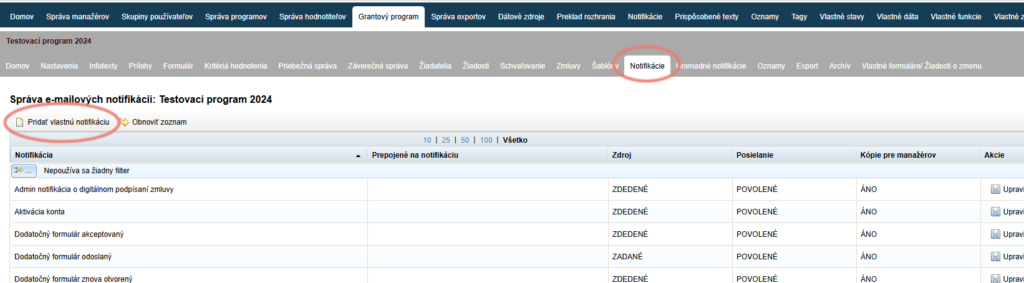
Above the table with the list of all notifications, click the “Pridať vlastnú notifikáciu” link.
Edit in the editor
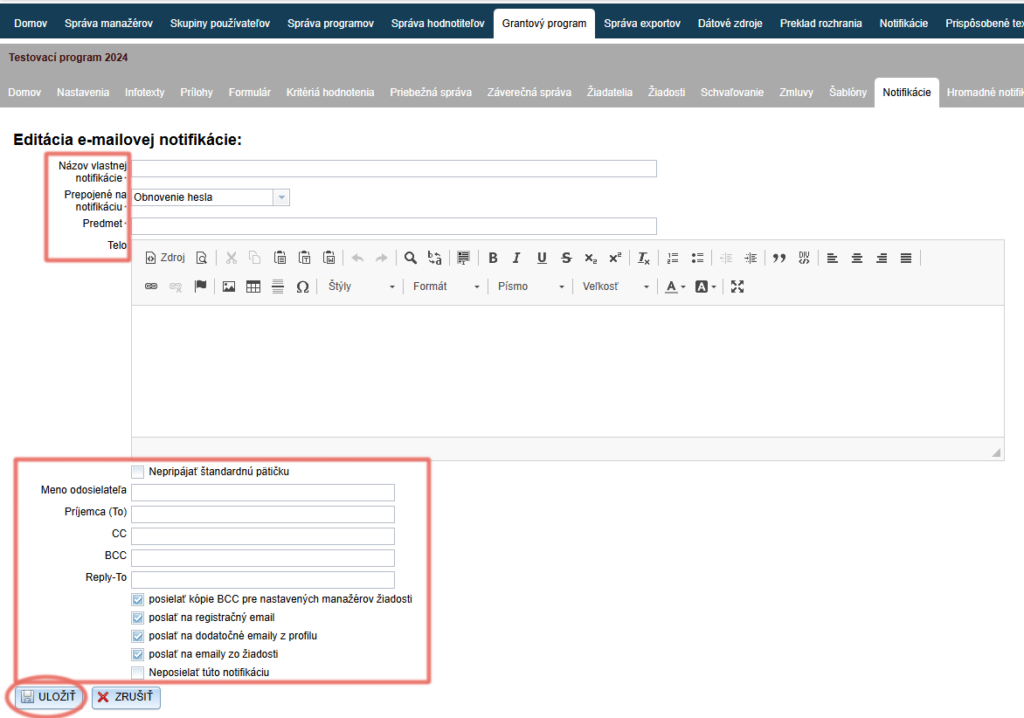
An editor similar to the one used for editing preset notifications is displayed.
- Enter a name by which you can easily find this notification in the list of all notifications.
- In the “Prepojené na notifikáciu” field, choose which notification this email is to be linked to.
- Proceed as when editing a preset notification (see step 2 in the “Edit a notification” section above).
Click the “ULOŽIŤ” button.