If you want to export data as an Excel document, you must first create an export template in which you define which data will be displayed in which column of the Excel document.
Three export templates are already predefined in the system:
- Emails of registered users – a list of the email addresses of all registered users
- Export: project evaluation – the export contains: the application number, the submitter’s name, the application title, the requested amount, own funds, the application status, the final number of points (depending on the evaluation settings, either the sum or the average), the number of points for individual evaluation criteria for each evaluator and the proposed amount for each evaluator (if it is part of the evaluation criteria).
- Results of verification in registers (available if you use the register verification service) – the export contains: the application number, the submitter, the project title, the check status, the date of the check, the overall result of the check (OK = all registers OK, NOK = a problem was found in one of the registers), and the result of the check for individual registers (1 = OK, 0 = problem).
You cannot edit these templates; however, you can duplicate them into new export templates and then edit those.
For participation managers
In addition to those mentioned above, a predefined template is available for participatory budget managers:
Vote export – contains data from the voting form (depending on the form type): name, telephone number, city, street, postcode, email, age category, source, date and time, and the project(s) the voter voted for.
Creating / copying an export template
Export management
In the main menu at organisation level, open the “Export: Správa exportov” tab and click “Vytvoriť nový export”.
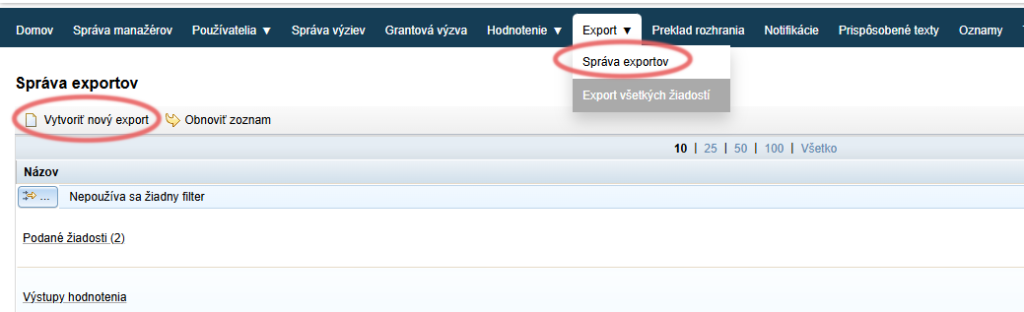
Create/copy an export
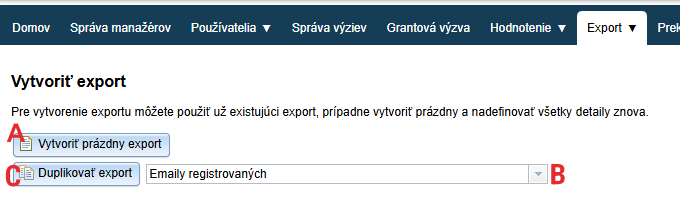
You then have the option to:
Create a new blank export template (in which you then define the individual items).
- A – Click the “Vytvoriť prázdny export” button.
Copy an existing export template (which you then edit as required).
- B – From the drop-down menu, select the export template you want to copy.
- C – Click the “Duplikovať export” button.
Describe the newly created export template
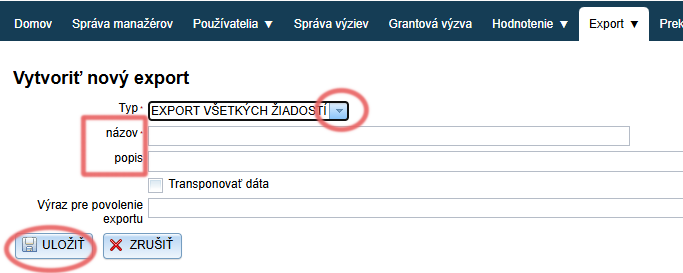
- Select whether you are creating a template for all applications in the programme or only for an individual application.
EXPORT VŠETKÝCH ŽIADOSTÍ = all applications in the programme
EXPORT JEDNEJ ŽIADOSTI = a template only for an individual application. This template can only be used for a specific application.
If you are copying a template, this option is not displayed – the type of export you are duplicating is selected automatically. - Enter a name by which you can easily recognise it in the list of all export templates.
- Optionally, add a description.
- Save the template by clicking the “Uložiť” button.
Export conditions and items
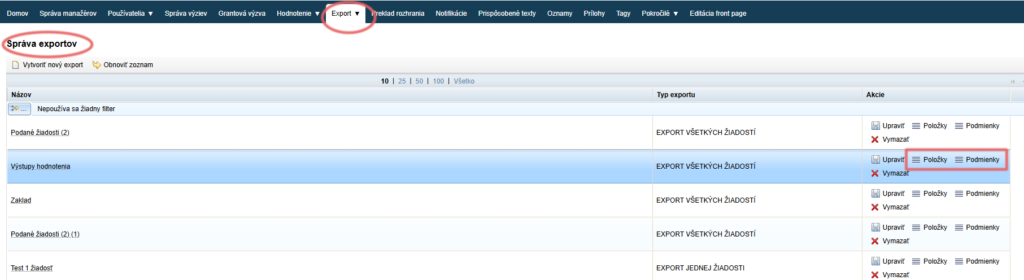
You can then define the export conditions and items.
- Export conditions = which applications are to end up in the export. If you do not define any conditions, the export will contain all applications (including those in progress).
- Export items = the content of the export. Each export item represents a column in the Excel document.
You can edit the name and description of the export template at any time later
- Either in the main menu in the “Export: Správa exportov” tab by clicking the “Upraviť” button in the “Akcie” column.

- Or in the menu at the level of a specific call in the “Export” tab by clicking the “upraviť” link next to the export template name.

Export conditions and items
In the conditions, you can define which applications the export is to contain. If you do not define any conditions, the export will contain all applications (including those in progress).
Export items are the specific data you want the export to contain.
You can edit both the export conditions and items from the main menu in the “Export: Správa exportov” tab or from the call-level menu in the “Export” tab.

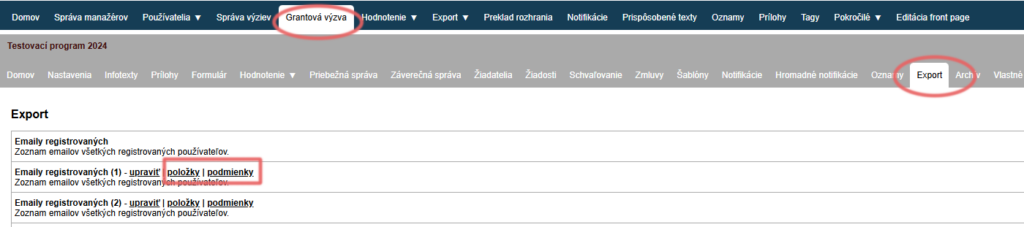
Attention!
Regardless of which menu level you are at, you are editing the export template – each export template is available in all calls.
If you want to make changes only for a specific call, create a copy of the template and state in its name or description which call the template is intended for.
Export conditions
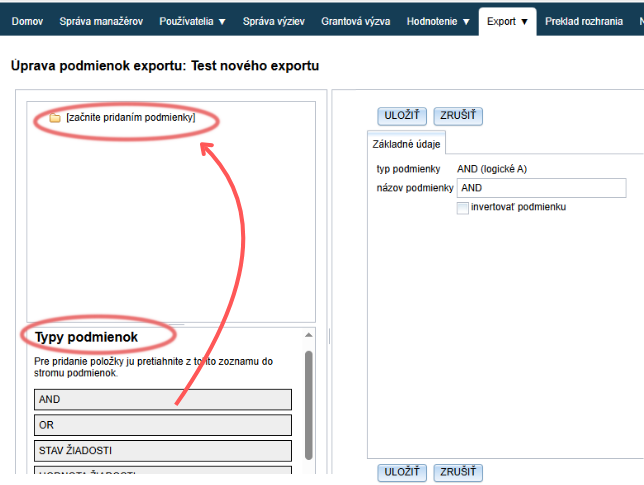
If you want to define several conditions, start by inserting the logical function “AND” or “OR”.
AND = if you want the applications in the export to meet all the conditions you insert.
OR = if the applications in the export are to meet only one of the specified conditions.
You can combine the AND and OR functions in various ways.If you only need to define one condition, start directly by inserting the specific type of condition.
Save the changes by clicking the “ULOŽIŤ” button.
Types of conditions
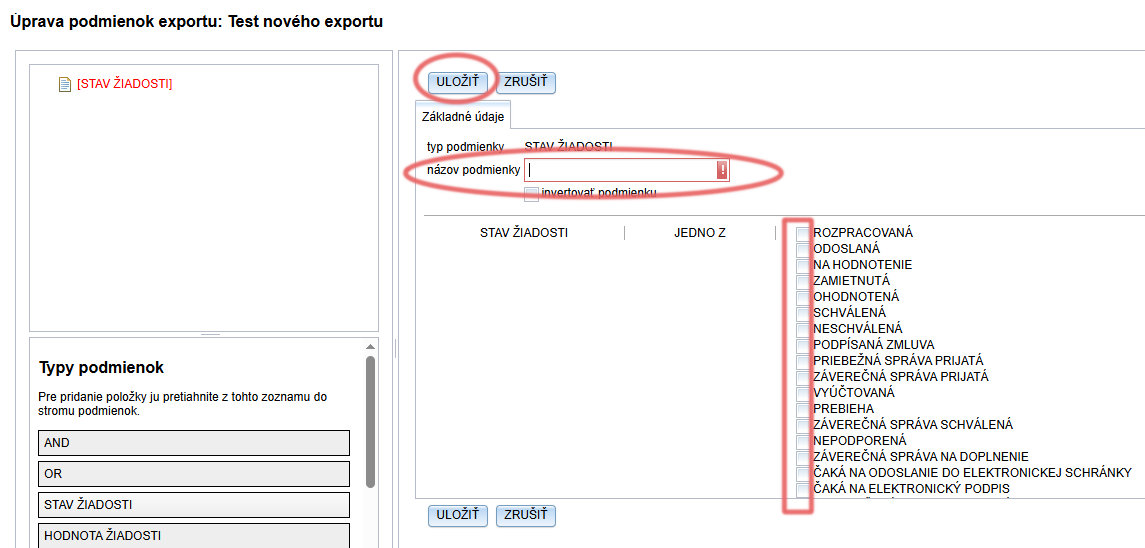
Here you can set that only data of applications that are currently in the status you tick will end up in the export.
- Enter the name of the condition.
- Tick the required application statuses.
- Save the changes.
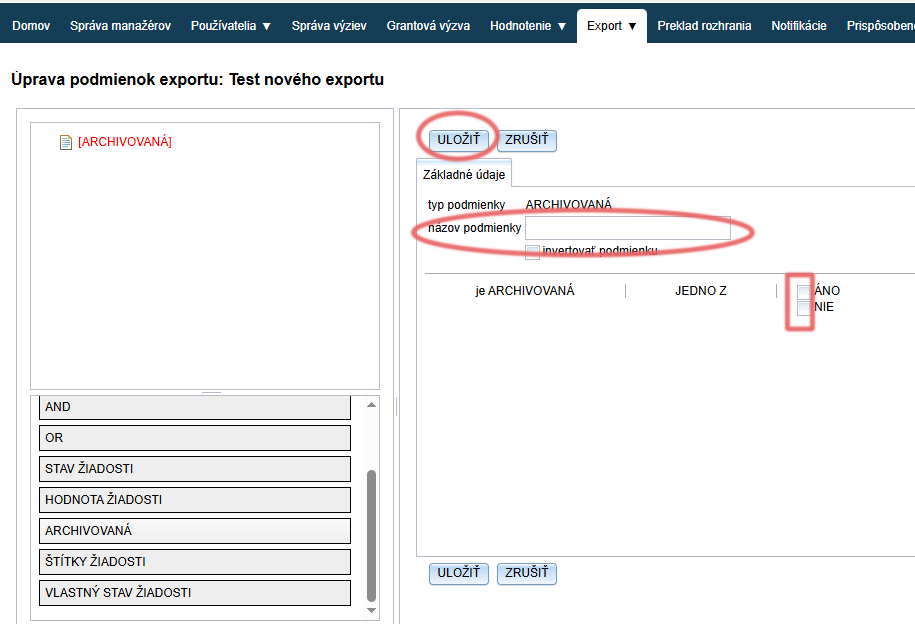
Here you can specify whether applications that have been moved to the archive should be included in the export or not.
- Enter the name of the condition.
- Tick either yes or no.
- Save the changes.
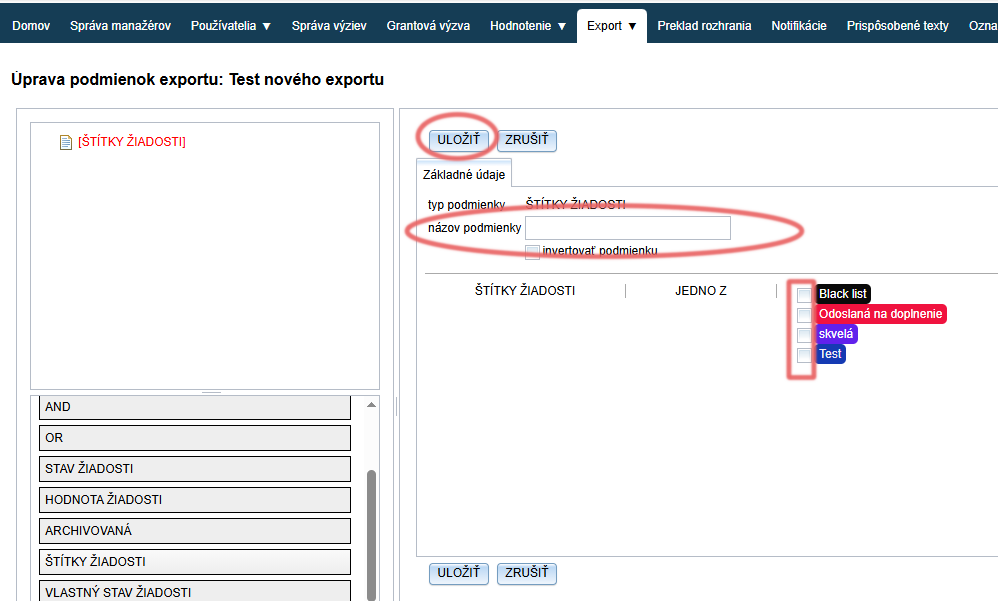
Here you can set that the export will contain only applications that have one of the labels you tick. (You can mark individual applications with labels in the “Žiadosti” tab. More about labels here.)
- Enter the name of the condition.
- Tick the required application labels from the list. (If you have not created any labels, the list will be empty.)
- Save the changes.