
The “Žiadosti” tab
You can find a list of all applications received in the programme in the “Žiadosti” tab in the programme-level menu. Within this tab, you can view applications and continue working with them, from the moment an application is in progress right up to its financial report:
- You can view and check applications.
- Here you can also log in as a specific applicant.
- Here you can assign applications to a manager/managers.
- You can mark individual applications with a tag (label).
- Here you can view completed custom forms (e.g. a change request).
- You can write a note on an application.
- You can return an application for completion.
- Here you can assign applications to evaluators and send them for evaluation.
- Here you can view all details related to a specific application (evaluation, contract, financial report…).
- You can manually change the status of an application.
- You can download a specific application in PDF format or export it as an Excel document.
Tip
Regardless of which programme-level tab you are currently in, you can open the menu for a specific application by entering the application number in the box in the top right-hand corner and clicking the “PREJSŤ” button.
List of applications
Tip
If you also want to display unsubmitted applications in the list, tick “zobraziť aj neodoslané žiadosti” above the table on the right.

In the overview table in the “Žiadosti” tab, you will find the following application data displayed in columns:
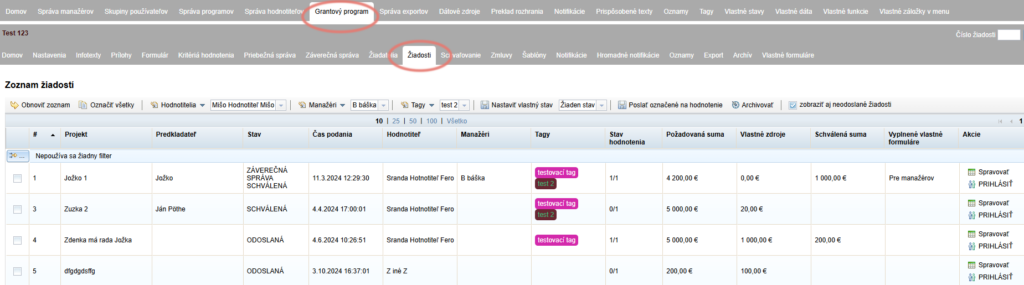
- Application number (#) – generated automatically in the format 1, 2, 3, etc., unless you have created your own template for numbering applications in the “Nastavenia” tab at programme level.
- Project title (Project) – for correct display, remember to fill in the “tag názvu projektu” in the “Nastavenia” tab at programme level (the tag of the application form field where the applicant enters this information).
- Submitter name (Submitter) – for correct display, remember to fill in the “tag predkladateľa projektu” in the “Nastavenia” tab at programme level (the tag of the application form field where the applicant enters this information).
- Status – the current status of the application
- Submission time – the date and time the application was submitted. If the application was reopened, returned to the applicant for completion and then resubmitted, this column will always show the date of the original submission.
- Evaluator – the name of the evaluator(s) to whom you gave the application for evaluation.
- Managers – the name of the manager(s) you have assigned to the application.
- Tags – this column displays all tags (labels) with which you have marked the application.
- Evaluation status – a number representing how many evaluators have already evaluated the application out of the total number of evaluators who are to evaluate it (e.g. 3/5).
- Requested amount – for this amount to be displayed correctly, remember to fill in the “tag pre požadované zdroje” in the “Nastavenia” tab at programme level (the tag of the application form field where the applicant enters this information).
- Own funds – for this amount to be displayed correctly, remember to fill in the “tag pre vlastné zdroje” in the “Nastavenia” tab at programme level (the tag of the application form field where the applicant enters this information).
- Approved amount – this column displays the amount entered for the specific application in the “Schvaľovanie” tab at programme level.
- Completed custom forms – if you have created additional forms and made them available to applicants (e.g. a change request, etc.), the names of the additional forms that the applicant has submitted are displayed here.
- Actions – in this column you will find the buttons:
- “Spravovať” – opens the application-level menu, where you will find everything related to this application and can continue working with it.
- “PRIHLÁSIŤ” – if you have the “impersonifikácia” permission, clicking this button logs you in to the system as this applicant. (You can log back in as a manager by clicking the “Prihlásiť ako pôvodný užívateľ” link in the top right-hand corner of the screen.)
- “Spravovať” – opens the application-level menu, where you will find everything related to this application and can continue working with it.
- “PRIHLÁSIŤ” – if you have the “impersonifikácia” permission, clicking this button logs you in to the system as this applicant. (You can log back in as a manager by clicking the “Prihlásiť ako pôvodný užívateľ” link in the top right-hand corner of the screen.)
Table display settings
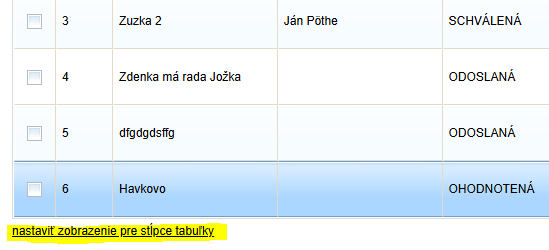
Below the table, you will find the “nastaviť zobrazenie pre stĺpce tabuľky” link. Here you can set which table columns you want to be displayed or hidden.
The following settings in the “Nastavenia” tab at programme level are important for the correct display of data:
Project title tag – for the correct display of project titles in the “Projekt” column.
Project submitter tag – for the correct display of the submitter’s name in the “Predkladateľ” column.
Tag for requested funds – for the correct display of the amount in the “Požadovaná suma” column.
Tag for own funds – for the correct display of the amount in the “Vlastné zdroje” column.
This data depends on the application form you have created – you need to specify the tag of the form field where each of these pieces of data is located.
When inserting these tags in the settings, you can use the document icon at the end of the row. Clicking it expands the entire tree structure of the application form – find the field you are looking for and click it to insert the tag into the row.
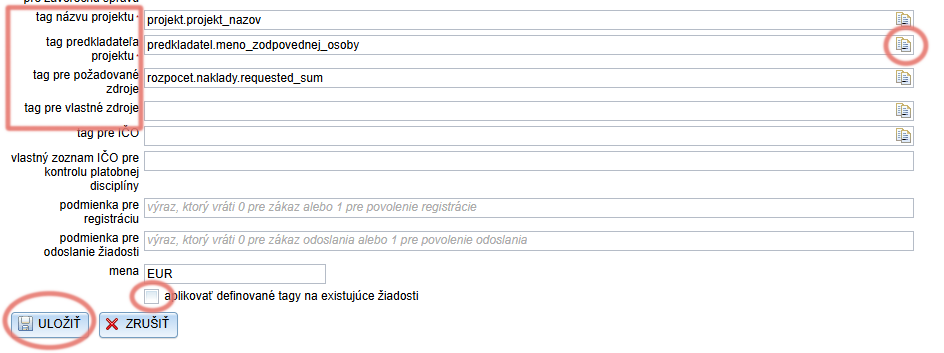
Whenever you edit any of these tags, tick “aplikovať definované tagy na existujúce žiadosti” before saving the changes.
If you do not tick this option, the data of applications already received will continue to be displayed in the table according to the previous setting.