If you export data according to a prepared template, exporting the data consists of two steps:
1. creating this template, 2. running the export.
Three export templates have already been created in the system:
- Emails of registered users – a list of the email addresses of all registered users
- Export: project evaluation – the export contains: the application number, the submitter’s name, the application title, the requested amount, own funds, the application status, the final number of points (depending on the evaluation settings, either the sum or the average), the number of points for individual evaluation criteria for each evaluator and the proposed amount for each evaluator (if it is part of the evaluation criteria).
- Results of verification in registers (available if you use the register verification service) – the export contains: the application number, the submitter, the project title, the check status, the date of the check, the overall result of the check (OK = all registers OK, NOK = a problem was found in one of the registers), and the result of the check for individual registers (1 = OK, 0 = problem).
You cannot edit these templates; you can only run an export according to them. However, you can duplicate them and then edit the created copy.
For participation managers
In addition to those mentioned above, a predefined template is available for participatory budget managers:
Vote export – contains data from the voting form (depending on the form type): name, telephone number, city, street, postcode, email, age category, source, date and time, and the project(s) the voter voted for.
You can run the export:
- for a specific call,
- or for several calls (all) together.
1. For a specific call
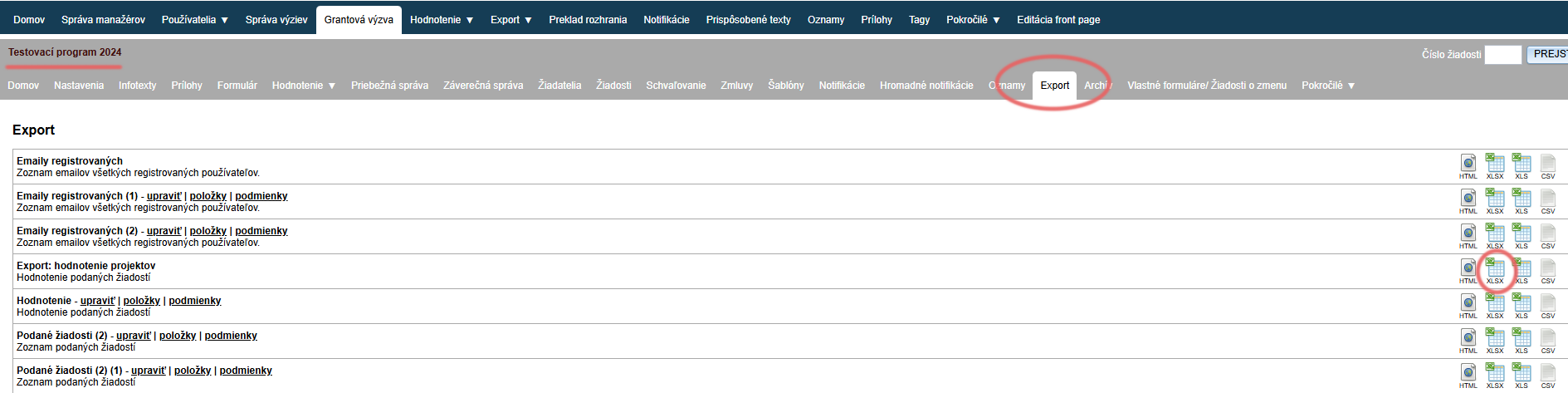
In the call-level menu, open the “Export” tab.
Find the export template in the list according to which you want to run the export.
Click the “XLSX” icon next to the selected export template (on the right-hand side of the table).
An Excel document containing the data as defined in the export template is then downloaded.
2. For several calls together
Attention!
If you export data for several calls (all) together – the tags of this data must match across the calls.
E.g.: You have two calls, “First call” and “Second call”. You want to create an export that will contain the applicant’s address and bank account. If the fields where the applicant enters their address and bank account have the same tag in the form in both the “First call” and the “Second call”, it is enough to create one export template. However, if, for example, the bank account field in the form of the “Second call” has a different tag, you must create two templates (one template for the “First call” and another template for the “Second call”). Otherwise, the bank account data will only be pulled for the applications of one call.
The “Export” tab
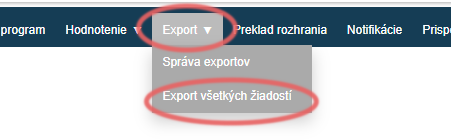
In the main menu at organisation level, open the “Export: Export všetkých žiadostí” tab.
Find the export template
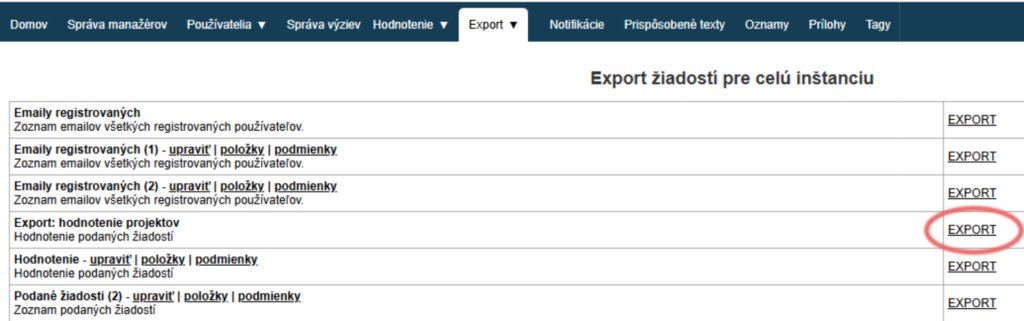
Find the export template in the list according to which you want to run the export.
Click the “EXPORT” link next to the selected export template (on the right-hand side of the table).
Select calls and run the export
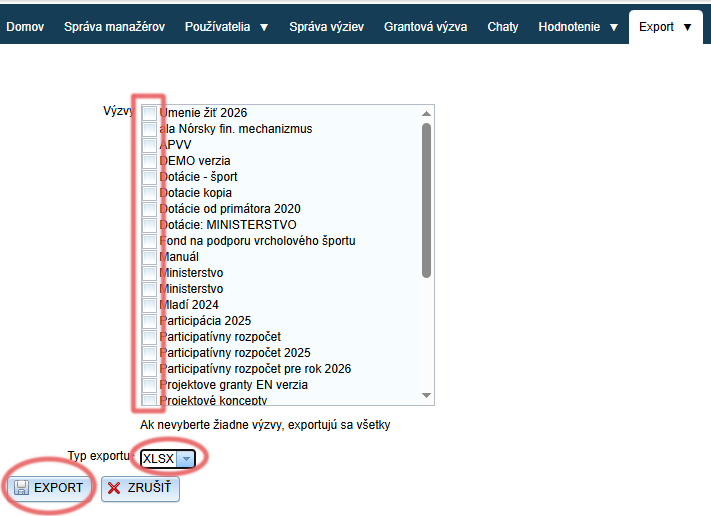
- Select the calls you want to include in the export by ticking the relevant boxes.
If you do not tick any, all calls in the list will be exported. - Choose the export type – for an Excel document, choose “XLSX”.
- Click the “EXPORT” button and the Excel document will then be downloaded.