
In eGRANT, in addition to the contract, you can also generate other documents. To do so, use the “Šablóny” tab in the programme-level menu.
In this tab, you upload a document template, generate it for specific applications and also send it from here to the applicants’ email addresses.
You can use templates, for example, for:
- Multiple types of contracts – if you do not use one contract template for all applications.
- Various statements or requests – any official text documents that you need to send to applicants by email.
Uploading a template document to templates
Open the “Šablóny” tab in the programme-level menu.
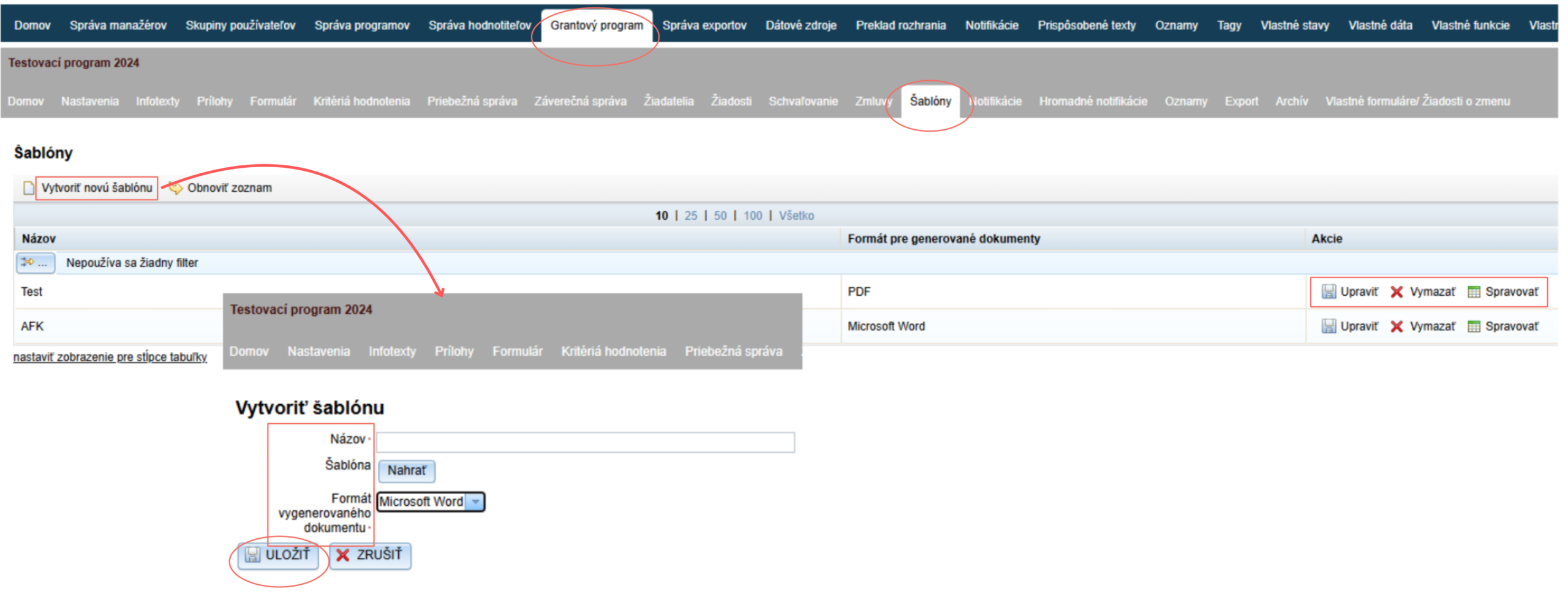
Click the “Vytvoriť novú šablónu” link in the top left above the table.
The “Vytvoriť šablónu” editor opens.
Enter a name for the template by which you will easily recognise it.
Click the “Nahrať” button and upload the template document (a Word document containing specific codes in the places where data are automatically pulled from eGRANT).
Choose the format of the generated document.
If you want to edit the generated documents individually afterwards, choose Microsoft Word; otherwise, choose PDF.Click the “ULOŽIŤ” button.
If you need to change something in the template, click the “Upraviť” button in the list of templates and then upload the new version again. Remember to save.
If any documents have already been generated from the older version, generate them again.
Generating documents
Attention!
If you use templates to generate different versions of contracts, you generate these contracts in the “Zmluvy” tab.
In the “Šablóny” tab, you only upload the template document.
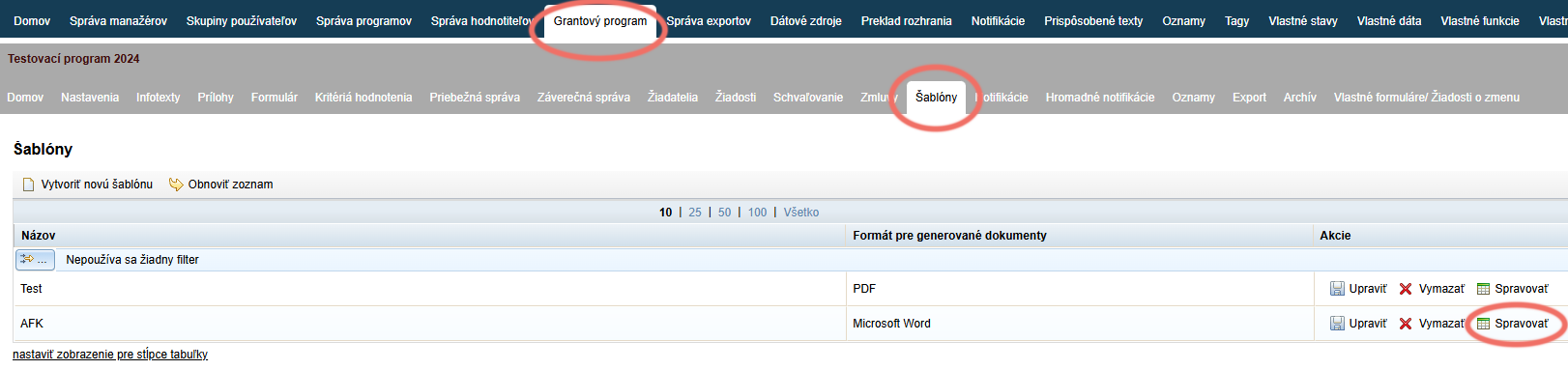
Open the “Šablóny” tab in the programme-level menu.
A list of uploaded templates opens.For the template you are going to generate, click the “Spravovať” link in the “Akcie” column.
A list of applications for which you can generate the selected template opens.
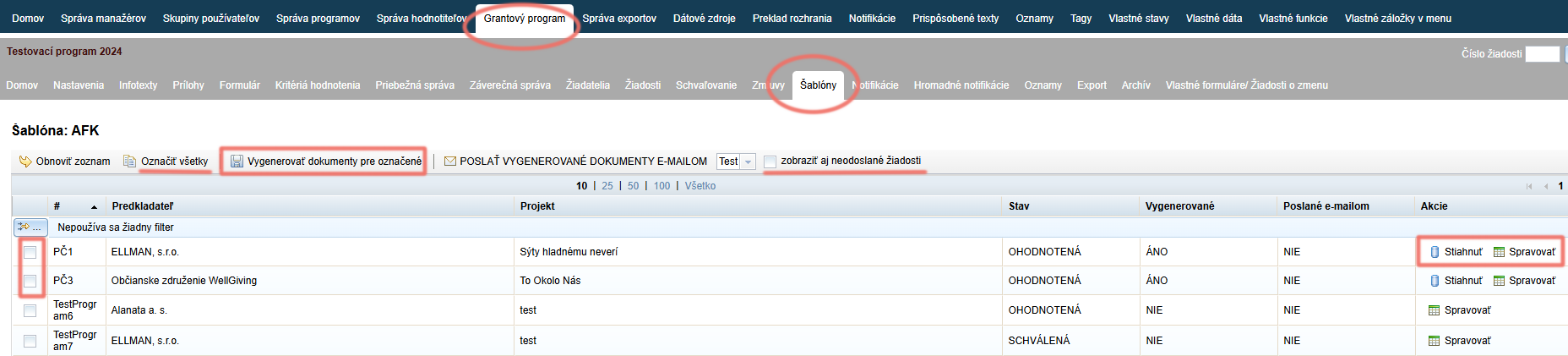
If you want the list to also display unsubmitted applications, tick “zobraziť aj neodoslané žiadosti”.
Select the applications for which you want to generate documents (or click “Označiť všetky”).
Click “Vygenerovať dokumenty pre označené”.
For the applications in the list for which you have generated a document, a “Stiahnuť” link has been added in the “Akcie” column.
If you want to make further individual changes to the generated documents:
4.1 click the “Stiahnuť” link – the document will be downloaded to your computer, where you can edit it,
4.2 clicking the “Spravovať” link makes it possible to upload an edited document for a specific application.
Sending documents
Once you have generated documents for specific applications, you can send them to the applicants.
Attention!
To be able to send the generated documents, you must have created a cover email, which will be sent to the applicants together with the document. You create it in the “Hromadné notifikácie” tab.
In the “Šablóny” tab, after you click “Spravovať” for a specific template, a list of applications for which you have generated documents opens.
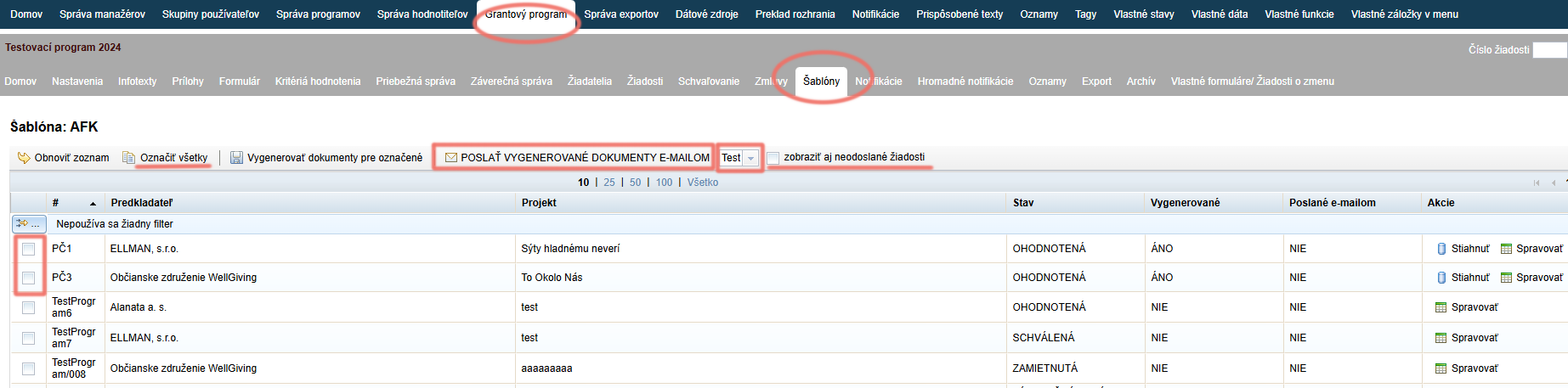
If you want the list to also display unsubmitted applications, tick “zobraziť aj neodoslané žiadosti”.
Select the applications for which you want to send the generated documents (or click “Označiť všetky”).
Choose the cover email to be sent to the selected applications with the generated document as an attachment.
Clicking the arrow opens a list of created bulk notifications from which you can choose.Click “POSLAŤ VYGENEROVANÉ DOKUMENTY EMAILOM”.