Basic programme settings
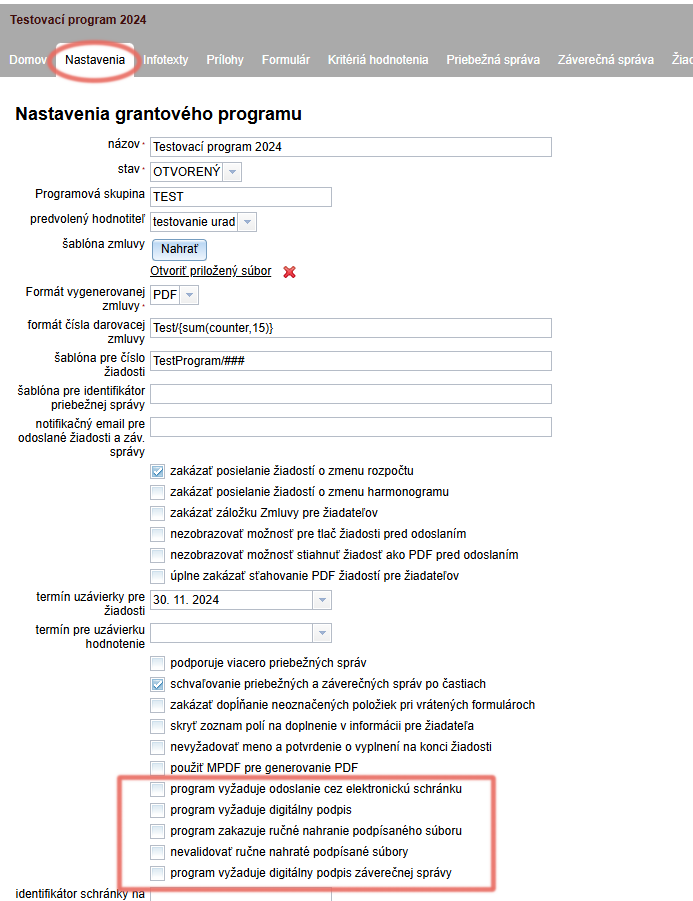
You can find all settings relating to a specific programme in the “Nastavenia” tab in the programme-level menu. Here you can also edit the name and type of the programme, the registration status of the programme and its programme group.
For optimal use of the eGRANT system:
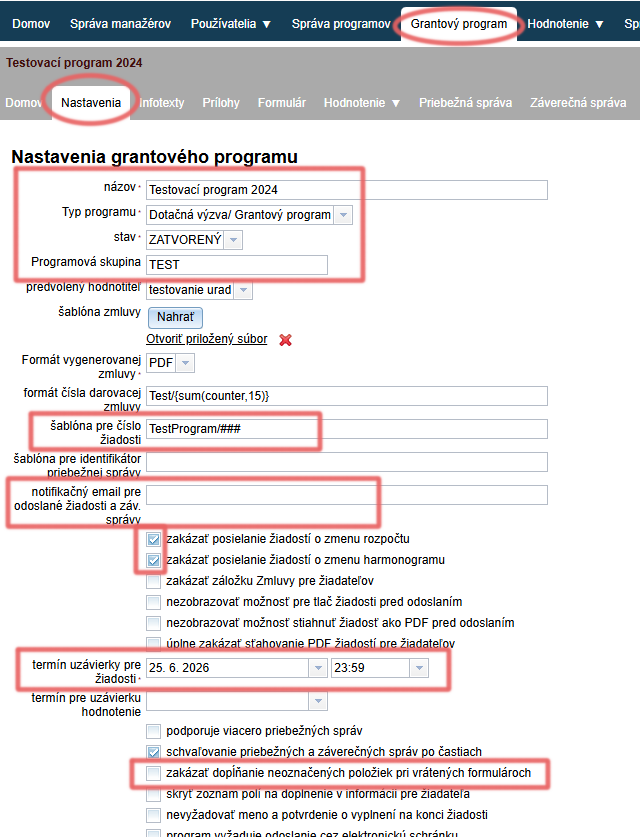
If you leave it blank, applications will be numbered automatically in the format “1”, “2”, etc. When entering your own application numbering format, use “#” as the number indicator (e.g. “Kultúra2024/#” will assign the following numbers to applications: Kultúra2024/1, Kultúra2024/2, etc.).
If you want this number to always have 2 or 3 digits, use “##” or “###” (e.g. “Kultúra2024/###” will assign the following numbers to applications: Kultúra2024/001, Kultúra2024/002, … , Kultúra2024/015, etc.).
Enter here the emails of the persons (separated by commas) to whom the following notifications are to be sent:
“Notifikácia pre admina o odoslanej žiadosti”
“Notifikácia pre admina o odoslaní hodnotenia”
“Admin notifikácia o digitálnom podpísaní zmluvy”
“Notifikácia pre admina o odoslanej záverečnej správe”
In eGRANT, applicants have the option to request a change to the budget/schedule in an already submitted application in the form of a notification text.
They can do so after logging in to their account in the “Žiadosť o zmenu rozpočtu” and “Žiadosť o zmenu harmonogramu” tabs. If sending requests for changes to the budget or schedule is disabled in the settings, this tab will not be displayed to applicants in their account at all.
By default, both of these options are ticked as disabled.
After this deadline, it will not be possible to submit applications.
Set the deadline day and the exact time – if you want to stop the submission of applications, e.g. on 25 June at midnight, set the deadline day to 25. 6. and the time to 23:59.
If you open an already submitted application/financial report for editing and ask the applicant to correct/complete information in the form, this setting will only allow them to correct the items you marked when opening the application/financial report.
If this option is not ticked, the applicant can edit everything in the reopened form.
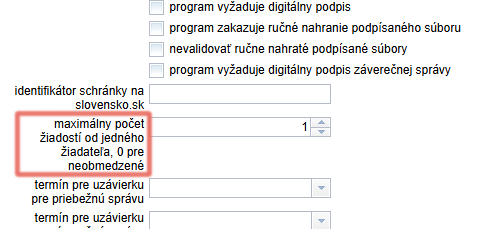
If 0 is entered, each registered applicant can submit an unlimited number of applications in this programme.
For generating contracts:
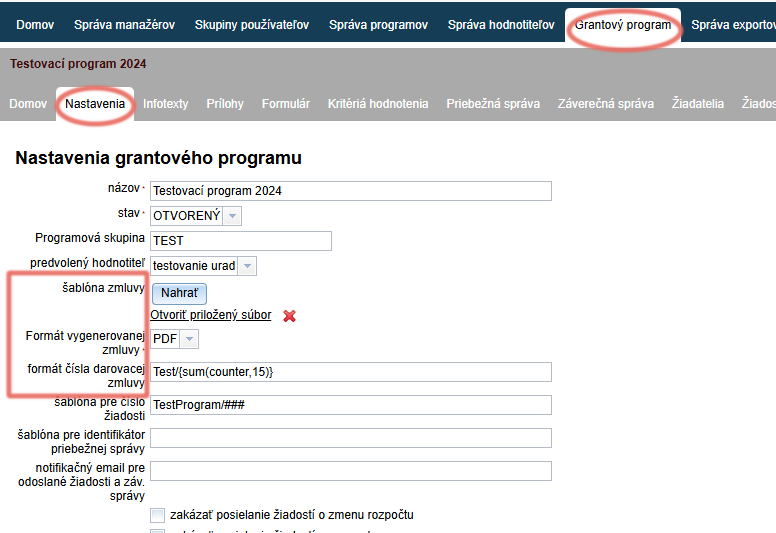
By clicking the “Nahrať” button, you upload the template document for contracts, which you can later generate automatically and send to applicants.
If you use multiple templates – different model contracts for different applications – upload one template in the programme settings and the others in the “Šablóny” tab.
Here you set the format of the contract you will send to applicants.
If you choose Word or Open Office Text, you can still make additional manual changes to the generated contracts.
If you want contracts to be signed electronically, the generated contracts must be in PDF format.
If you want to make further changes to individual contracts after they have been generated but require an electronic signature, choose Word as the contract generation format, but then upload the individually edited contracts to eGRANT in PDF format.
If you leave it blank, contracts will be numbered automatically in the format “1”, “2”, etc.
When entering your own contract numbering format, use “#” as the number indicator (e.g. “Kultúra2024/#” will assign the following numbers to contracts: Kultúra2024/1, Kultúra2024/2, etc.).
If you want this number to always have 2 or 3 digits, use “##” or “###” (e.g. “Kultúra2024/###” will assign the following numbers to contracts: Kultúra2024/001, Kultúra2024/002, … , Kultúra2024/015, etc.).
If you want to start numbering from a specific number, choose the format XY/{sum(counter,35)} (e.g. “Kultúra2024/{sum(counter,35)}” will give the first contract the number Kultúra2024/36).
If you want the contract number to include the application number, use the code {application_number}.
For the correct display of data in the list of applications:
For participation managers
In the case of a participatory budget, these data are also displayed on the voting page.
You can find more information under the “Participatory budget” category.
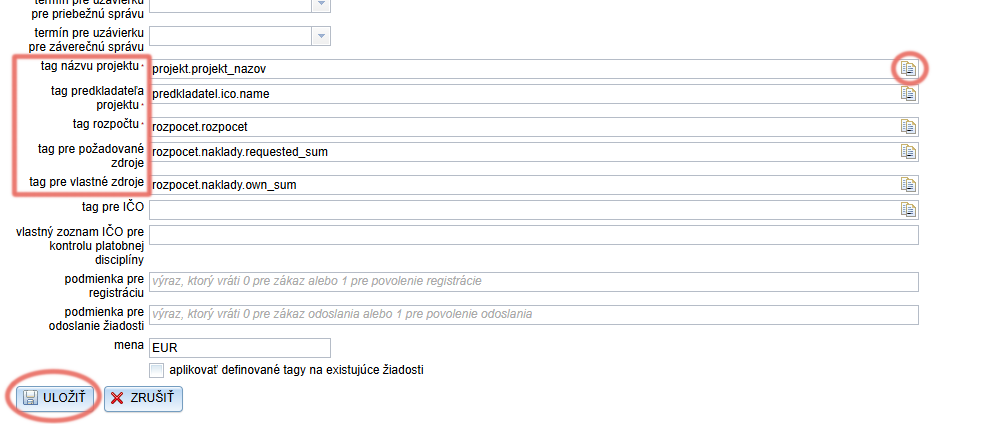
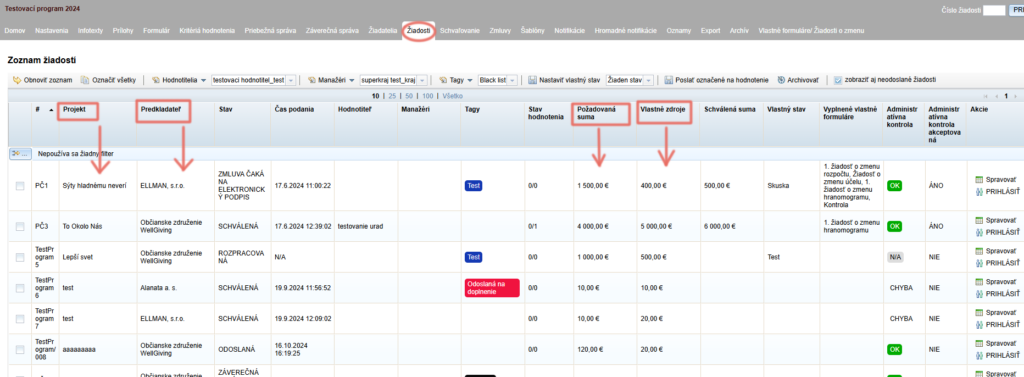
Tag názvu projektu – for the correct display of project titles in the “Projekt” column.
Tag predkladeľa projektu – for the correct display of the submitter name in the “Predkladeľ” column.
Tag pre požadované zdroje – for the correct display of the amount in the “Požadovaná suma” column.
Tag pre vlastné zdroje – for the correct display of the amount in the “Vlastné zdroje” column.
For these items, there is an icon at the end of the line . Clicking it expands the entire tree structure of the application form – find the required field in it and click it to insert the tag into the line.
Whenever you edit any of these tags, make sure before saving the changes that the “aplikovať definované tagy na existujúce žiadosti” box is ticked.
If the box is not ticked, the changes will only be applied to newly created applications. The data of applications already received will continue to be displayed in the table according to the previous setting.
These data depend on the application form you have created.
If you want these data to be displayed in the overview table in the “Žiadosti” tab (at programme level), you must specify the tag of the form field in which each of these data items is located in the settings.
If any of these data items is not part of the application form, it will not be possible to display it in the overview table.
For the correct display of data on the voting page:
For participation managers
This information relates exclusively to the management of participatory budgets.
If you are interested in using the eGRANT system to manage a participatory budget, please contact us.
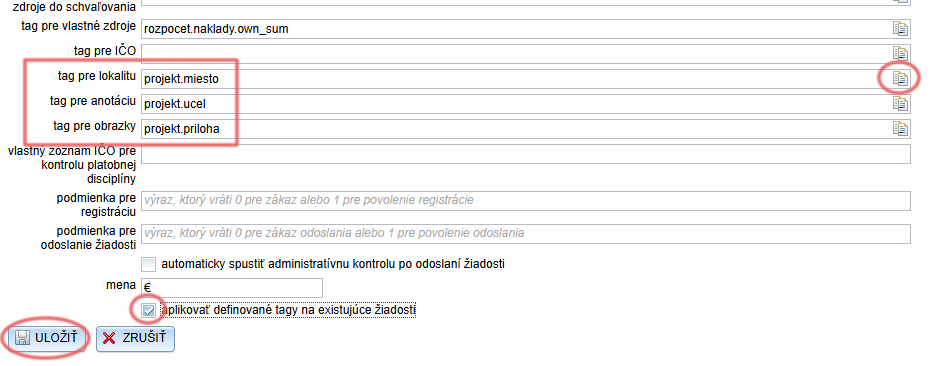
Tag pre lokalitu – for the correct display of the project location on the voting page.
If this field is filled in, the place where the project will be implemented is also displayed on the voting page for each project the public can vote for.Tag pre anotáciu – for the correct display of a brief description of the project on the voting page.
Tag pre obrázky – for the correct display of images/photos illustrating the project on the voting page.
If this field is not filled in, no illustrative image/photo will be displayed for the projects on the voting page.For these items, there is an icon at the end of the line . Clicking it expands the entire tree structure of the application form – find the required field in it and click it to insert the tag into the line.
Whenever you edit any of these tags, make sure before saving the changes that the “aplikovať definované tagy na existujúce žiadosti” box is ticked.
These data depend on the application form you have created.
If you want these data to be displayed for projects on the voting page, you must specify the tag of the form field in which each of these data items is located in the settings.
If any of these data items is not part of the application form, it will not be possible to display it on the voting page either.
Settings for the electronic signature
You can also find the settings relating to the electronic signature in the “Nastavenia” tab in the programme-level menu.
Paid feature
This feature is subject to a charge. If you are interested in it, please contact us.
When using the electronic signature, the following settings are important:
a) program vyžaduje odoslanie cez elektronickú schránku
- The form/contract will be signed via slovensko.sk and will also be delivered to the registry automatically.
- With this option, you must also specify the identifier of the mailbox on slovensko.sk in the format: ico://sk/enter the IČO of the entity (e.g. the identifier of the municipality of Lozorno is ico://sk/00304905).
- The identifier can be found at this link.
b) program vyžaduje digitálny podpis
- It will be possible to sign the form/contract with a qualified electronic signature (KEP), but not via slovensko.sk, and therefore it will not be delivered to the registry automatically.
(This box is also ticked automatically when signing via slovensko.sk is used.)
c) program zakazuje ručné nahranie podpísaného súboru
- It will not be possible to sign the form/contract in other software (only in the eID application directly from eGRANT).
d) nevalidovať ručné nahraté podpísané súbory
- eGRANT will not validate forms/contracts signed in other software.
e) program vyžaduje digitálny podpis záverečnej správy
- It will not be possible to submit the financial report form without an electronic signature.