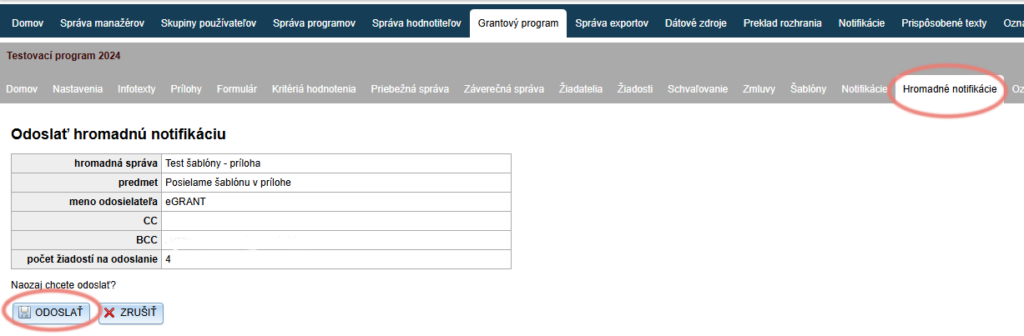
Bulk notifications are emails that you can compose yourself and send manually to applicants whenever you need.
You can also use bulk notifications if you want to send various automatically generated documents to applicants by email.
You can create them in the programme-level menu in the “Hromadné notifikácie” tab.
Create/edit a bulk notification
Clicking the “Hromadné notifikácie” tab opens a list of all created bulk notifications.
If you have not created any yet, the list will be empty.
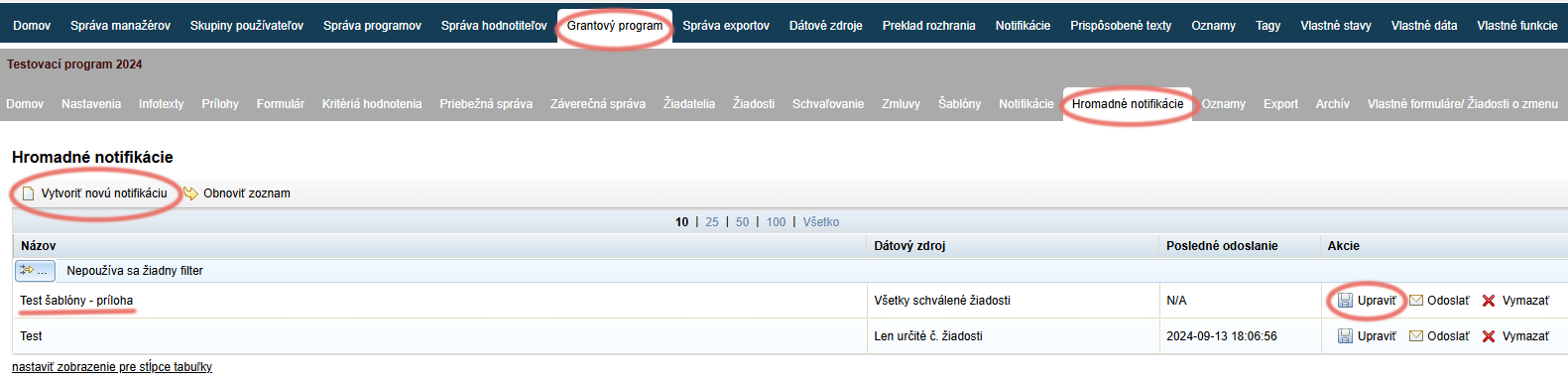
If you want to edit an already created bulk notification, click the “Upraviť” link in the “Akcie” column of the overview table.
If you want to create a new bulk notification, click the “Vytvoriť novú notifikáciu” link in the top left above the overview table.
Bulk notification editor
After you click “Vytvoriť novú notifikáciu”, an editor similar to the one used for editing automatic notifications is displayed.
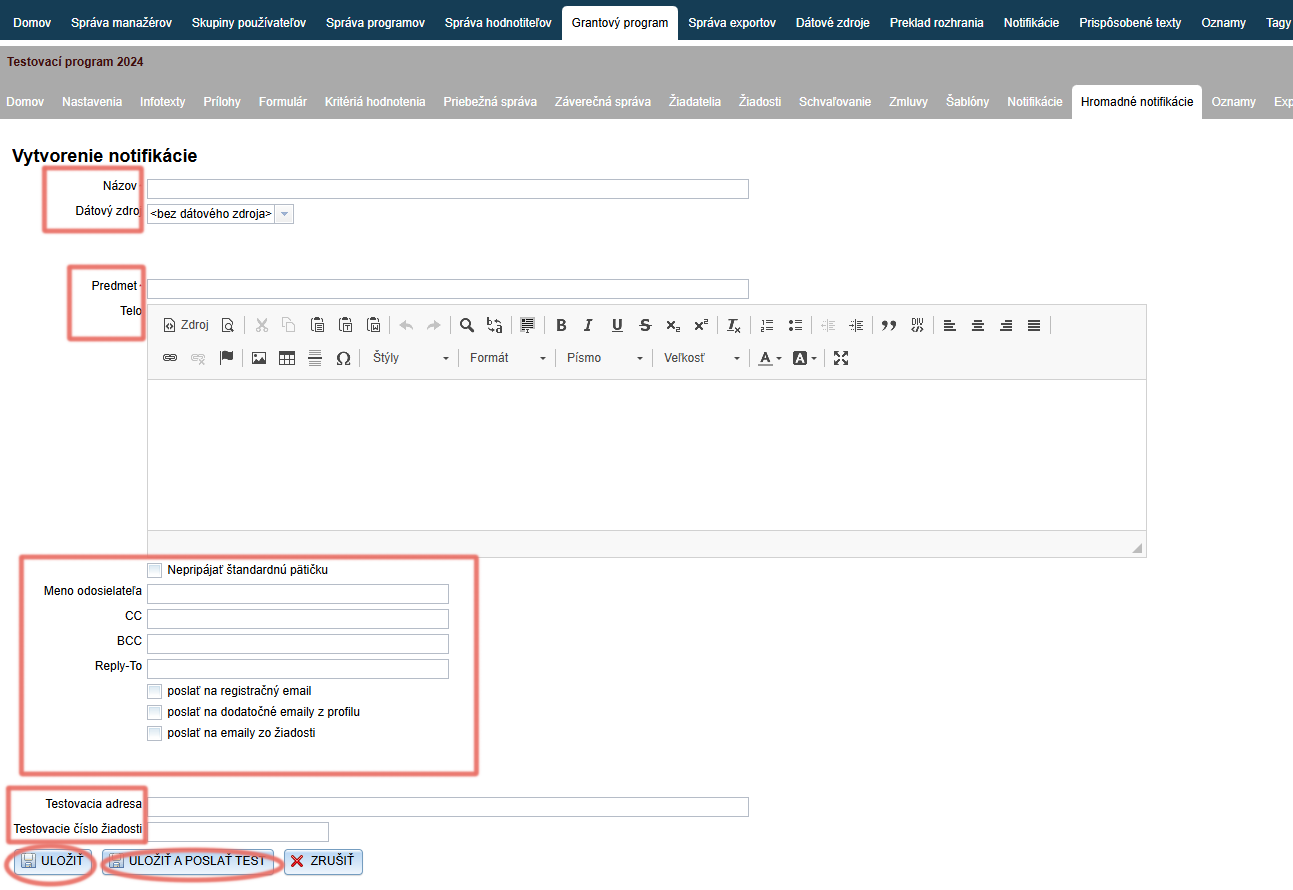
Enter a name by which you will easily find this notification in the list of bulk notifications.
In the “Dátový zdroj” field, select the group of applicants to which this notification email is to be sent:
- Registrovaní žiadatelia bez odoslanej žiadosti – applicants who have registered for the programme but have not submitted an application.
- Všetci zaregistrovaní žiadatelia – all applicants registered in the programme (regardless of whether or not they have submitted an application).
- Všetky podané žiadosti – all applicants who have submitted an application in the given programme.
- Všetky schválené žiadosti – all applicants whose applications have been approved in the given programme.
Enter the subject – the applicant will see it as the email subject – and create the text in the email body.
Then proceed in the same way as when editing an automatic notification:
- Nepripájať štandardnú pätičku – if you tick this option, the standard signature you have set in the “Prispôsobené texty” tab will not be appended to the end of the email text.
- Meno odosielateľa – enter your name or the name of your organisation.
- CC – enter an email address if you want a copy to be delivered to another person/persons at the same time (the primary recipient of the notification will also see this address).
- BCC – enter an email address if you want a copy to be delivered to another person /persons at the same time (the primary recipient of the notification will not see this address).
- Reply-To – enter the email address to which applicants can reply after receiving the notification (this also reduces the likelihood of the email ending up in spam).
- Poslať na registračný email – the notification will be sent to the email address the applicant provided during registration.
- Poslať na dodatočné emaily z profilu – the notification will be sent to the additional email addresses specified in the applicant’s profile.
- Poslať na emaily zo žiadosti – the notification will be sent to the email addresses specified in the application.
In the Testovacia adresa field, enter the email address to which the notification is to be sent after you click “ULOŽIŤ A POSLAŤ TEST”.
Testovacie číslo žiadosti – when a test notification email is sent, the data from the application whose number you enter in this field will be used (if the text of the notification email is to pull any data relating to the application).Click the “ULOŽIŤ” or “ULOŽIŤ A POSLAŤ TEST” button.
Send a bulk notification
Select the notification
In the “Hromadné notifikácie” tab, find the notification you want to send in the list.
In the “Akcie” column of the table with the list of created notifications, click the “Odoslať” link.
Check and send
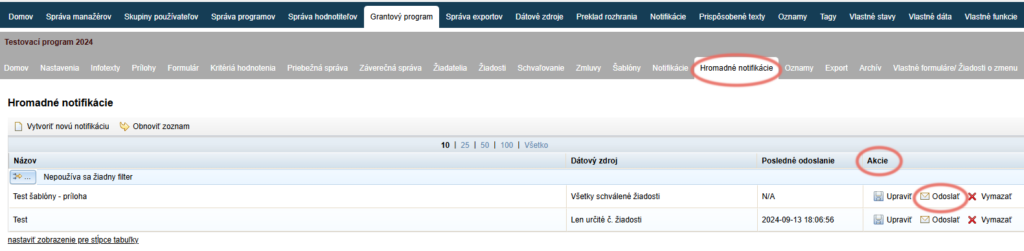
A table opens with an overview of the basic settings of this notification that you entered when creating it: name, subject, sender name, CC, BCC and the “počet žiadostí na odoslanie” field, which shows the number of applicants the system has identified as recipients (the notification will be sent to this number of applicants).
Click the “ODOSLAŤ” button.