
You can verify an applicant directly in the eGRANT system in the following registers:
➔ Social Insurance Agency
➔ Financial Administration
➔ Central Register of Outstanding Receivables of the State
➔ Labour Inspectorate
➔ Register of Judicial Receivables
➔ General Health Insurance Company
➔ Union Health Insurance
➔ Dôvera Health Insurance
➔ Register of Public Sector Partners
➔ Register of Non-Governmental Non-Profit Organisations
➔ Register of Issued Authorizations to Perform Execution
➔ Insolvency Register
➔ List of Convicted Legal Entities
Paid feature
This feature is subject to a charge. If you are interested in it, please contact us.
Attention!
To carry out a check of an applicant, the manager must have the “Overenie v registroch” permission.
If you have paid for this feature, you can grant this privilege to a specific manager in the “Správa manažérov” tab in the main menu using the “Upraviť” button next to the specific manager.
If you use user groups to assign privileges, you can make this privilege available to an entire group of managers in the “Používatelia: Skupiny používateľov” tab in the main menu using the “Upraviť” button next to the specific group.
Required settings
For the register verification to run, the applicant must enter their IČO in the application form, and the tag of the form field in which you ask for the IČO must be entered in the “Nastavenia” tab in the programme-level menu.
Running the check manually or automatically
You can carry out the register check manually for individual applications, or you can set the check to run automatically when an application is submitted.
The “Nastavenia” tab
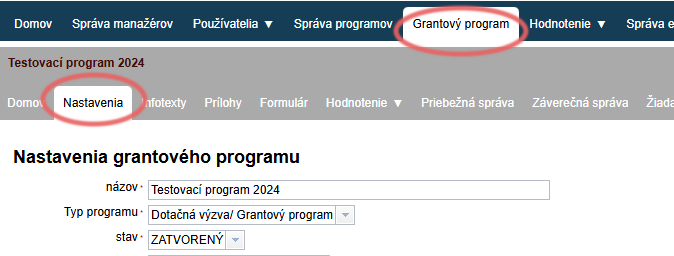
Open the “Nastavenia” tab in the programme-level menu.
Tag for IČO
In the “tag pre IČO” field, enter the full tag of the form item in which this data item is located.
If you click the icon at the end of this field, the structure of the application form opens – find the exact place where the IČO is entered, and clicking it automatically inserts the required tag.
Automatic running of the check
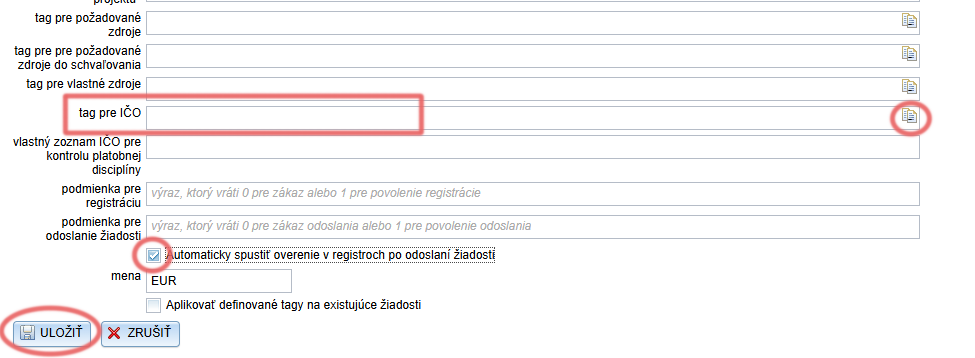
If you want the check to run automatically when an application is submitted, tick the “Automaticky spustiť overenie v registroch po odoslaní žiadosti” option.
Always remember to save any changes.
Running the check manually
The “Žiadosti” tab
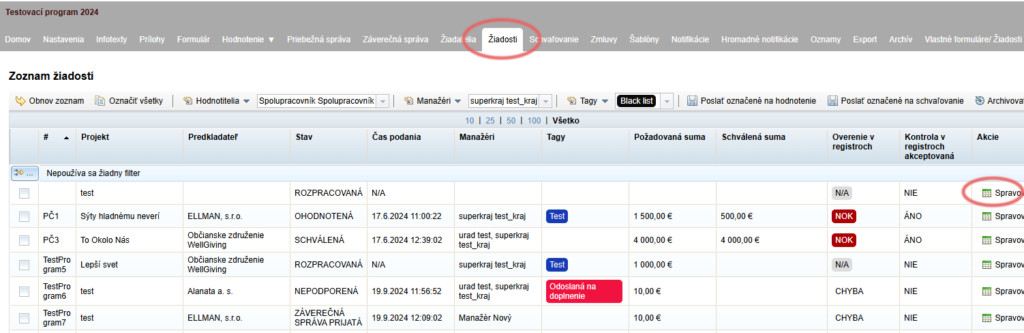
In the “Žiadosti” tab in the programme-level menu, find the application of the entity you want to check.
Click the “Spravovať” link in the “Akcie” column on the right.
The “Overenie v registroch” tab
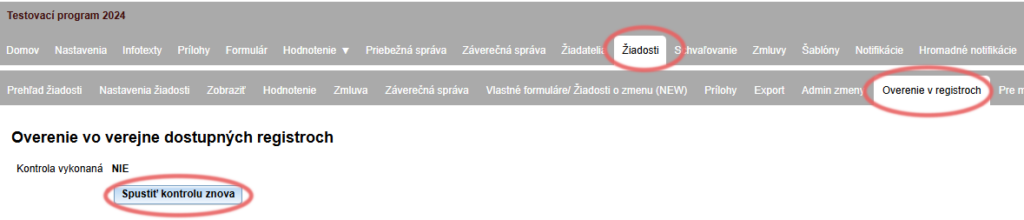
The menu with tabs at the level of the specific application then opens.
Click the “Overenie v registroch” tab.
Click the “Spustiť kontrolu znova” button.
Check results
Overview of results (the “Žiadosti” tab)
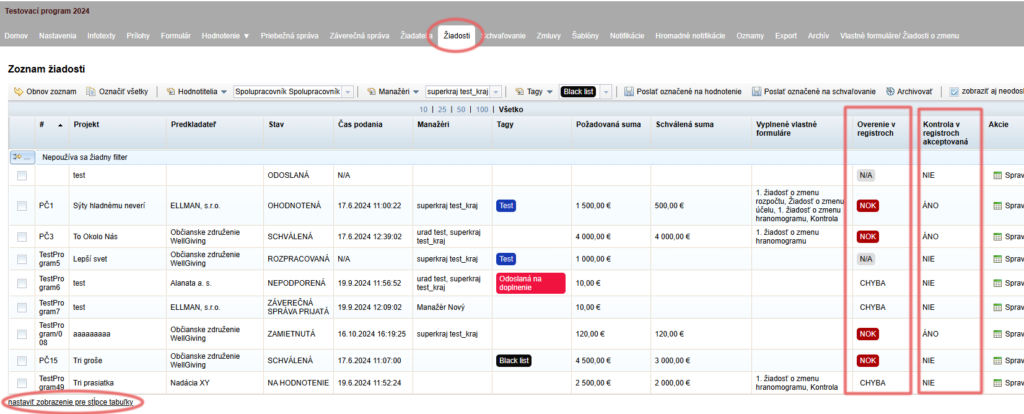
You will see the check results immediately in the “Žiadosti” tab in the programme-level menu, in the “Overenie v registroch” column:
OK = everything is in order
NOK = there is a problem in one of the registers
N/A = the check is still in progress
CHYBA = the check could not be run
In the “Kontrola v registroch akceptovaná” column, you can see whether the check results have been accepted by a manager (in that case, it will no longer be possible to run the check again).
You can set which table columns are displayed by clicking the “nastaviť zobrazenie pre stĺpce tabuľky” link below the list of applications.
Detailed results (the “Overenie v registroch” tab)
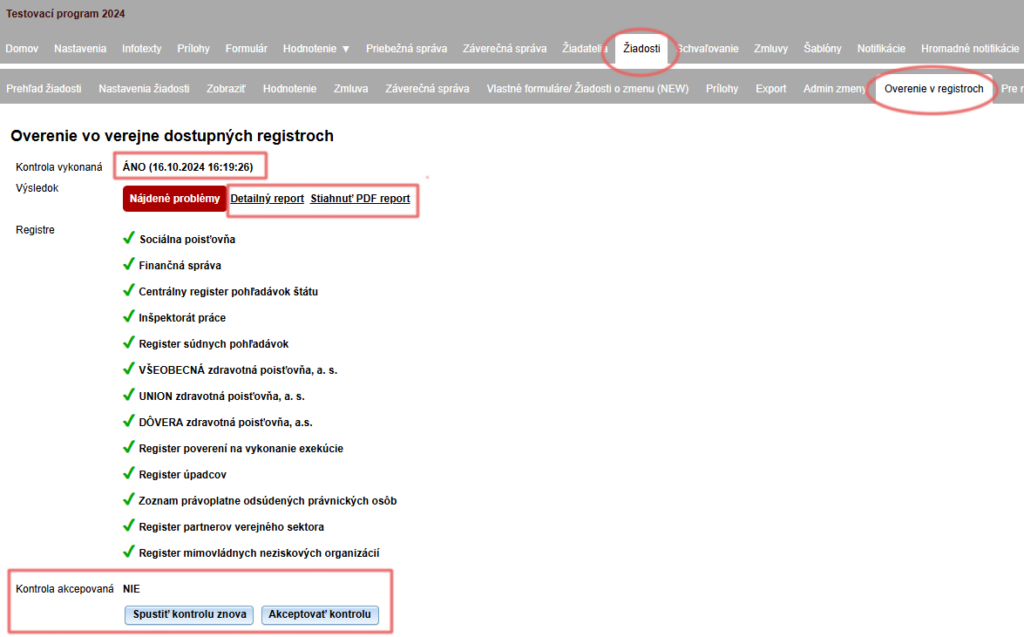
You can view the detailed check results for individual applications by clicking the “Spravovať” link in the “Akcie” column. The menu with tabs at the level of the specific application then opens.
Click the “Overenie v registroch” tab.
The check result is displayed.
- If you want to repeat the check, click the “Spustiť kontrolu znova” button.
- If you want to finalise the results of the check, click the “Akceptovať kontrolu” button.
- Once the check has been accepted, it will no longer be possible to run the check again.
- Once the check has been accepted, it will no longer be possible to run the check again.
The system records the output of the check, the manager’s name and the date on which the check was accepted.