The public can vote for projects on the voting page from the moment voting is launched until it ends.
On this page, the public will find the projects you have moved to voting, basic information about each project and its brief description.
Voting takes place by means of an SMS code, which is automatically generated and sent to the phone number the voter enters in the voting form.
Launching and ending voting
Voting is launched and closed automatically according to the dates you specified in the “Nastavenie hlasovania” tab.
The voting page is displayed automatically once voting is launched.
After voting ends, a page with the voting results is displayed.
Voting page
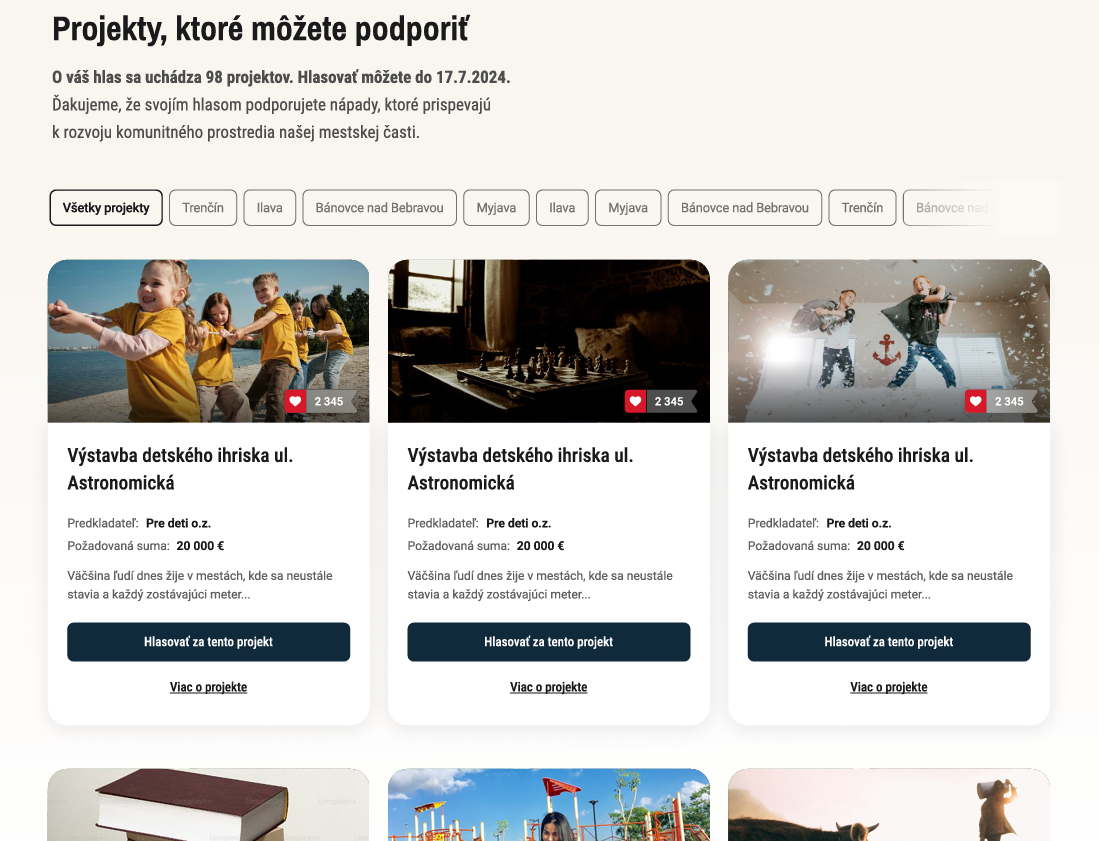
If you have created separate programmes, e.g. for individual districts (or one programme for projects and a separate one for assignments), voters can filter them by clicking the button of a specific programme (in this example, a district).
Further down the page, the voter will find a list of projects you have moved to voting.
Each project is displayed with an illustrative image and basic information: project title, submitter name, requested amount and, where applicable, location.
This information and the image are pulled from the application form, and to display them on the page, the tags in the “Nastavenia” tab at programme level must be filled in correctly (“tag názvu projektu”, “tag predkladeľa projektu”, “tag pre požadované zdroje”, “tag pre lokalitu”, “tag pre obrázok”).The current number of votes is displayed in the bottom right corner of the image.
You can switch the display of the number of votes on/off in the “Nastavenie hlasovania” tab.The voter selects the project they want to vote for by clicking the “Hlasovať za tento projekt” button.
If the voter wants to see a brief annotation of the project, they click the “Viac o projekte” link.
This information is also pulled from the application form, and to display it on the page, the “tag pre anotáciu” field in the programme’s “Nastavenia” tab must be filled in correctly.
Voting procedure
Select one or more projects
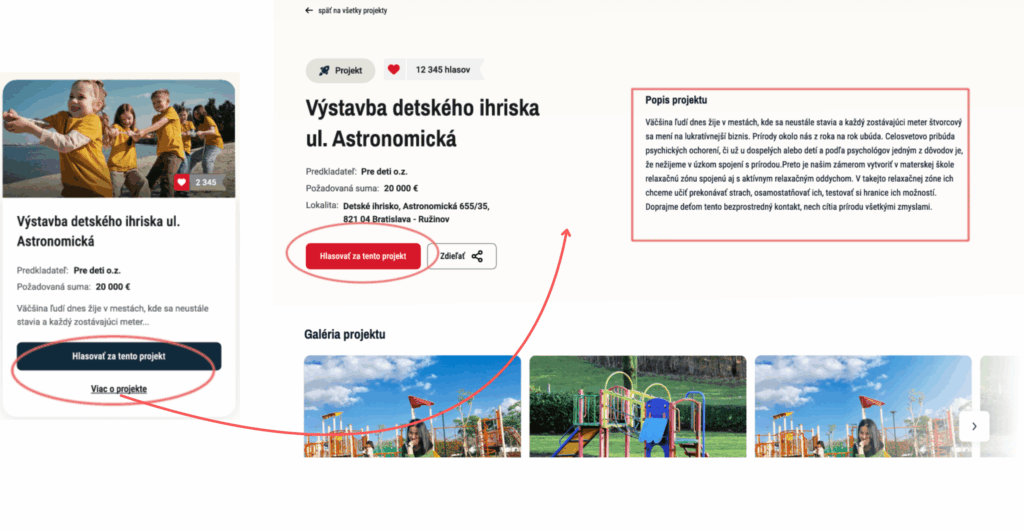
In the first step, the voter selects which project (or projects) they want to vote for by clicking the “Hlasovať za tento projekt” button.
(You can specify how many projects one voter can vote for in the “Nastavenia hlasovania” tab.)
If they want to see a brief description of the project first, they click the “Viac o projekte” link.
A page opens with the project details and the description provided by the submitter in the form.
If they want to select this project, they click “Hlasovať za tento projekt”.
Voter’s selected projects
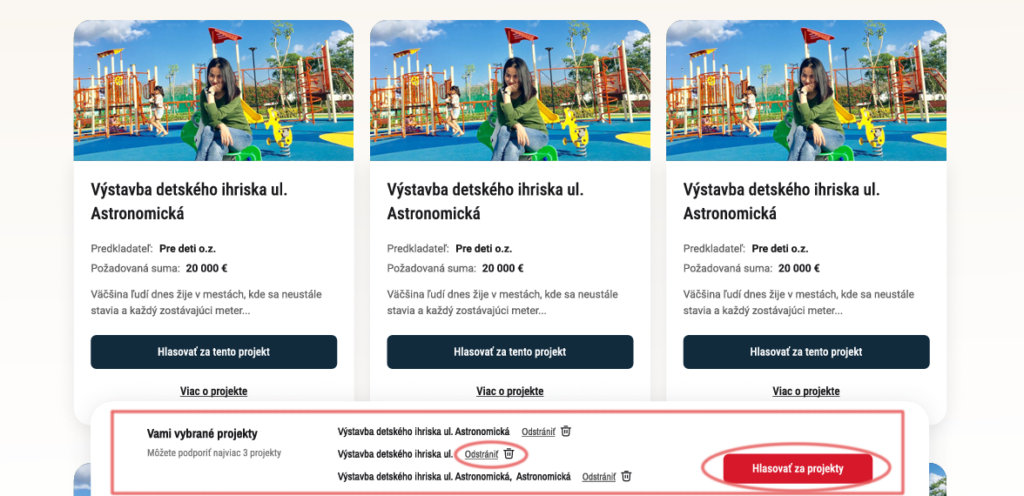
After the “Hlasovať za tento projekt” button is clicked, a bar with the list of selected projects is displayed at the bottom of the page.
If you have allowed voting for more than one project, the voter selects another project in the same way by clicking the “Hlasovať za tento projekt” button.
The voter can also remove a project from the list of selected projects by clicking the “Odstrániť” link.
If the voter is satisfied with the list of selected projects, they click the “Hlasovať za projekty” button.
Voting form
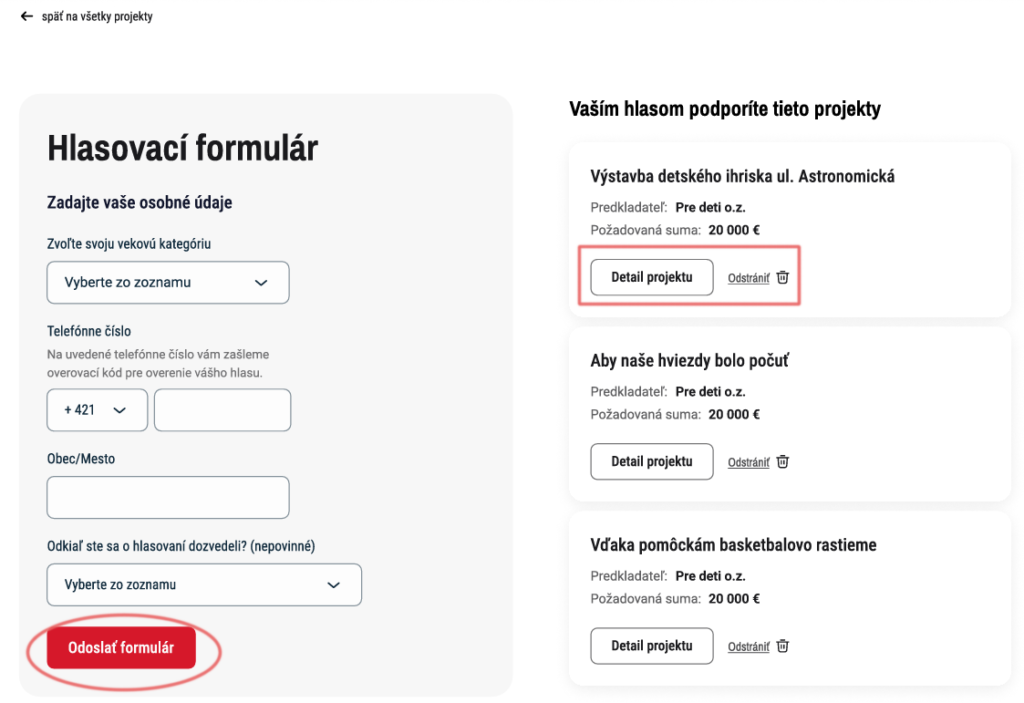
After the “Hlasovať za projekty” button is clicked, a page with the voting form is displayed.
On the left side of the page is the voting form, where the voter fills in their details (depending on which form type you selected in the “Nastavenia hlasovania” tab) and a phone number for sending the verification code.
On the right side, the voter sees the list of projects they want to vote for. Here they can remove projects from the list by clicking the “Odstrániť” link or view more information about a project by clicking the “Detail projektu” button.
If the voter is satisfied with the list of selected projects, after filling in their personal details they can click the “Odoslať formulár” button.
Vote verification
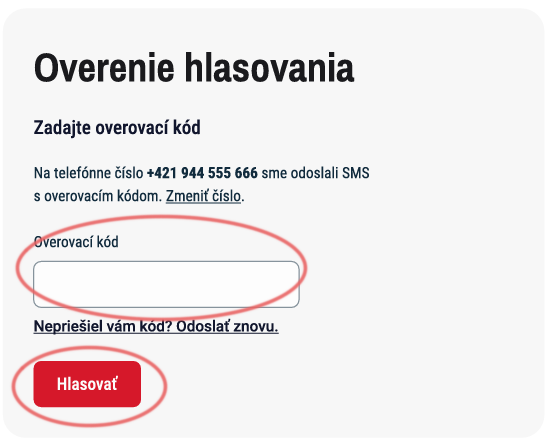
After the “Odoslať formulár” button is clicked, the vote verification is displayed, where the voter enters the verification code.
This code is automatically sent as an SMS message to the phone number they entered in the voting form.
The voter confirms their vote by clicking the “Hlasovať” button.