
Within the eGRANT system, you have several options for communicating information to applicants.
At organisation level, you can, for example, insert text on the initial login page or on the page displayed after logging in, or create a signature block for all notification emails sent to applicants. You can find these options in the “Prispôsobené texty” tab in the main menu.
At programme level, you can, for example, create text for the page displayed after logging in that is specific to a particular programme, in the “Infotexty” tab (in the programme-level menu). At programme level, you can also upload various documents intended for applicants in the “Prílohy” tab.
For participation managers
This information is intended for participatory budget coordinators.
If you are interested in using the eGRANT system to manage a participatory budget, please contact us.
For the purposes of a participatory budget, in addition to those mentioned here, the “Pravidlá hlasovania” in the “Prispôsobené texty” tab in the main menu are also important.
(For more information, see the “Participatory budget” category.)
Custom texts
In the “Prispôsobené texty” tab in the organisation-level menu, you can create:
A signature block appended at the end of every notification email for applicants.
If you do not create any signature footer, notification emails will be sent without a signature.
Text for the applicant on the initial login page.
Here you can specify, for example, the sequence of steps for registering in the system, contacts for persons competent to provide information about programmes/calls, the contact for technical support, etc.
Text for the applicant on the home page after logging in.
Here you can edit the text displayed to applicants in the “Domov” tab after they log in to their account. It will be the same for all programmes/calls. If you want to include text specific to a particular programme, you can do so in the “Infotexty” tab in the programme-level menu (more information below).
Text intended for evaluators (user type evaluator).
It is displayed to evaluators after they log in to their account, above the table with the list of applications for evaluation.
The text in the pop-up message displayed on the screen to applicants after they have successfully submitted an application.
The text you enter here will be displayed on the page with information on the processing of personal data.
This page opens for applicants during registration after they click the link in the GDPR consent (in the registration form).
You edit the individual “prispôsobené texty” as follows:
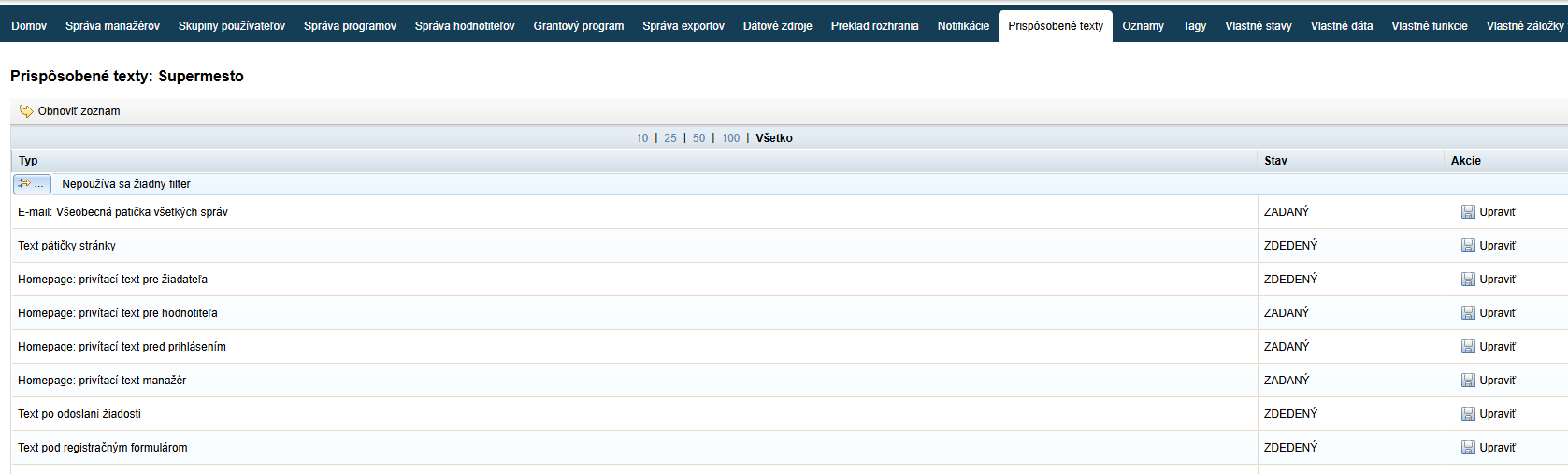
Click the “Prispôsobené texty” tab in the main menu.
Find the text you want to edit in the list.
Click the “Upraviť” button in the “Akcie” column.
After you click the “Upraviť” button for the selected item in the list of custom texts, an editor opens where you can make changes.
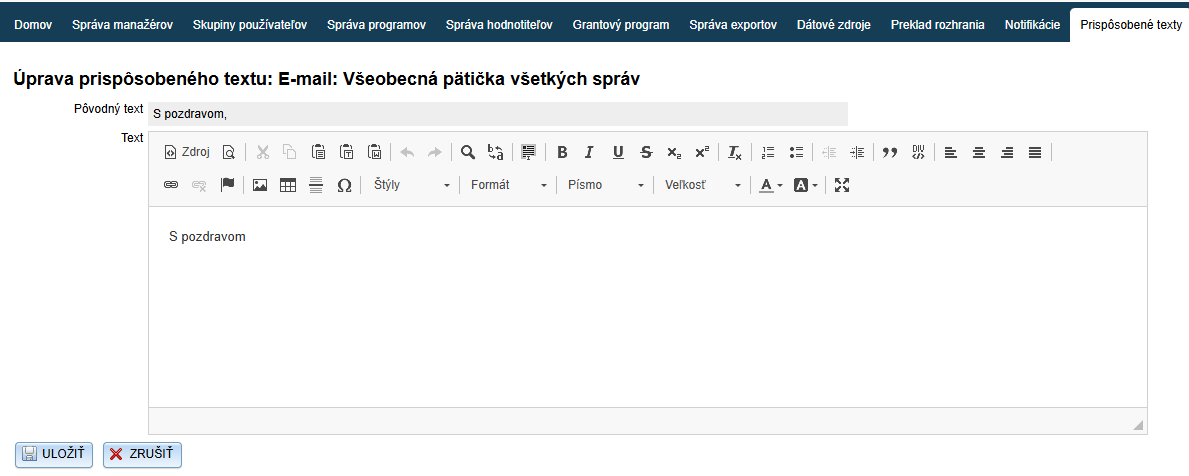
Create/edit the text in the text editor.
Save the changes by clicking the “ULOŽIŤ” button.
Info texts
In the “Infotexty” tab in the programme-level menu, you can create:
Text for the applicant with information about the programme. The applicant sees this information in the “Domov” tab after logging in to the programme.
(If you also manage a participatory budget in the eGRANT system, the applicant already sees this information on the initial login page in the “Informácie o programe” section.)
Here you can insert text/information/a logo, etc. that you want to be displayed in the header of printed application forms (or in the header of applications downloaded in PDF format).
You can also insert codes for loading data here, e.g. the application number (see Overview of codes for generating data).
similarly to the header
Here you can insert text/information/a logo, etc. that you want to be displayed in the header of printed evaluations (or in the header of evaluations downloaded in PDF format).
similarly to the header
Here you can insert text/information/a logo, etc. that you want to be displayed in the header of printed final reports (or in the header of final reports downloaded in PDF format).
similarly to the header
You will always find the checkbox for selecting this option below the footer editor.
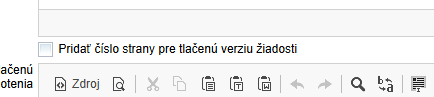
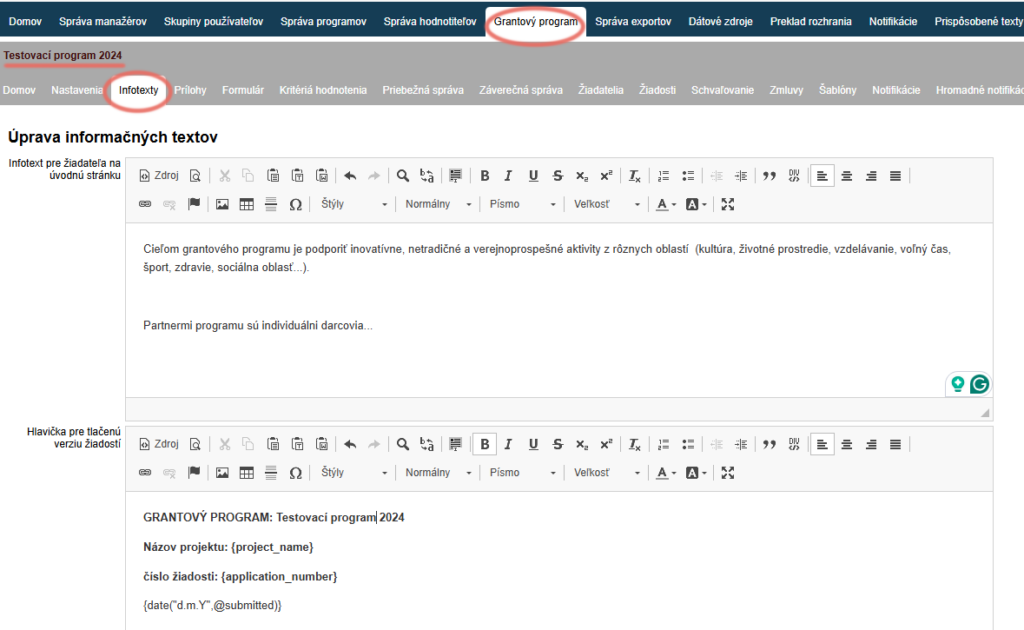
After you have created either an info text for the applicant or a header/footer in the displayed text editor, remember to save the changes by clicking the “ULOŽIŤ” button at the bottom of the page.
Attachments for applicants
In the “Prílohy” tab in the programme-level menu, you can upload various documents intended for applicants. The applicant will find these documents in the “Prílohy” tab after logging in to the programme.
If you have already created some attachments, a list of the already uploaded documents is displayed, which you can edit here.
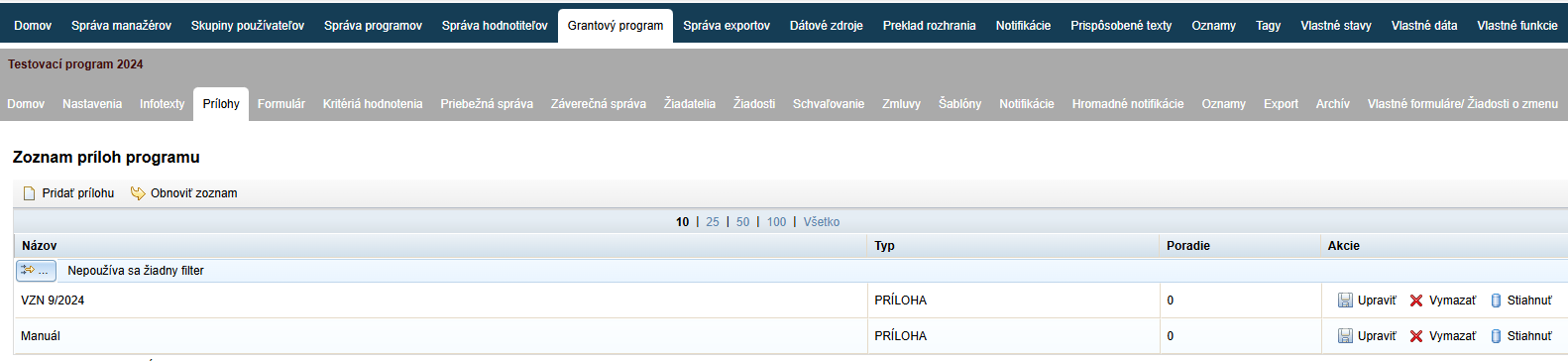
Click the “Prílohy” tab in the programme-level menu.
A list of already uploaded documents is displayed.
If you have not yet created any attachments for applicants, the list will be empty.In the “Akcie” column of the displayed table, you can edit their name, delete them or download them.
If you want to create a new attachment, click the “Pridať prílohu” link on the left above the table.
After you click the “Pridať prílohu” link (in the “Prílohy” tab in the programme-level menu), the “Vytvorenie prílohy” editor opens.
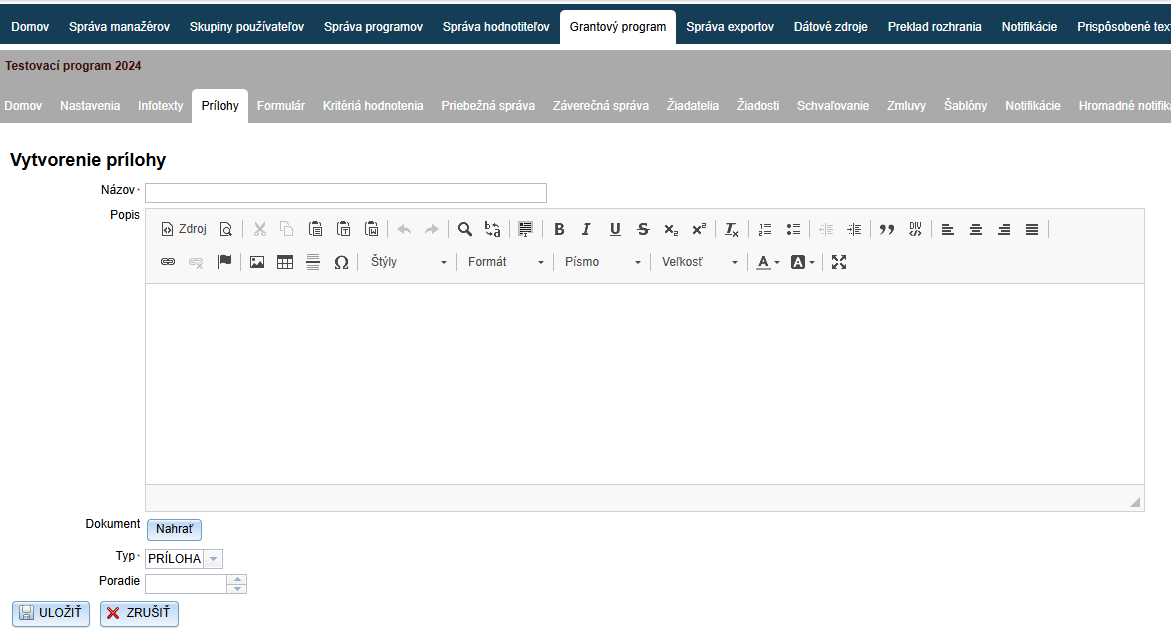
Enter the name of this document and, if applicable, a description in the text editor.
Click the “Nahrať” button and upload the document from your computer.
If you have already uploaded some documents but did not upload them in the order in which you want them to be displayed to applicants, you can set the order specifically for each document.
Click the “ULOŽIŤ” button.