
Evaluator’s view
Evaluators log in on the same login page as all users (managers, applicants) with the email and password they provided during registration.
After logging in, the evaluator sees the Domov tab, where they will find a basic overview of the evaluations they are to complete.
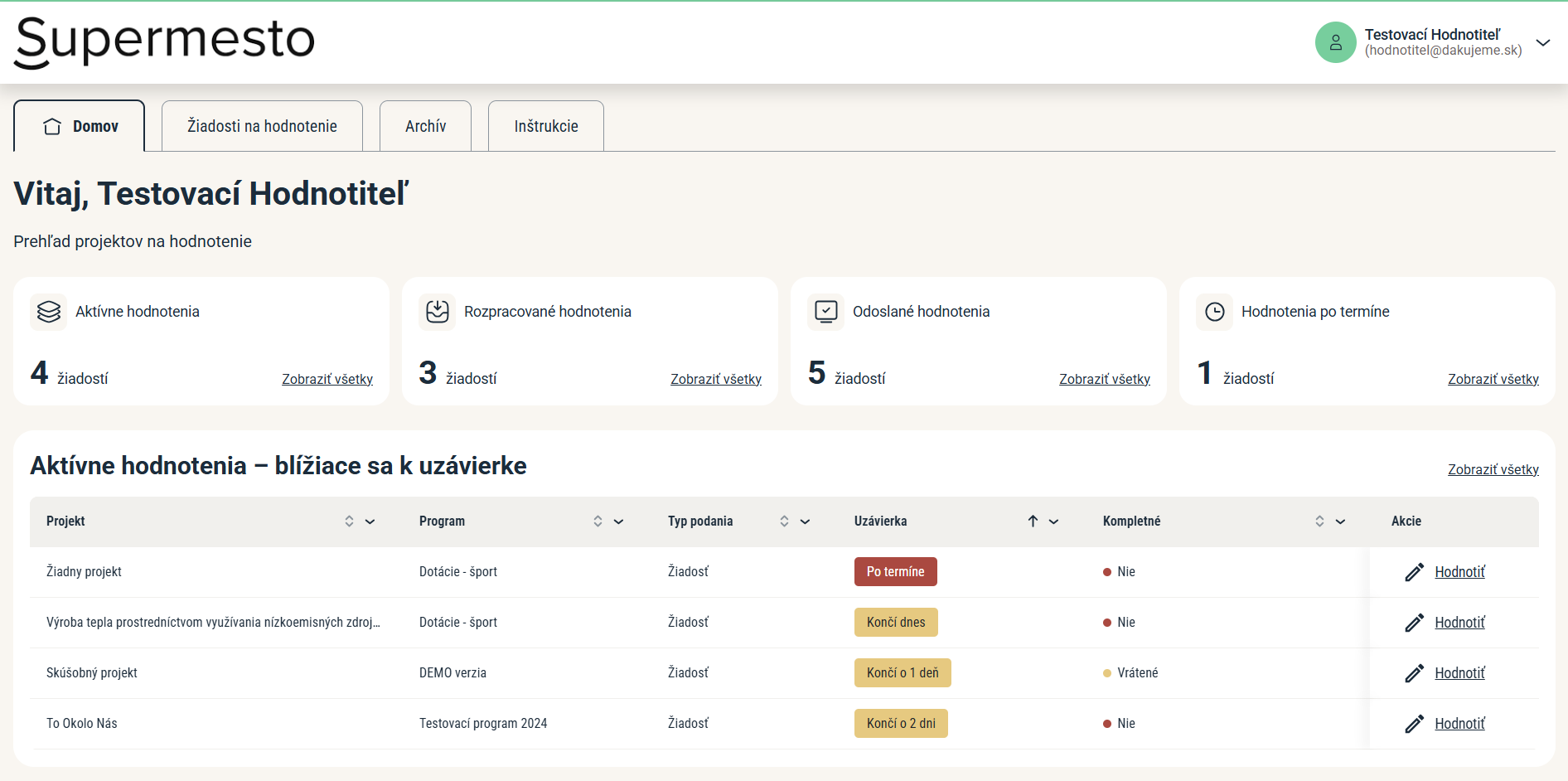
At the top of the screen, they will find a numerical overview of the assigned evaluations.
Aktívne hodnotenia = the number of all assigned evaluations.
Rozpracované hodnotenia = the number of evaluations the evaluator has started working on but has not yet submitted.
Odoslané hodnotenia = the number of all completed evaluations the evaluator has submitted. (Their complete list makes up the Archív tab.)
Hodnotenia po termíne = the number of evaluations whose deadline has already passed. (These evaluations can still be completed and submitted; the deadline is for information only and does not block the submission of the evaluation.)At the bottom of the screen, they will find a selection of evaluations whose deadline is in 7 days or less.
By clicking the Hodnotiť link, they can start working on the evaluation of a specific project.
List of applications for evaluation
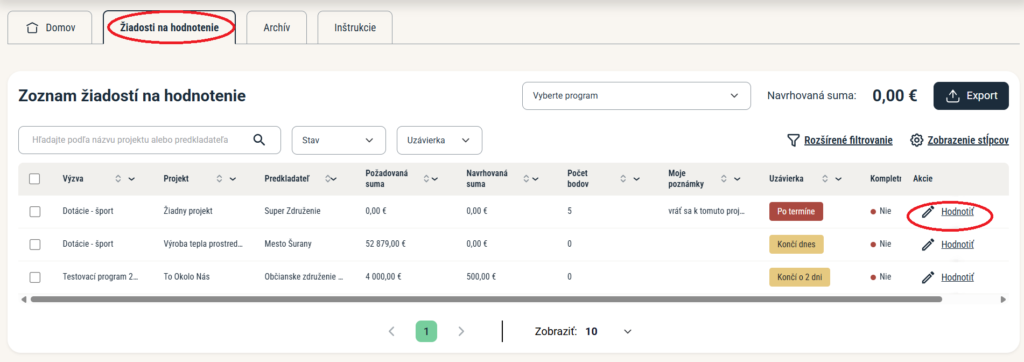
In the Žiadosti na hodnotenie tab, they will find a complete list of the projects assigned to them for evaluation.
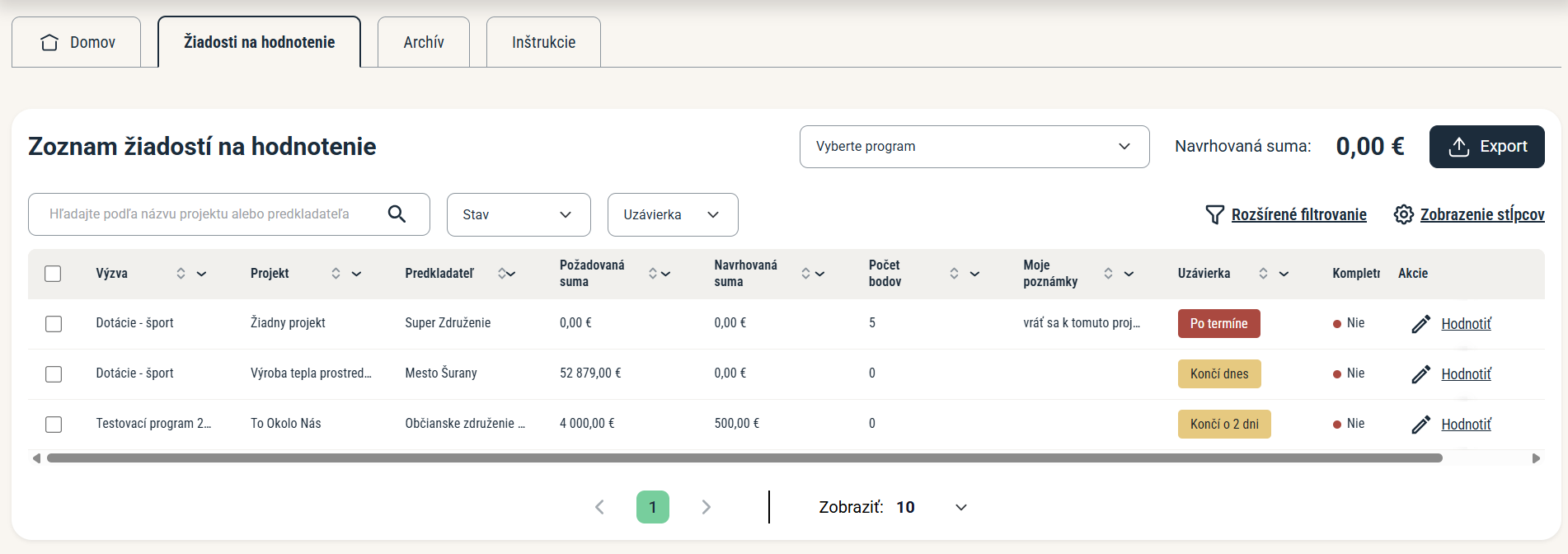
The table with the list of projects contains basic information about each project: in the first column, the name of the call to which the application belongs, followed by the application number, the project title and the submitter, the requested amount and own resources.
This table also displays the current score they have already awarded to the project.
If you have also added a proposed amount to the evaluation criteria, the evaluator will see an additional column in the table, Navrhovaná suma, showing the amount they have proposed for the given project.In the Moje poznámky column, they will find the notes they wrote while evaluating a specific project. These notes are not part of the evaluation; they only serve to help the evaluator find their way around the projects.
The table also shows whether their evaluation of the given project is complete or not. (An evaluation is complete when the evaluator has filled in all mandatory criteria.)
In the Uzávierka column, they can see how much time they have left to complete the evaluation.
This deadline is for information only – the evaluation can also be completed and submitted after the deadline.You can set the evaluation deadline:
a) in the basic call settings for all evaluations,
b) in the application settings for an individual application,
c) in the “Hodnotenie” tab at the level of a specific application for an individual evaluator.If you have also added a proposed amount to the evaluation criteria, the evaluator will find the sum of all proposed amounts in the top right above the table. After a call is selected in the drop-down menu on the left, all the proposed amounts the evaluator has entered for the projects of the selected call are added up.
They can start evaluating individual projects by clicking the Hodnotiť button in the Akcie column.
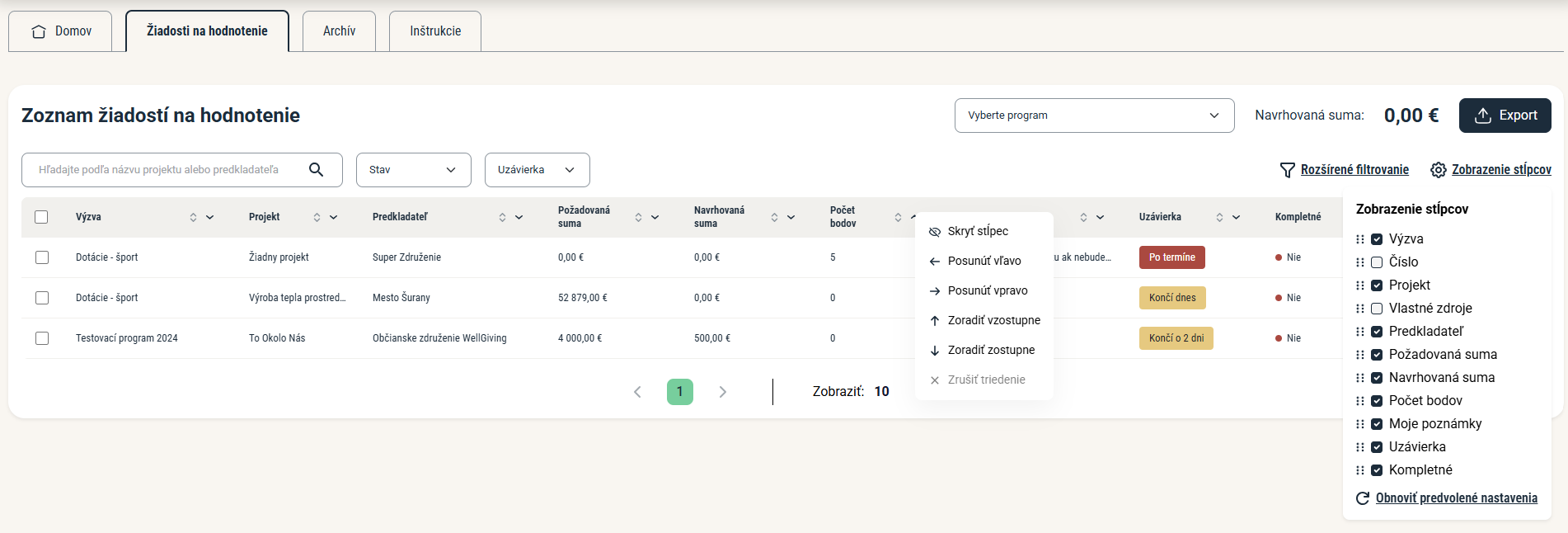
Above the table, they will find a search box that allows them to search for a specific project by title, as well as quick filters that allow them to filter the table by evaluation status or by deadline.
By clicking Rozšírené filtrovanie, the evaluator can filter the table on the basis of several filters at once.
By clicking Zobrazenie stĺpcov, the evaluator can change which columns are displayed and also change their order.
For each column, they can also open a drop-down menu and hide the column, move it left/right or sort the table by that column.
The evaluator can export this table to an Excel file. If they sort or filter it here, or hide some columns, the table will be exported in its modified state.
Instructions and information for evaluators
In the Inštrukcie tab, the evaluator can view information about the evaluation process.
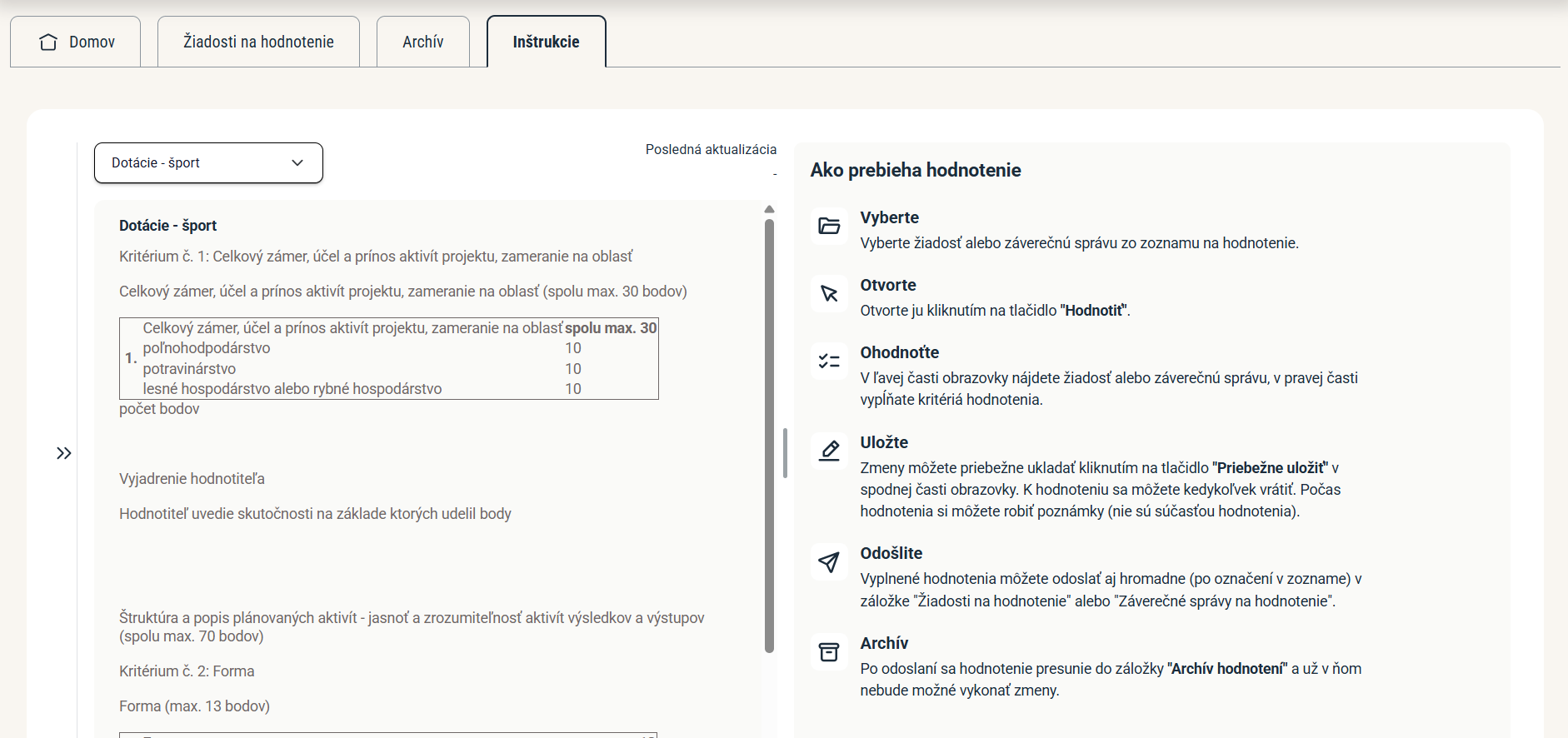
When they select a call in the drop-down list, the information you have prepared for evaluators is displayed on the left side of the screen.
You enter this text at call level in the Nastavenia > Infotexty > Inštrukcie pre hodnotiteľa tab.
The evaluator can adjust the width of the left block by dragging it with the mouse.On the right side of the screen, they will find the standard evaluation procedure in the eGrant system.
Evaluating projects
Displaying the application
In the Akcie column, the evaluator clicks the Hodnotiť button.
Completing the evaluation
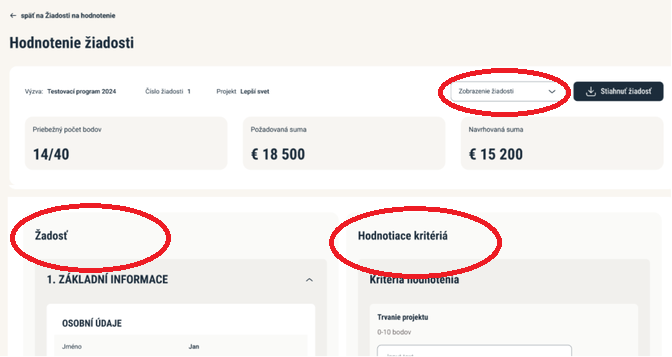
The specific application is displayed. On the left is the content of the application, on the right are the evaluation criteria that the evaluator fills in. The evaluator can change this view in the Zobrazenie žiadosti drop-down menu (e.g. display the application on the right, or across the full width and switch between the application and the evaluation).
Notes
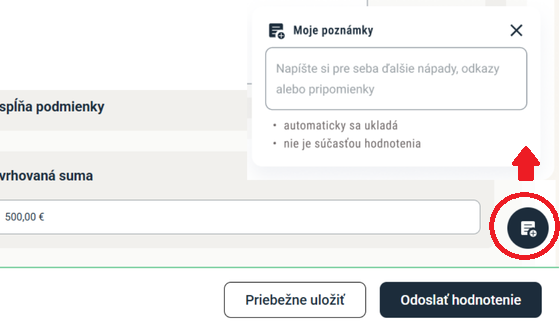
While evaluating an application, the evaluator can write notes that are not part of the evaluation and are visible only to them. The notes are also displayed in the list of applications and are exported together with it.
The notes can be opened by clicking the icon in the bottom right corner of the screen.
Save / submit an evaluation
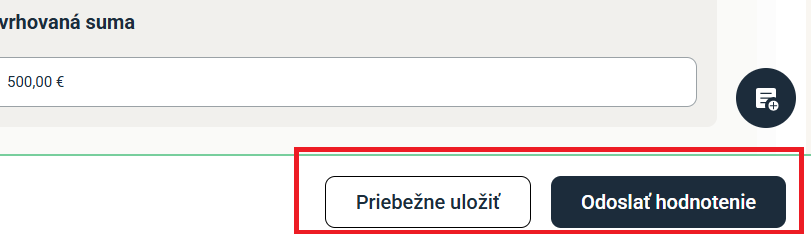
The evaluator can save their evaluation by clicking the Priebežne uložiť button in the bottom bar of the screen and return to it later.
When the evaluation is final, they can submit it by clicking the Odoslať hodnotenie button. The evaluation will be closed (they will no longer be able to edit it) and moved to the Archív tab.
The evaluator can only submit an evaluation if they have filled in all the criteria that the manager has set as mandatory.
Bulk submission of evaluations
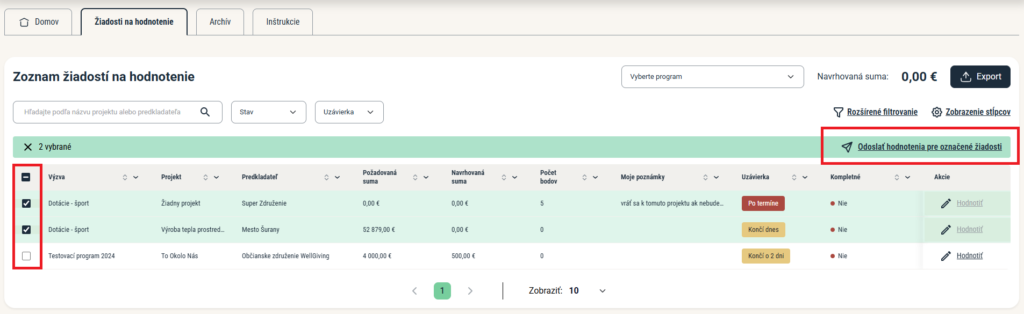
The evaluator can also submit evaluations in bulk in the Žiadosti na hodnotenie tab:
- They select the evaluations they want to submit on the left side of the table.
- They click Odoslať hodnotenia pre označené žiadosti.
The evaluations for these projects will be closed (they will no longer be able to edit them) and moved to the Archív tab.
Manager’s view
Notification
The manager receives a notification at the moment when an evaluator has submitted an evaluation of an application.
This notification is sent to the managers whose emails are specified in the “Nastavenia” tab at programme level (the “notifikačný email pre odoslané žiadosti a záv. správy” field).
The manager can monitor the progress of the evaluation in the “Žiadosti” tab.
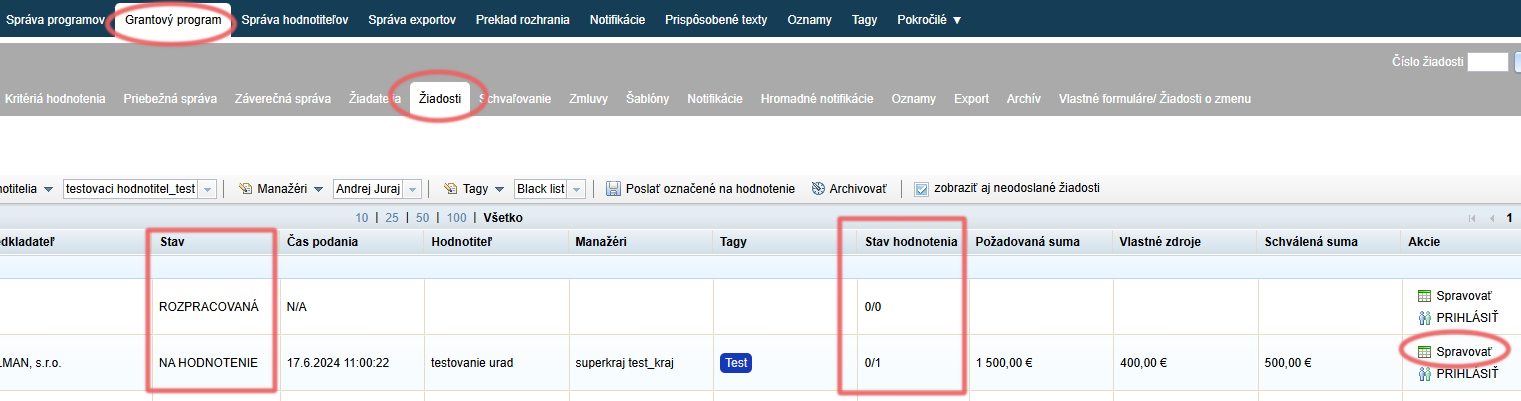
In the “Stav” column, they can see the current status of the applications.
If an application has been fully evaluated (all evaluators assigned to it have filled in all mandatory criteria), its status changes to “OHODNOTENÁ”.
If the evaluation of the application is still in progress, the status remains “NA HODNOTENIE”.In the “Stav hodnotenia” column, they can see the progress of the evaluation (e.g. 2/5, 0/2, etc.).
– The number before the slash represents the number of evaluators who have already evaluated the application,
– the number after the slash represents the total number of evaluators who are to evaluate the application.The manager can view the evaluation details of an application by clicking the “Spravovať” link for the specific application and then opening the “Hodnotenie” tab.
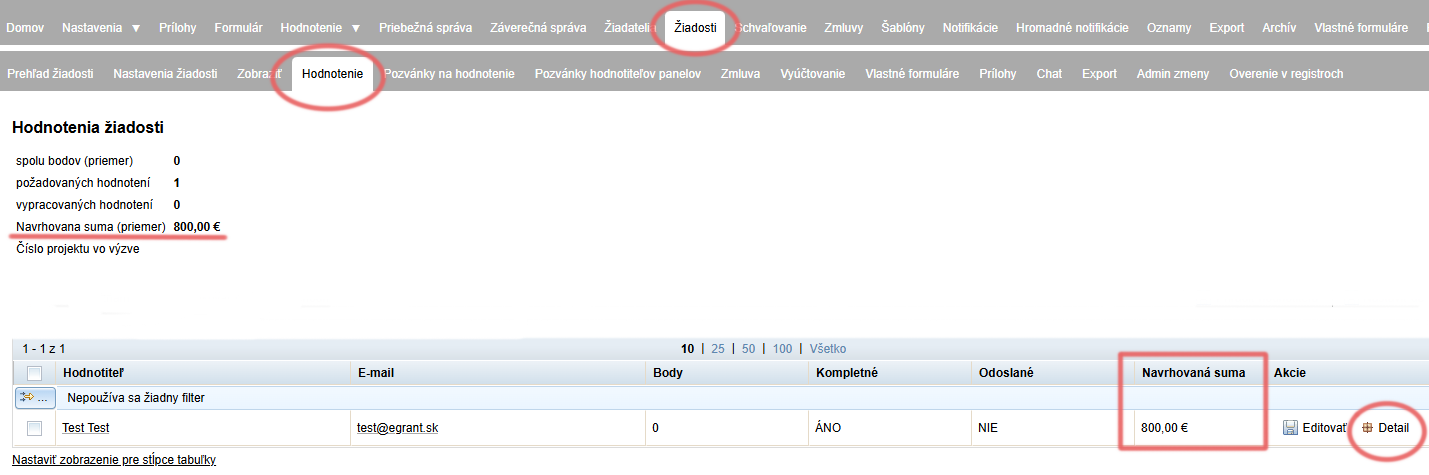
After clicking the “Spravovať” link for a specific application, the manager opens the “Hodnotenie” tab.
An overview of the evaluations from all evaluators assigned to the application is displayed.By clicking “Detail”, they can view the details of the evaluation by a specific evaluator.
If you also require evaluators to propose an amount for approval, you will find this figure in the “Navrhovaná suma” column.
The average of the proposed amounts from all evaluators is displayed above the table on the left in the “Navrhovaná suma (priemer)” row.