
When displaying various lists in eGRANT, you will come across overview tables (e.g. the list of applicants, the list of applications, the list of notifications, the list of applications for evaluation for an evaluator, etc.).
All these tables, although they display different data, have something in common:
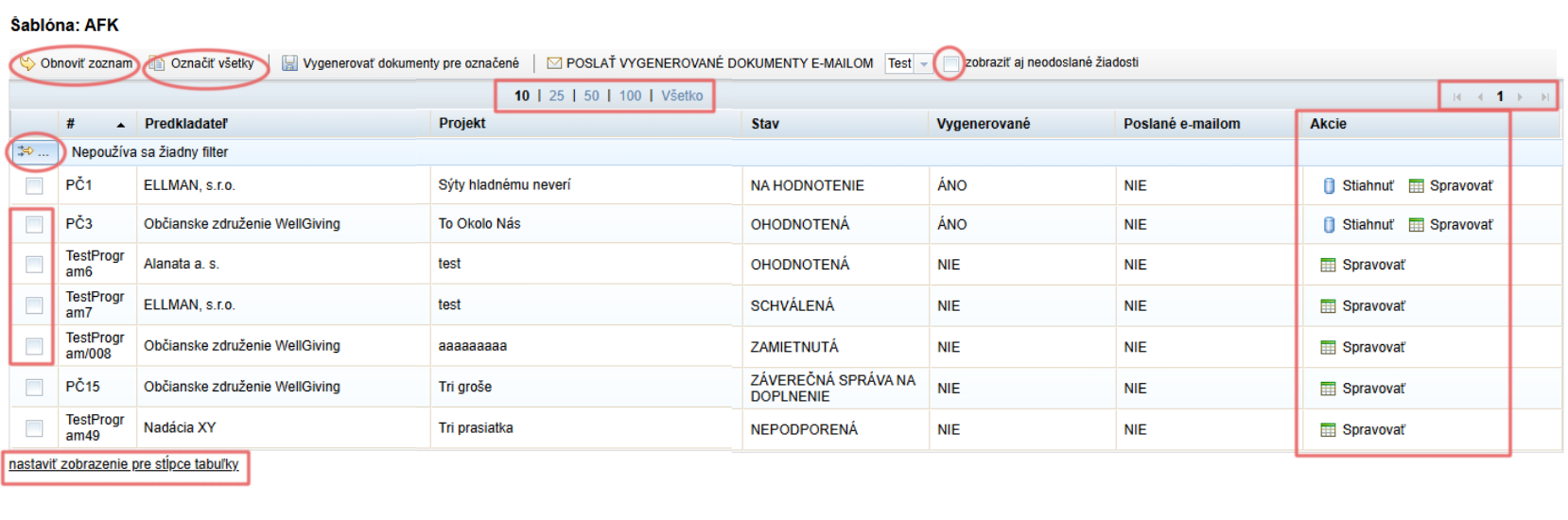
The default number of displayed rows is 10. You can change this number at the top of the table (10/25/50/100/Všetko).
If fewer rows are displayed than the whole list contains, you can click through the pages in the top right-hand corner of the table.
In the top left-hand corner of the table, there is a button with a small yellow arrow. Clicking it opens the table filtering options.
Using the filter, you can search for a specific item in the list or display only part of the list based on a certain rule.At the top left above the table, there is a “Obnoviť zoznam” link, which loads the current list (if you have had a list open for a long time and changes have occurred in the meantime that may have affected this list, this button works in the same way as refreshing the page).
In overview tables where you can perform bulk actions, you will also find the “Označiť všetky” button.
Clicking it selects all currently displayed items in the first column.
If you want to select all items in the list, make sure you have selected “Všetko” in the middle above the table (see point 1).In overview tables where you can perform bulk actions, you can select items individually in the first column.
In overview tables that contain lists of applications, you can also display unsubmitted applications.
Ticking this option also displays applications with the status “ROZPRACOVANÁ”.In the “Akcie” column, you will find a list of actions that you can perform for an individual item in the list by clicking the respective buttons.
Most often, you will come across the “Upraviť” or “Spravovať” buttons (these usually lead to further options for working with the list item).Below the table, you will find the “nastaviť zobrazenie pre stĺpce tabuľky” link.
Here you can set which table columns you want to be displayed or hidden.