
In the table with the list of all applications, you can mark individual applications with your own tags (labels) for quicker orientation and a better overview. You can then also filter the displayed applications by these tags.
You must first create these tags in the “Tagy” tab in the organisation-level menu.
Creating a tag (label)
Step one
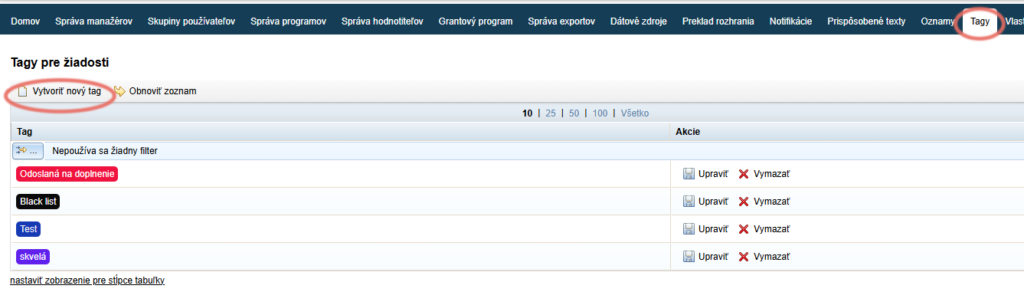
In the “Tagy” tab, click the “Vytvoriť nový tag” link.
Step two
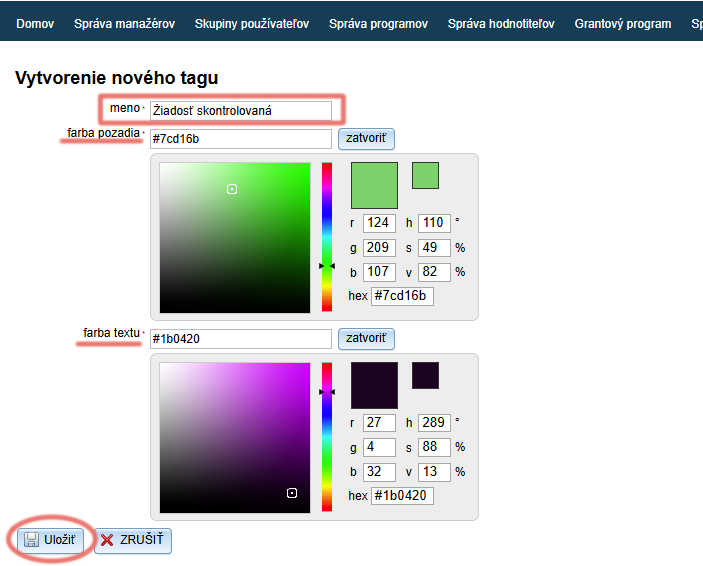
Choose the text of this tag in the “meno” field.
Choose the background colour and the text colour.
Click the “Uložiť” button.
Marking an application with a tag (label)
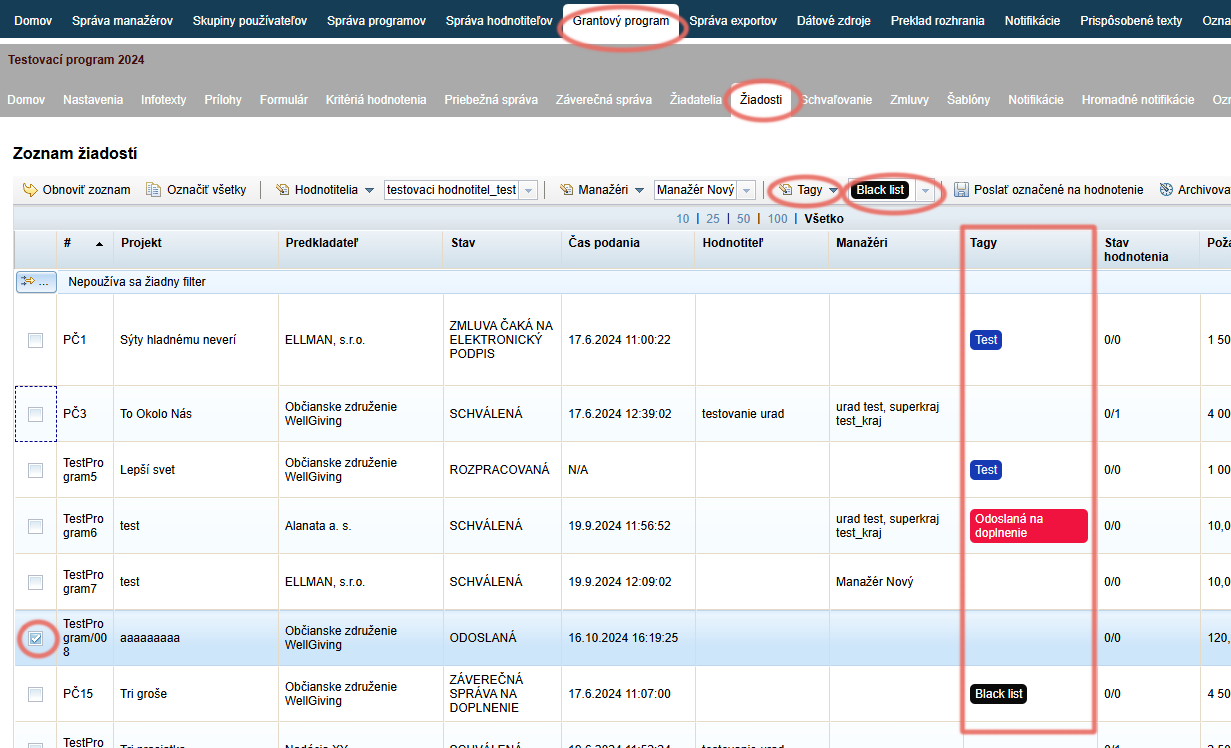
In the “Žiadosti” tab of the specific programme, select the applications to which you want to add a tag (label).
From the drop-down menu above the table, choose the tag you want to use.
Click the “Tagy” link (above the table, to the left of the list of tags) and select “Pridať tag” from the drop-down menu.
The assigned tag is displayed in the “Tagy” column.
If you want to mark applications with several tags, repeat the procedure.
If you want to remove an assigned tag, repeat steps 1 and 2, but in step 3 select “Odobrať tag” from the menu.