
Users
The eGRANT system works with three types of users: manager, evaluator and applicant.
A manager is a person responsible for administering subsidies/grants. This may be an employee of a local government/foundation or an external person authorised to work with the system. Within the eGRANT system, managers may have different scopes of permissions.
This manual is intended specifically for managers and describes working in the system from the manager’s perspective.
An evaluator is a person responsible for evaluating applications for subsidies/grants on the basis of criteria set by the manager. With some subsidy/grant providers, this person may also be a manager or an applicant. However, after logging in to the system, the evaluator sees a different interface from the manager. This interface is limited to viewing completed applications for subsidies/grants and evaluating them (with points, verbal comments, etc.).
An applicant is a person who has registered in the system for one or more of your subsidy/grant programmes. This person logs in to the system with their login details (email and password) and, after logging in, can fill in an application for a subsidy, a financial report or other forms created and made available by the manager.
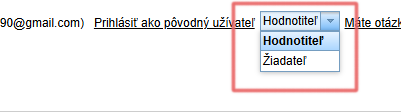
If one user has multiple roles within one entity (they have an account under the same email as a manager/evaluator/applicant), they use one set of login details (email and password) to log in and switch between these roles after logging in in the top right corner of the screen.
Manager interface
The manager has 3 menu levels with tabs available: organisation level, programme level and application level.
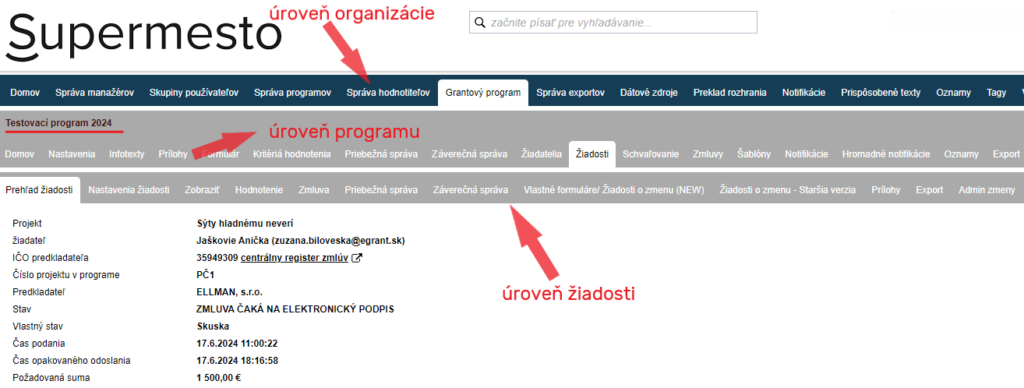
Organisation level
After logging in to the system, the manager sees the main menu (a horizontal bar at the top of the screen) containing “tabs”. Within this main menu, the manager can make changes that apply to the entire organisation (all programmes), so let us call it the “organisation level”.
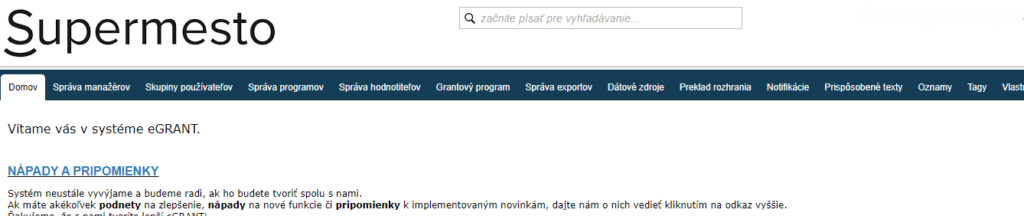
Domov – the manager always sees this tab first after logging in to the system. Here you will find useful links and information about eGRANT.
Správa manažérov – in this tab, you will find a list of all managers who have an account in eGRANT, and you can also create access for another manager here.
Používatelia: Všetci žiadatelia – here you will find a list of all registered applicants (for all programmes together).
Používatelia: Skupiny používateľov – here you can create and later edit groups of managers with specific permissions. When creating access for a manager, you can assign them to one of these groups and thus grant them permissions with a single click.
Správa programov – in this tab, you can create, edit or delete a programme and make it available to specific managers.
Hodnotenie: Správa hodnotiteľov – here you create access for evaluators, and you will also find a list of all evaluators for whom you have already created access.
Grantový program – in this tab, you will find a list of all created programmes. Clicking this tab also displays another menu (a horizontal bar) with tabs relating to a specific programme.
Správa exportov – here you can create and configure various exports (what the export is to contain, where it is to pull data from, etc.).
Notifikácie – here you will find a list of all notifications that are sent automatically by the system (to applicants, evaluators or managers). You can edit them as you wish, and all changes you make to notifications at this level (organisation level) will be applied to all programmes.
Prispôsobené texty – in this tab, you can edit various information texts intended mainly for applicants that are the same for all programmes (e.g. the text on the registration page, the signature/business card of notification emails, etc.).
Oznamy – here you can create announcements (intended for various users) that are displayed as static text at the top of the screen. Announcements created in this tab (at organisation level) will be displayed in all programmes.
Tagy – in this tab, you can create a tag (label) with which you can then mark applications in the overview table (the “Žiadosti” tab at programme level).
Pokročilé: Dátové zdroje – in this tab, you can define a set of applicants to whom you want to send a bulk notification – the “Hromadné notifikácie” tab in the programme-level menu (when creating the bulk notification, you then select this set of applicants to whom the bulk notification is to be sent in the “dátový zdroj” field).
Pokročilé: Vlastné záložky v menu – here you can create a tab with your own name intended for various users, into which you can insert either simple text or a custom form. A tab intended for managers is displayed in the application-level menu. A tab intended for applicants or evaluators is displayed after logging in next to the default tabs.
Pokročilé: Číselníky – in this tab, you can create a code list (a list of values – e.g. a list of districts), which you can use, for example, when creating forms (e.g. a form field where the applicant is to select a district from the list of all districts).
Nastavenie hlasovania – displayed only if the entity uses the participatory budget management features (if you are interested, please contact us). In this tab, you set the dates for launching and ending public voting on ideas/projects and other voting parameters.
Programme level
After clicking the “Grantový program” tab in the main menu at organisation level, a menu with programme-level tabs is displayed (a horizontal bar directly below the main menu bar). Here the manager can make changes that apply only to the specific selected programme.
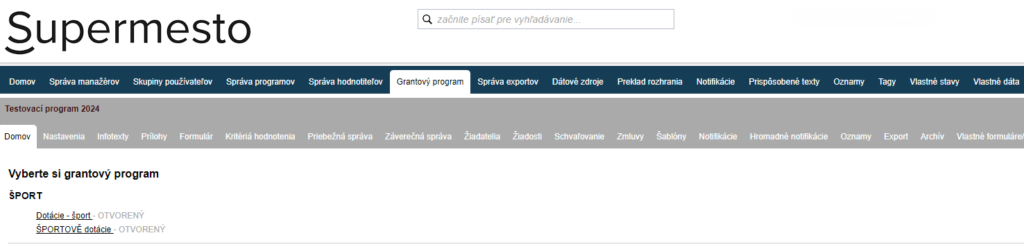
Domov – this tab offers a basic overview of the programme (number of submitted applications, deadlines, etc.), and you can also download all applications or financial reports within the programme in PDF here.
Nastavenia – here you will find all settings relating to the programme.
Infotexty – in this tab, you can create text for the applicant with information about the programme, as well as a custom header/footer for the printed version of the application/financial report.
Prílohy – here you can upload various documents for applicants.
Formulár – in this tab, you create and subsequently edit the application form.
Hodnotenie: Kritériá hodnotenia – here you set the criteria according to which applications will be evaluated by evaluators.
Priebežná správa – here you can create and subsequently edit the interim report form.
Záverečná správa – in this tab, you create and subsequently edit the financial report form.
Žiadatelia – here you will find a list of all registered applicants within the selected programme.
Žiadosti – this tab contains a list of all applications (both submitted and in progress). You can view them in more detail and continue working with them.
Schvaľovanie – here you will find a list of all applications that have been evaluated (have gone through the evaluation process in the eGRANT system) or moved to approval. This is also where you enter the approved amounts and confirm the approval or rejection of applications.
Zmluvy – in this tab, you will find a list of all approved applications, for which you can generate and send contracts here.
Šablóny – in this tab, you can upload any Word document template, which you can then generate here for selected applications and automatically send to applicants by email.
Notifikácie – as in the organisation-level menu, here you will find a list of all notifications that are sent automatically by the system. However, all changes you make to notifications at this level (programme level) will only be applied to the currently selected programme.
Hromadné notifikácie – in this tab, you can create your own notification email that you want to send to applicants in bulk. This is also where you create the email to be sent with a document created in the Šablóny tab.
Oznamy – as in the organisation-level menu, here you can create announcements (intended for various users) that are displayed as static text at the top of the screen. However, announcements created at this level (programme level) will only be displayed in the currently selected programme.
Export – in this tab, you will find a list of all export templates you have preset in the “Správa exportov” tab (organisation level). By clicking the “XLSX” icon next to a specific template, you download an Excel document containing the data for the currently selected programme in the form you set in the export template.
Vlastné formuláre – here you can create additional forms if needed, which may be intended to be filled in by applicants (e.g. a change request form) or by managers (e.g. a checklist).
Application level
After clicking the “Žiadosti” tab in the programme-level menu, a table is displayed with an overview of submitted (and possibly also in-progress) applications in the selected programme. Clicking the “Spravovať” button next to any application in the table displays a menu with application-level tabs (a horizontal bar directly below the programme-level bar). Here the manager can make changes that apply only to the specific application.
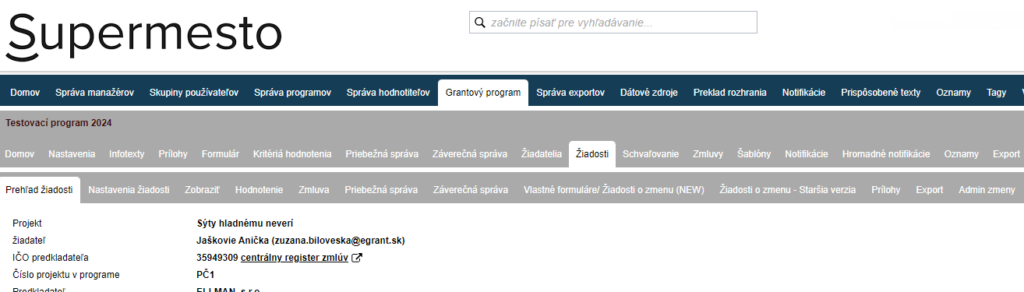
Prehľad žiadosti – here you will find basic data and deadlines relating to the application. You also have the option here to log in to the system as this applicant and to open this application for completion.
Nastavenia žiadosti – in this tab, you can individually change the application or contract number, write your own notes relating to this application, record individual deadlines related to this application, etc.
Zobraziť – here you can view the application.
Hodnotenie – in this tab, you will find the evaluation results of the specific application.
Zmluva – here you will find the contract that was generated for this application. You can also individually generate, download, upload or send it by email here.
Priebežná správa – here you can view the interim report belonging to this application (if you require interim reports).
Záverečná správa – here you can view the financial report belonging to this application (if you have created a final report form).
Vlastné formuláre – in this tab, you will find a list of additional forms you have created for applicants (they are created in the “Vlastné formuláre” tab at programme level). Here you can view them once they have been filled in and either approve them or return them for completion.
Žiadosti o zmenu – if you use the sending of change requests in the form of a simple notice, you will find the texts of these notices in this tab, together with the date they were sent.
Prílohy – here you can upload various documents (as in the tab of the same name at programme level), but intended only for this specific applicant.
Export – in this tab, you will find a list of all export templates you have preset in the “Správa exportov” tab (organisation level) and for which you set the type “EXPORT JEDNEJ ŽIADOSTI”. By clicking the “XLSX” icon next to a specific template, you download an Excel document containing the data from the currently selected application in the form you set in the export template.
Admin zmeny – here you can manually change the current status of the application.