
In the “Kritériá hodnotenia” tab, you create a simple type of form for evaluators, who fill it in for each application they evaluate.
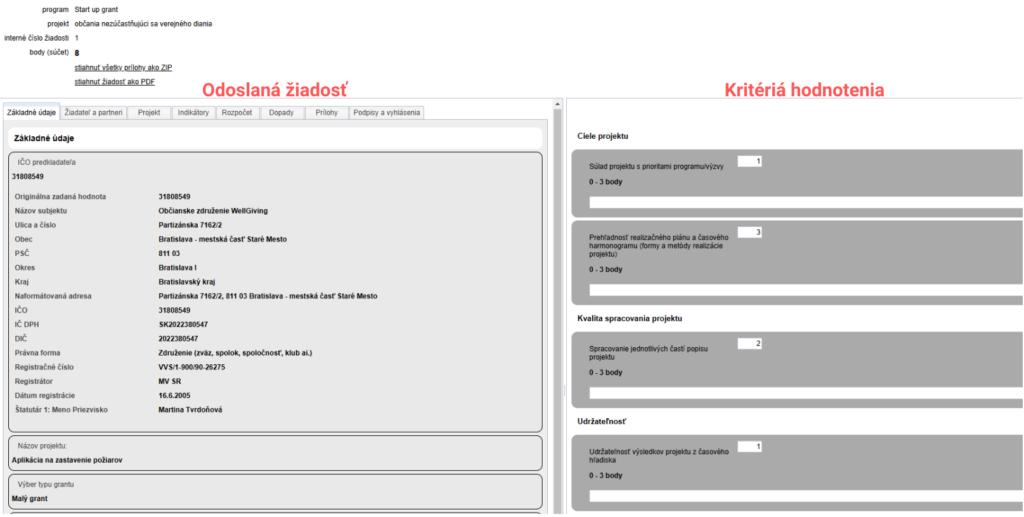
Creating/copying evaluation criteria
Open the “Kritériá hodnotenia” tab in the programme-level menu.
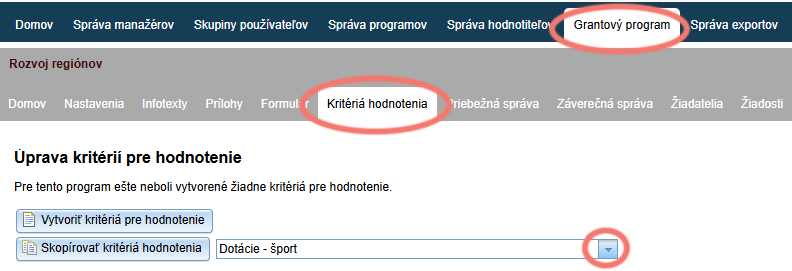
If you want to create the criteria from scratch, click “Vytvoriť kritériá pre hodnotenie”.
If you want to copy the criteria from another programme, select the programme whose criteria you want to copy from the drop-down menu.
Click “Skopírovať kritériá hodnotenia”.
Editing evaluation criteria
When creating this type of form, you work in the same way as when creating any other form in eGRANT.
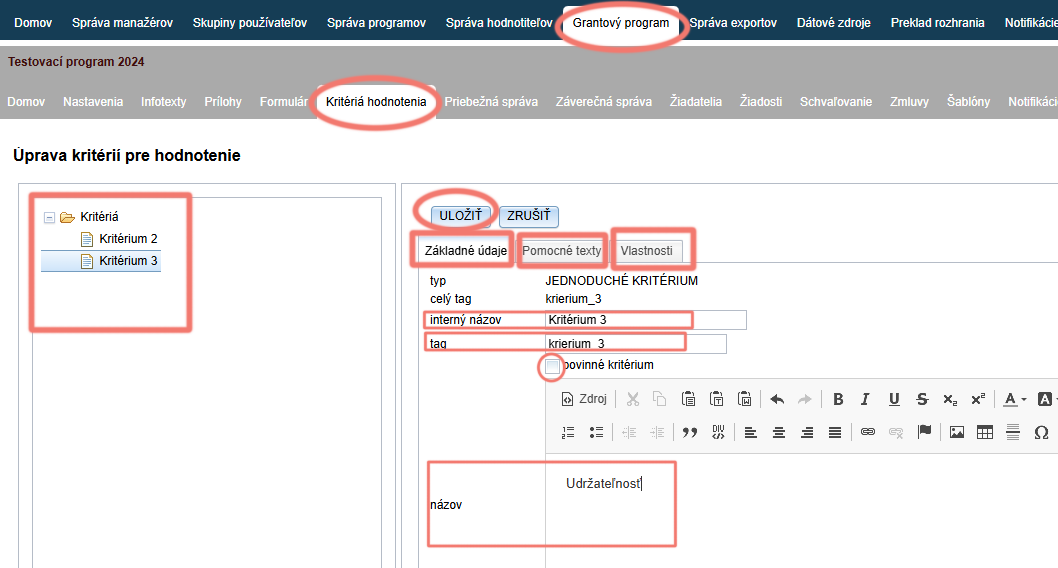
On the left, you can see the structure of the form – by clicking an item, you can edit it further.
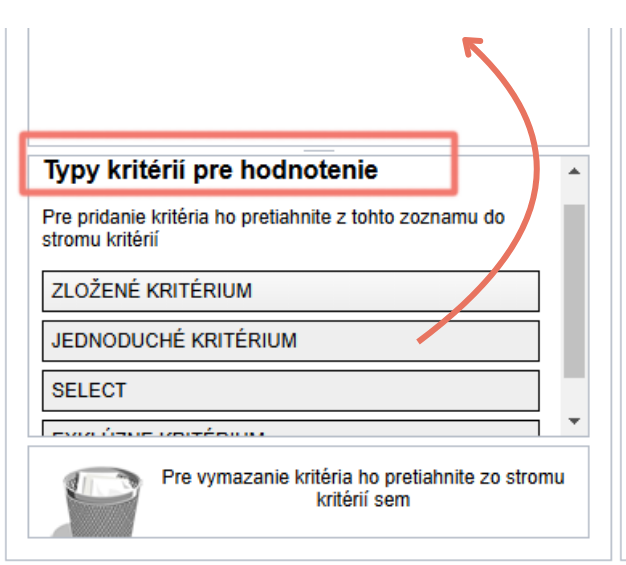
You can move individual criteria (form items) by grabbing the item in the form tree and moving it up or down, or moving it to the bin at the bottom of the screen.The “Základné údaje” tab
In this tab, you can see the type of criterion, and you can give it an internal name (by which you will easily recognise it in the tree structure on the left), set the criterion tag (by which the system recognises it – without diacritics, without spaces and always in lower case), specify whether the evaluator is required to fill in this criterion (“povinné kritérium”) and set the name the evaluator sees.The “Pomocné texty” tab
In this tab, you can add a description (explanatory text displayed below the criterion name), help (explanatory text displayed after clicking the “i” icon next to the criterion) and a placeholder value (pre-filled data in the field the evaluator is to fill in).The “Vlastnosti” tab
In this tab, you can set further parameters of the selected criterion (e.g. the minimum and maximum number of points, the weight of this criterion, the option for the evaluator to write a comment on this criterion, etc.)Remember to save all changes by clicking the “ULOŽIŤ” button.
If you want to add another criterion, use the mouse to grab an item in the “Typy kritérií pre hodnotenie” list at the bottom of the left panel and drag it up into the tree structure.
Tip
If you want to check how the criteria are displayed to evaluators, click the “Náhľad” link in the top right of the “Kritériá hodnotenia” tab.

Below, you can watch a video tutorial on editing evaluation criteria.
Types of criteria
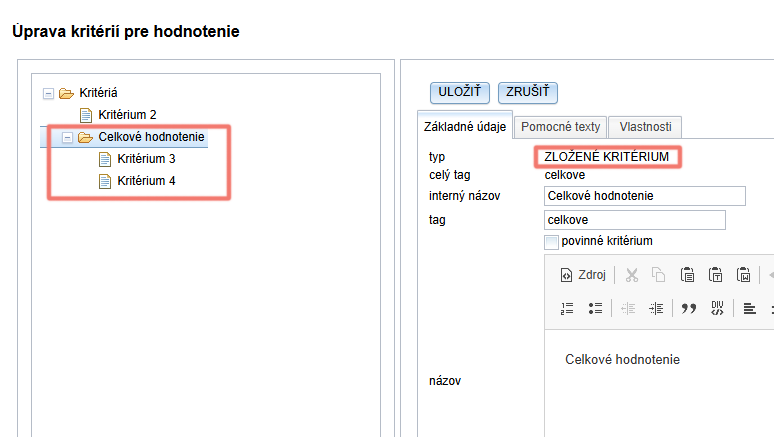
You can choose from three types of individual criteria, the proposed amount and the “zložené kritérium”, which serves as a subsection in which you can group several individual criteria.
It serves as a subsection in which you can group several individual criteria.
In the “Základné údaje” tab, you can give this subsection a name; in the “Pomocné texty” tab, you can add explanatory text if needed; and in the “Vlastnosti” tab, you can add a comment field to this subsection and set whether this comment is mandatory.
Below, you can see an example of a composite criterion under which we have moved Criterion 3 and Criterion 4:
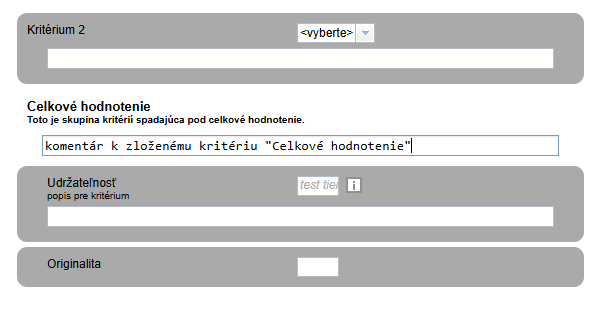
This is how the evaluator sees the composite criterion:
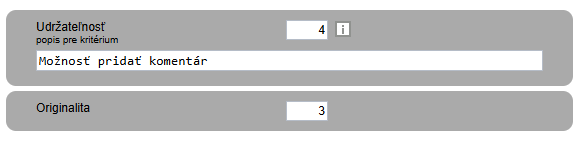
This is a classic points-based criterion, where the evaluator evaluates by entering a number of points.
In the “Pomocné texty” tab, you can add explanatory text, and in the “Vlastnosti” tab, you can set:
- the minimum and maximum number of points,
- the weight of this criterion in the overall evaluation,
- you can add a field for a comment here
- and set whether this comment is mandatory.
This is what a simple criterion with a description and help (“Pomocné texty”) and an enabled comment (“Vlastnosti”) looks like.
Below it is a simple criterion without helper texts and without a comment.
This criterion is displayed to the evaluator as a drop-down menu from which they select one option as their evaluation.
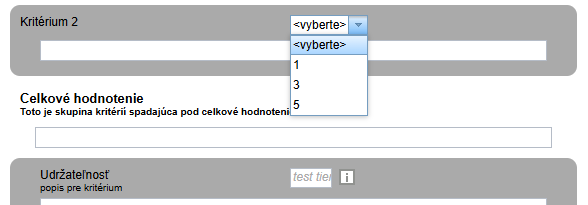
In the “Vlastnosti” tab, you can set:
- the options from which the evaluator chooses (the “hodnota” column contains what the evaluator sees, the “kľúč” column contains what the system works with),
- you can also add an empty option (“vyberte”), which will be displayed first in the list,
- the “zarátať do hodnotenia” option – if you give numbers of points as options and want the selected value to be included in the total score,
- the option to specify an exclusive value – if the evaluator selects an option in this criterion that is also specified as exclusive, the evaluations in all criteria are reset to zero,
- the weight of the points of this criterion in the overall evaluation,
- add a field for a comment
- and specify whether the comment is to be mandatory.
This criterion is displayed to the evaluator as a checkbox; if they tick it, the evaluation in all criteria is reset to zero.
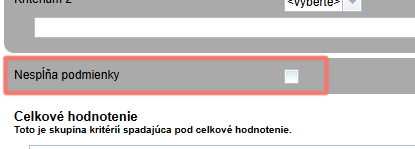
In the “Vlastnosti” tab, you can add a comment field and specify whether the comment is to be mandatory.
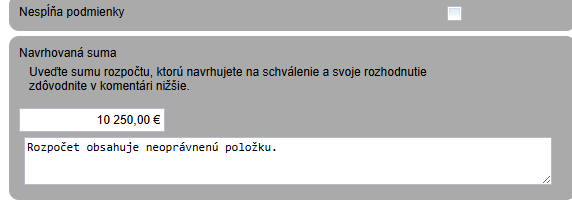
This is a field in which the evaluator can enter the amount they propose for approval.
In the “Pomocné texty” tab, you can add explanatory text, and in the “Vlastnosti” tab, you can set:
- the minimum and maximum value,
- the number of decimal places,
- the currency,
- you can add a field for a comment,
- and set whether this comment is mandatory.
This is what the proposed amount looks like with a description (“Pomocné texty”) and an enabled comment (“Vlastnosti”).
Evaluation settings
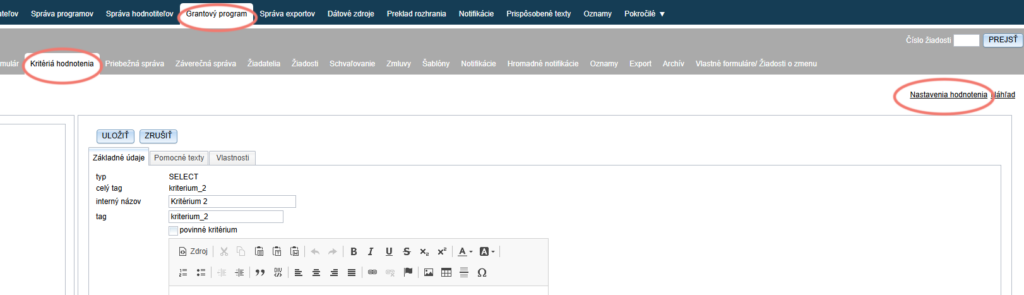
By clicking the “Nastavenia hodnotenia” link in the “Kritériá hodnotenia” tab, you can specify whether the points from evaluations are added up or averaged.
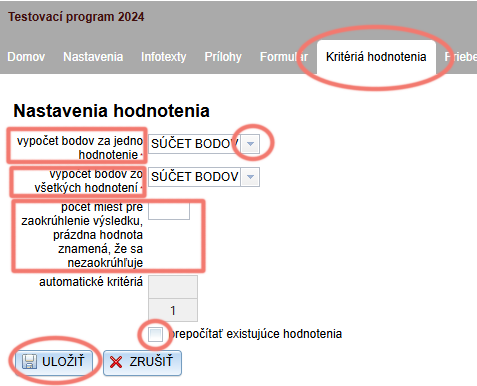
You can set the method of calculating points for one evaluator.
You can also set the method of calculating the total points for all evaluators.
You also have the option of setting whether the result is rounded, and to how many decimal places.
If you change the method of calculating points while the evaluation is already in progress, tick “prepočítať existujúce hodnotenia” if you want the evaluations already carried out to be recalculated.
Remember to save the changes by clicking the “ULOŽIŤ” button.